

Contents
Setup Wizard - Plugixa Permalink Manager
The wizard asks the handful of questions that matter on day one. It is optional: the defaults work, and everything it sets is in Settings.
Start it from the banner on the dashboard.
Step 1: Welcome
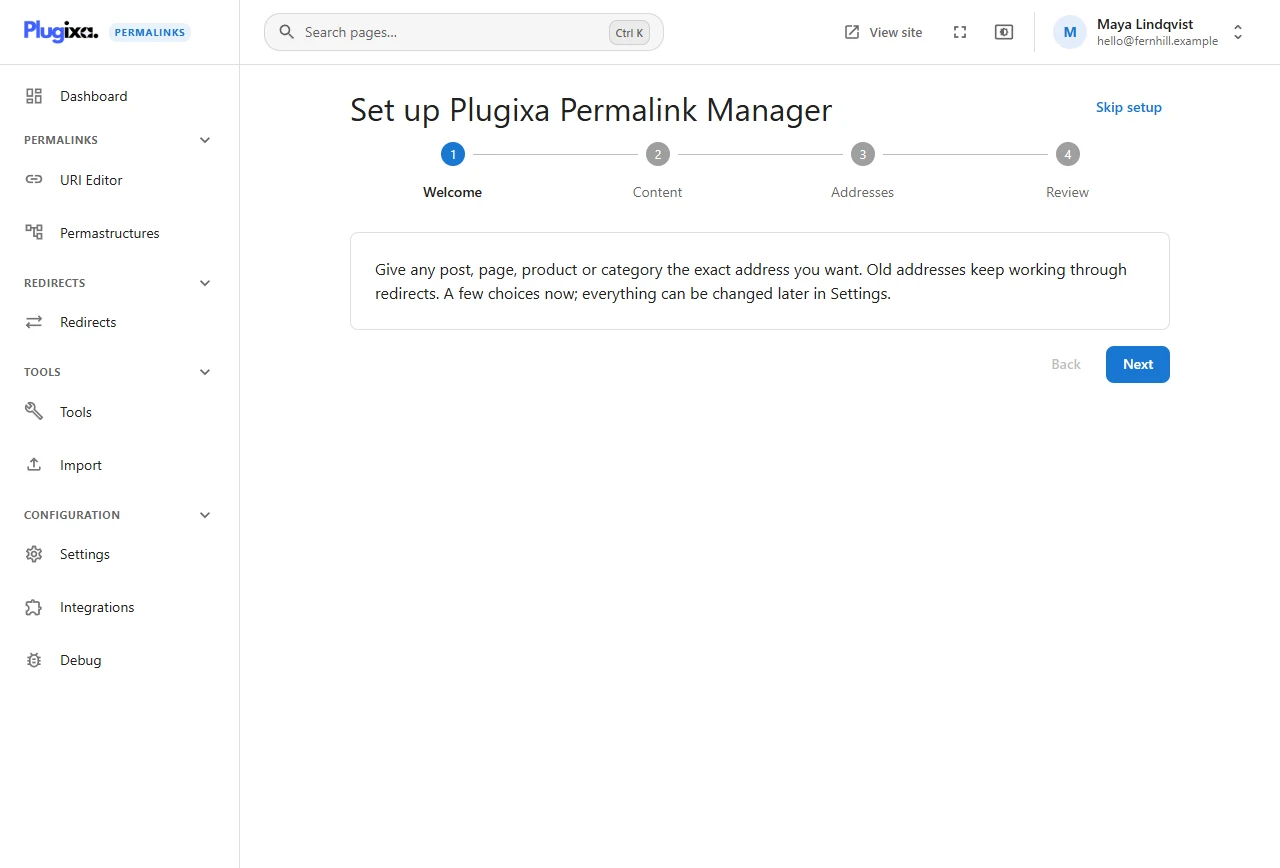
A one-paragraph summary of what the plugin does. Skip setup in the corner leaves at any time and marks the wizard as done.
Step 2: Content
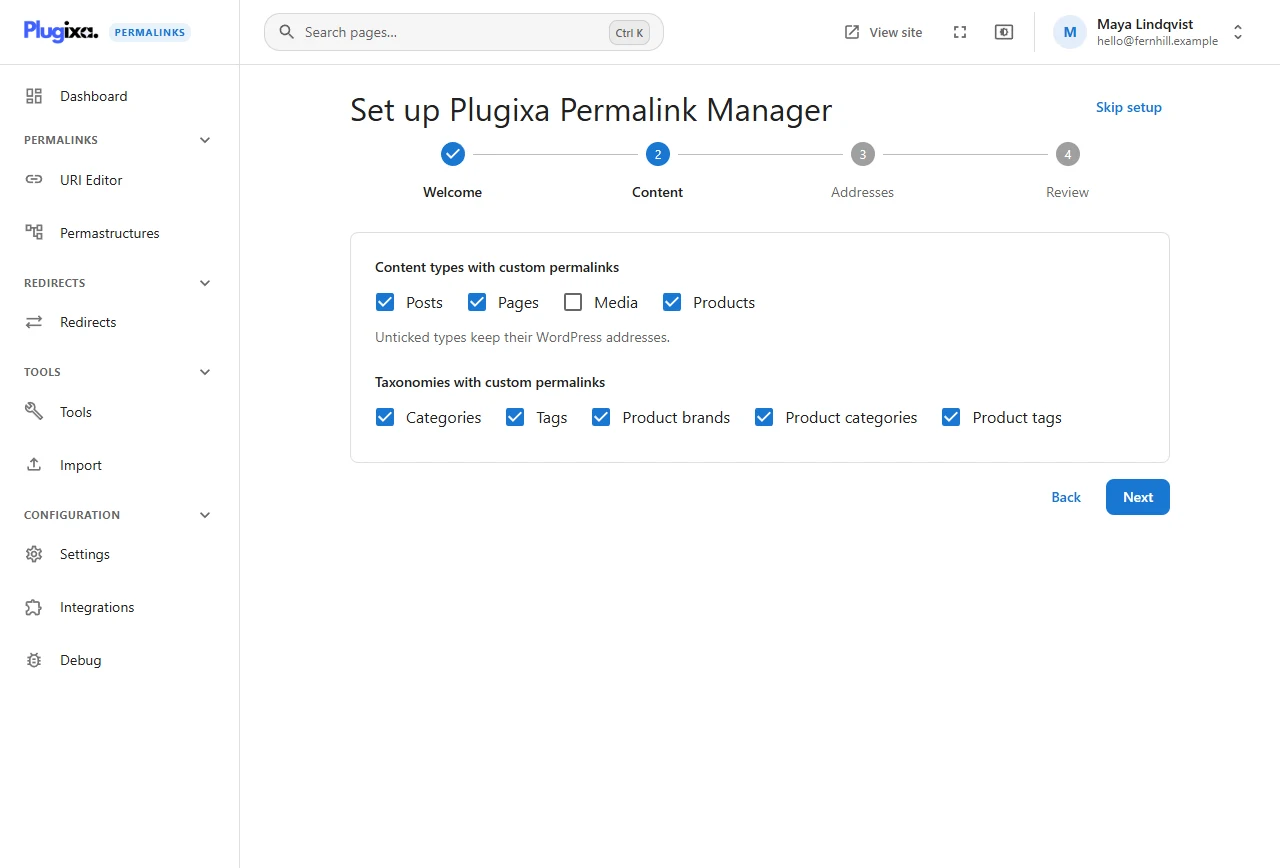
Which post types and taxonomies should have custom permalinks. Everything public is ticked except Media and a few types that page builders and event plugins register. Untick anything you want left on its WordPress addresses.
The same choice lives in Content settings.
Step 3: Addresses
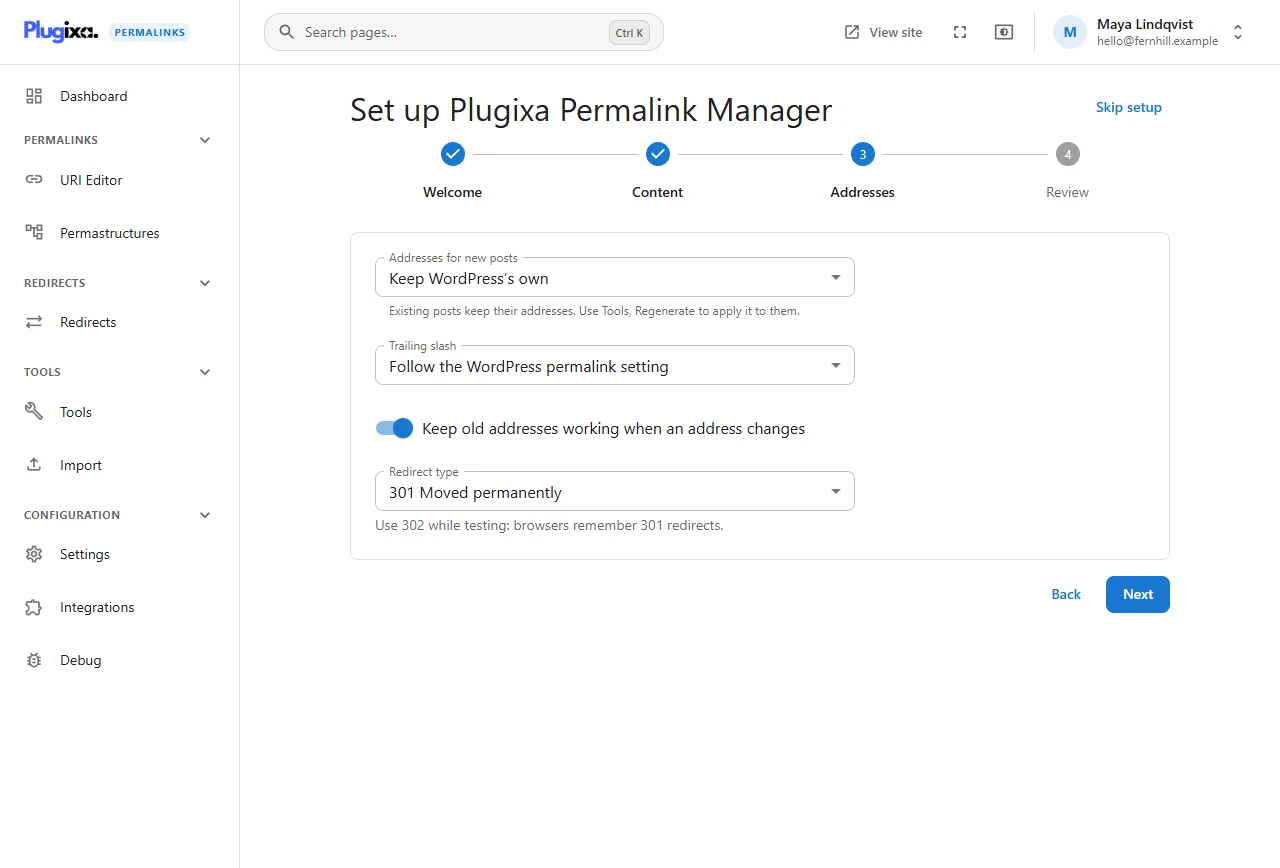
| Question | What it sets |
|---|---|
| Addresses for new posts | A starting pattern for posts, or Keep WordPress’s own |
| Trailing slash | Follow WordPress, always add one, or never add one |
| Keep old addresses working when an address changes | Leave this on |
| Redirect type | 301 by default. Choose 302 while you are still testing |
If you choose a pattern here, it applies to posts created from now on. Existing posts keep their addresses until you run Regenerate addresses.
Step 4: Review
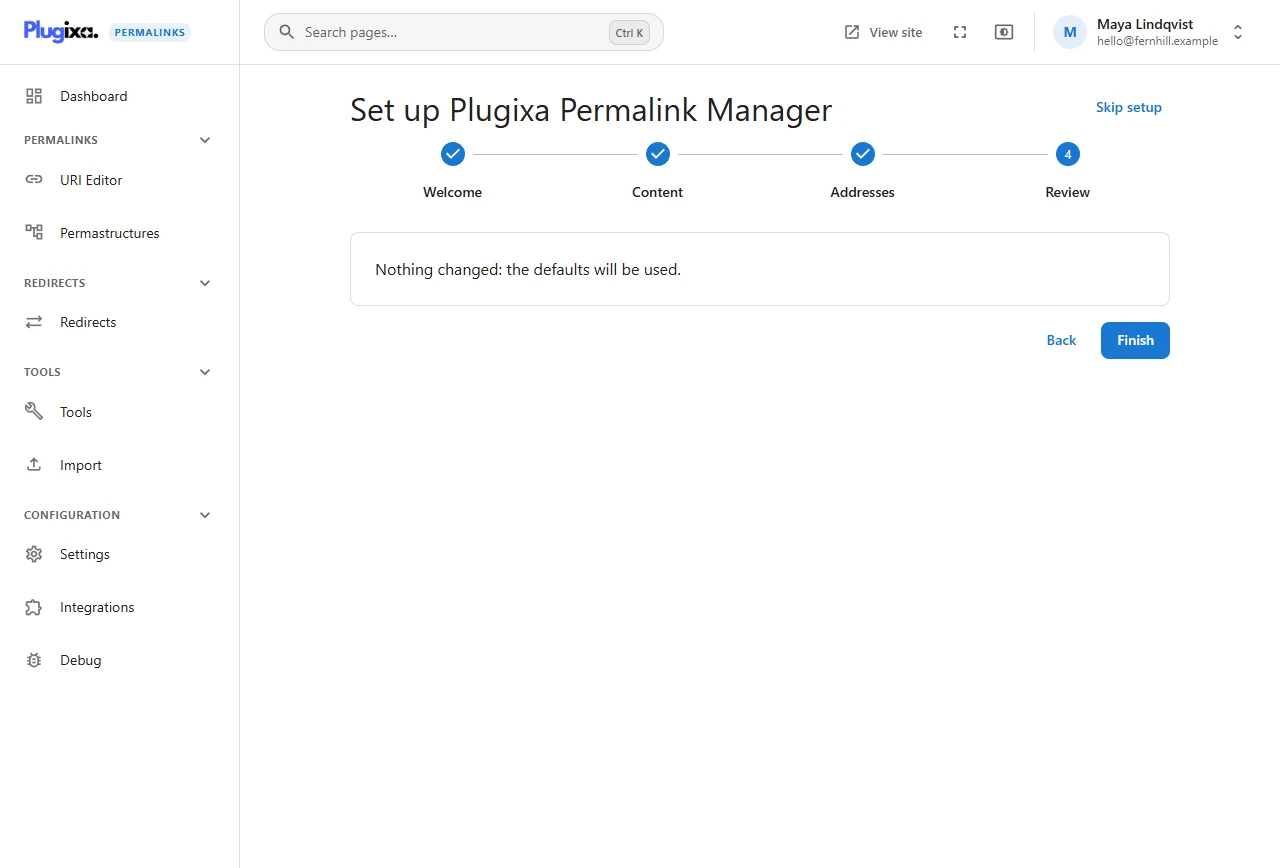
A list of what will be saved. If you changed nothing it says so: the defaults will be used. Finish saves everything in one go and returns you to the dashboard.
Running it again
The dashboard banner disappears once you finish or skip. After that, change the same options in Settings. Running the wizard twice would be harmless anyway: it only writes the options you change.