

Contents
URI Editor - Plugixa Permalink Manager
The URI Editor lists every item of a content type with its address in an editable field. It is the fastest way to change a few addresses, and the only place you can see them all side by side.
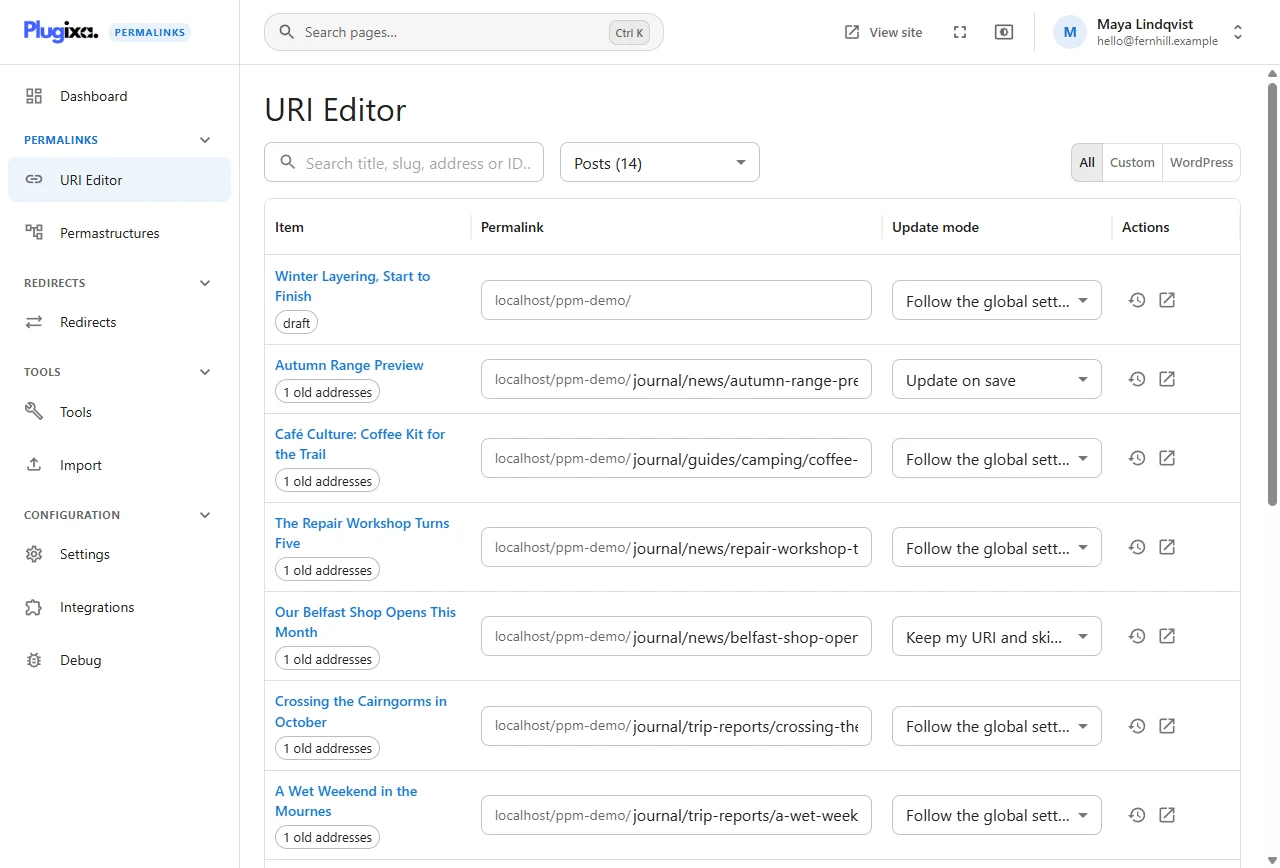
Choose what to look at
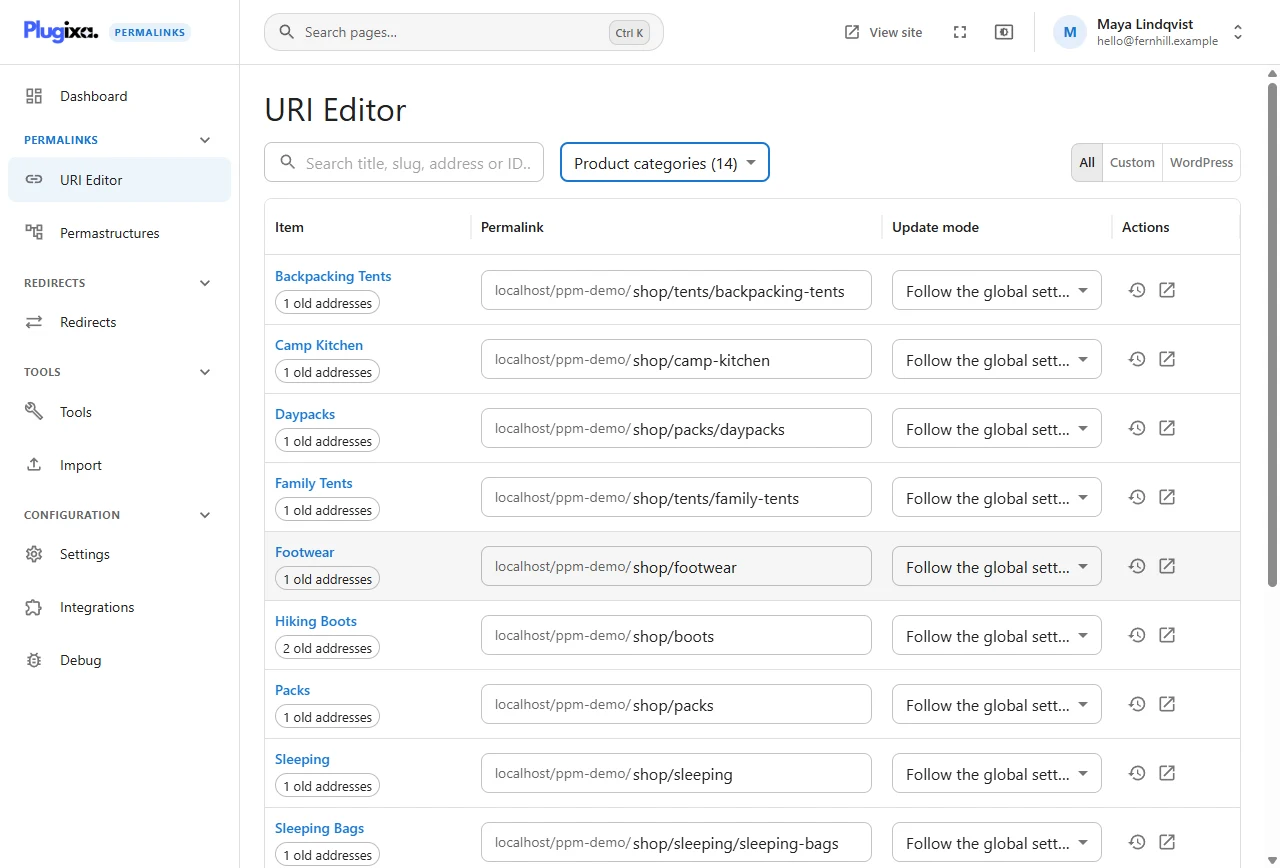
The selector beside the search box switches the content type. It is grouped into Content (posts, pages, products and any other post type) and Taxonomies (categories, tags, product categories and so on), each with its item count.
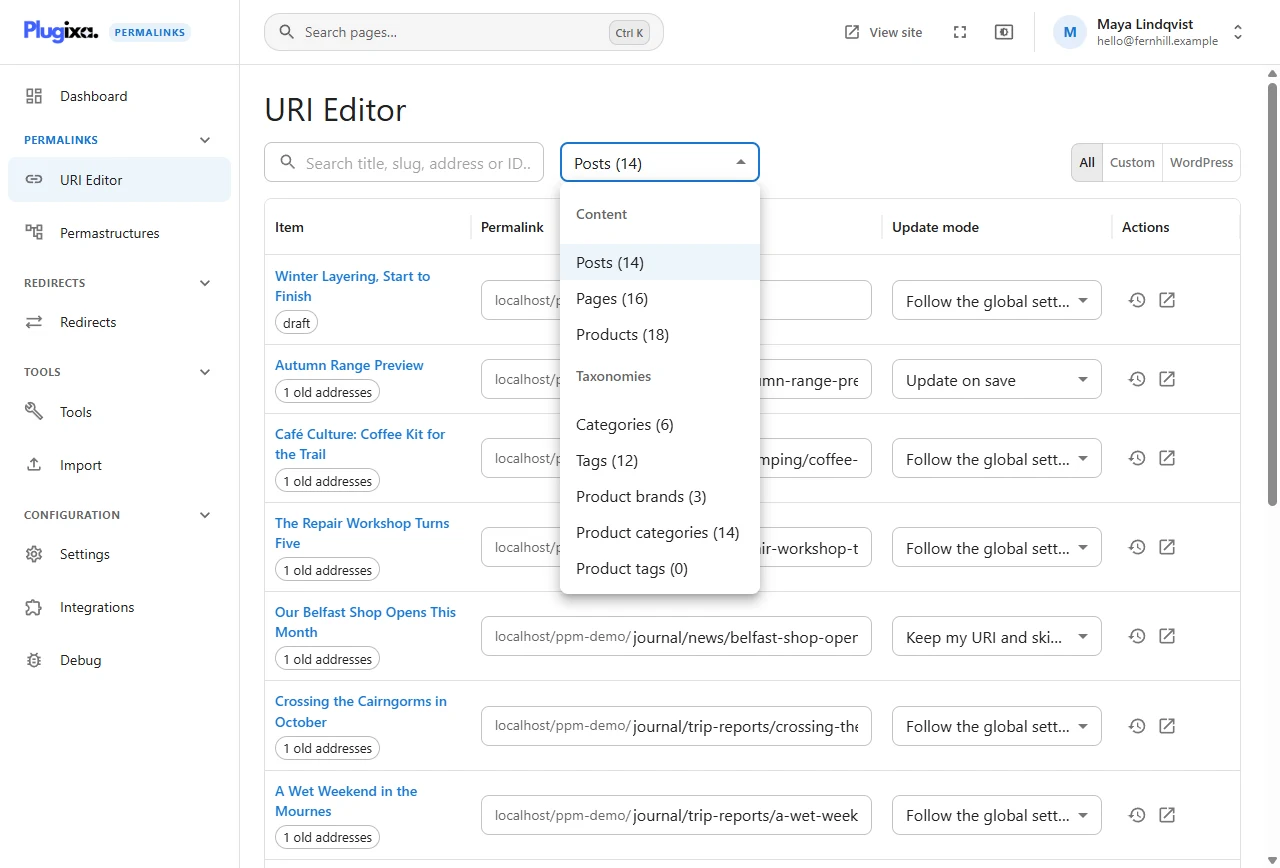
Three more ways to narrow the list:
- Search matches the title, the slug, the address or the ID.
- All / Custom / WordPress shows everything, only items with a stored address, or only items still on their WordPress address.
- The list is paged, 25 items at a time by default.
Change an address
Type in the Permalink field. The site’s own address is shown as a fixed
prefix, so you only type the part after it: shop/packs/ridge-22, not the
whole URL.
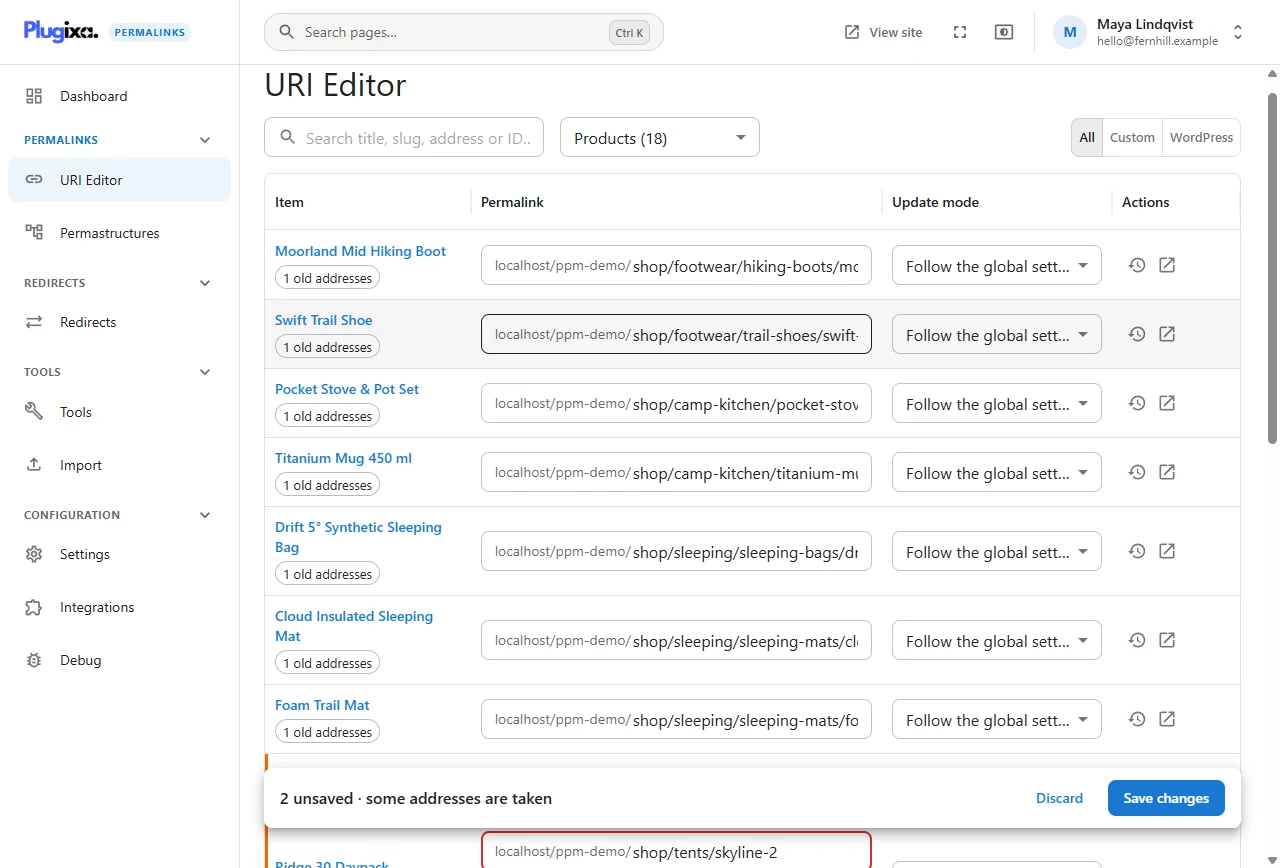
Edits are staged. You can change as many rows as you like; nothing is written until you click Save changes, and Discard throws the lot away.
While you type, each address is checked:
- Cleaned. Spaces, capitals and doubled slashes are tidied the way the Addresses settings say.
- Free. If another item owns the address the field says so and offers an alternative you can accept with one click.
- Allowed. Addresses WordPress needs for itself, such as
wp-admin, are refused.
After a save, the confirmation message has an Undo button.
To send an item back to its default address, clear the field and save.
If someone else got there first
If a colleague changed the same item after you opened the list, your save is refused for that row rather than overwriting theirs. Reload to see the current address, then decide.
Update mode
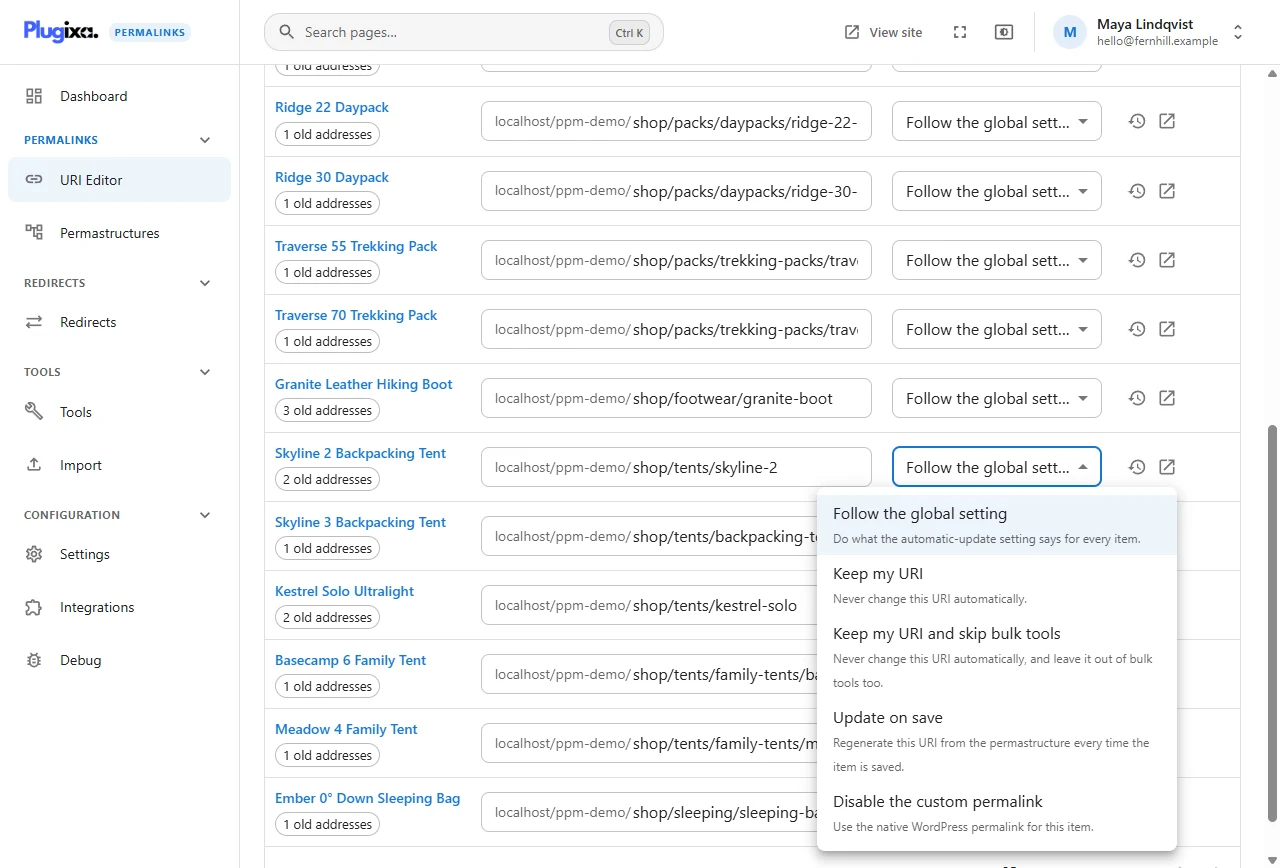
The second column sets how the address behaves from now on: follow the global setting, keep it fixed, regenerate it on every save, or use the WordPress permalink instead. Each choice is explained in Update modes.
History and old addresses
Under each title a small label counts the item’s old addresses. The clock button at the end of the row opens a panel with two tabs:
- History - every change to the address, with the time, who made it and why (typed by hand, a regenerate run, an automatic update).
- Old addresses - the addresses that now redirect to this item.
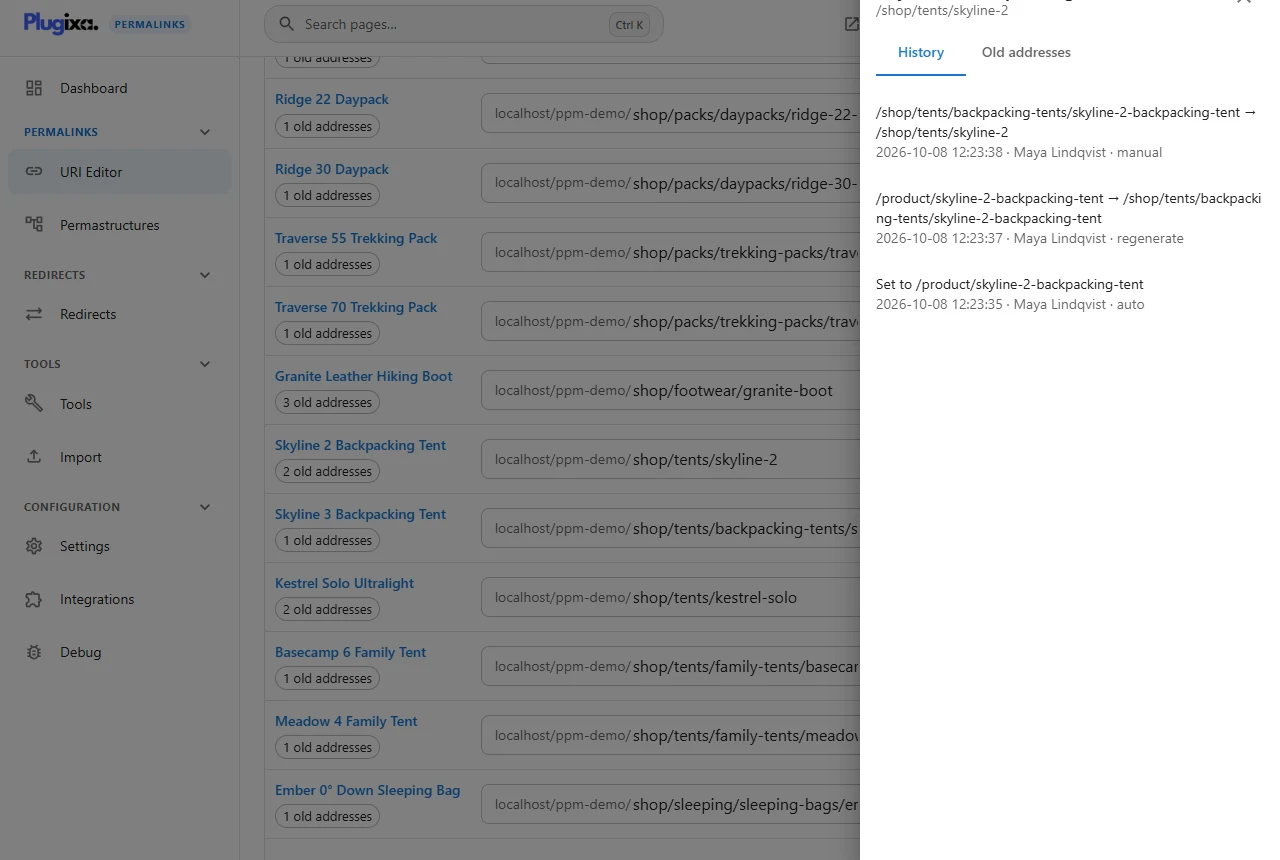
The arrow button beside it opens the item on the site in a new tab.
Categories and other terms
Terms are edited exactly like posts. Choose a taxonomy in the selector.
Who can use it
The URI Editor needs the plugin’s edit permission, which administrators have. On top of that, every save also checks that you may edit that item in WordPress. An author can never move an editor’s page from here.
Related
- Edit screens and Quick Edit - the same fields where you write the content
- Permastructures - generate addresses instead of typing them
- Automatic redirects - what happens to the old address