

Contents
Edit Screens and Quick Edit - Plugixa Permalink Manager
You do not have to open the plugin to set an address. The same two fields, the custom permalink and the update mode, are on the screens where you write.
The Permalink box
Every post, page, product and custom post type item with custom permalinks switched on has a Permalink box on its edit screen.
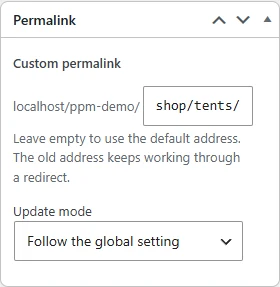
- Custom permalink - type the part after the site’s address. Leave it empty to use the default address: the one the content type’s pattern produces, or the WordPress one when there is no pattern.
- Update mode - how the address behaves from now on.
The address is saved when you save or update the item. If it is already used by something else you are told after saving and the previous address is kept.
The box sits in the side column of the edit screen, with the publish and category boxes.
Categories, tags and other terms
The same two fields appear on a term’s edit screen, under the term’s own fields, and on the form for adding a new term.

The Permalink column
The Posts, Pages and Products lists, and the term lists, gain a Permalink column showing each item’s custom address. A dash means the item has no stored address yet, as with an unpublished draft.
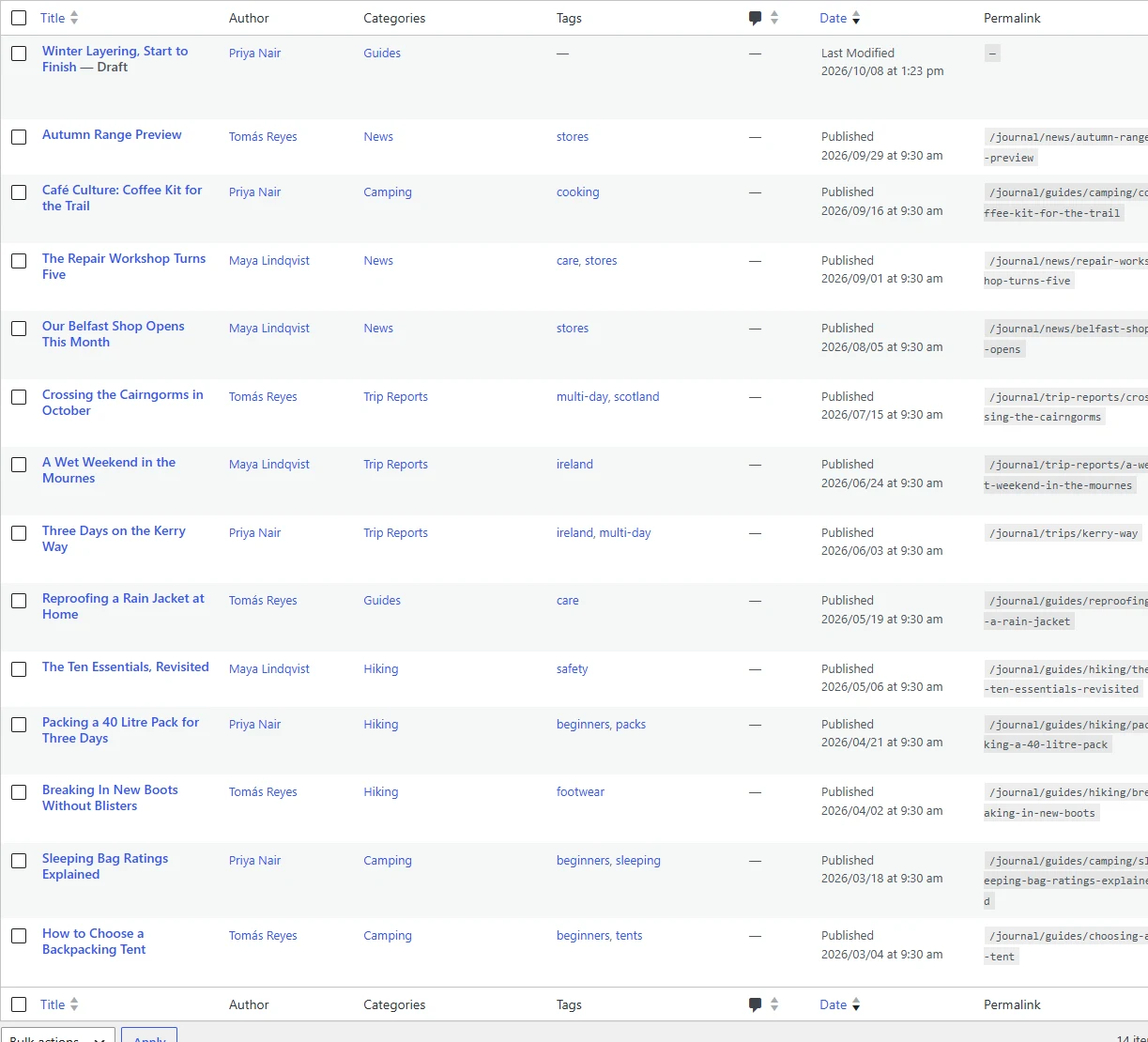
Hide it like any other column, from Screen Options at the top of the list.
Quick Edit
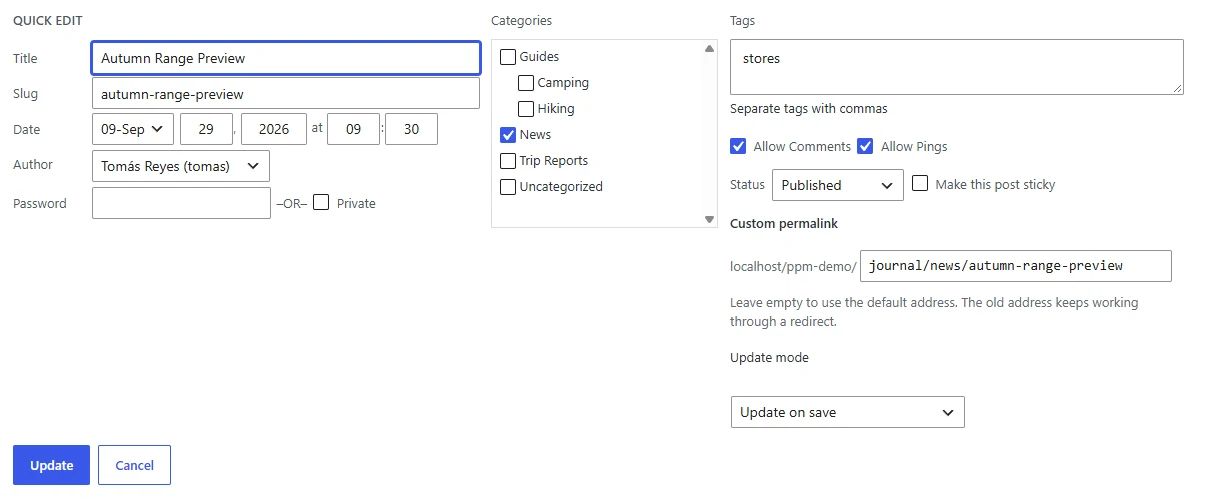
Quick Edit on a row includes the custom permalink and the update mode, so an address can be fixed without opening the item.
Who sees these fields
Who may edit addresses on the edit screens in Advanced settings decides. The default is authors and above; you can widen it to contributors or narrow it to editors or administrators.
Whoever it is, they can only change the address of an item WordPress already lets them edit.
The WordPress slug field
WordPress’s own slug is a different thing from the custom address: the slug is
one word, the address is the whole path. The plugin leaves the slug alone, and a
pattern containing %postname% uses it. Which slug generated addresses are
built from is a choice in
Addresses settings.