Contents
Dashboard - Plugixa Image Map
The dashboard is the first screen you see when you open Plugixa Image Map from the WordPress admin menu.
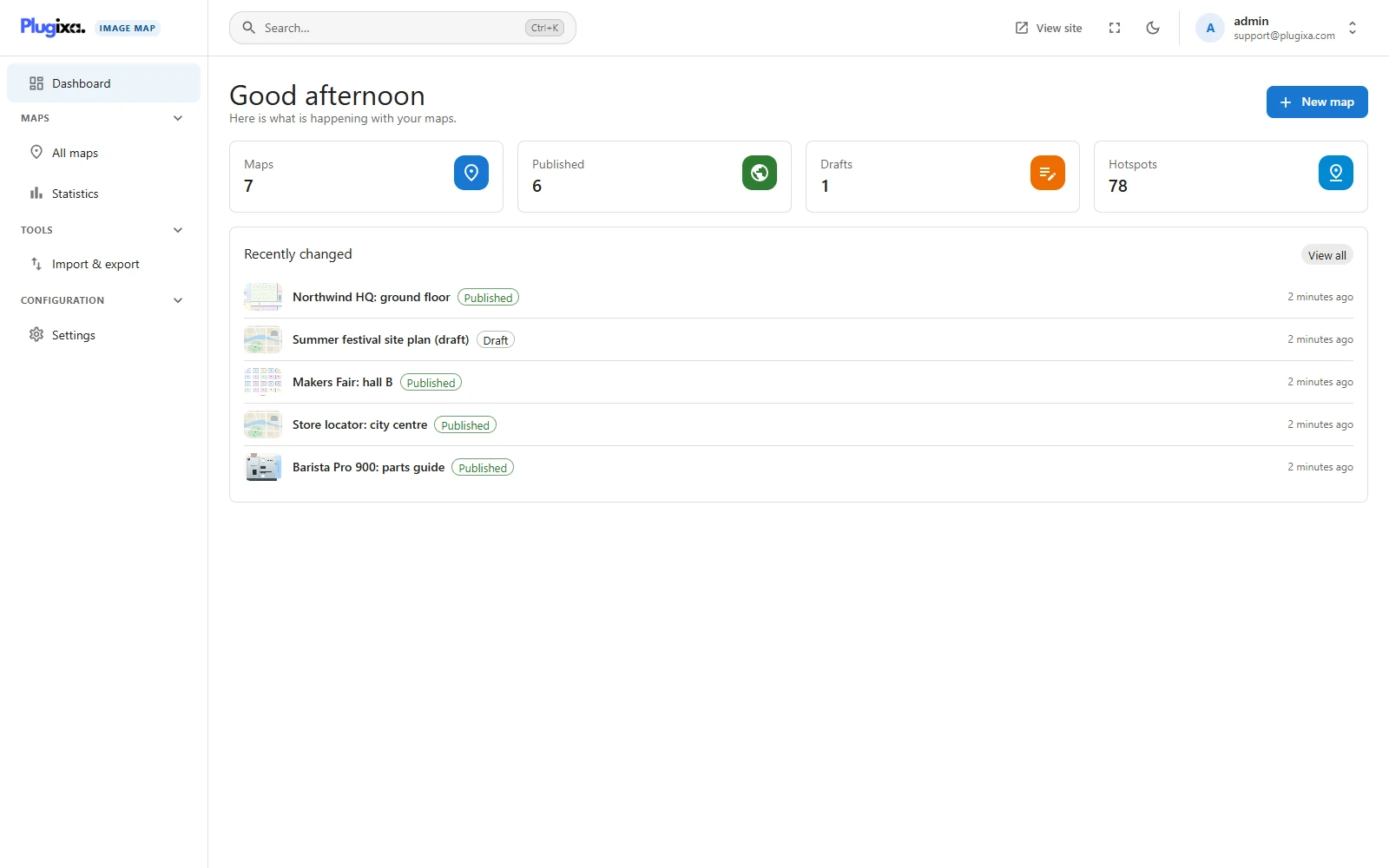
The four counters
| Counter | What it counts |
|---|---|
| Maps | Every map that is not in the trash. The line below says how many are in the trash, if any. |
| Published | Maps visitors can see. |
| Drafts | Maps that print nothing yet. |
| Hotspots | Shapes across all your maps. |
Maps is a link to the full list.
Recently changed
The five maps saved most recently, with their status and how long ago they changed. Click a title to open that map in the editor. View all opens All maps.
The top bar
The bar at the top is on every screen.
| Control | What it does |
|---|---|
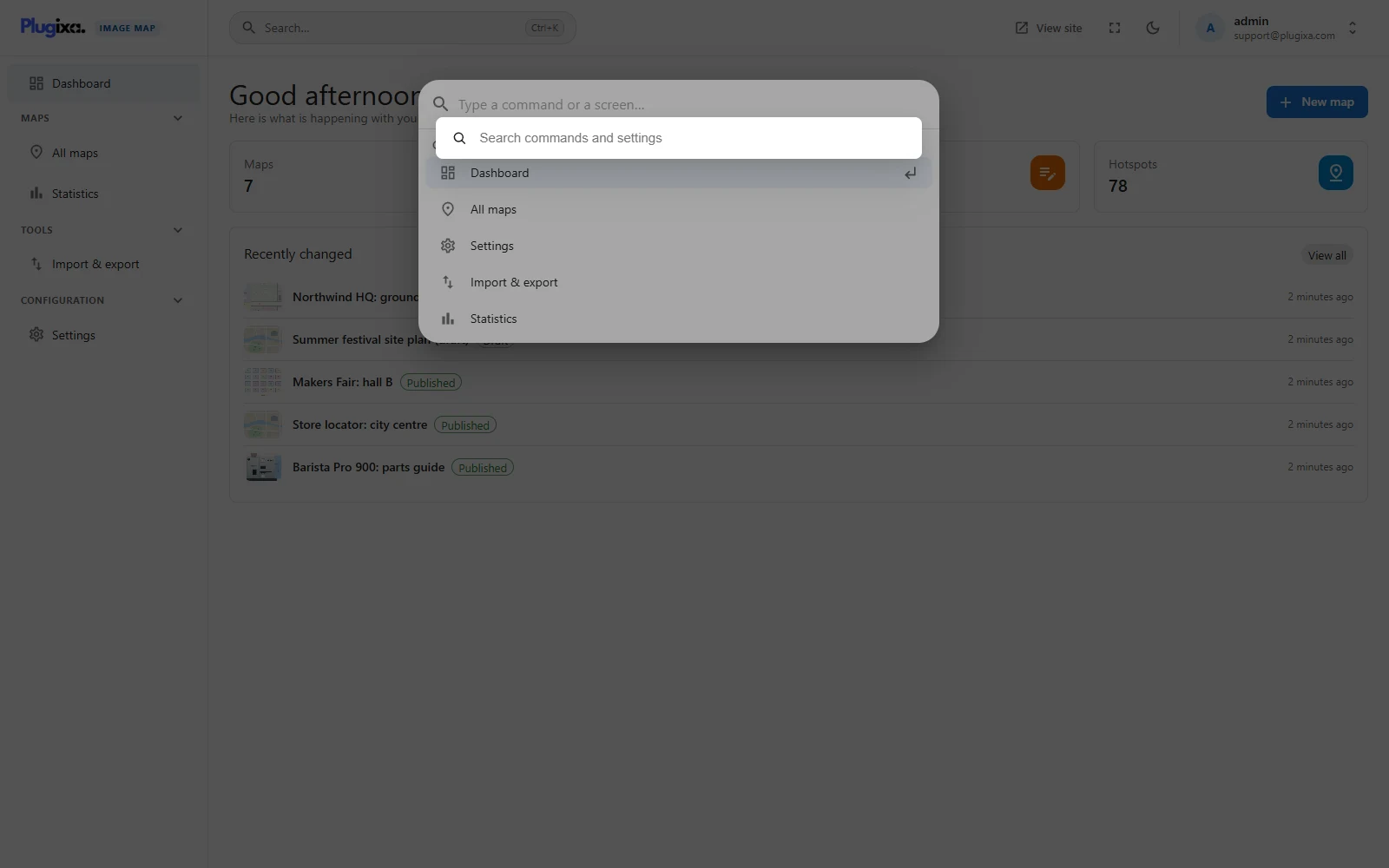
| Search (Ctrl + K) | Opens a quick switcher. Type the name of a screen and press Enter. |
| Environment badge | Local, Development or Staging, shown when WordPress says this is not the live site. On a live site it is absent. |
| View site | Opens your site in a new tab. |
| Full screen | Shows the plugin full screen. |
| Dark mode | Switches the admin between light and dark. Your choice is remembered in this browser. |
| Account | Your profile, a link back to the WordPress dashboard, and log out. |