

Contents
Drawing Hotspots - Plugixa Image Map
A hotspot is a shape on the picture. There are five kinds.
| Tool | Key | Best for | How to draw |
|---|---|---|---|
| Spot | S | A point: a store, a part, a pin | Click once |
| Rectangle | R | Rooms, stands, screens | Drag |
| Oval | O | Round areas, zones | Drag |
| Polygon | P | Anything irregular | Click each corner, then press Enter |
| Text | T | A label on the picture itself | Click, then type |
| Magic wand PRO | W | An area with a clear edge | Click inside it |
After drawing, the tool switches back to Select so you can adjust the shape.
While you draw
| Hold | Effect |
|---|---|
| Shift | Keeps a rectangle square and an oval round. While moving, locks to one axis. |
| Alt | Draws or resizes from the centre. |
| Ctrl | Turns snapping off. |
Polygons
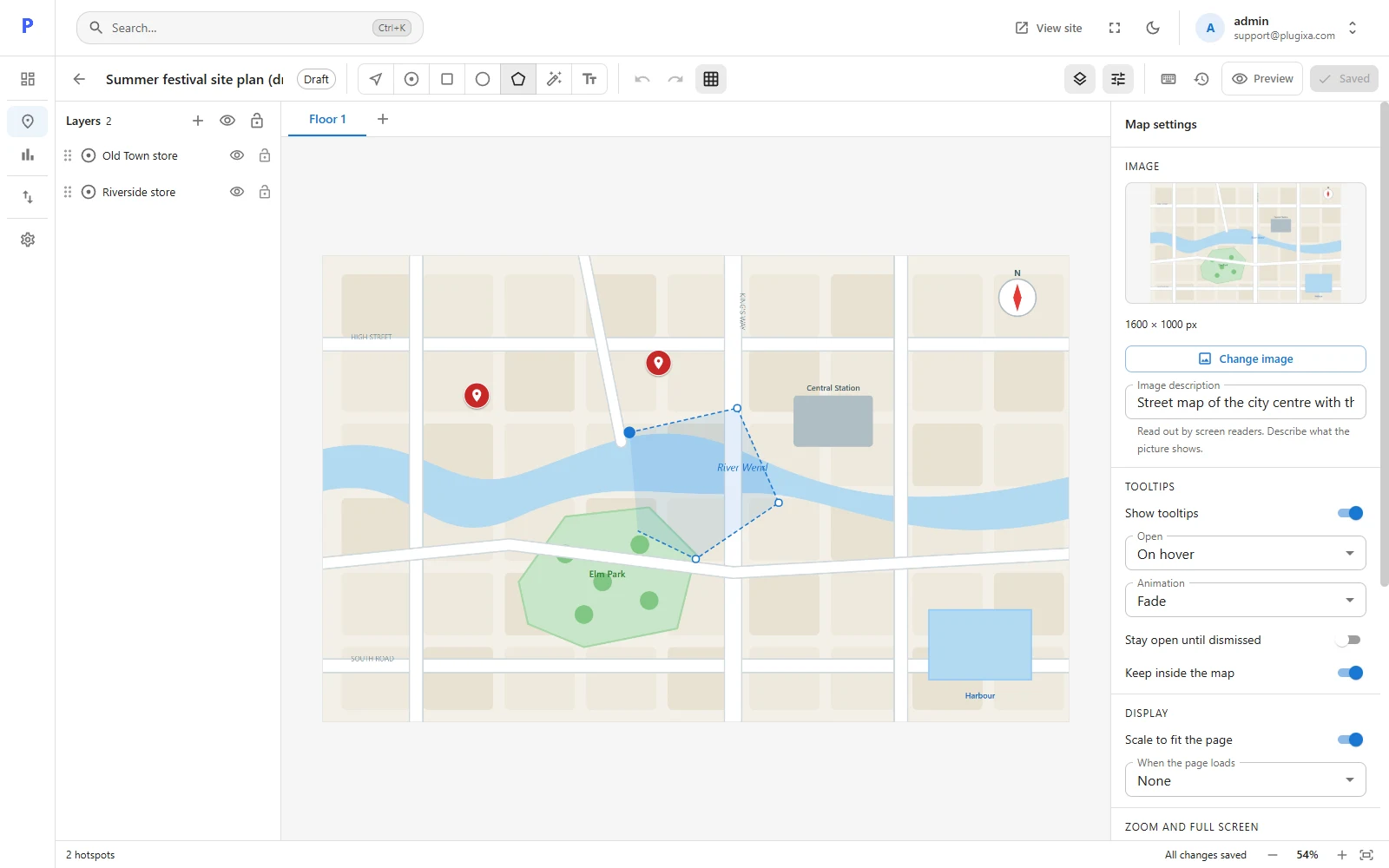
Click to place each corner. Press Enter to finish, Backspace to take the last corner back, or Esc to cancel.
To reshape a finished polygon, select it:
- Drag a corner to move it.
- Drag one of the small dots on an edge to add a corner there.
- Alt-click a corner to remove it.
Magic wand PRO
Click inside an area of the picture that has a clear edge, such as a room on a floor plan or a region on a map, and the wand draws a polygon around it. If it finds nothing clear, raise the tolerance and click again, or use the Polygon tool.
The wand reads the picture’s pixels in your browser. It cannot read an image served from another site.
Moving, resizing and rotating
- Move: drag the shape, or use the arrow keys (1% per press, 0.1% with Shift).
- Resize: drag a handle.
- Rotate: drag the round handle above the shape. Rectangles, ovals and text can be rotated.
- Exact numbers: type X, Y, Width, Height and Rotation on the Design tab.
Positions and sizes are percentages of the picture, so a shape stays where it belongs at any screen size. A shape may hang over the edge of the picture.
Copy, duplicate, delete
| Action | Key |
|---|---|
| Duplicate | Ctrl + D |
| Copy / Cut / Paste | Ctrl + C / X / V |
| Select all | Ctrl + A |
| Delete | Delete |
Everything can be undone with Ctrl + Z until you leave the editor.
How many hotspots can a map have?
Up to 2,000. A polygon can have up to 1,000 corners.
| Limit | Value |
|---|---|
| Hotspots in a map | 2,000 |
| Corners in a polygon | 1,000 |
| Groups in a map | 500 |
| A hotspot’s name | 100 characters |
| A tooltip | 20,000 characters |
| A link | 2,000 characters |
| The whole map, as stored | 2 MB. A larger map is refused with This map is too large to save. |
| Floors PRO | 20 |