

Contents
Linked Content - Plugixa Image Map
PRO Instead of typing a tooltip, point the hotspot at something that already exists on your site.
Select one hotspot, open Behaviour and find Show content. Start typing in Find a post or page and pick a result.
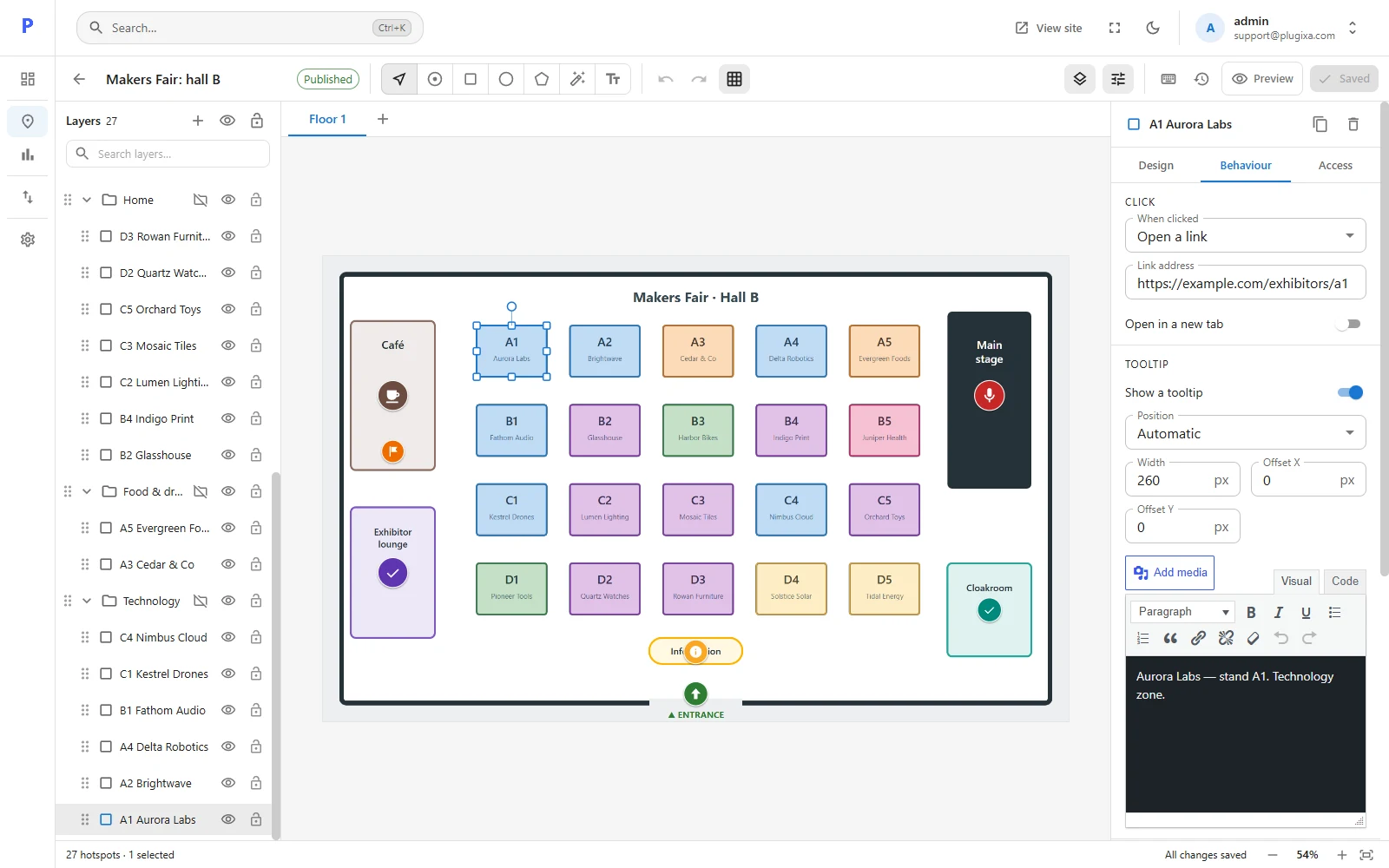
What the tooltip shows
| Linked to | The tooltip shows |
|---|---|
| A post or page | Its title, featured image, summary and a Read more link. |
| A WooCommerce product | Its picture, price, stock and an add-to-cart button. |
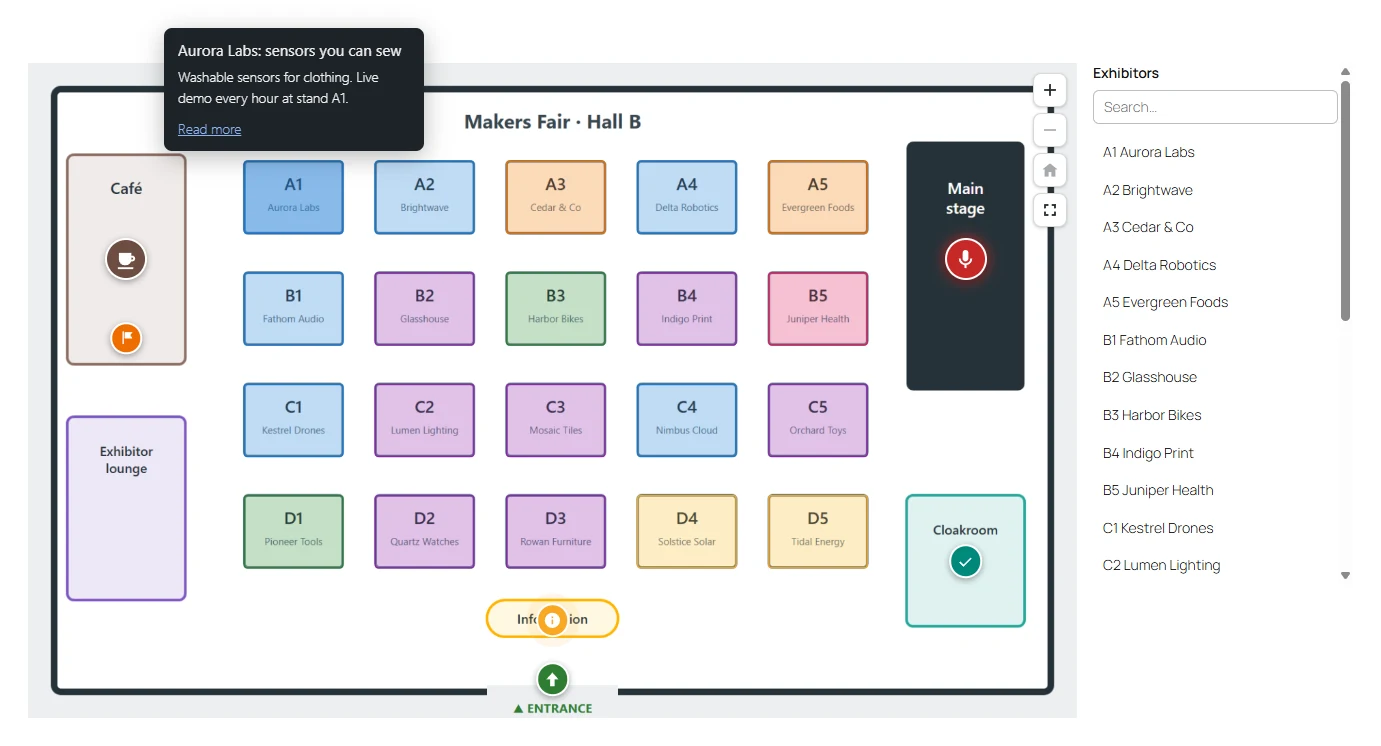
Always up to date
The tooltip is filled when the page is shown, not when the map is saved. Edit the post’s title, change a product’s price or sell the last one in stock, and the map follows. You do not need to open the map again.
When the content is not public
If the linked post is a draft, private, password-protected or deleted, nothing of it is shown. The hotspot falls back to the tooltip text you typed for it, so write a line there as a safety net.
Names
A hotspot with no name of its own is announced to screen readers, and listed in the location list, by the title of what it links to.
Tips
- An exhibitor plan: one post per exhibitor, one stand per post.
- A shop-the-look photo: one spot per product.
- A campus map: one page per building.