

Contents
All Maps - Plugixa Image Map
All maps, in the sidebar of Plugixa Image Map, lists every map on the site.
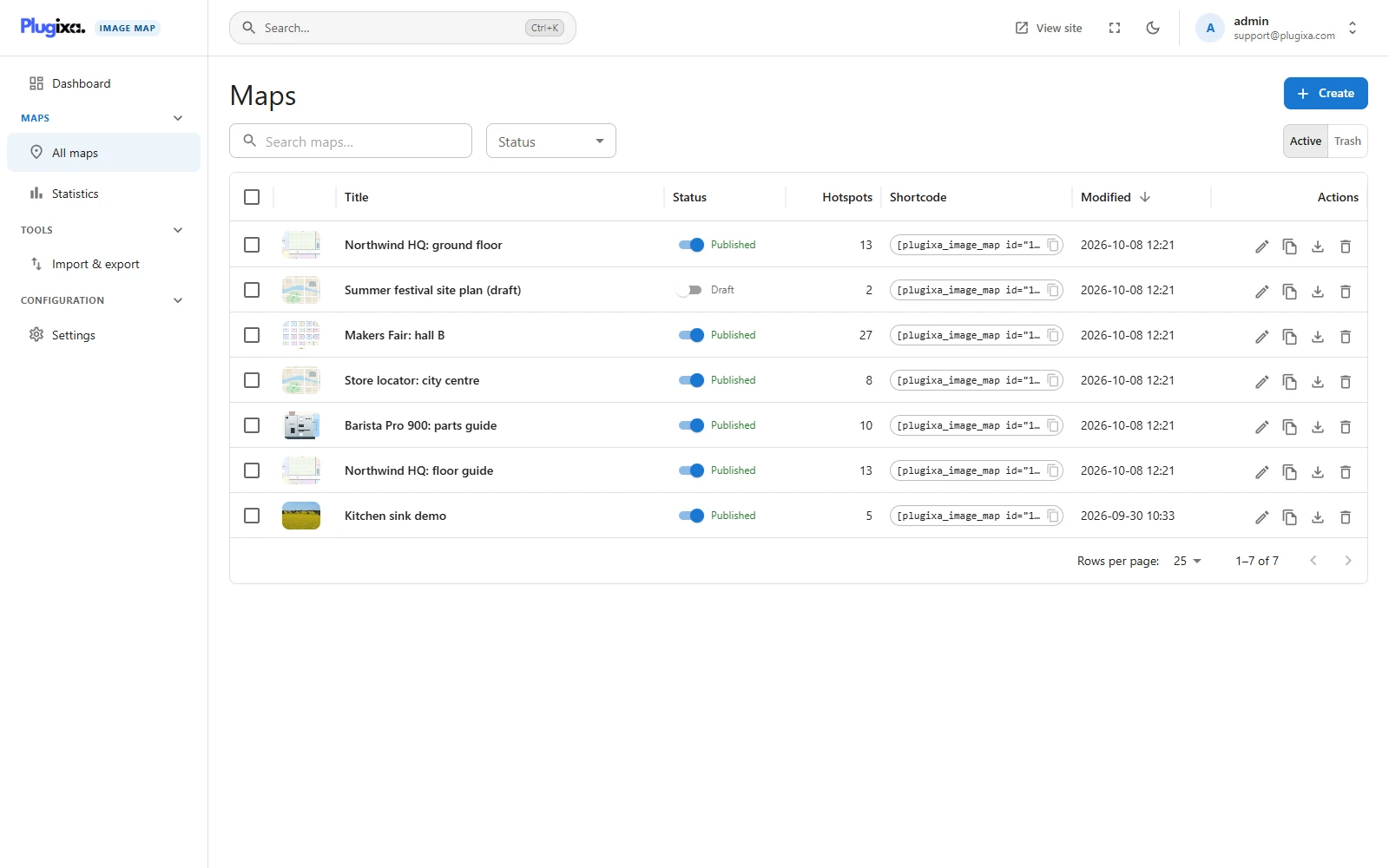
What each column shows
| Column | Meaning |
|---|---|
| Image | A thumbnail of the map’s picture. |
| Title | Click it to open the editor. |
| Status | A toggle. On is published, off is a draft. |
| Hotspots | How many shapes the map has. |
| Shortcode | Click to copy. |
| Modified | When the map was last saved, in the date format from Settings. |
| Actions | Duplicate, export, move to the trash. |
Finding a map
- Search filters by title as you type.
- Status narrows the list to published maps or drafts.
- Click a column heading to sort by it. Click again to reverse.
- The footer sets how many rows a page holds.
Actions
| Action | What happens |
|---|---|
| Publish toggle | Publishes or unpublishes straight away. The page on your site changes on the next visit. |
| Duplicate | Makes a copy with the same picture and hotspots. The copy is a draft. |
| Export | Downloads the map as a .json file. See Import and export. |
| Move to the trash | Takes the map off your site but keeps it. |
Several maps at once
Tick two or more rows and a bar appears above the list with the number selected.
| View | Buttons |
|---|---|
| Active | Publish, Unpublish, Move to trash |
| Trash | Restore, Delete permanently |
If some of the maps could not be changed, a message says how many were done and how many were not. Publishing and unpublishing need the edit permission; the other three need the delete permission.
The trash
Switch from Active to Trash above the list.
- Restore puts a map back as it was, with its history.
- Delete permanently removes the map and every saved version. You are asked to confirm, and it cannot be undone.
A page that still holds the shortcode of a trashed map simply shows nothing where the map was.