

Contents
Settings - Plugixa Image Map
Settings, in the sidebar of Plugixa Image Map, has two tabs. Change something and click Save.
General
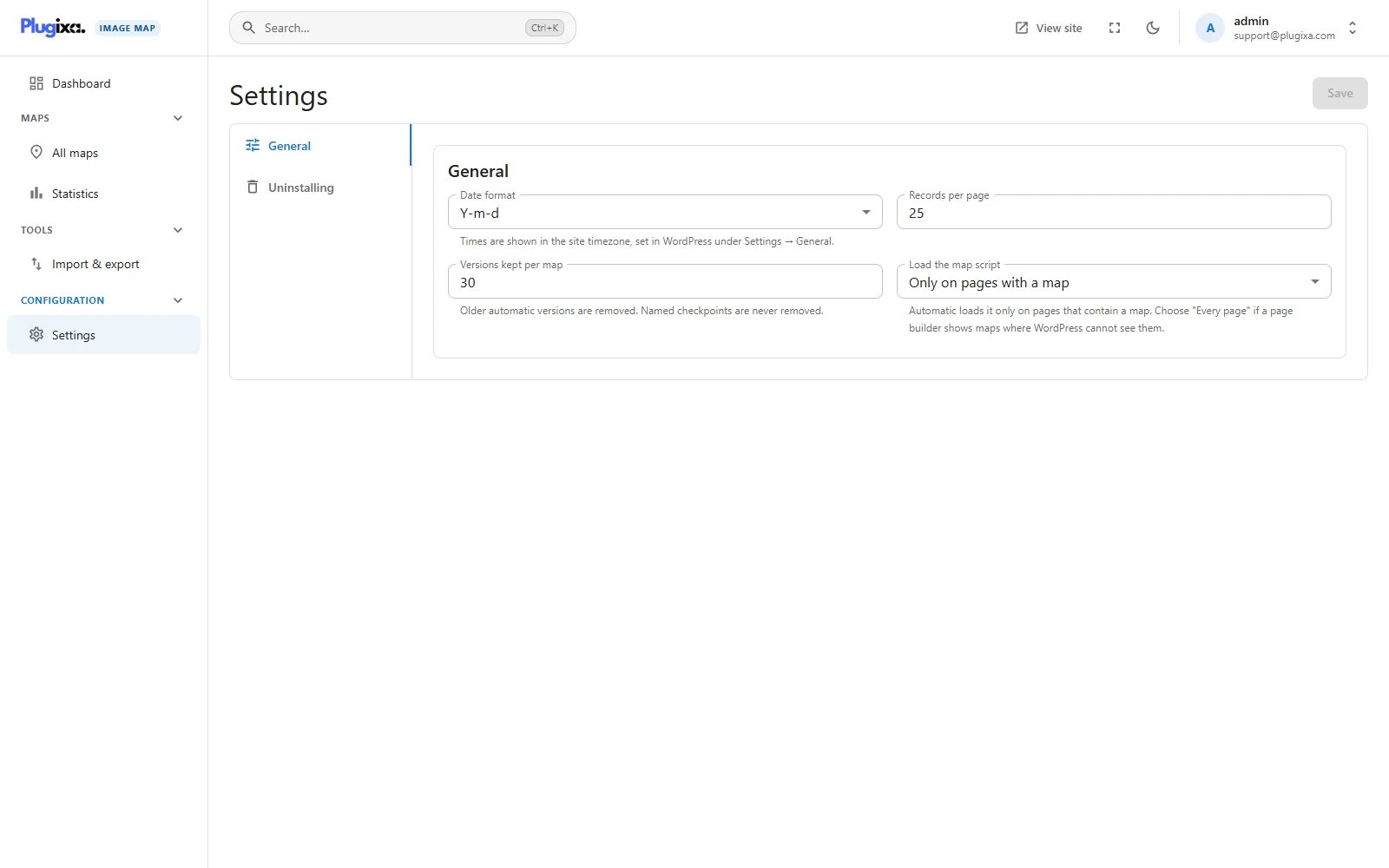
| Setting | What it does | Range |
|---|---|---|
| Date format | How dates are written in the lists. Times are shown in your site’s time zone. | Seven formats |
| Records per page | How many rows the lists show to begin with. | Up to 200 |
| Versions kept per map | How many saved versions the history keeps. Named checkpoints are kept beyond this. | 5 to 200 |
| Load the map script | See below. | Two choices |
A number outside its range is brought back to the nearest allowed value when you save.
Load the map script
| Choice | Behaviour |
|---|---|
| Only on pages with a map | The default. The stylesheet and script are added only where a map is printed, so pages without a map carry nothing extra. |
| Every page | Loads them everywhere. Choose this if a page builder shows maps in a place WordPress cannot see in advance and the map appears unstyled. |
Uninstalling
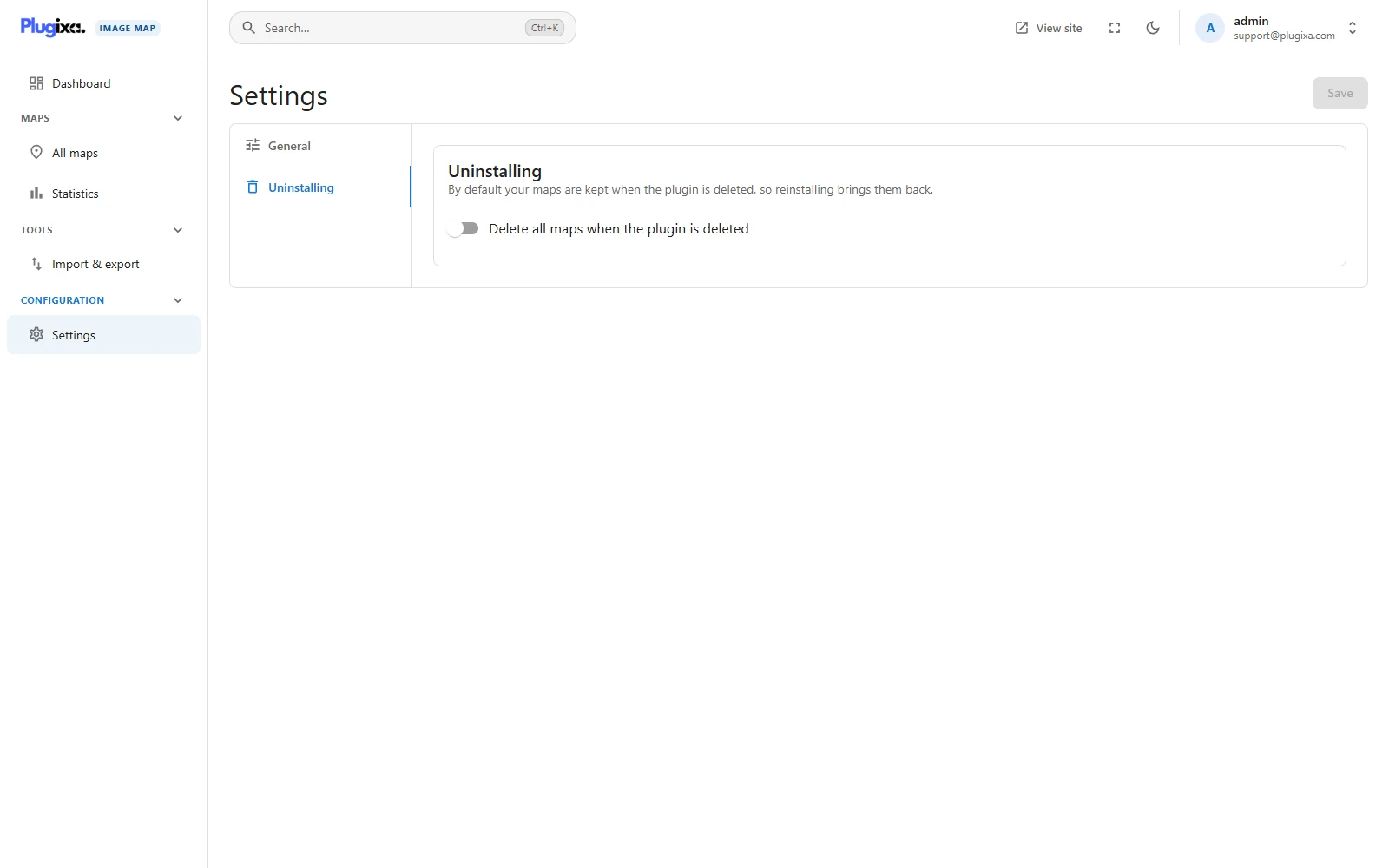
Delete all maps when the plugin is deleted is off by default. Deleting the plugin then keeps your maps, so reinstalling brings them back.
Turn it on only if you want everything removed: maps, versions, statistics and settings. Even then, nothing is erased while another copy of the plugin, free or Pro, is still installed, so switching editions never loses your work.
Pictures are never deleted. They belong to your media library.
Only a site administrator can change this switch. Someone who was given
plugixa_image_map_manage_settings can change the General tab, but changing
what deleting the plugin does also needs WordPress’s own manage_options.