Contents
The Editor - Plugixa Image Map
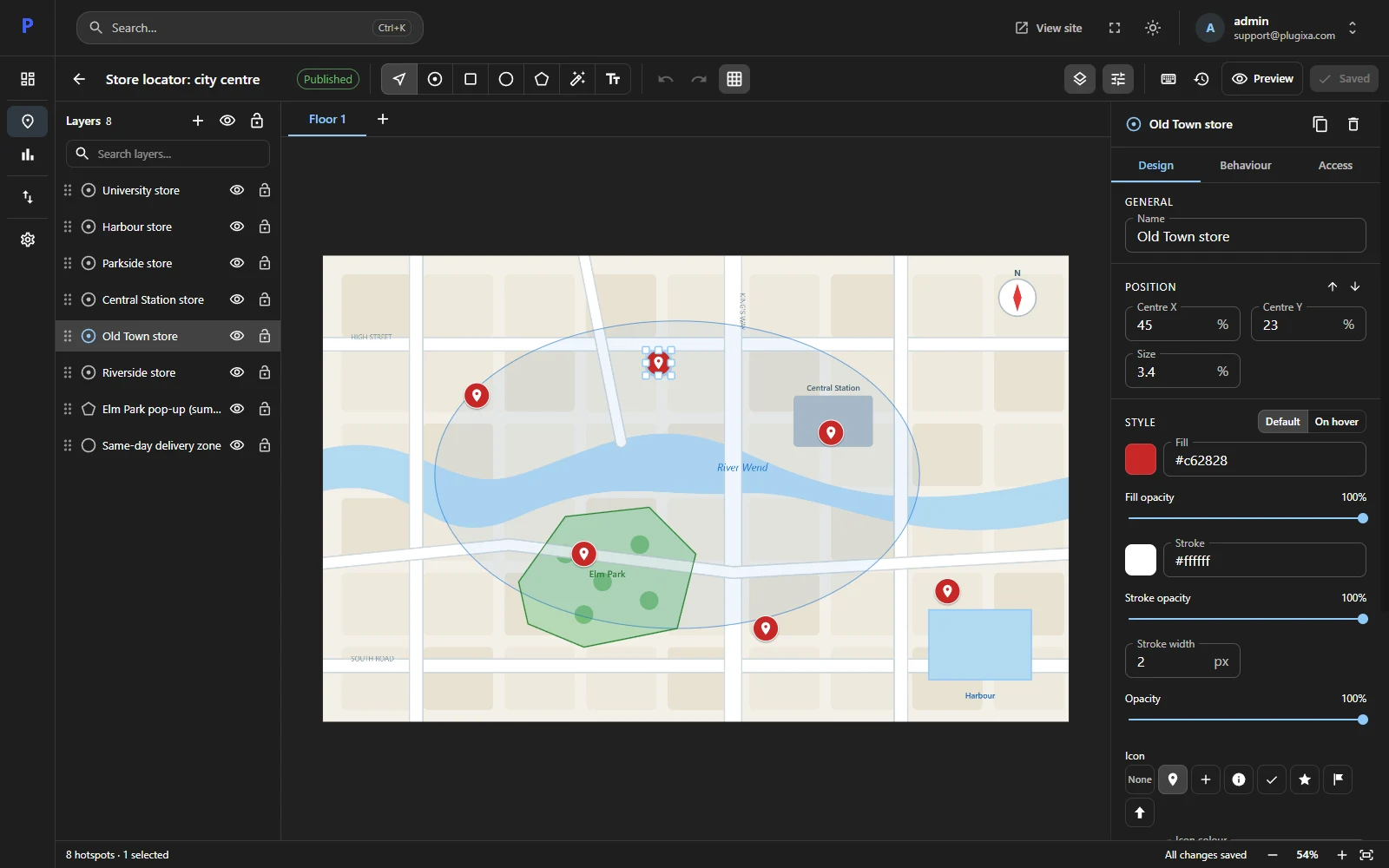
Clicking a map’s title opens the editor.
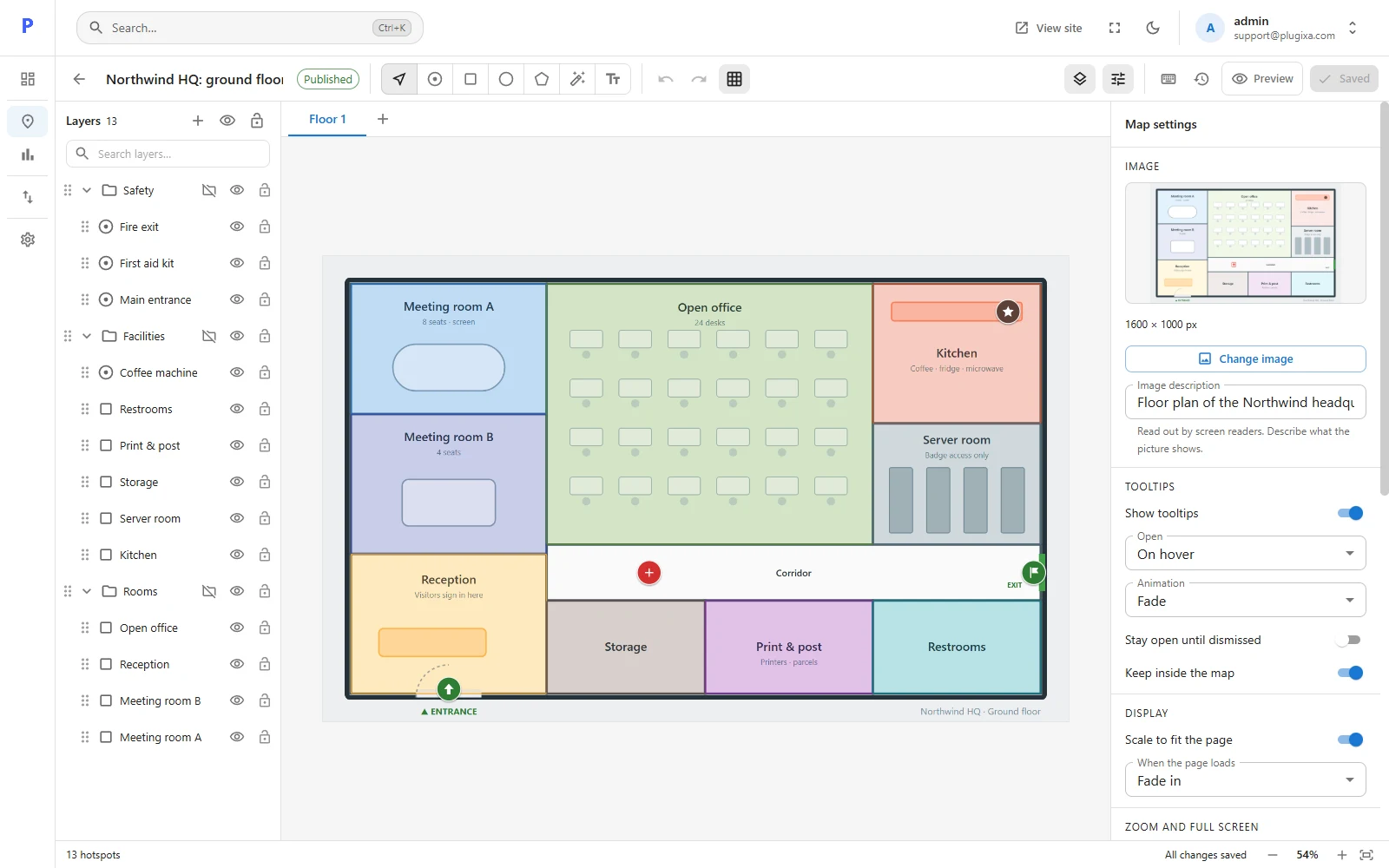
The toolbar
From left to right:
| Part | What it is for |
|---|---|
| Back arrow | Returns to All maps. You are warned if you have unsaved changes. |
| Title | Click to rename the map. |
| Status | Shows Draft or Published. |
| Tools | Select, Spot, Rectangle, Oval, Polygon, Magic wand PRO and Text. See Drawing hotspots. |
| Undo / Redo | Step back and forward through what you did since opening the map. |
| Snapping and grid | How shapes line up while you drag. |
| Layers panel / Properties panel | Show or hide the two side panels. |
| Keyboard shortcuts | Opens the list of keys. |
| History | Saved versions of this map. |
| Preview | The map as a visitor sees it. |
| Save | Reads Saved when there is nothing to save. |
The canvas
The picture sits in the middle. Drag a hotspot to move it, drag a handle to resize it, and use the round handle above a shape to rotate it.
- Hold Space and drag to pan.
- Hold Ctrl and scroll to zoom at the pointer.
- The bottom-right corner shows the zoom level, with Fit to screen beside it.
The bottom-left corner counts the hotspots and says how many are selected.
The layers panel
Every hotspot, top-most first. Click one to select it. See Layers and groups.
The properties panel
What the panel shows depends on what is selected.
| Selected | The panel shows |
|---|---|
| Nothing | Map settings: the picture, tooltips, display, zoom and the location list. |
| One hotspot | Three tabs: Design, Behaviour and Access. |
| Several hotspots | The settings they share. A change applies to all of them. |
Snapping and grid
| Option | Effect |
|---|---|
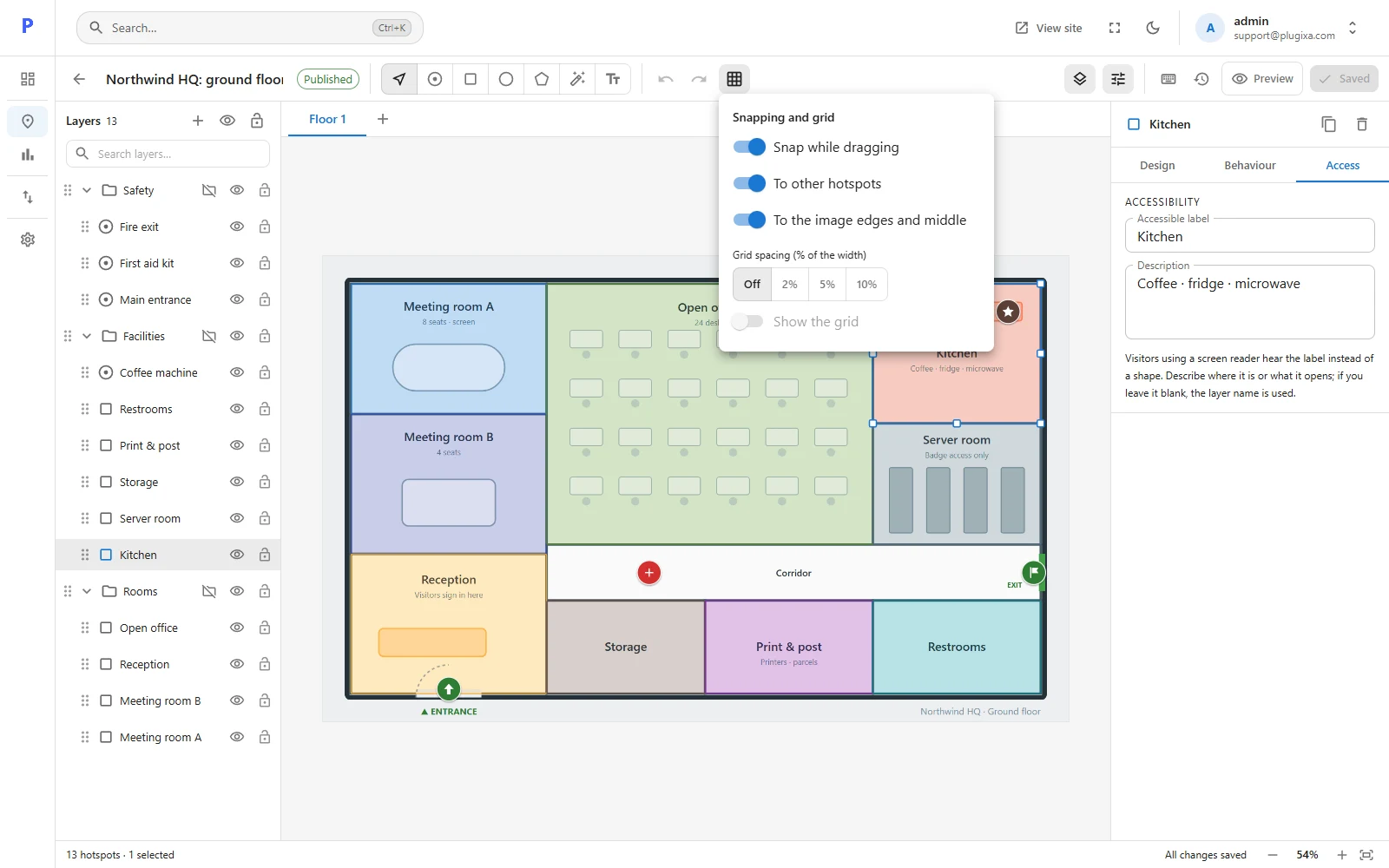
| Snap while dragging | The master switch. |
| To other hotspots | Edges and centres line up with the shapes around them. |
| To the image edges and middle | Shapes catch on the picture’s border and centre lines. |
| Grid spacing | A grid measured in percent of the picture’s width, or off. |
Hold Ctrl while dragging to turn snapping off for that one move.
When two people edit the same map
If somebody saves the map while you have it open, your next save does not overwrite theirs. You are offered three choices: take their version, keep yours, or save yours as a new map and leave theirs alone.
Dark mode
The moon icon in the top bar switches the whole admin to a dark theme.