

Contents
Styling Hotspots - Plugixa Image Map
Select a hotspot and open the Design tab.
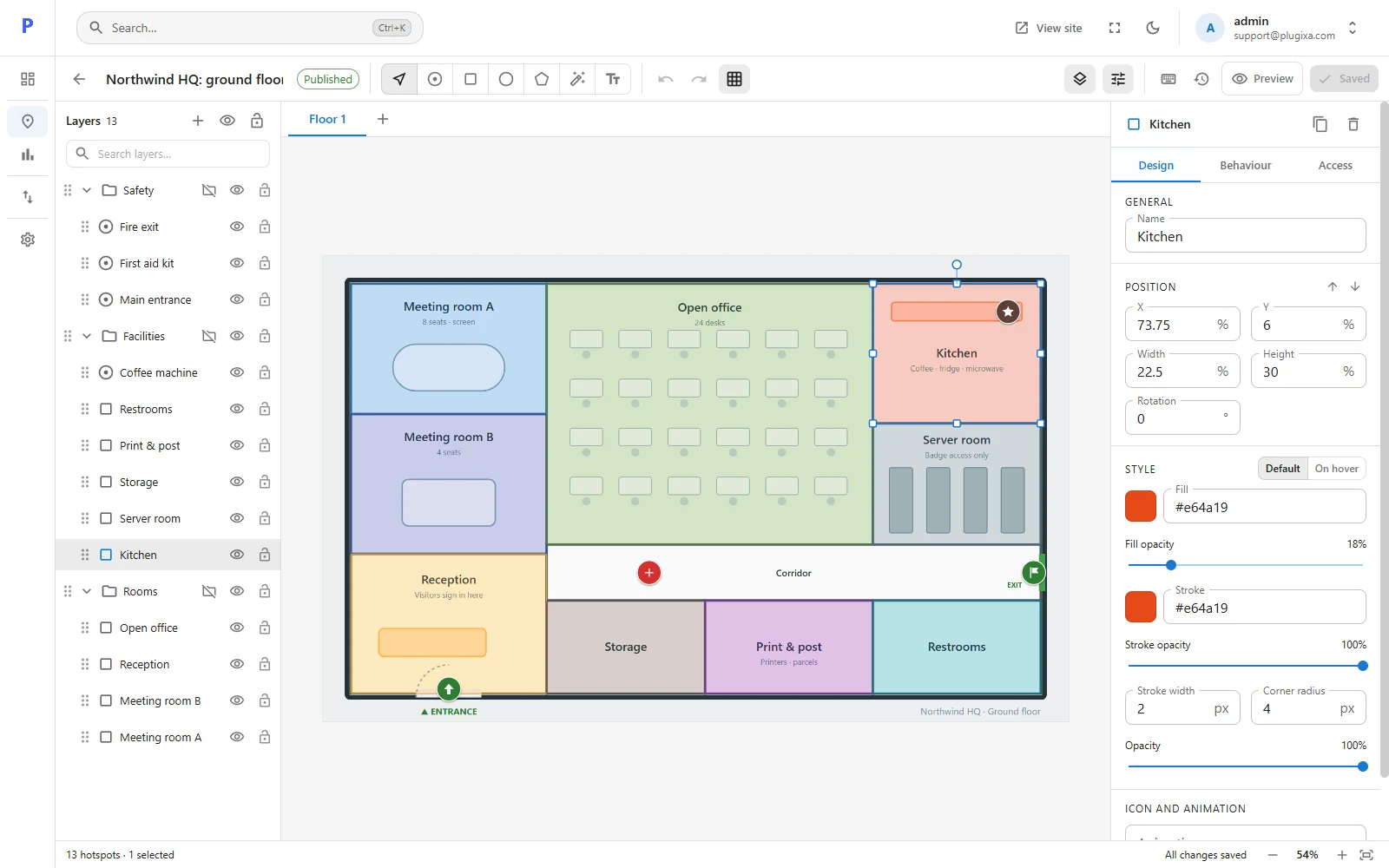
Name, position and size
| Field | Notes |
|---|---|
| Name | Shown in the layers panel and in the location list. Screen readers announce it unless you set an accessible label. |
| X / Y | Where the shape is, in percent of the picture. |
| Width / Height | Its size, in percent. A spot has one size. |
| Rotation | In degrees. |
Colours
| Field | Notes |
|---|---|
| Fill and Fill opacity | The inside of the shape. A low opacity lets the picture show through. |
| Stroke, Stroke opacity, Stroke width | The outline. Set the width to 0 for none. |
| Corner radius | Rounds a rectangle’s corners. |
| Opacity | Fades the whole hotspot. |
Each hotspot has a second set of colours for hover: what it looks like when a visitor points at it or reaches it with the keyboard. A common pattern is a faint fill normally and a stronger one on hover, so the map stays readable until someone explores it.
Spots
A spot is a round marker. On top of the colours above it has:
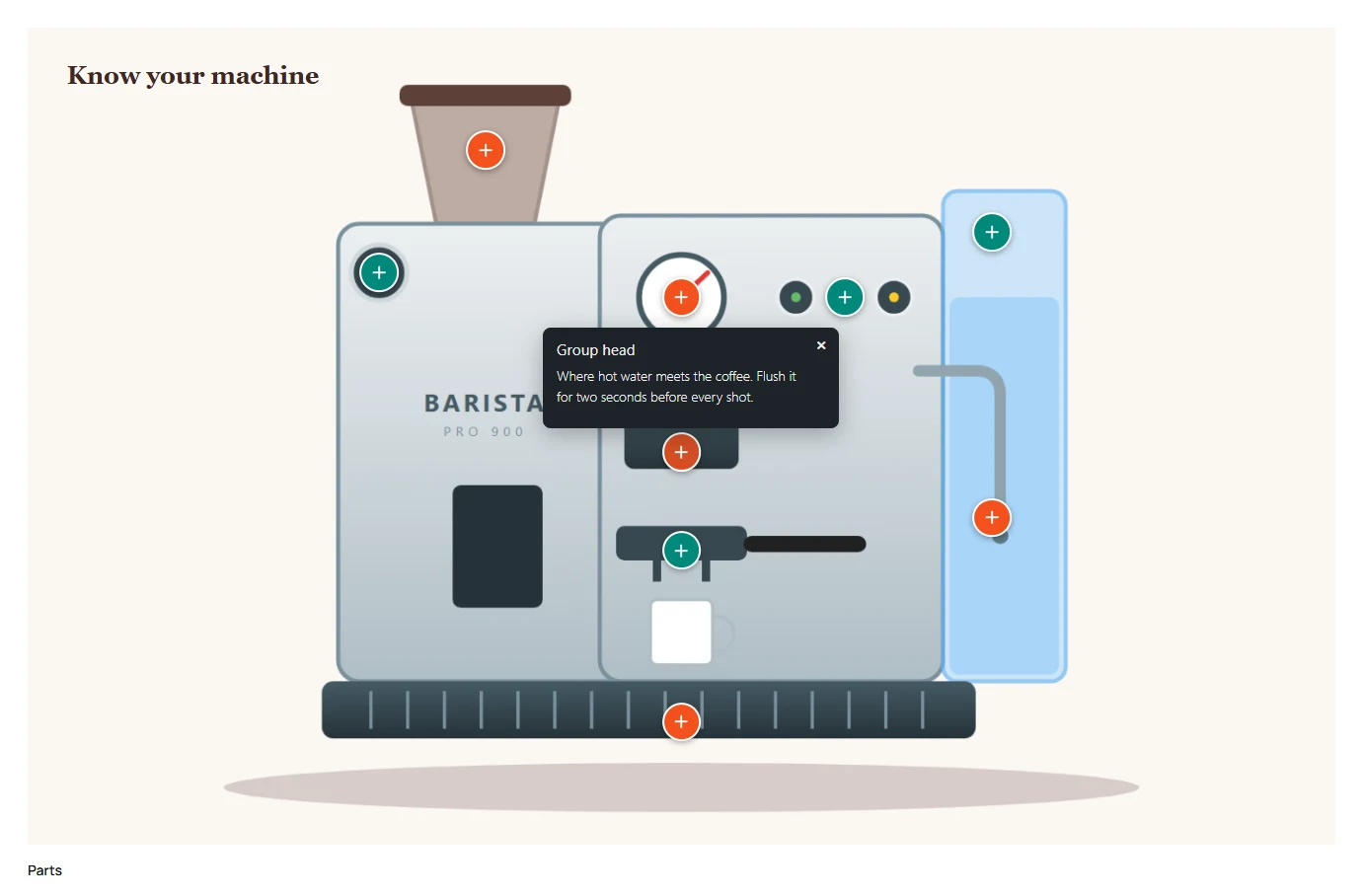
| Field | Notes |
|---|---|
| Size | The diameter, in percent of the picture’s width. |
| Icon | Pin, plus, info, check, star, flag or arrow, or none. |
| Icon colour | |
| Shadow | A soft shadow that lifts the marker off the picture. |
Text labels
A text hotspot is writing placed on the picture. Choose a Font (sans, serif or mono), Size, Weight, Alignment and colour. The fonts are system fonts, so nothing is downloaded from another site.
Picture icons and animations PRO
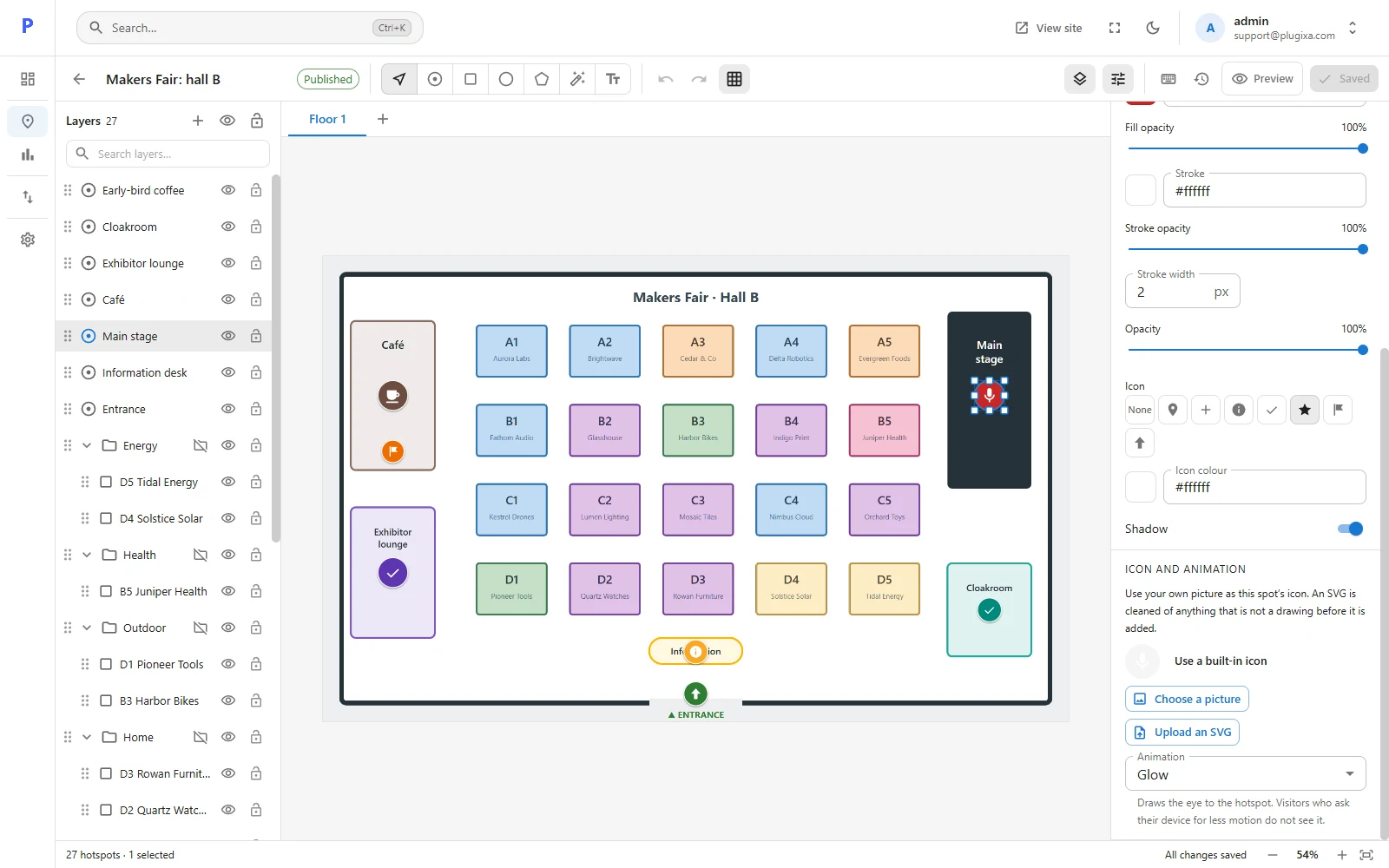
Select one spot and scroll to the bottom of the Design tab.
- Picture icon: use your own image as the spot’s icon, from the media library or uploaded on the spot. An SVG is cleaned of everything that is not a drawing before it is stored, so a file from a designer cannot carry a script.
- Animation: Pulse, Bounce or Glow draws the eye to the hotspot. Visitors who have asked their device for less motion do not see it.
Styling several at once
Select more than one hotspot (Shift-click in the layers panel, or drag a box on the canvas) and change a colour: every selected hotspot takes it. Locked hotspots are skipped, and you are told so.