

Contents
Tooltips - Plugixa Image Map
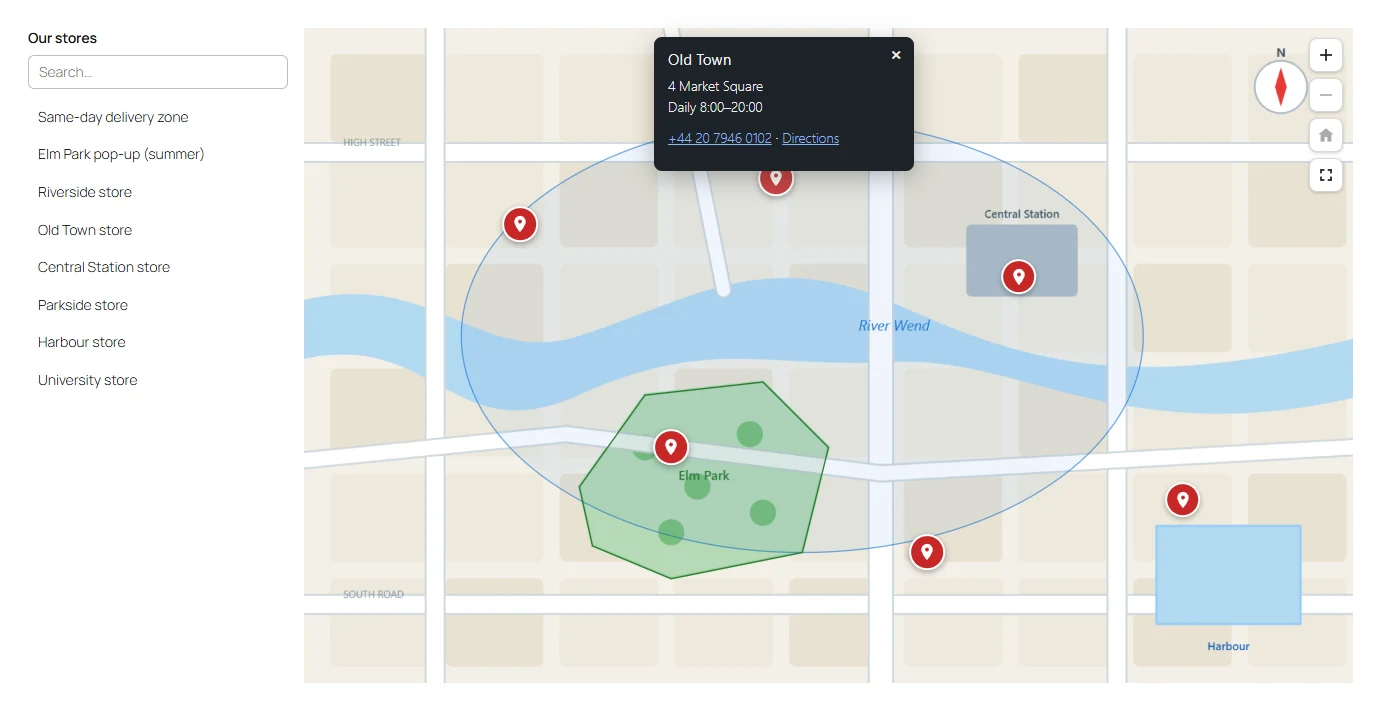
A tooltip is the box that opens when a visitor points at, taps or tabs to a hotspot.
Writing a tooltip
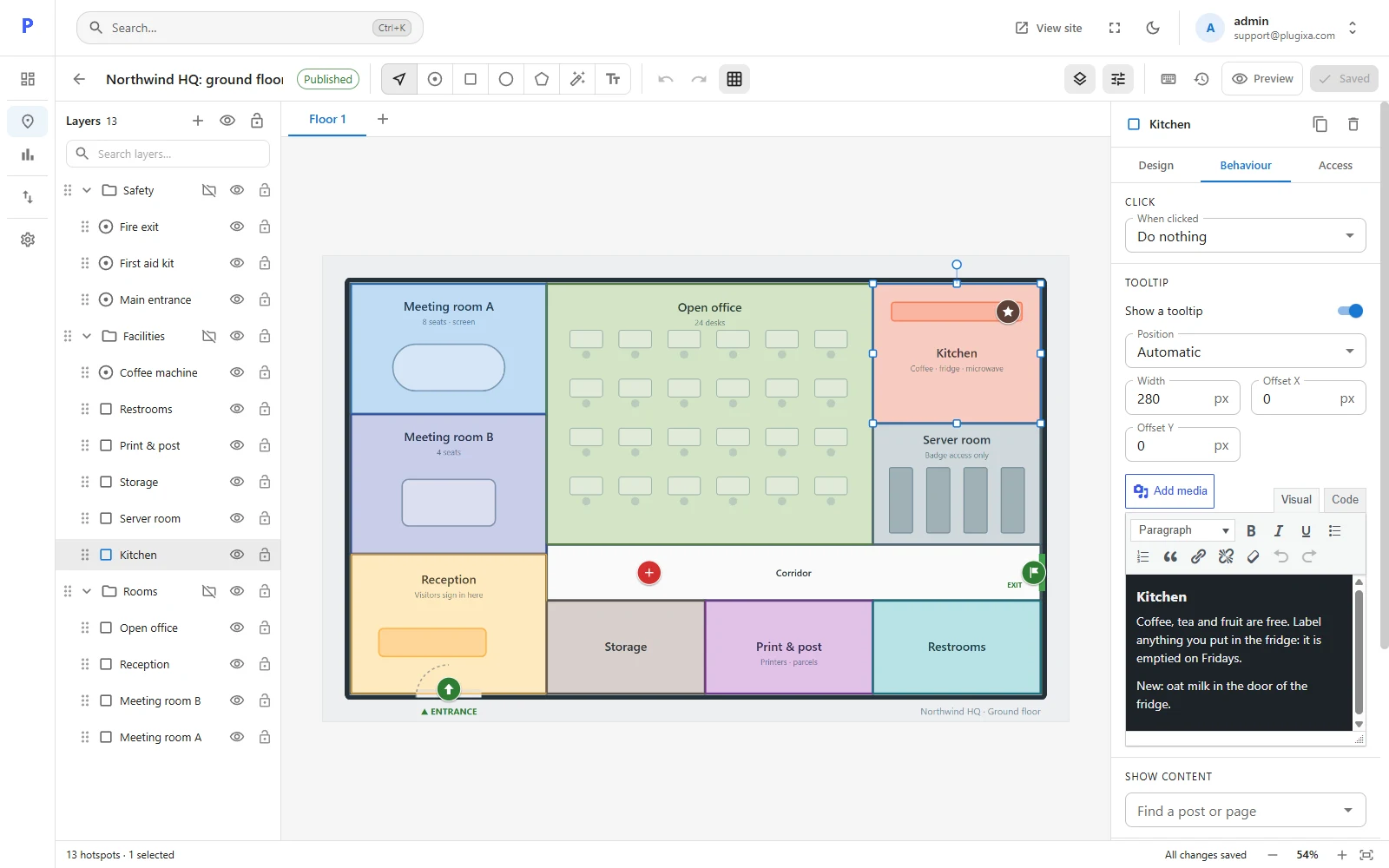
Select one hotspot and open the Behaviour tab.
| Setting | What it does |
|---|---|
| Show a tooltip | Turns this hotspot’s tooltip on or off. |
| Position | Automatic, or always above, right, below or left of the hotspot. Automatic picks the side with the most room. |
| Width | In pixels, from 80 to 800. On a narrow screen the box shrinks to fit. |
| Offset X / Offset Y | Nudges the box away from the hotspot. |
The editor below is the one WordPress uses for posts. You can use headings, bold, italic, lists, quotes and links, and Add media inserts a picture from the library. The Code tab shows the HTML.
What is allowed
Tooltip text is cleaned the way post content is. Scripts, event handlers, frames and forms are removed when the map is saved. People whose role may post unfiltered HTML get a slightly wider list of tags, the same as in posts.
Settings for the whole map
Deselect everything (press Esc) to see Map settings, then find Tooltips.
| Setting | Options |
|---|---|
| Show tooltips | The master switch for this map. |
| Open | On hover, or On click or tap. Phones always open on tap. |
| Animation | None, Fade or Grow. |
| Stay open until dismissed | The box gets a close button and stays until the visitor closes it or opens another. |
| Keep inside the map | Moves the box so it never hangs outside the picture’s frame. |
Tooltips without a mouse
- Keyboard: Tab moves from hotspot to hotspot and opens each tooltip. Esc closes it.
- Touch: a tap opens the tooltip; a tap elsewhere closes it.
- No JavaScript: every tooltip’s text is still in the page, listed under the map.
Tooltips that fill themselves PRO
A hotspot can show a post, page or product instead of text you type. See Linked content.