

Contents
History and Autosave - Plugixa Image Map
Versions
Every time a map is saved, the previous state is kept. Click History in the editor’s toolbar to see the list, newest first, with who saved it and when.
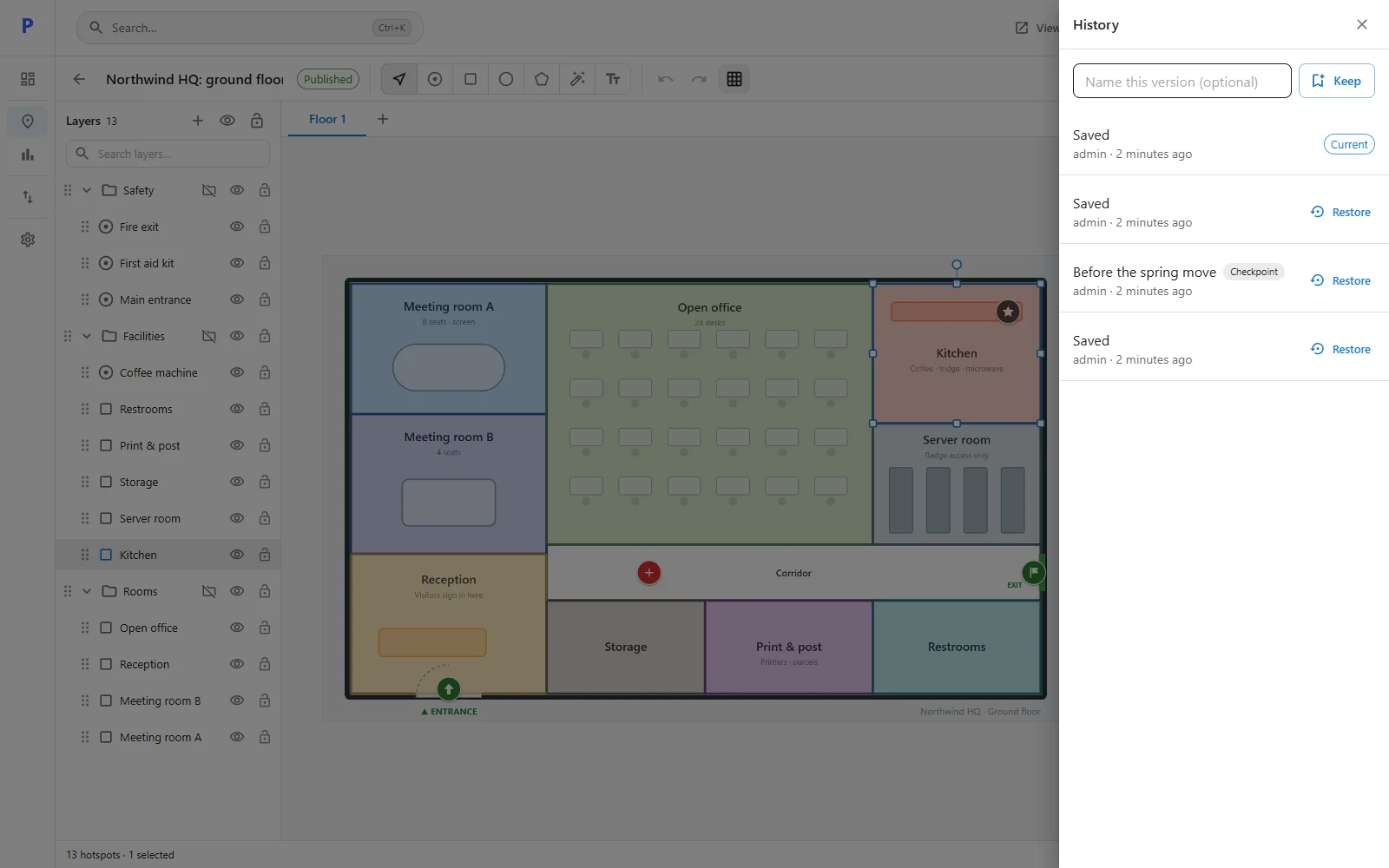
Restoring a version
Click Restore beside a version. The map goes back to it and is saved. The version you replaced stays in the history, so a restore can itself be undone.
If you have unsaved changes in the editor, you are warned that they will be lost.
Checkpoints
A checkpoint is a version with a name, for example Before the spring move. Type a name at the top of the panel and click Keep.
Two things to know:
- A checkpoint keeps the last saved version. Save first if you want your latest changes in it.
- Named checkpoints are not trimmed. Ordinary versions are: see below.
How many versions are kept
Settings > Versions kept per map sets the number, between 5 and 200. The default is 30. When a map goes over, the oldest unnamed versions are removed.
Autosave
While you work, your changes are kept every few seconds, both in the browser and as a draft on the server. This is separate from the saved map: visitors keep seeing the last version you saved.
If the browser closes, the connection drops, or you navigate away without saving, the next time you open the map a banner offers to bring those changes back. You can restore them or discard them.
If somebody else saved the map in the meantime, the banner says so, because restoring your old changes could overwrite theirs.
Undo is not history
Undo and Redo step through what you did since you opened the editor, and are forgotten when you leave. History is permanent.