

Contents
Import and Export - Plugixa Image Map
Import & export, in the sidebar of Plugixa Image Map, moves maps in and out.
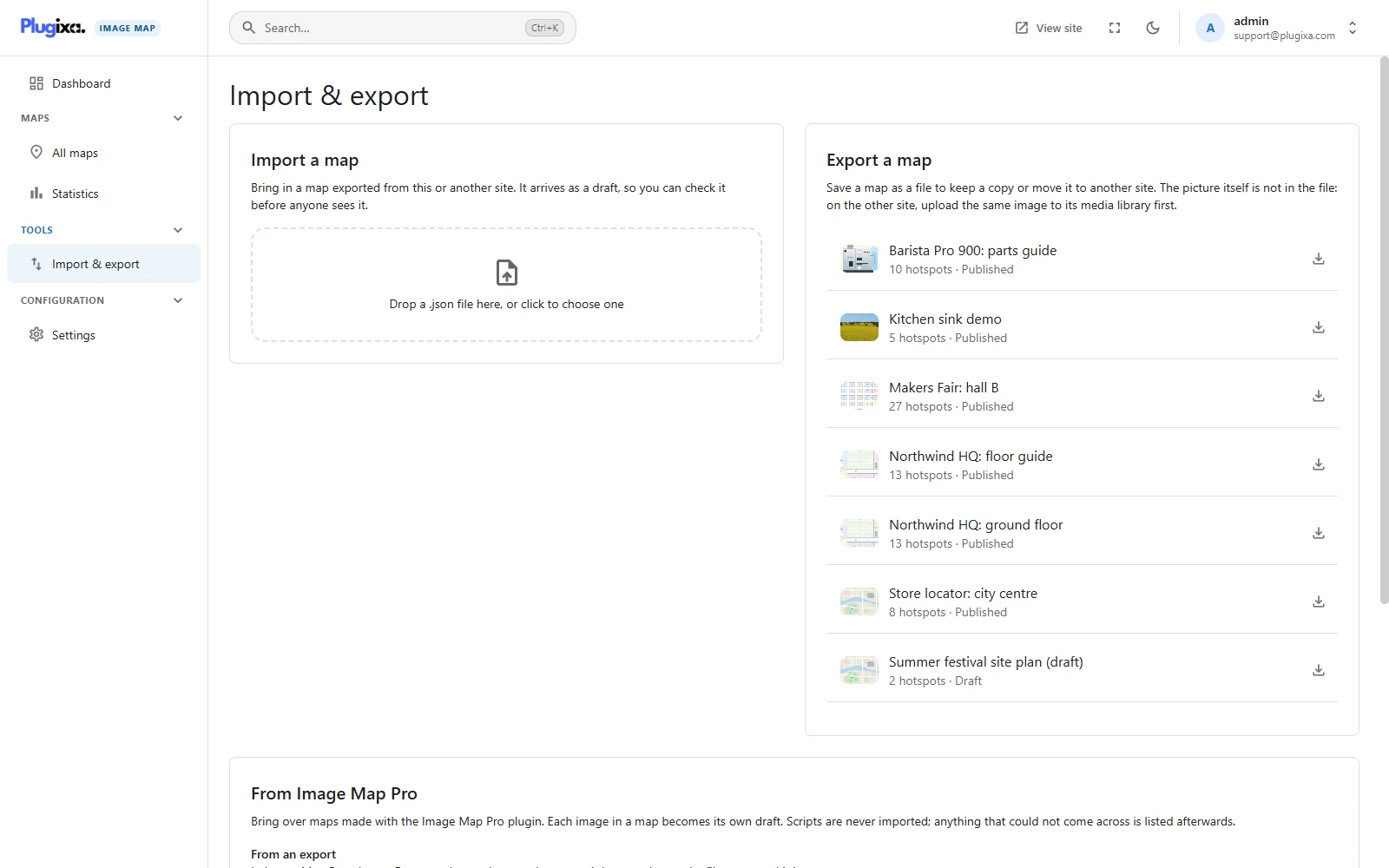
Export a map
Click Export beside a map, here or in All maps. You get a .json file with
the map’s title, settings and every hotspot.
The picture is not in the file. The file refers to it by name. On the other site, upload the same image to the media library first and the import finds it.
Import a map
- Drop the
.jsonfile on the box, or click to choose it. - A summary shows the title, how many hotspots it has and whether the picture was found.
- Click Import.
The map arrives as a draft, so you can check it before anyone sees it. If the picture was not found, open the map and choose one in the editor: the hotspots keep their places.
An imported file is cleaned exactly like a map made in the editor. A file made by a newer version of the plugin is refused with a message asking you to update. A file larger than 3 MB is refused as too large, here and for Image Map Pro exports.
Coming from Image Map Pro
Maps built with the Image Map Pro plugin can be brought over.
From an export. In Image Map Pro, choose Export and copy the text. Paste it into the box here, or choose the file you saved it in, and click Import.
From the same site. If Image Map Pro is installed on this site, its maps are listed and you can import them directly. Their own data is only read, never changed.
What to expect:
- Each image in an Image Map Pro map becomes its own draft.
- Shapes, positions, colours, tooltips and links come across.
- Scripts are never imported. Anything that could not come across is listed afterwards, so you know what to redo by hand.
- A map saved by an old version of Image Map Pro is refused with instructions: open it in Image Map Pro 6, save it, and export again.
From a spreadsheet PRO
See Spreadsheet import.
From the command line
Exports and imports can be scripted. See WP-CLI.