

Contents
Layers and Groups - Plugixa Image Map
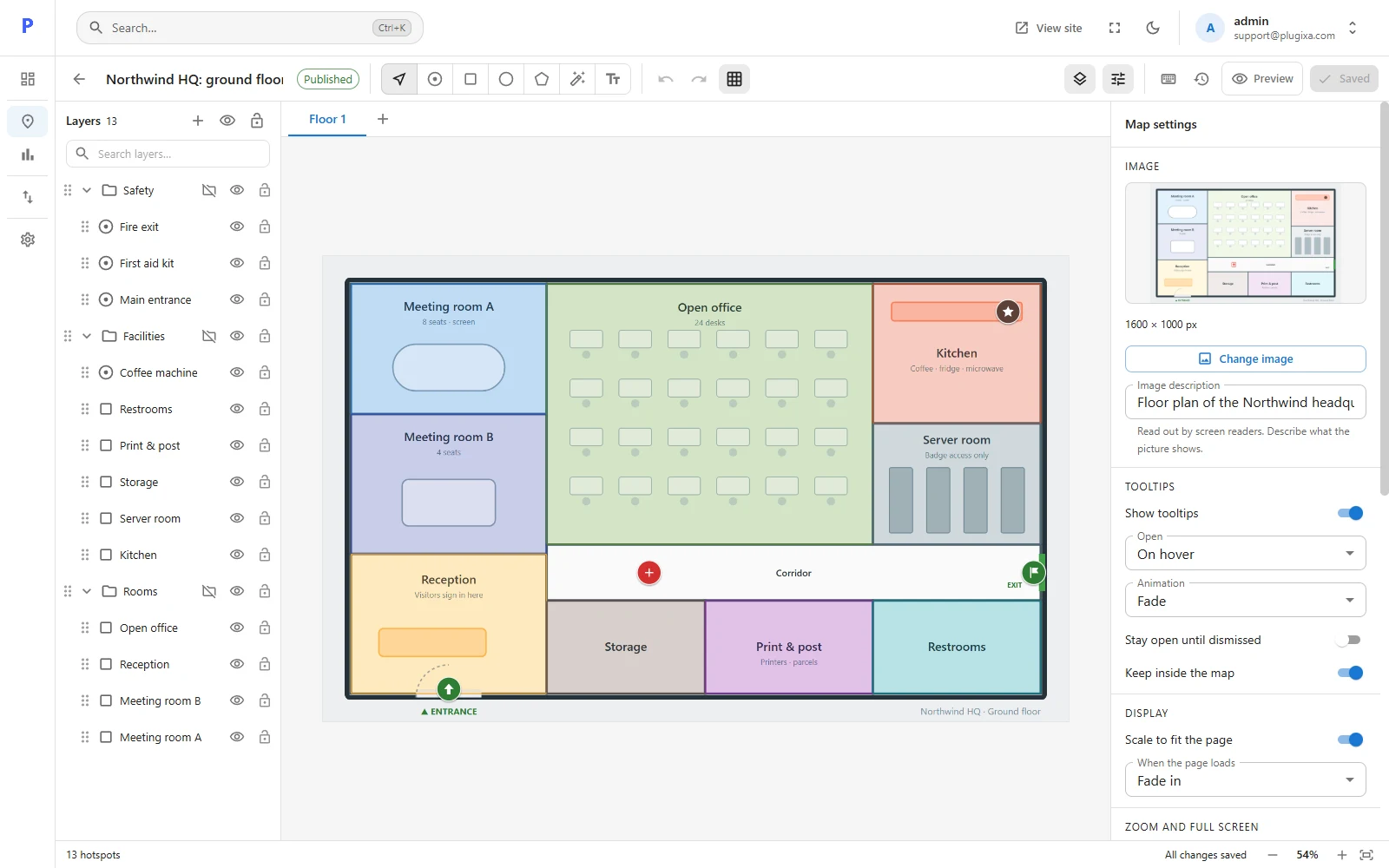
The layers panel on the left lists every hotspot on the map.
Order
The list is the stacking order: the layer at the top is drawn on top. Where two hotspots overlap, a visitor’s pointer reaches the top one.
Drag a layer by its handle to reorder it, or use the keys:
| Action | Key |
|---|---|
| Bring forward / Send backward | Ctrl + ] / Ctrl + [ |
| Bring to front / Send to back | Ctrl + Shift + ] / Ctrl + Shift + [ |
With a screen reader or keyboard only: focus a layer’s handle, press Space to pick it up, move it with the arrow keys and press Space to drop it.
Hide and lock
Each row has two icons.
| Icon | Effect |
|---|---|
| Eye | Hides the hotspot. A hidden hotspot is not printed on your site at all, so it is a simple way to prepare something before it goes live. |
| Padlock | Locks the hotspot in the editor so it cannot be moved or changed by accident. Visitors see it as normal. |
The icons at the top of the panel hide or lock everything at once. With a hotspot selected, H hides it and L locks it.
Groups
A group is a folder. Use groups to keep a busy map manageable: Rooms, Facilities, Safety.
- Select two or more hotspots and press Ctrl + G to group them. Ctrl + Shift + G ungroups.
- The + at the top of the panel adds an empty group.
- The arrow beside a group folds it away.
- A group’s eye and padlock apply to everything inside it.
Groups are for you. They do not change what visitors see, except that hiding a group hides its hotspots.
Search
Type in Search layers to filter the panel by name. Useful on a map with hundreds of hotspots.
Selecting several
- Shift-click or Ctrl-click layers in the panel.
- Drag a box across the canvas.
- Ctrl + A selects everything that is not locked.
With several selected, the align keys line them up: Alt + A / D for left and right, Alt + W / S for top and bottom, Alt + H / V to centre.