

Contents
Map Settings - Plugixa Image Map
Press Esc so nothing is selected. The right-hand panel shows Map settings.
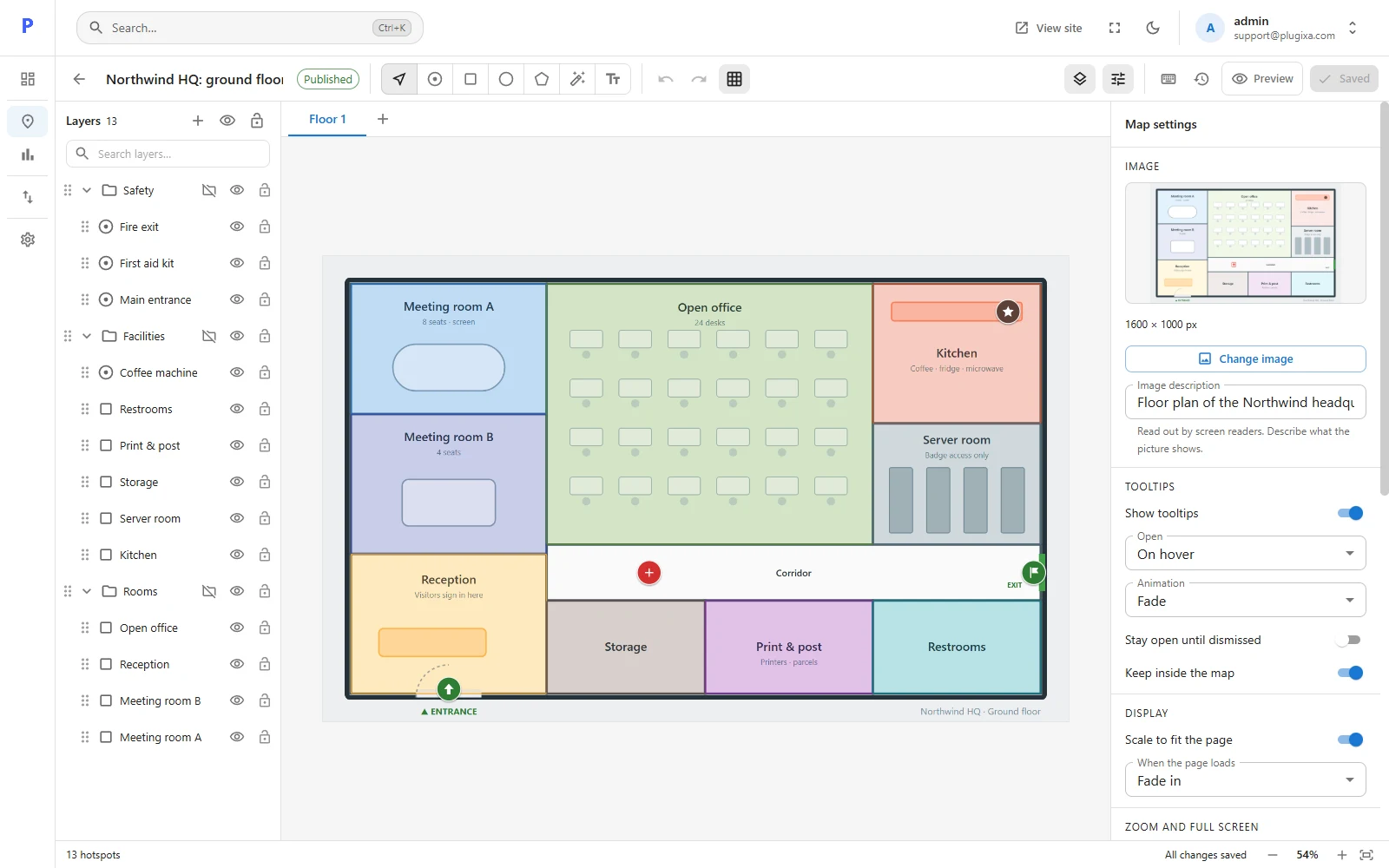
Image
| Setting | What it does |
|---|---|
| Change image | Swaps the picture. Hotspots keep their positions in percent, so a sharper copy of the same picture needs no redrawing. |
| Image description | Read out by screen readers. Describe what the picture shows. |
The picture’s size is read from the media library and shown under the thumbnail.
Tooltips
How tooltips behave across the map. See Tooltips.
Display
| Setting | What it does |
|---|---|
| Scale to fit the page | On by default: the map is as wide as the column it sits in. Turn it off to show the picture at its real size. |
| When the page loads | None, Fade in or Grow in. A short effect on the hotspots when the map first appears. |
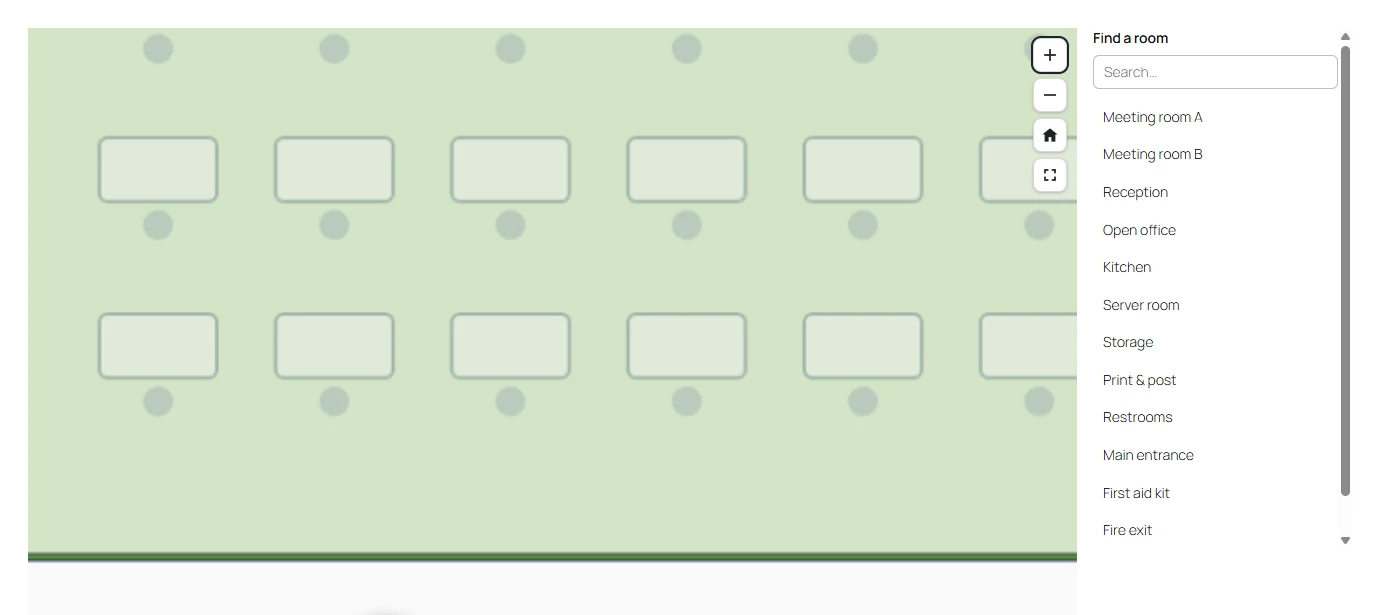
Zoom and full screen
| Setting | What it does |
|---|---|
| Visitors can zoom and pan | Turns zooming on. |
| Largest zoom | How far in a visitor can go, from 1.5 to 10 times. |
| Show zoom buttons | Zoom in, zoom out and Show the whole map, in the corner of the picture. |
| Mouse wheel zooms | With Ctrl held leaves normal page scrolling alone, which is the safe choice for a map in the middle of a long page. Always suits a page that is mostly the map. |
| Full screen button | Lets a visitor open the map over the whole screen. |
On phones, visitors pinch to zoom and drag to move. On a computer they use the buttons, the + and − keys, or the mouse wheel.
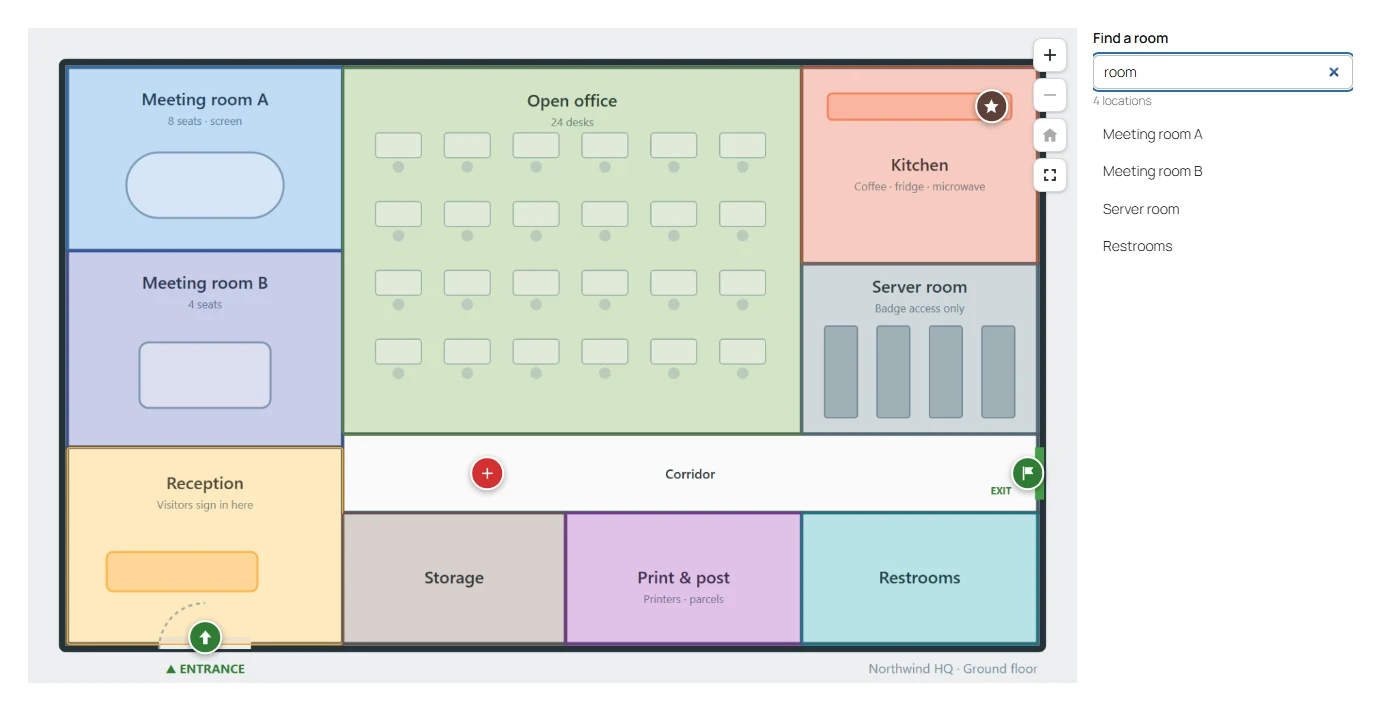
Location list
| Setting | What it does |
|---|---|
| Show a list of the hotspots | Adds a list next to the map. |
| Position | Right of the map, left of it, or below. |
| Heading | Optional, for example Rooms or Our stores. |
| Search box | Lets visitors filter the list by typing. |
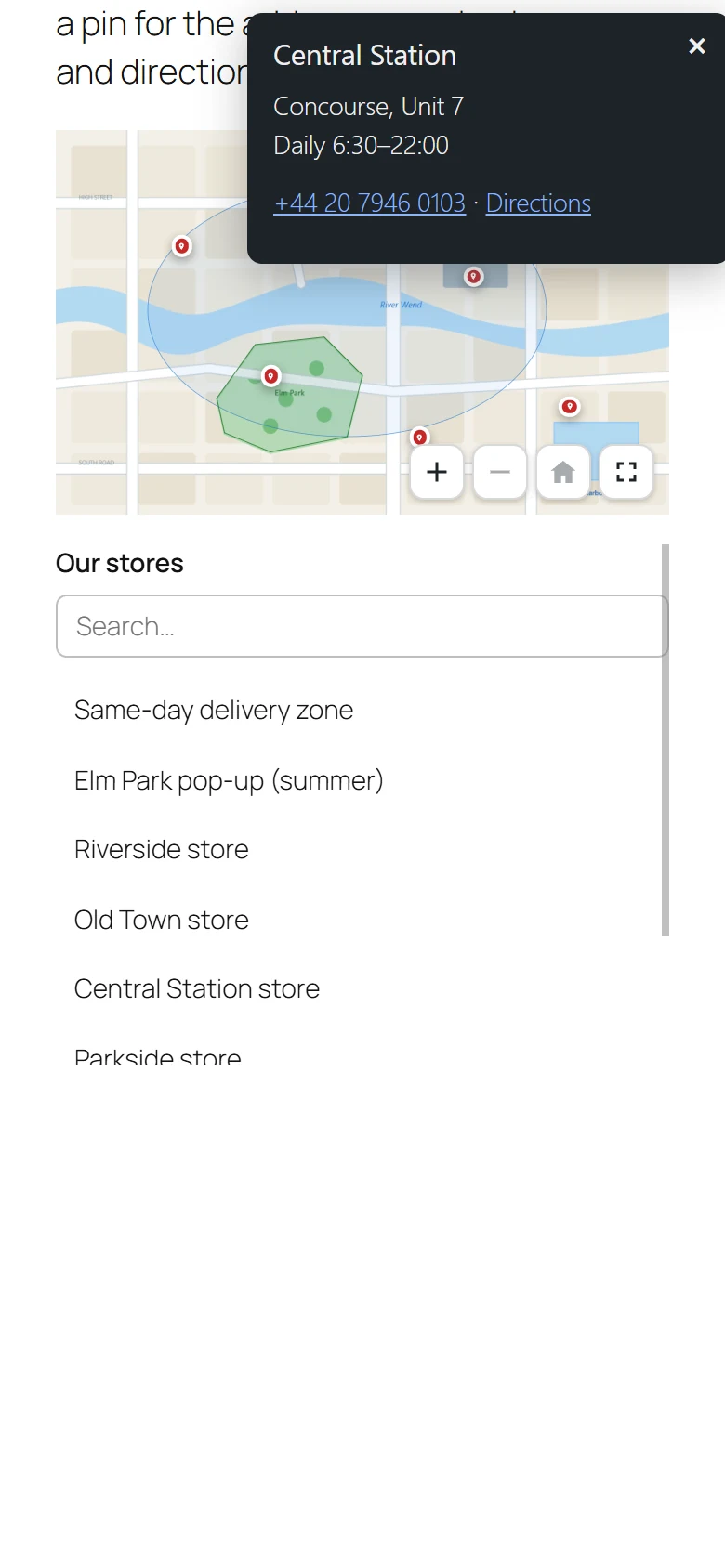
The list holds every hotspot that has a tooltip or a link, under its name. Choosing one shows it on the map and opens its tooltip. On narrow screens the list moves below the map by itself.
Shortcode
The bottom of the panel shows this map’s shortcode with a copy button. While the map is a draft it reminds you to publish first.