

Contents
Customer portal - Plugixa CRM
A page on your own site where a customer can see their support requests and, if you let them, rather more.
Putting it on a page
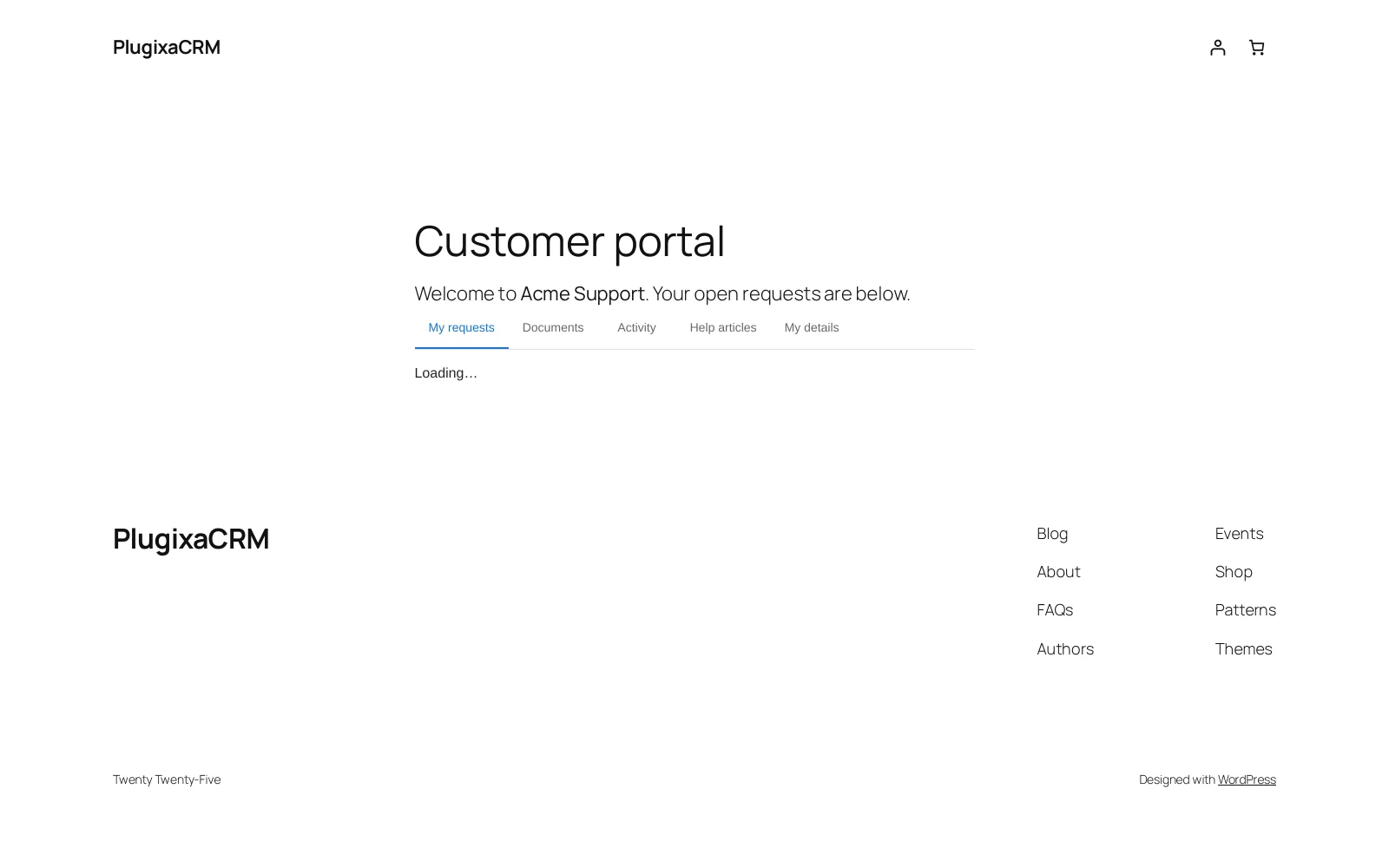
Add the CRM customer portal block, or [plugixa_crm_portal], to any page.
There is no fixed URL and no page is created for you.
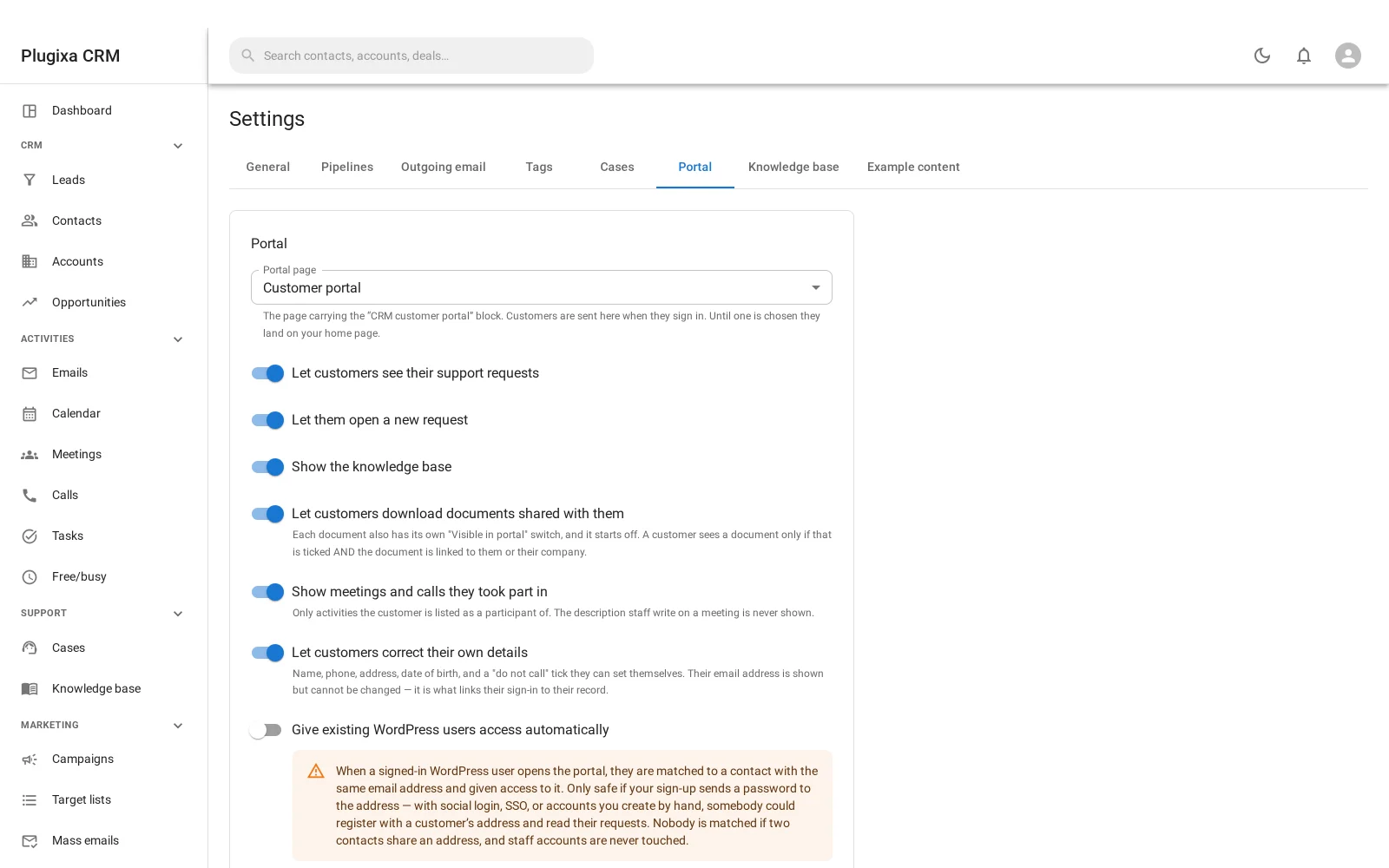
Then tell the CRM which page it is, under Settings -> Portal. That is how customers get sent to the right place when they sign in.
Every panel but one starts off
| Panel | Default | Shows |
|---|---|---|
| Their support requests | On | Cases belonging to them or their company |
| Open a new request | Off | A form that creates a case |
| Knowledge base | Off | Articles marked visible in the portal |
| Documents | Off | Files shared with them |
| Activity | Off | Meetings and calls they took part in |
| Their own details | Off | Name, phone, address, birthday, do-not-call |
A new panel is always off. A site upgrading into a feature has not decided anything yet, and the upgrade must not decide for it. Documents in particular would otherwise start serving files the moment the plugin updated. Cases is the only one on by default, and only because it was the portal’s entire reason to exist when the portal was itself the thing being opted into.
The panels have their own second gates
Switching a panel on is necessary, not sufficient.
- Documents: each document also has a “visible in portal” switch that starts off, and a customer sees a document only if that is ticked and the document is linked to them or their company.
- Activity: only activities the customer is listed as a participant of, and the description staff wrote is never shown.
- Knowledge base: only articles marked visible in the portal, which is a separate setting from public visibility.
- Their details: they can correct name, phone, address, date of birth and the do-not-call tick. Their email address is shown but cannot be changed, because it is what links their sign-in to their record.
A portal user is a WordPress user
WordPress owns the login. The CRM stores only the link between a WordPress account and the contact it speaks for.
That means no second password store, no second account for somebody to lose, and password resets that work the way every other login on your site works.
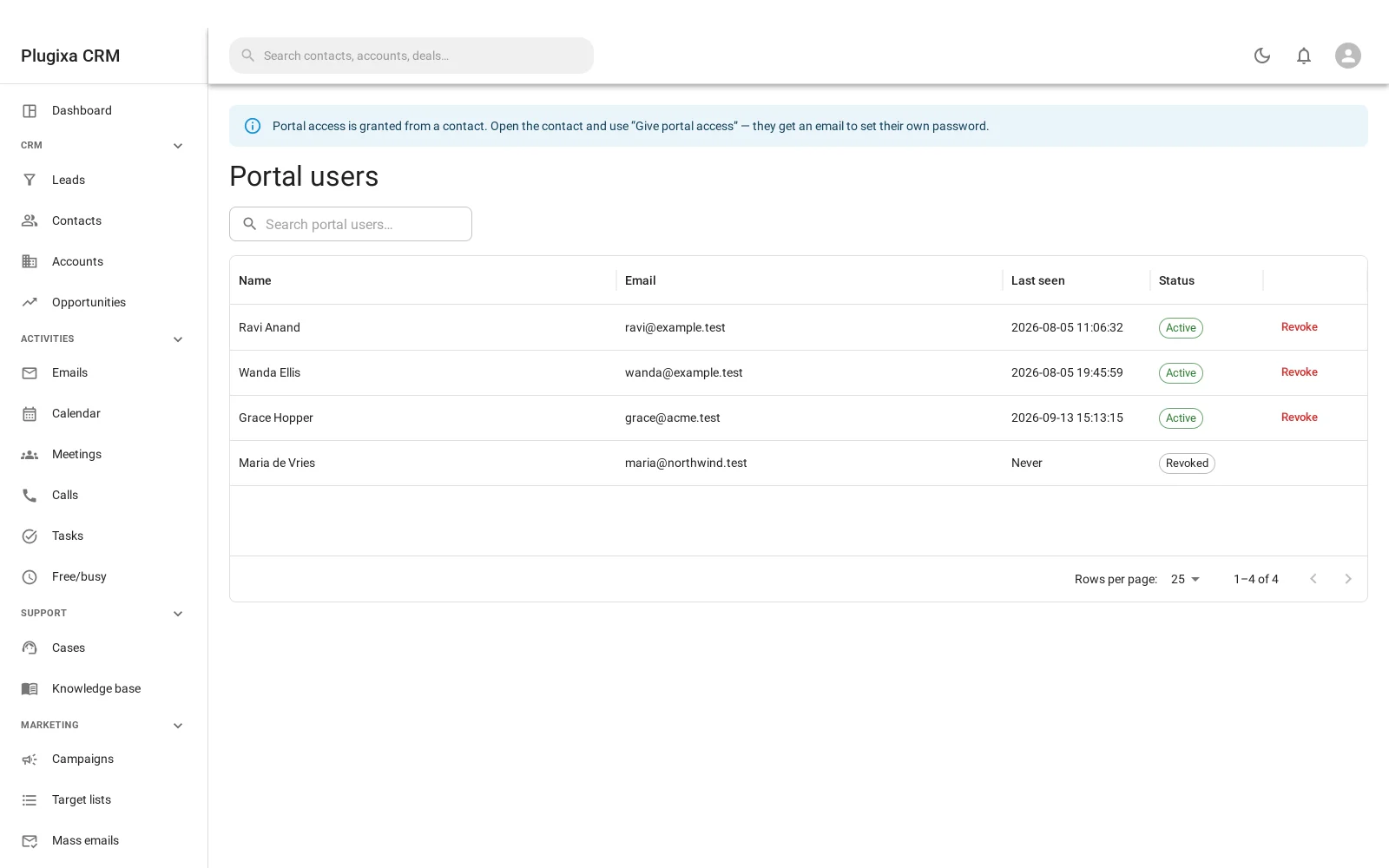
Grant access from the contact: open them and use Give portal access. They get an email to set their own password. Revoke it from the portal users screen.
Self-enrolment, and why it is off
There is a setting that gives any signed-in WordPress user portal access automatically by matching their email address to a contact.
It is off, and an upgrade must never turn it on. Whether it is safe depends entirely on how your site hands out accounts:
- Sound, if WordPress mails the password to the address.
- An account-takeover path, if the site uses social login, SSO, or an administrator typing addresses in by hand.
Only you know which. The screen says so before you switch it on.
Two guardrails apply even then: nobody is matched if two contacts share an address, and staff accounts are never touched.
Signed out
A visitor who is not signed in sees a sign-in link in place. The portal does not
redirect them to wp-login.php, because a page that bounces you off the site is
worse than a page that says what it is.
Troubleshooting
| Symptom | Usual cause |
|---|---|
| The portal shows a sign-in link to an administrator | Correct. An admin is not a portal user. It is showing what a signed-out visitor sees. |
| A customer sees nothing but cases | Every other panel starts off. |
| A document panel is on but empty | Each document needs its own “visible in portal” tick, and must be linked to them. |
| A customer sees a meeting but not the notes | By design. Staff descriptions are never shown. |
| They cannot change their email | By design. It is what links their sign-in to their record. |
| Signing in sends them to the home page | No portal page is chosen in Settings. |
| Self-enrolment is off and I want it on | Read the warning first. Whether it is safe depends on how your site creates accounts. |
| Two contacts share an address and neither is matched | Deliberate. An ambiguous match is not a match. |
What to do next
- What they are looking at: Cases.
- The articles they can read: Knowledge Base.
- Grant access from the person: Contacts.
- Put it on a page: Shortcodes and Blocks.