

Contents
Reports - Plugixa Car Parking
Reports PRO show how your car parks are doing over any dates you choose: the money taken, the bookings, how full the car parks were and how long people stayed, each against the period before. Every table exports as CSV for your accountant or a spreadsheet.
Reports were added in version 1.3.0. They are not the daily report email, which sends yesterday’s count to an address every morning.
Open the reports
Open Plugixa Car Parking -> Reports, under Bookings.
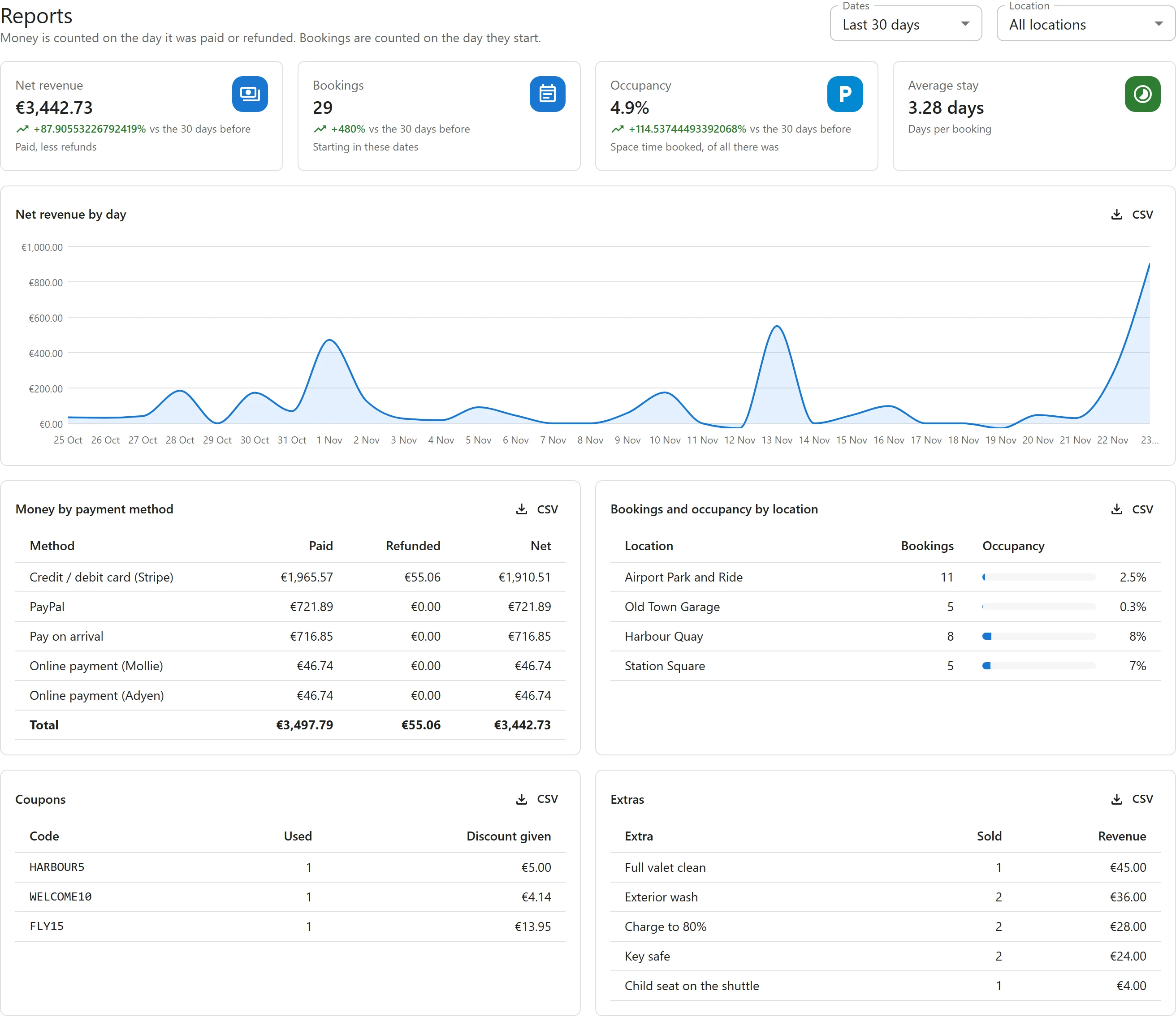
Two choices at the top decide what every figure covers:
| Choice | Options |
|---|---|
| Dates | Last 30 days, This month, Last month, This year, or Choose dates for any range. |
| Location | All locations, or one car park. |
The four figures
| Figure | What it counts |
|---|---|
| Net revenue | Money paid, less money refunded, in these dates. |
| Bookings | Bookings whose stay starts in these dates. |
| Occupancy | The space time booked, out of all the space time there was. |
| Average stay | Days per booking, for the bookings counted. |
Under each figure, a line compares it with the same number of days just before, such as “+12% vs the 30 days before”.
Two rules make the figures add up the way an accountant expects:
- Money is counted on the day it was paid or refunded. A booking paid in October for a stay in December is October’s money. A refund made today is today’s, even for a stay last month.
- Bookings are counted on the day they start. Cancelled, refunded and expired bookings are left out of the booking counts and the occupancy.
The tables
| Table | Columns |
|---|---|
| Net revenue by day | A chart of the money for each day of the range. |
| Money by payment method | Paid, refunded and net for each way of paying: card, PayPal, pay on arrival, Mollie, Adyen, Klarna. |
| Bookings and occupancy by location | The bookings and the occupancy of each car park. |
| Coupons | Each code used, how many times, and the discount it gave. |
| Extras | Each extra sold, how many, and what it brought in. |
A table with nothing to show says so: “No booking in these dates used a coupon.”, for example.
Export as CSV
Each table has a CSV button. The file holds the same rows as the table, for the dates and location chosen.
Who can see reports
Anyone who can read bookings and payments can open Reports. The CSV buttons also need the export permission, the same one the bookings export asks for.
Related
Quick Links
Share