

Contents
On this page
Cart, checkout and orders - Plugixa Extra Product Options
Once a product is in the cart, its options travel with it: through the cart and the checkout, onto the order, into the order emails and the customer’s account. You always know exactly what the customer asked for.
In the cart and at checkout
Each option shows under the product name, as label: answer. A priced answer shows its price after it, like Gift wrap: Gift wrap (+4.00), the way the cart shows prices, with or without tax. Empty fields and fields hidden by rules are left out.
This works the same in:
- The classic Cart and Checkout pages (the
[woocommerce_cart]and[woocommerce_checkout]shortcodes). - The Cart and Checkout blocks, and the Mini-Cart block.
- The cart widget of classic themes.
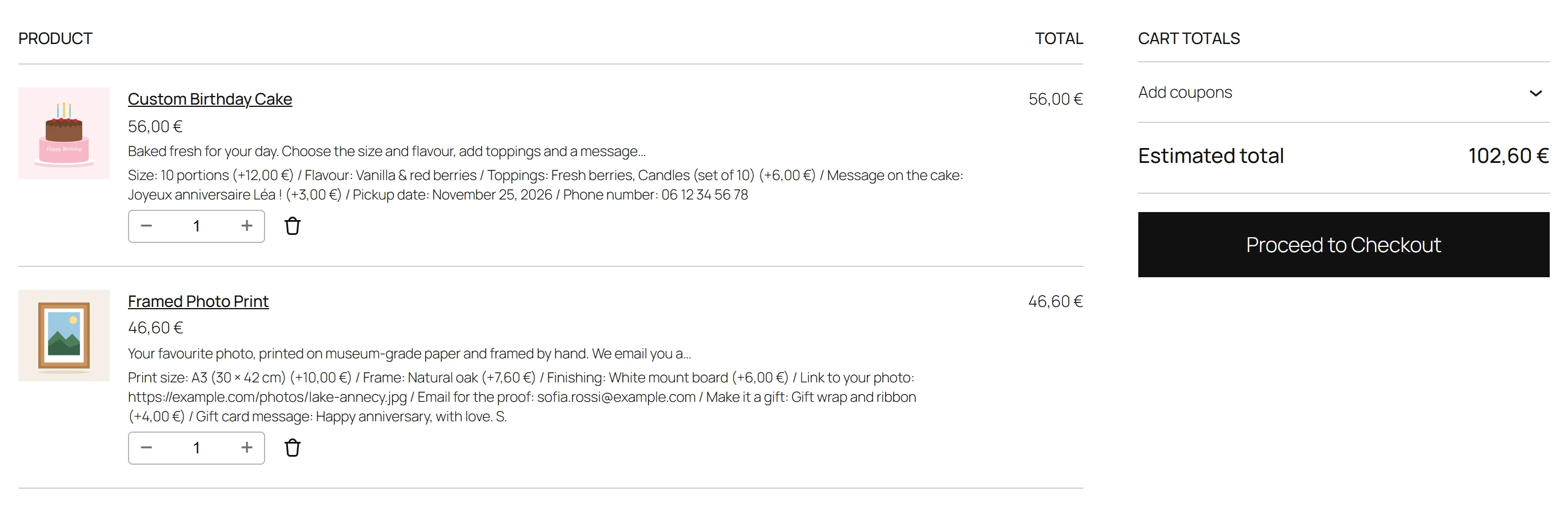
The line’s price is the product’s price plus its options. The cart works it out again on the server every time it is recalculated, from the published group and the product’s current price: see Pricing.
On the order
When the order is placed, each option is saved on its order line, with the same label: answer (+price) text. It shows on:
- The order screen in WooCommerce > Orders, under the product.
- The order emails: the new order email to you, and the customer’s emails.
- The order page in the customer’s My account, and the thank-you page.
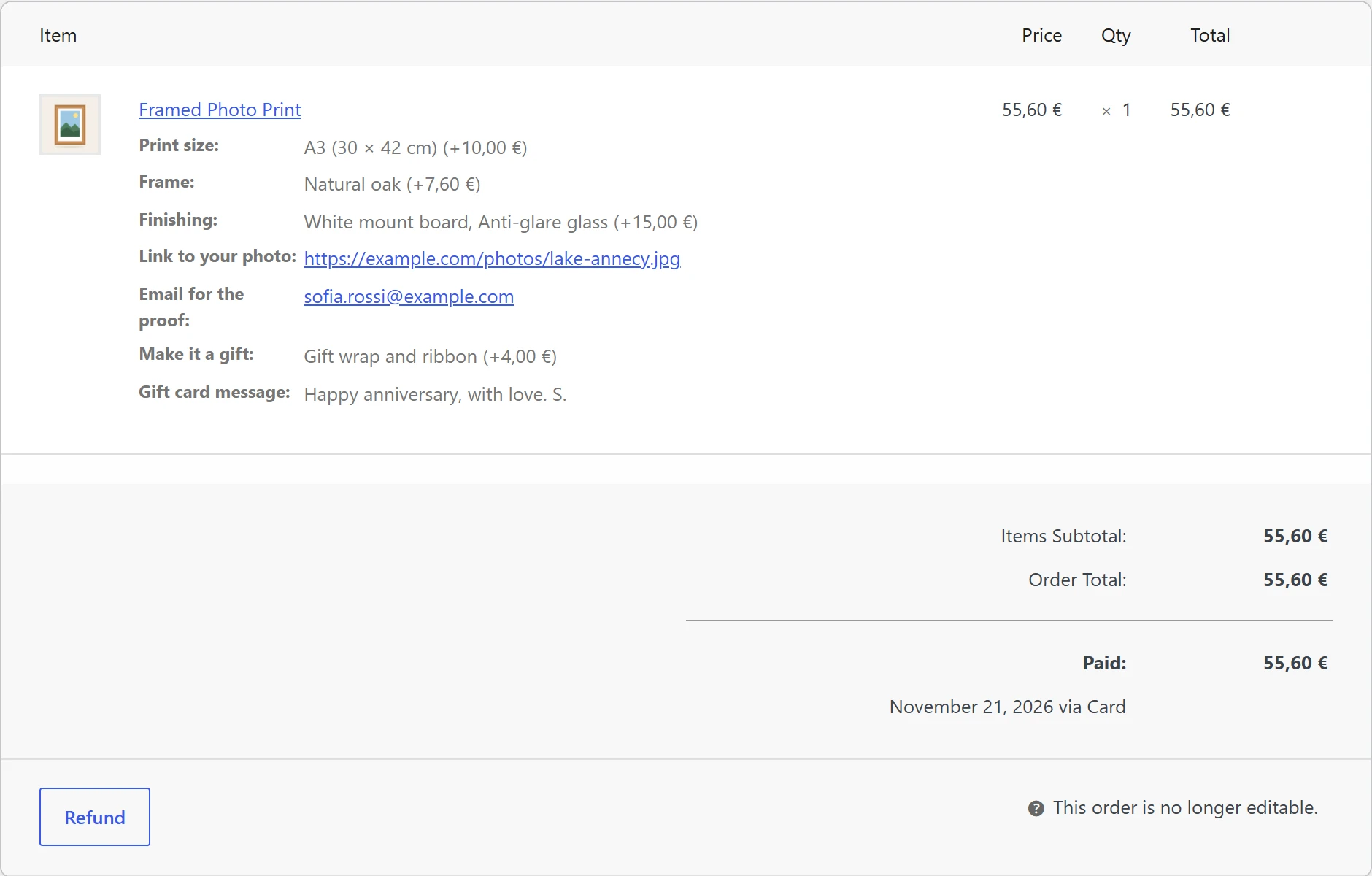
The text is a copy made at checkout. If you rename a field, change a price or delete the group later, past orders do not change.
The order also keeps the raw answers in a hidden field, so the order can be ordered again and, in Pro, edited. It never shows on screens or in emails.
Order again
When a customer clicks Order again on a past order, WooCommerce puts its products back in the cart, and the plugin puts their options back too. The cart then prices them with today’s group and today’s prices, like any new cart.
High-Performance Order Storage (HPOS)
The plugin declares support for WooCommerce’s High-Performance Order Storage, and it works the same whether your orders are stored in the new order tables or in the posts table. You do not need to change anything when you switch.
Editing and exporting in Pro
Pro adds editing options from the cart, editing options on placed orders with the totals updated, and a CSV export of the options of selected orders. See Edit options in the cart, Edit options on orders and Order options export.
Quick Links
Share