

Contents
Templates, import and export - Plugixa Extra Product Options
Pro adds three buttons to the groups list: Templates, Import and Export all. They start a group from a ready-made set of fields, and move groups between stores as a file.
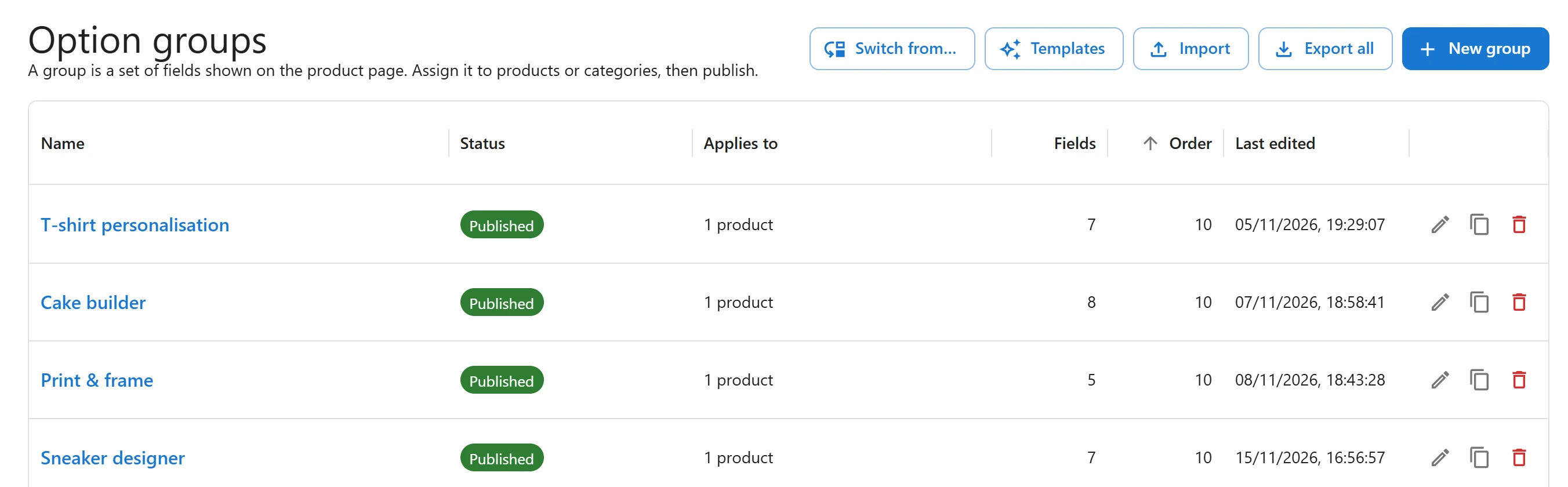
Templates
Click Templates to open Start from a template. Pick one, and you get a draft group to rename, adjust and assign to products before publishing.
| Template | Fields |
|---|---|
| Gift options | Gift wrap, a greeting card, the card message and a delivery date (4 fields) |
| Engraving | Engraving yes or no, the text to engrave and a font (3 fields) |
| Custom print | A photo upload, the print size, the paper and a frame (4 fields) |
| Size and extras | A size, extra toppings and notes for the kitchen, for a meal or a pizza (3 fields) |
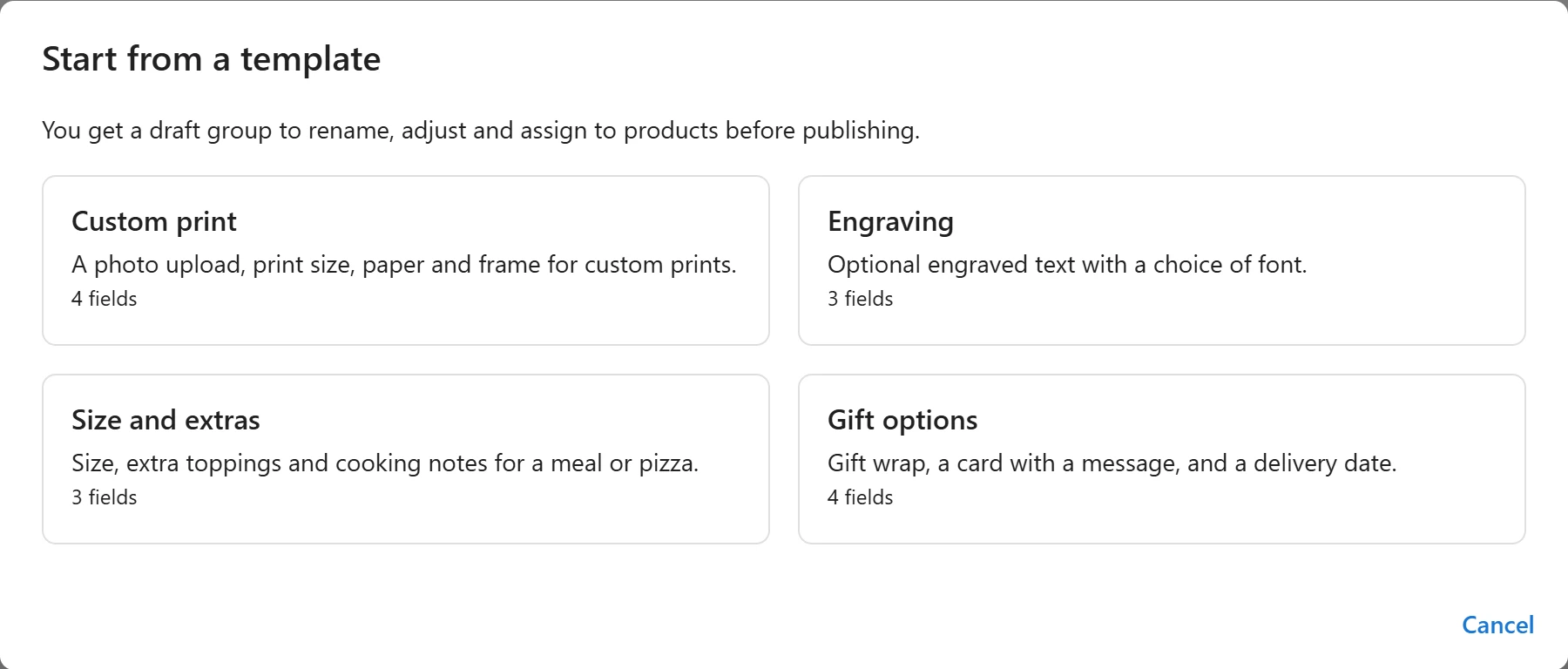
Templates come in English, with sample prices. Rename the fields and set your own prices in the editor like any group.
Export
- Export all, on the groups list, downloads every group in one file.
- Export (saved version), in the editor’s More actions menu, downloads the group you are editing. It exports the last saved draft: save first if you have changes.
The file is a JSON file that holds each group’s name, order and fields, with their prices and rules. It is a good backup before a big change.
Import
Click Import on the groups list and choose an export file.
- Every imported group arrives as a draft, so nothing shows on the store until you check it and publish it.
- From the same store, the groups keep where they show. The page says Imported 3 group(s) as drafts.
- From another store, product, category and tag ids mean nothing here, so the groups arrive without targets. The page says Imported 3 group(s) as drafts. They came from another store, so choose where each one shows.
A file that is not an export is refused with This file is not a valid export (it is not JSON).
Moving a group to another store
- On the first store, open the group and choose Export (saved version), or use Export all.
- On the second store, click Import and pick the file.
- Open each imported draft, set Where it shows, and publish.
Both stores need Pro for import. Groups that use Pro features need Pro on the second store to work fully.
Coming from another plugin?
To bring in groups from WooCommerce Product Add-Ons, YITH or PPOM, use Switch from…: see Switch from another plugin.
Quick Links
Share