

Contents
On this page
Pricing - Plugixa Extra Product Options
Any field or choice can have a price. The price is added to the product’s price for each item in the cart, so a customer who orders three engraved mugs pays the engraving three times.
Price types
| Price type | What it adds | Example |
|---|---|---|
| No price | Nothing | A card message that is free |
| Fixed amount | The amount you type | Gift wrap: 4.00 |
| % of product | A share of the product’s price before options | Express preparation: 10% |
% of product is worked out on the price the customer is paying for the product or the chosen variation, before any options: its sale price when it is on sale. On a 30.00 product, a 10% option adds 3.00. On its 45.00 variation, the same option adds 4.50.
Where you set a price
- Fields with choices (dropdown, radio buttons, checkboxes): each choice has its own price, in the Options tab. A checkbox field adds up the price of every ticked choice.
- Fields without choices (text, text area, number, date, email, phone, web address): the field has one price, under Pricing in the General tab. It is charged once per item when the customer fills the field in, whatever they type.
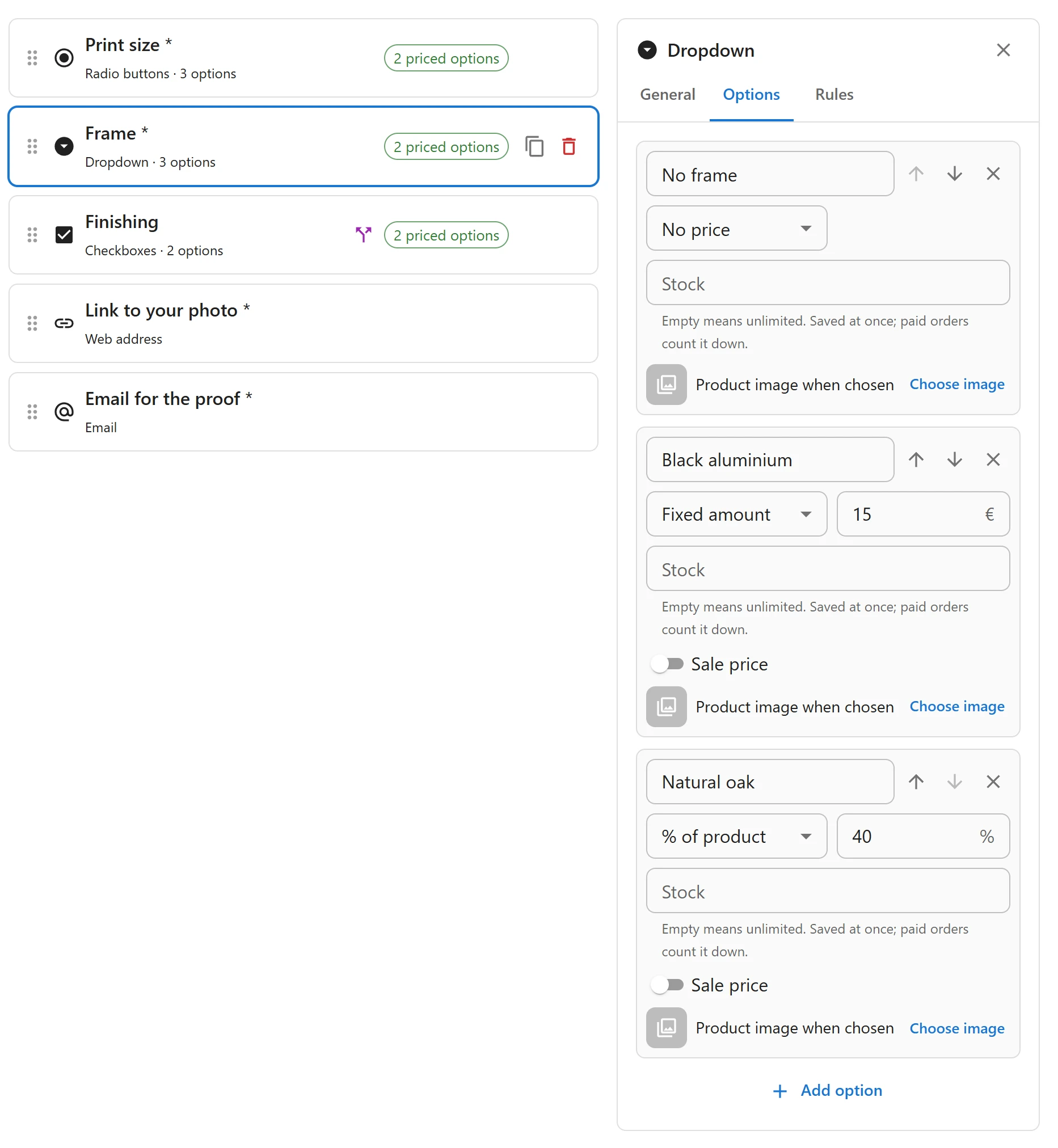
A field hidden by a rule never costs anything, even if it was filled in before it was hidden.
Discounts
A price can be negative. A choice such as No gift box (-2.00) lowers the price of the item. The item’s price never goes below zero, whatever the options.
The live total
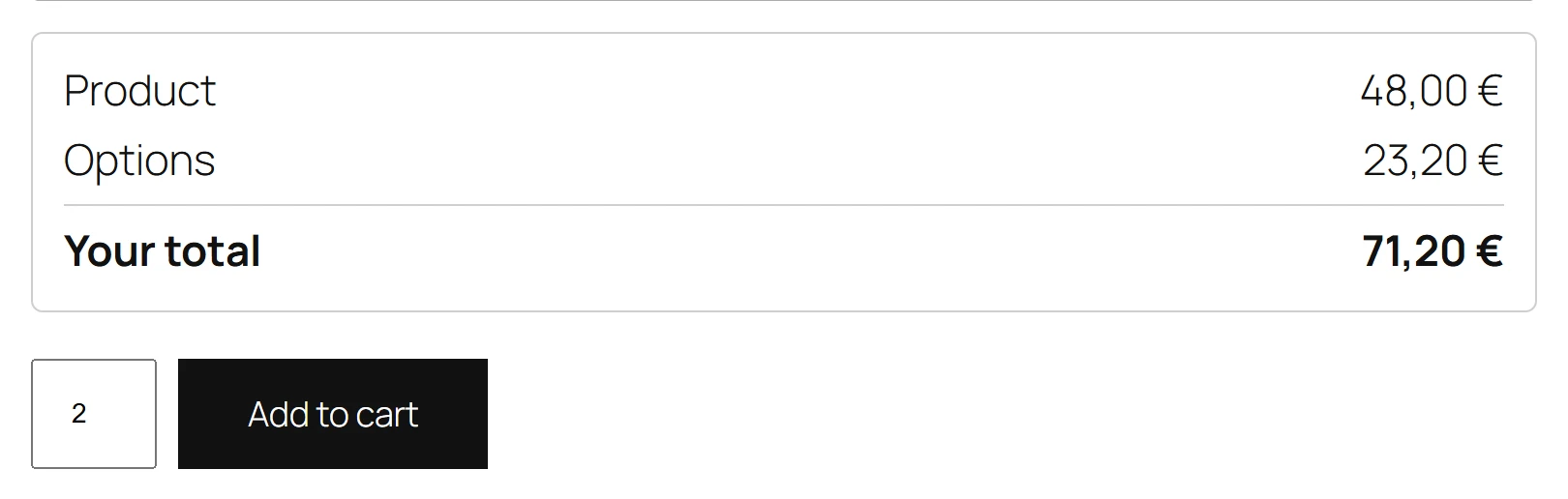
Under the options, the product page shows three lines that update as the customer answers:
| Line | What it shows |
|---|---|
| Product | The product’s price times the quantity |
| Options | The options’ prices times the quantity |
| Total | Both together, the amount the line will cost in the cart |
The total follows the variation the customer chooses and the quantity box. You can rename the Total line, or hide the whole box, in Settings.
Prices beside the choices
By default each priced choice shows its price after its label, like Gift wrap (+ 4.00), and a percentage shows as the amount it adds for the current product. To hide these hints and only show the total, set Prices beside options to Hide in the settings.
Prices you can trust
The product page works out the total in the browser so it can update instantly. The cart does not use that number. When the customer adds the product to the cart, the server checks every answer and works the price out again from the published group and the product’s current price. It does the same each time the cart is recalculated, so:
- A price changed in the browser’s developer tools is never charged.
- If you change an option’s price, carts that already hold the product follow the new price.
- Each field’s price is rounded to your store’s decimals before it is added up, so the lines the customer sees always add up to the total they pay.
Tax
Option prices follow the product’s tax class. Type them the same way you type your product prices: with or without tax, as set in WooCommerce > Settings > Tax. When your store shows prices with tax but you enter them without it, the product page and the cart show the option prices with tax too, so a 5.00 option shows as 6.00 with 20% VAT and is charged 6.00.
More price types in Pro
Pro adds formulas, price tables, prices per character and per unit typed, one-time fees, sale prices, discounts by customer role and linked products. See Price formulas, Price tables, Per character, per unit and one-time fees, Sale prices and Discounts by role.
Quick Links
Share