

Contents
On this page
Option images - Plugixa Extra Product Options
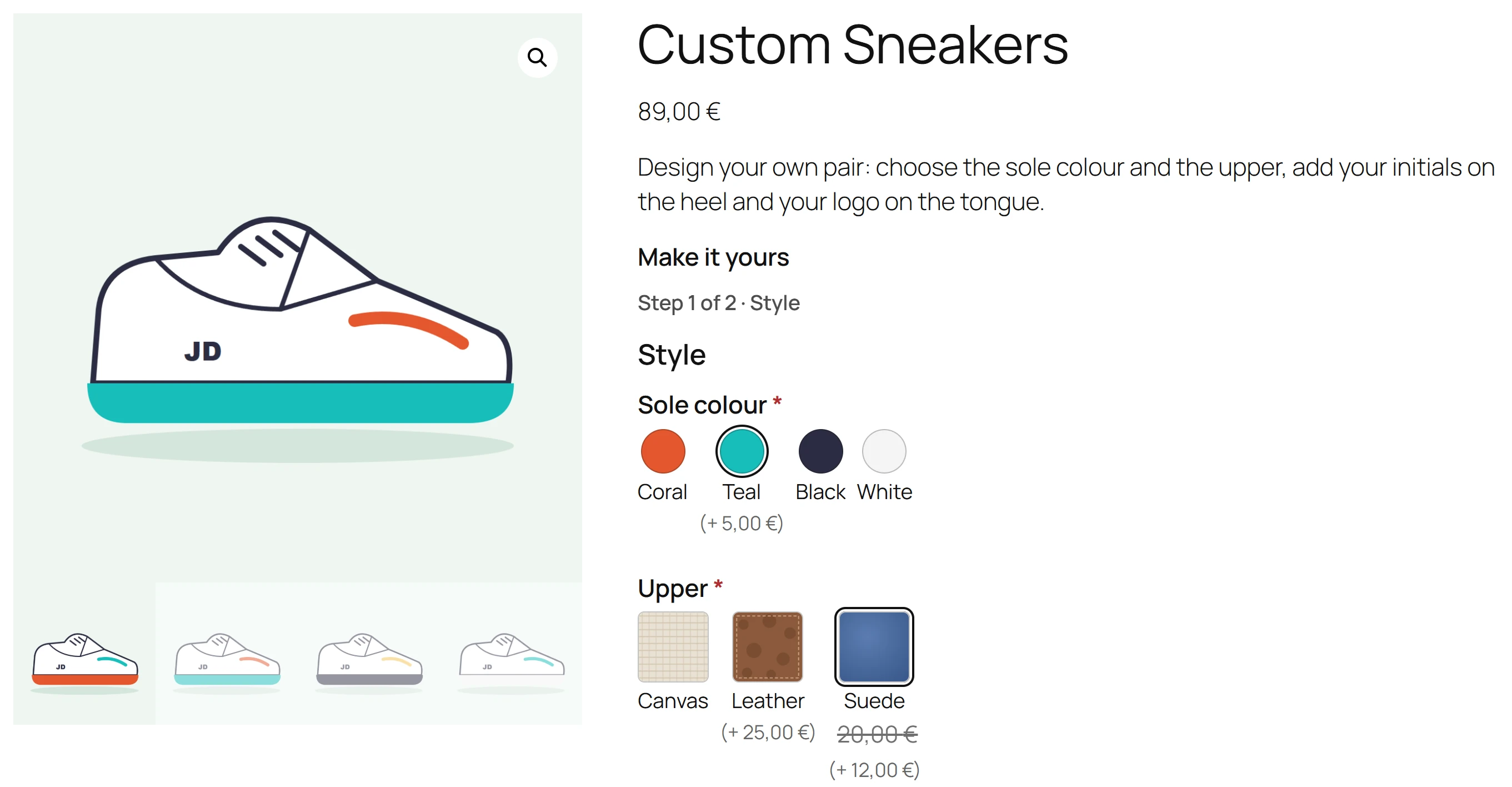
A choice can change the product’s main picture. When the customer picks Red, the gallery shows the red mug; pick Blue, and it shows the blue one. It works like the picture of a WooCommerce variation, without having to create variations.
Setting it up
- Select a dropdown, radio buttons or checkboxes field.
- In the Options tab, find Product image when chosen under each choice.
- Click Choose image and pick the picture from the Media Library.
If the choice already has an image swatch, Use swatch image reuses it in one click. Use a picture the same size as your product pictures so the gallery does not jump.
How it behaves
- The picture takes the place of the main gallery image, the way a variation’s picture does, so zoom and the lightbox show it too.
- Clearing the choice brings the product’s own picture back.
- When several choices with pictures are picked, the one picked last is shown.
It only changes what the customer sees. Prices, rules and the cart are not affected, and the cart shows the product’s usual thumbnail.
Quick Links
Share