

Contents
On this page
Steps and tabs - Plugixa Extra Product Options
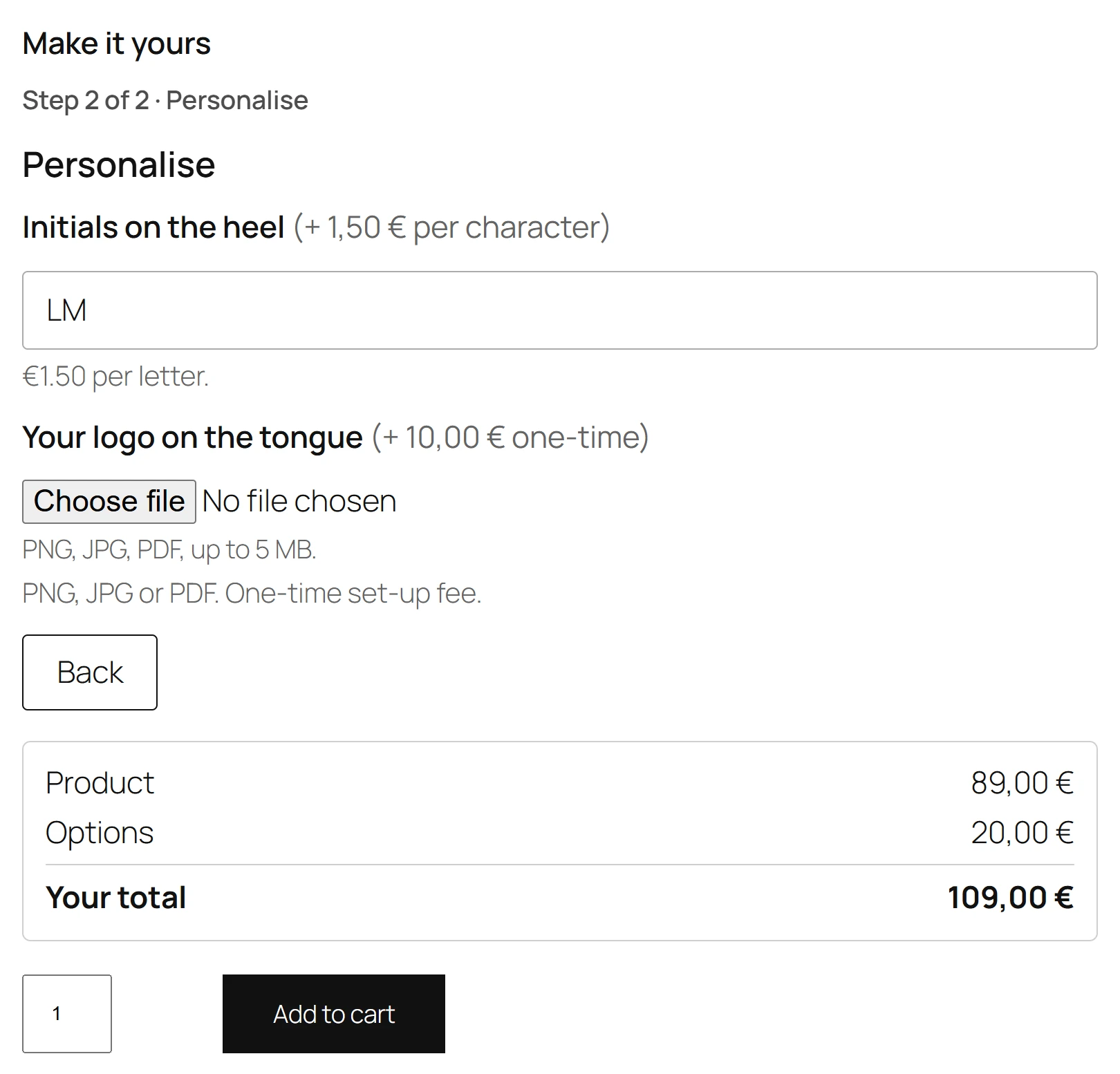
A long group can show one part at a time: as steps the customer moves through with Back and Next, or as tabs they click freely. A made-to-measure sofa with fabric, size, legs and delivery reads better in four short steps than in one long list.
Setting it up
- Add a Heading field at the start of each part: Fabric, Size, Legs, Delivery. Each heading starts a new section.
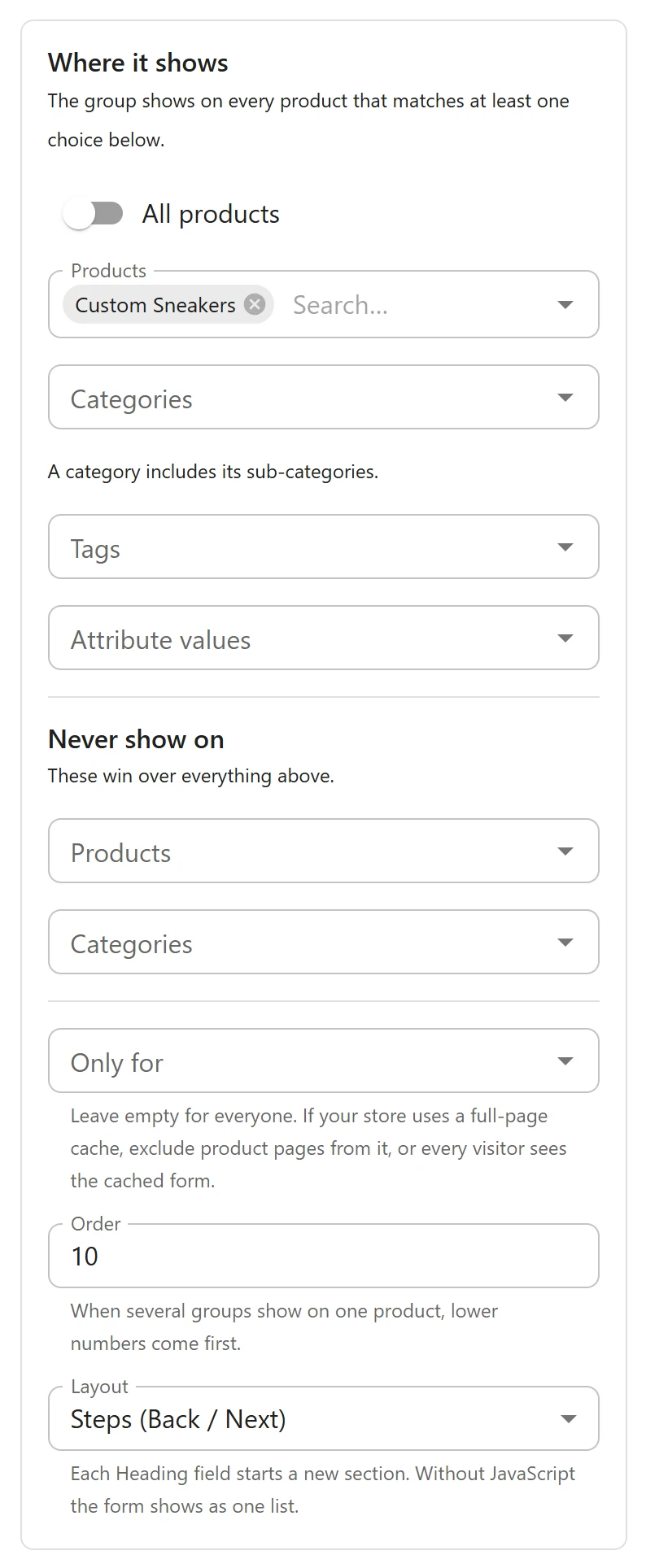
- Close the selected field so the right column shows the group’s settings.
- Under Layout, choose Steps (Back / Next) or Tabs. One list is the usual layout.
Fields placed before the first heading form a first section of their own, called Options. Without any heading, the editor reminds you: Add Heading fields to split the form: each heading starts a new section.
Steps
The form shows one section with Step 1 of 4 above it. Next moves on and Back goes back. Before moving on, Next checks the required fields of the current step and says Please fill in the required fields first. when one is empty.
Tabs
The section headings become tabs above the form. The customer can open any tab in any order.
What does not change
Steps and tabs only change what is on screen. Every field is still in the form, so:
- Rules work across sections: an answer in step 1 can show a field in step 3.
- The live total counts every section, whichever is open.
- A section whose fields are all hidden by rules is skipped.
- If a required field in another section is empty when the customer clicks Add to cart, that section opens first and the field is pointed out.
Without JavaScript, the customer sees the whole form as one list, and it works the same.
Quick Links
Share