

Contents
On this page
Field types - Plugixa Extra Product Options
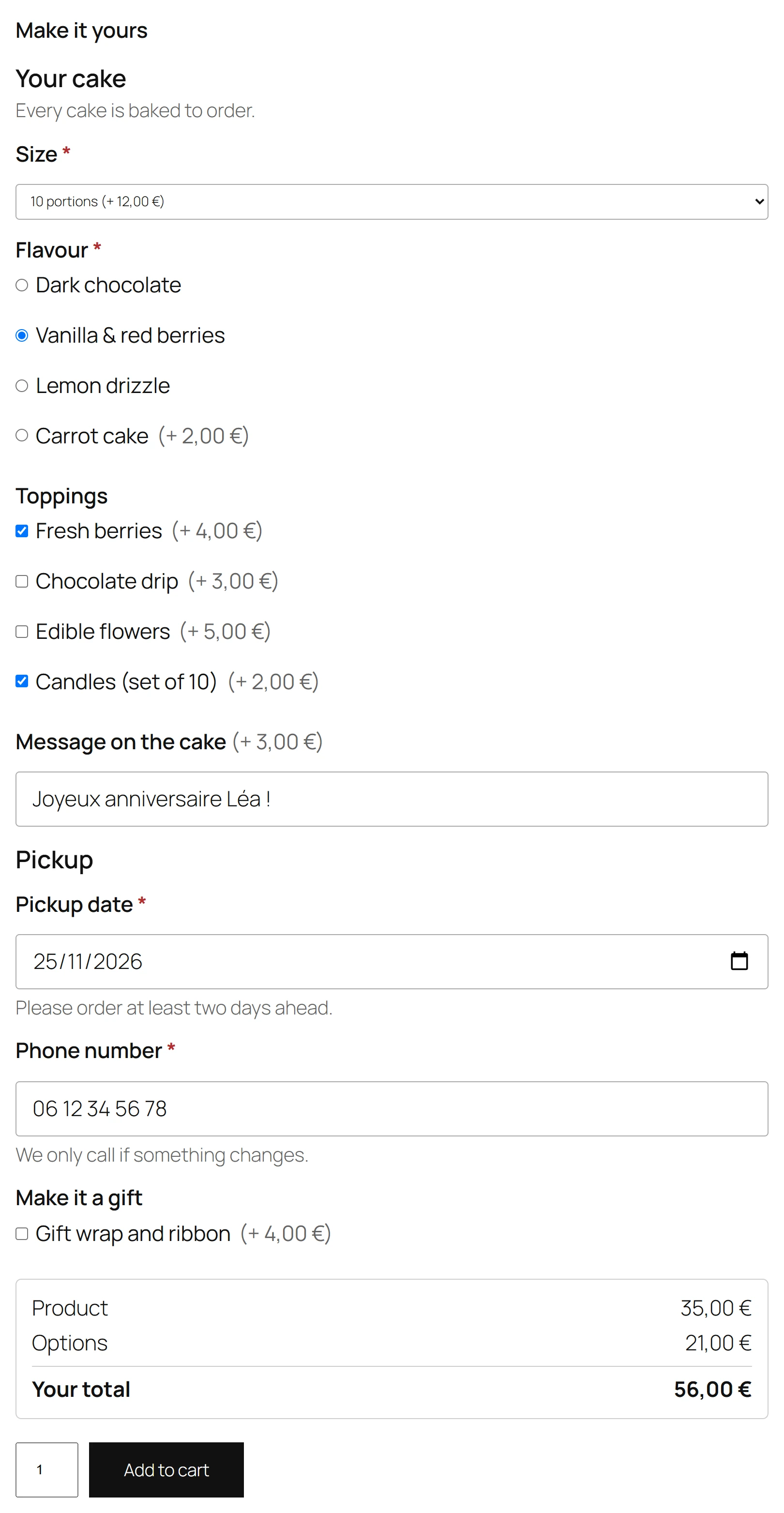
The free plugin has eleven field types. Pick one under Add a field in the editor. Each type is checked on the server when the customer adds the product to the cart, so a value the field cannot accept never reaches the order.
Input fields
The customer types or picks a value. An input field can have one price, charged when it is filled in. See Pricing.
| Type | Use it for | Checked on the server |
|---|---|---|
| Text | One line, like a name to engrave | Max. characters, when set |
| Text area | Several lines, like a gift message | Max. characters, when set |
| Number | A quantity or a size, like a width in centimetres | That it is a number, between Minimum and Maximum when set |
| Date | A delivery or event date, with the browser’s date picker | That it is a real calendar date |
| An address to send a gift card to | That it is a valid email address | |
| Phone | A number to call for delivery | Digits, spaces and + ( ) - . only, with at least three digits |
| Web address | A link to a design or a profile | That it starts with http:// or https:// |
When the customer types something a field cannot accept, the product is not added to the cart and a message names the field, for example Card email must be a valid email address.
Choice fields
The customer picks from a list of choices you write. Each choice has its own price.
| Type | Use it for | How it behaves |
|---|---|---|
| Dropdown | Pick one from a long list, like a font | One choice. The empty first line reads Choose an option, or your Empty choice text. |
| Radio buttons | Pick one, all choices visible, like a size | One choice. Use Selected by default to pre-select one. |
| Checkboxes | Pick any number of extras, like toppings | Any number of choices. Each ticked choice adds its own price. Min. choices and Max. choices set limits. |
Only the choices you wrote are accepted: a value sent for a choice that does not exist is refused.
Heading
A Heading is a title that splits a long form into parts, such as “Engraving” and “Packaging”. It has no answer, no price and no rules, and it is not saved on the order. In Pro, headings also cut the form into steps or tabs: see Steps and tabs.
Required fields
Switch on Customers must fill this in to make a field required. The field’s label gets a star, and the product cannot be added to the cart until it is filled in. A field hidden by a rule is never required: a customer cannot be asked for a field they cannot see.
In the cart and on the order
Every answered field is shown under the product name with its label: the text typed, the date, or the labels of the chosen choices, separated by commas for checkboxes. Empty fields are left out.
More field types in Pro
Pro adds File upload, Time, Colour, Slider, Calculated value and Repeater, and can show radio buttons and checkboxes as colour swatches, image swatches or buttons. See Time, colour and slider fields, File uploads, Calculated values, Repeater fields and Swatches and buttons.
Quick Links
Share