

Contents
On this page
Quick view - Plugixa Extra Product Options
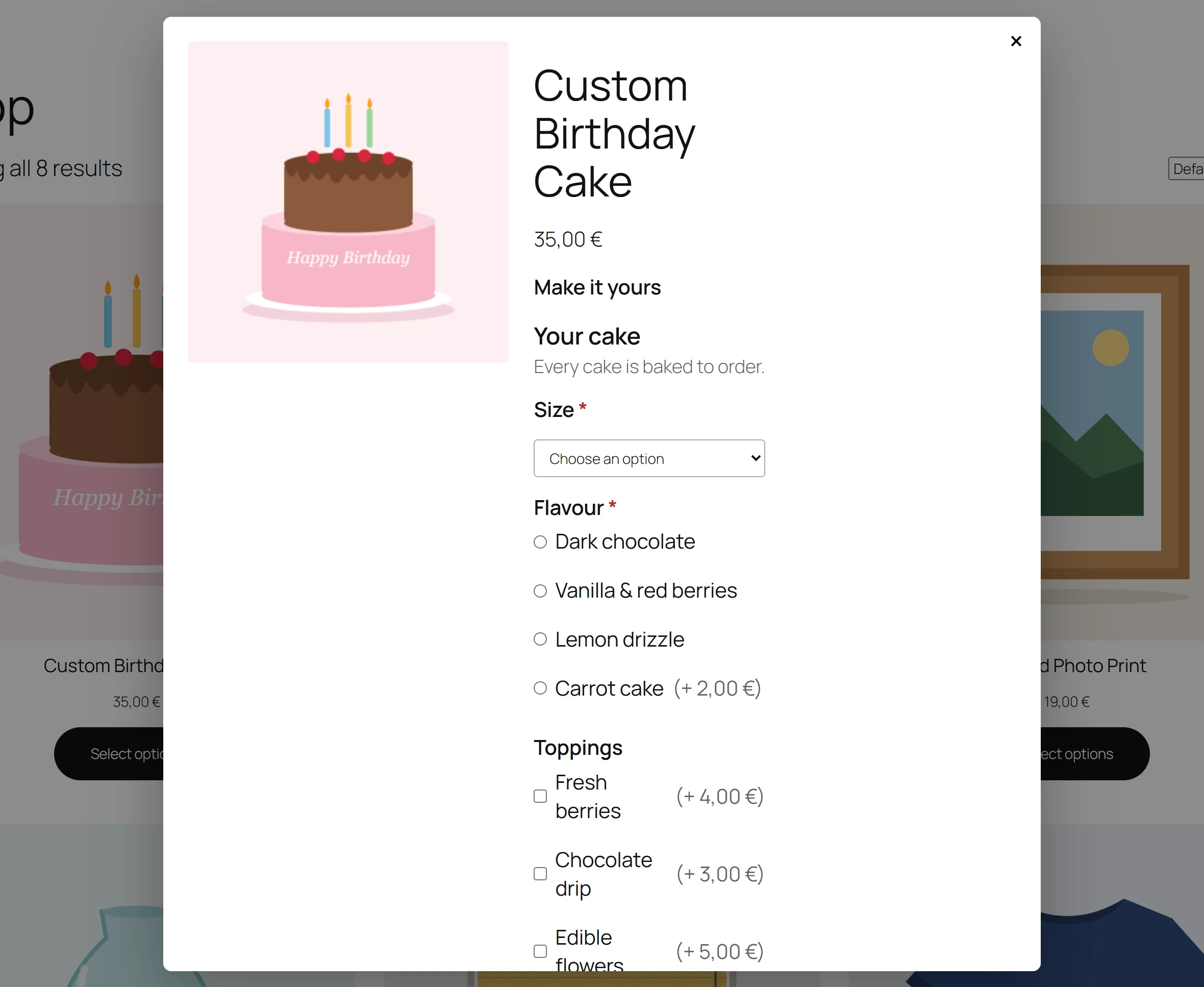
On shop and category pages, a product with options normally shows Select options, which opens the product page. With quick view, the button opens the options in a pop-up instead, and the customer adds to the cart without leaving the list.
Turning it on
Quick view is on by default in Pro. To change it, open Plugixa Product Options > Settings, section Where the form shows, and switch Quick view on shop pages on or off.
How it works
- On a shop, category or other product list, the customer clicks Select options on a product with options.
- A Choose options pop-up opens with the product’s title, price, picture and its full add-to-cart form, options included.
- The customer fills in the options and clicks Add to cart. The pop-up says Added, closes, and the mini-cart updates.
The pop-up shows the real product page, in a bare layout. Variations, file uploads, rules, prices and error messages behave exactly as on the product page, and WooCommerce itself adds the product to the cart.
Good to know
- No JavaScript, no problem. The button stays a plain link to the product page, so customers on old browsers or with scripts blocked can still buy.
- Products without options keep WooCommerce’s usual Add to cart button.
- Close the pop-up with Close or the Escape key.
Quick Links
Share