

Contents
On this page
Where groups show - Plugixa Extra Product Options
Each group has its own Where it shows settings. A group can show on every product, on products you pick, or on whole categories. Set them in the editor, in the right-hand column while no field is selected.
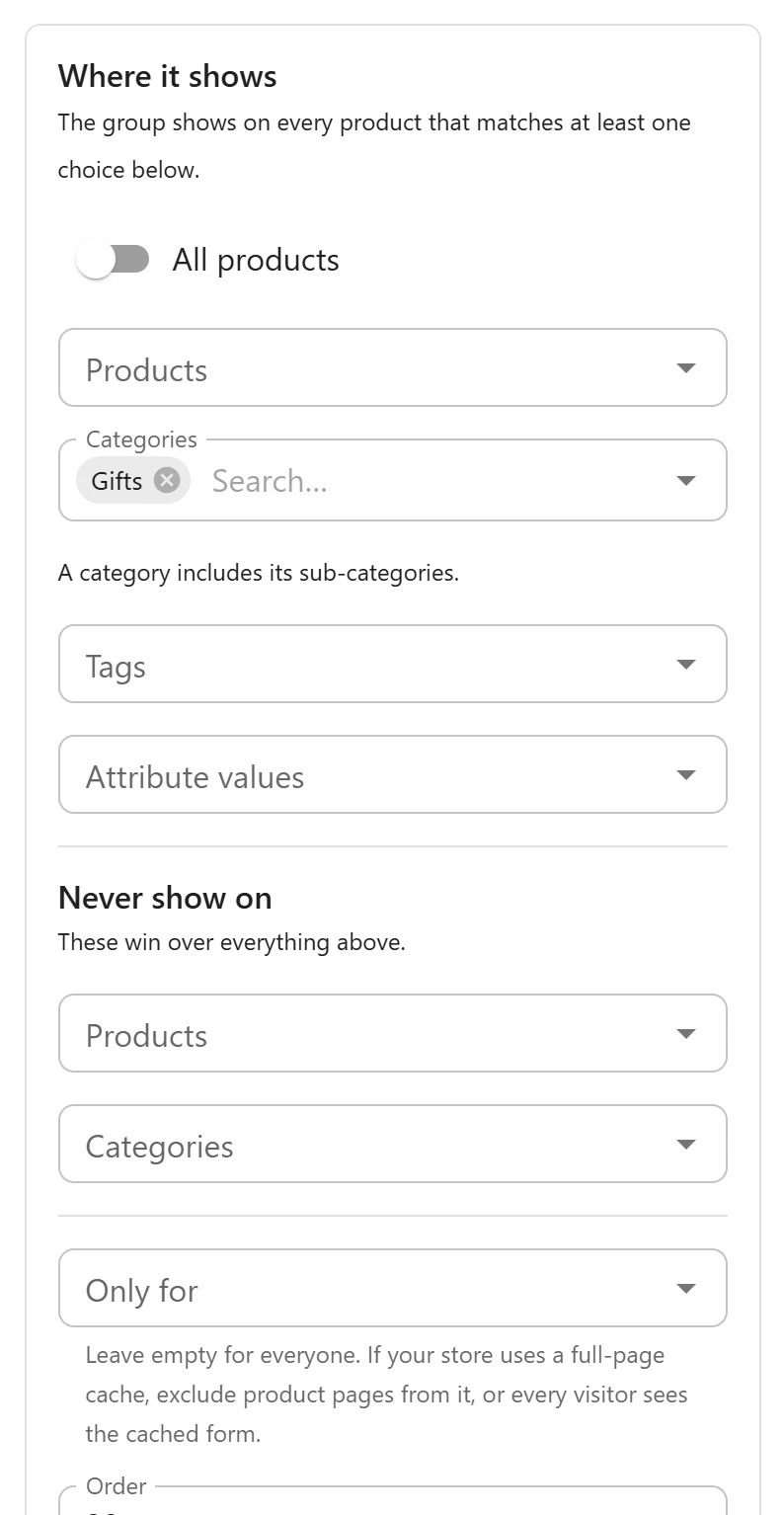
The choices
| Setting | The group shows on |
|---|---|
| All products | Every product in the store. The other choices are then not needed. |
| Products | The products you pick. Type part of a product’s name to find it. |
| Categories | Every product in the categories you pick. A category includes its sub-categories. |
The group shows on every product that matches at least one choice. A group set to the Mugs category and to the product Leather notebook shows on every mug and on that notebook. A product that matches twice still shows the group once.
A group with no choice at all shows nowhere. The list then says Not assigned in its Applies to column.
Variable products
Pick the variable product itself, not a variation. The group shows on the product page whatever variation the customer chooses, and a percentage price follows the chosen variation’s price.
The order of groups
When several groups show on the same product, they appear one after the other. Order decides which comes first: lower numbers come first. Two groups with the same number appear in the order they were created.
For example, give Size and finish the order 1 and Gift options the order 10, and
gift options always come last.
When a change shows
Targets are part of the group, like its fields. A change to Where it shows reaches the store when you Publish, not when you save the draft.
The plugin remembers which groups apply to each product, so product pages stay fast. Publishing, disabling or deleting a group clears that memory at once, and the next page load shows the change.
Checking a product
To see which groups show on a product, open the product’s edit screen and the Product options tab in the Product data box. It lists every published group that applies to it.
More targets in Pro
Pro can aim a group at product tags and attribute values (such as Colour: Red), leave chosen products or categories out whatever else matches, and show a group only to some customer roles. See Tags, attributes, roles and exclusions.
Quick Links
Share