

Contents
On this page
The product page - Plugixa Extra Product Options
The options form appears on the product page, inside WooCommerce’s add-to-cart form, just before the quantity box and the Add to cart button. Its fields are sent with the product when the customer adds it to the cart.
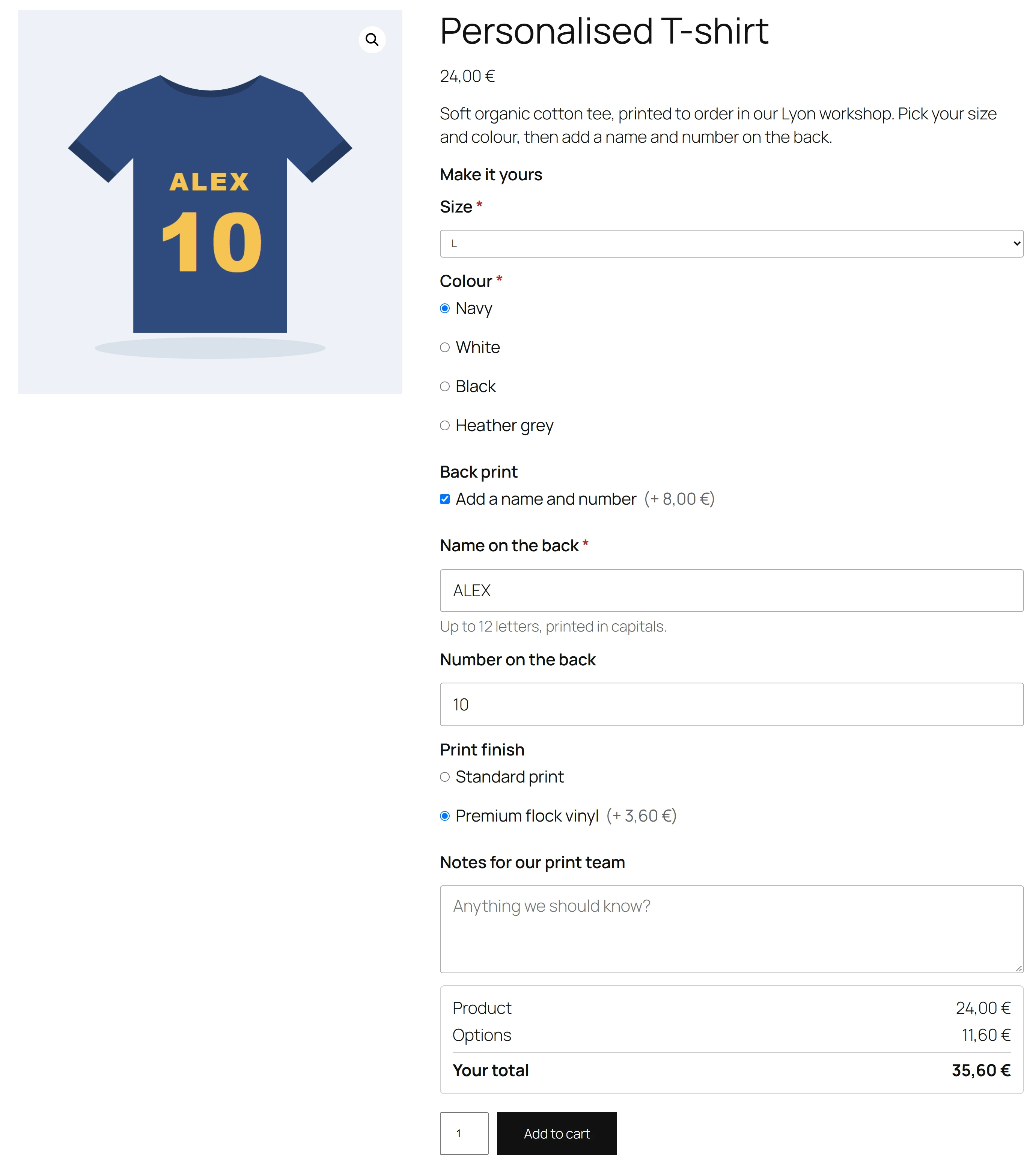
What the form shows
- An optional title above the options, such as Personalise your order. Set it in Settings as Title above the options.
- The fields of every group that applies to the product, in the groups’ order.
- Each field’s label, a star on required fields, the help text under the field, and the price beside each priced choice, like (+ 4.00).
- The live total: Product, Options and Total, which follow the answers, the chosen variation and the quantity.
The form uses your theme’s fonts and colours, and the labels sit above the fields, so it fits in most themes without any styling.
Filling it in
Fields shown by rules appear and disappear as the customer answers, without reloading the page. When the customer clicks Add to cart:
- The page first checks the required fields and shows This field is required. under any that are empty.
- The server then checks every answer again: limits, formats and choices. If one is wrong, the page reloads with WooCommerce’s error notice, such as Text to engrave can be at most 20 characters., and the customer’s answers are kept so they can fix them.
- When everything is right, the product goes to the cart with its options.
The same product added twice with different options makes two cart lines. Added twice with the same options, it makes one line with a higher quantity.
Variable products
The options form shows under the variation choices. When the customer chooses a variation, the total follows its price, and percentage prices are worked out on that variation’s price.
The shop page button
On shop, category and search pages, a simple product that has options shows a Select options button instead of Add to cart. It opens the product page, so the customer cannot add the product without seeing its options. Variable products already work this way in WooCommerce. Pro adds a pop-up that fills in the options without leaving the shop page: see Quick view.
Speed
The form is part of the page’s HTML, so it shows at once and works with page caches. Its script is about 3 KB and its stylesheet is small. Both load only on product pages that have options: other pages get nothing from the plugin. Finding a product’s groups takes one database query, which is then cached.
Accessibility
Every field has a real label tied to it, radio buttons and checkboxes are grouped under their field’s label, and error messages sit under their field and are announced by screen readers as they appear. Everything works with the keyboard.
Moving the form
The form’s place is set by WooCommerce’s add-to-cart form. Pro can put it after the button, above or below the whole form, or anywhere else on the page with a block or a shortcode. See Form placement.
Quick Links
Share