

Contents
On this page
Price formulas - Plugixa Extra Product Options
A formula works a price out from the customer’s answers. A banner priced by its area, a cake
priced by its number of tiers, a discount from ten items: one line such as
{width} * {height} * 0.02 covers it.
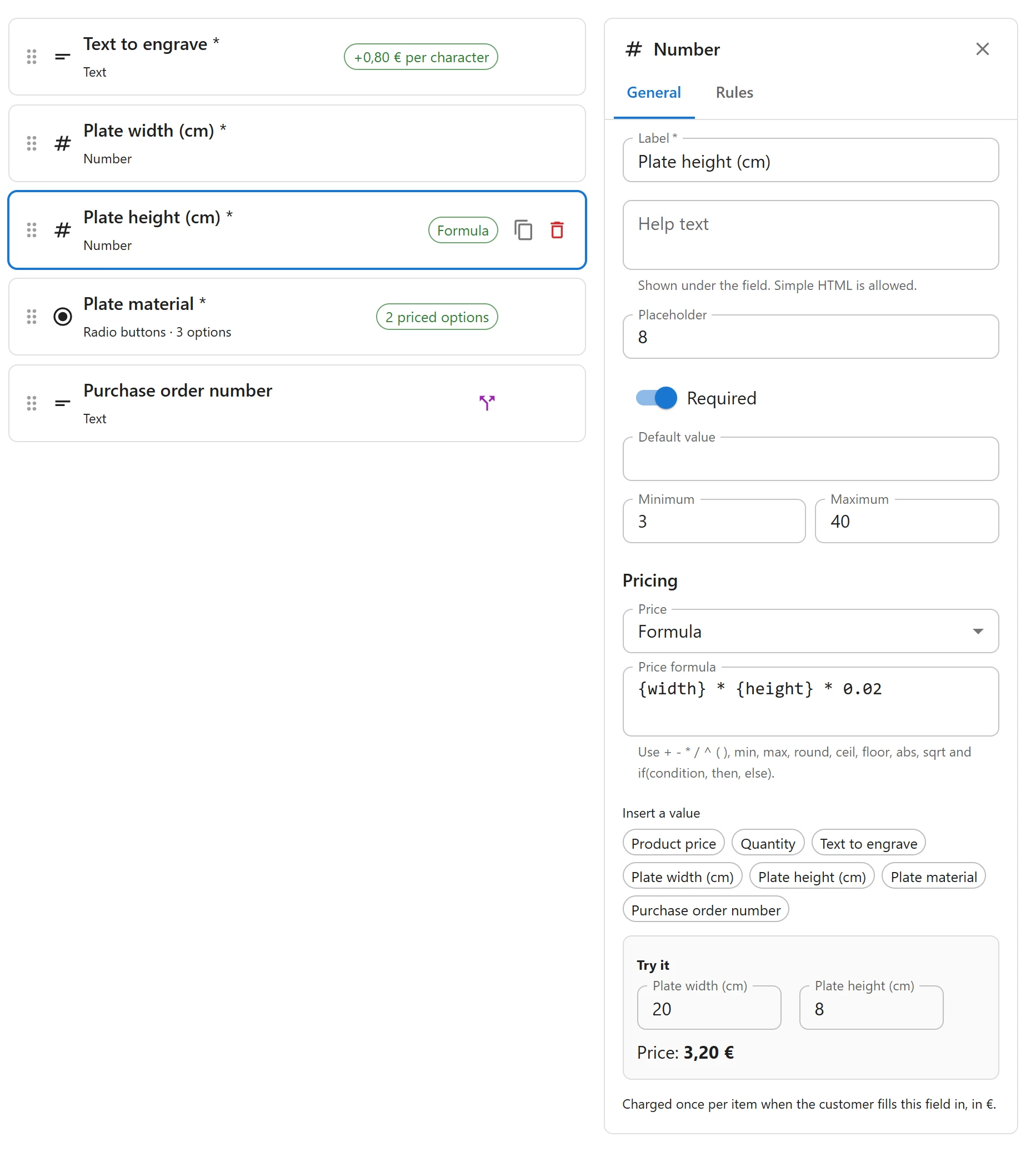
Adding a formula
- Select a field without choices, such as a number, a text or a date field.
- Under Pricing in its General tab, set Price to Formula.
- Type the formula under Price formula. Use Insert a value to add a field or the product price without typing its name.
- Check the result in Try it: type sample answers and read the Price.
Like any field price, the formula is charged once per item, and only when the customer fills the field in. Put a formula that reads several fields on one of the fields it needs, typically the last one, so it is charged once.
What a formula can read
| Write | Reads | Example value |
|---|---|---|
{base} |
The product’s price before options (the variation’s, once one is chosen) | 30 |
{qty} |
The quantity in the add-to-cart form | 2 |
{f…} a number field |
The number typed | 120 |
{f…} a slider or calculated value |
Its number | 9.6 |
{f…} a text or text area |
Its length in characters | 14 |
{f…} checkboxes |
How many choices are ticked | 3 |
{f…} any other field |
1 when it is answered, 0 when not |
1 |
Fields are written by their id between braces. Insert a value shows each field’s label and
writes its id for you. A field hidden by a rule, or left empty, reads 0.
Operators and functions
| Write | Means |
|---|---|
+ - * / |
Add, subtract, multiply, divide |
^ |
Power: {side} ^ 2 |
% |
Remainder of a division |
( ) |
Grouping |
< > <= >= == != |
Comparisons, which give 1 when true and 0 when false |
min(a, b, …), max(a, b, …) |
The smallest or largest value |
round(x), round(x, 2) |
Round, to whole numbers or to a number of decimals |
ceil(x), floor(x) |
Round up or down to a whole number |
abs(x) |
The value without its sign |
sqrt(x) |
Square root |
if(condition, then, else) |
then when the condition is not 0, else else |
Examples
| Product | Formula on the last field |
|---|---|
| Banner priced per square metre, sizes in cm | {width} * {height} / 10000 * 18 |
| Engraving at 0.50 a letter, 5.00 minimum | max({text} * 0.5, 5) |
| 5% off the product from 10 items | if({qty} >= 10, -{base} * 0.05, 0) |
| Shelf cut to length, started metre charged | ceil({length} / 100) * 12 |
In the table, {width} stands for the id of the Width field: Insert a value writes the
real id.
A formula can give a negative number: the field then works as a discount, and the editor marks the result (a discount).
Checks
- Before publishing: every formula must be complete. A formula that cannot be read, such as
{width} *, stops the publish with The price formula of Height does not work, and the reason. - At checkout: a formula never breaks a sale. A division by zero, a missing field or a result
that is not a number counts as
0.
Safe by design
A formula is not code. The plugin reads it with its own small calculator that only knows numbers, field values and the functions above, and the same calculator runs in the browser and on the server. The server works the price out again when the product is added to the cart, so the page and the cart always agree, and a price changed in the browser is never charged.
A formula is at most 400 characters long.
Related
- Prices from a table of sizes: Price tables.
- Show a worked-out value, like an area, to the customer: Calculated values.
Quick Links
Share