

Contents
On this page
File uploads - Plugixa Extra Product Options
A File upload field lets the customer send a file with the product: a photo to print, a logo to embroider, a PDF to bind. The file is kept in a private folder and attached to the order, and your staff download it from the order screen.
Adding an upload field
- In the editor, click File upload under Add a field.
- Name it, for example Your photo, and switch on Customers must fill this in if the product cannot be made without it.
- Open the Files tab and set the limits.
| Setting | What it does | Default |
|---|---|---|
| Accepted files | The file types allowed: JPG, PNG, GIF, WebP and PDF | JPG, PNG, PDF |
| Largest file | The size limit for one file, in MB | 5 MB |
The size limit can never be more than your server allows: if PHP is set to 2 MB, a 5 MB limit
works as 2 MB. Ask your host to raise upload_max_filesize and post_max_size for larger files.
Like any input field, an upload can have a price, charged when a file is added: a fixed amount, a percentage of the product, or a one-time fee.
What the customer sees
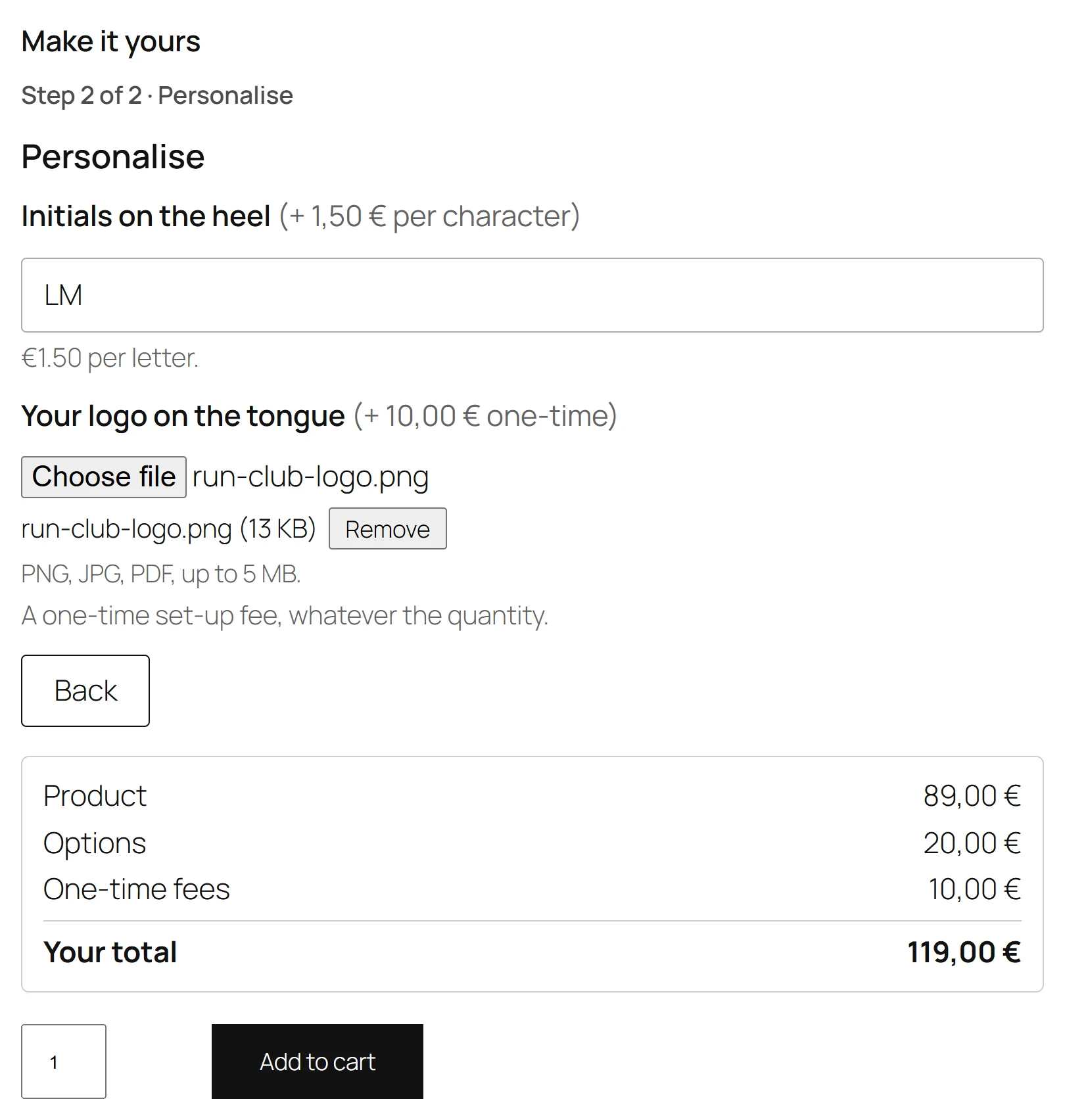
The field shows a file button and the accepted types and size, such as JPG, PNG, PDF, up to 5 MB. The file uploads as soon as it is chosen, with Uploading… while it goes, and the customer can Remove it and choose another. One file per field: add several upload fields for several files.
The file picker only offers the accepted types, and the page refuses a file that is too large before it is sent. The server checks both again, and answers with messages such as:
- The file is too large. The limit is 5 MB.
- This type of file is not accepted here. Allowed: JPG, PNG, PDF.
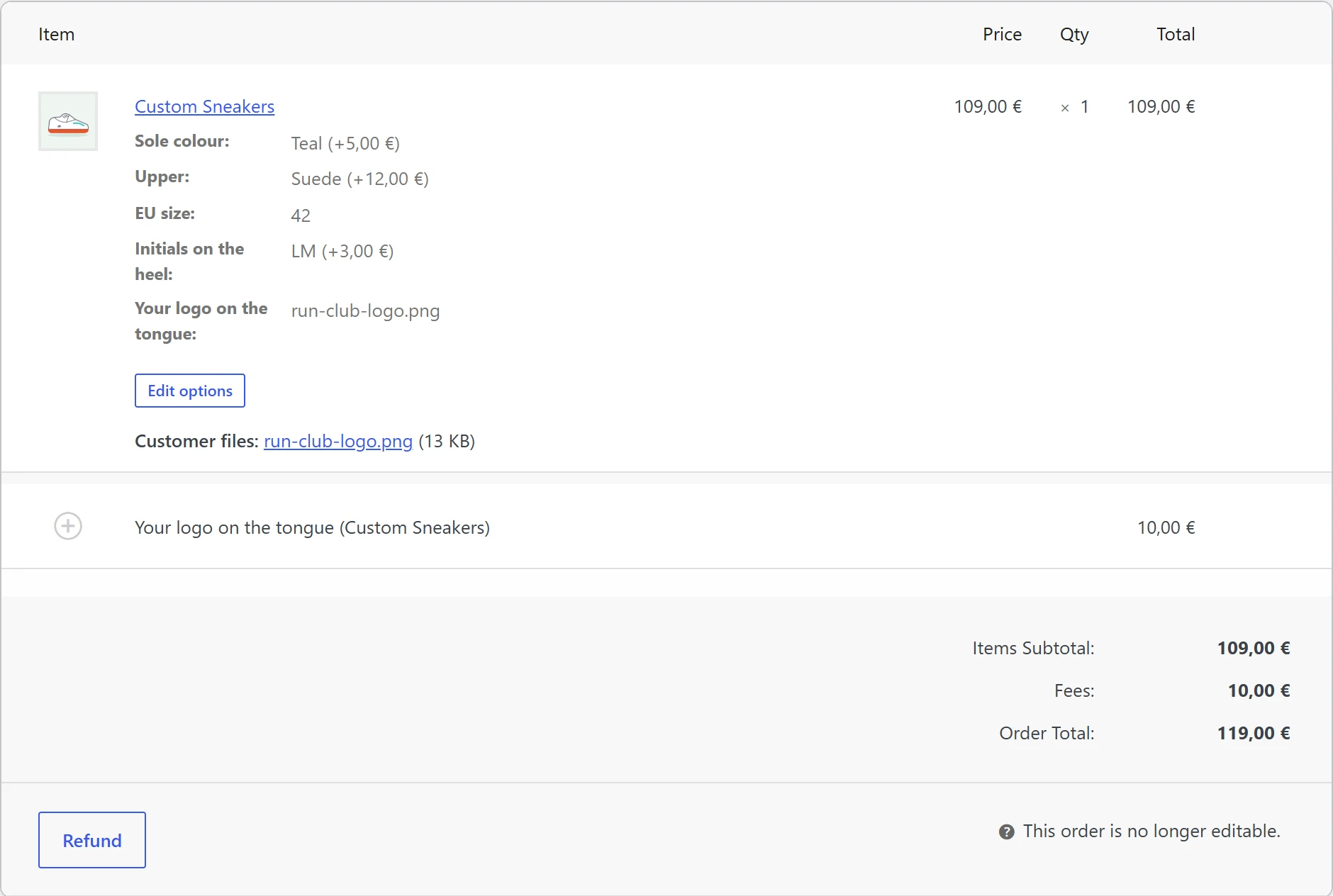
In the cart and on the order, the field shows the file’s original name.
Downloading the files
On the order screen in WooCommerce > Orders, each order line with uploads shows Customer files, with a link per file. Only users who can manage orders can open these links: anyone else gets You are not allowed to download this file.
Security
- Checked by content. The server reads what each file really is, not only its name. A
program renamed
photo.jpgis refused. - Private folder. Files are kept in
wp-content/uploads/plugixa-epo-uploads/, with random names, and the folder refuses direct access. They are only served through the download link, after a permission check. - Bound to the order. A file is linked to its order line when the order is placed. An upload meant for one field cannot be sent for another.
- Limited. A visitor can upload at most 30 files in 10 minutes.
Clean-up
A file that never becomes part of an order, for example from a cart the customer abandoned, is deleted after 3 days. Files that belong to an order are kept as long as the order.
When you erase a customer’s personal data and WooCommerce is set to remove personal data from orders, the files of their orders are deleted too. The plugin’s suggested privacy policy text mentions the uploads. See Privacy and uninstall.
Page caching
Upload fields work on cached product pages. The security code printed in the form stays valid long enough for common page caches, such as LiteSpeed Cache’s default of 7 days.
Quick Links
Share