

Contents
On this page
Option groups - Plugixa Extra Product Options
An option group is a set of fields shown together on the product page, such as Gift options with gift wrap, a card and a delivery date. A product can show several groups, and one group can show on many products.
Open Plugixa Product Options in the admin menu to see every group.
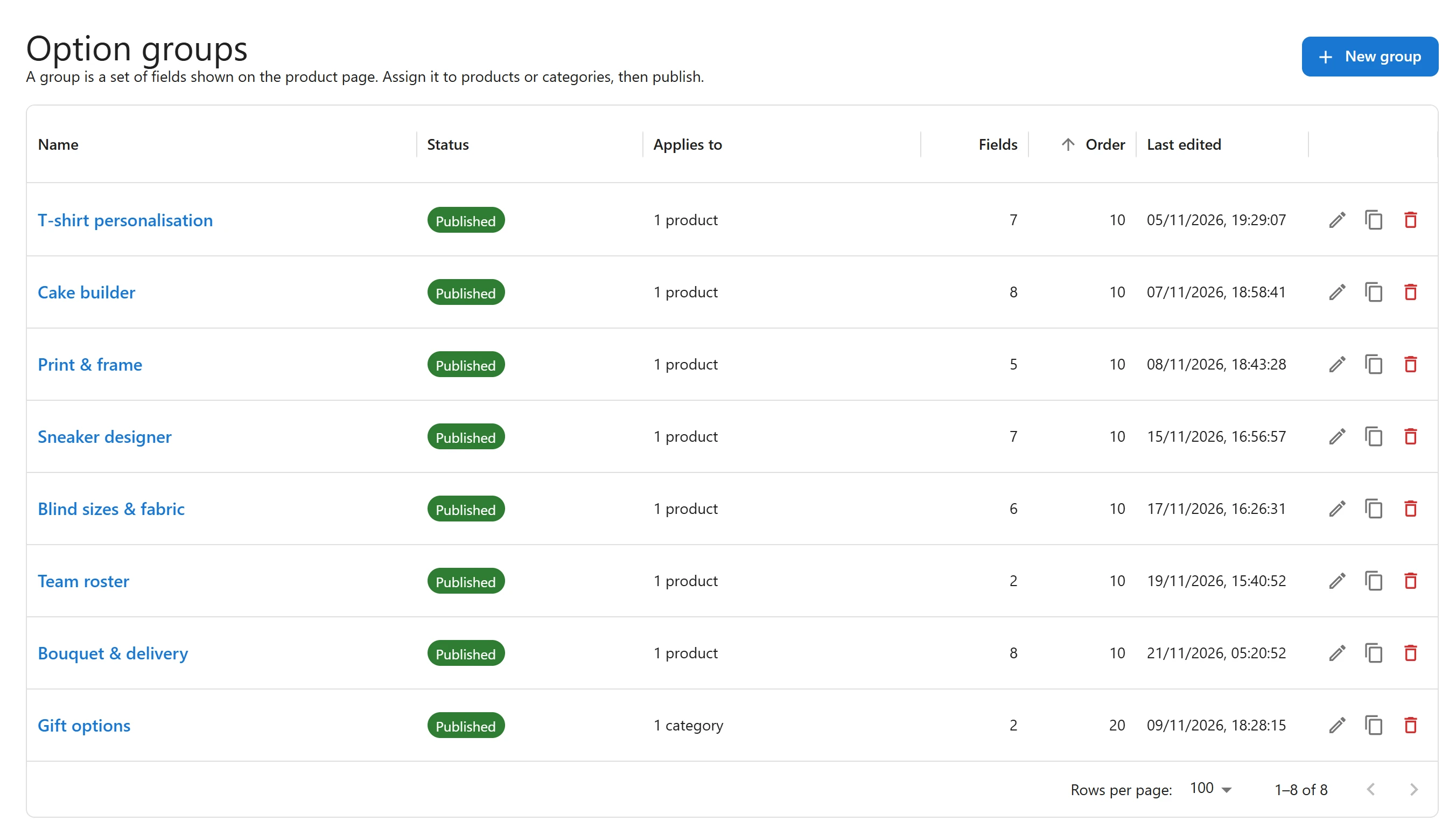
The groups list
| Column | What it shows |
|---|---|
| Name | The group’s name, which only you see. Click it to open the editor. |
| Status | Draft, Published, Unpublished changes or Disabled (see below). |
| Applies to | Where the group shows: All products, a number of products or categories, or Not assigned. |
| Fields | How many fields the group has. |
| Order | The group’s place when several groups show on one product: lower numbers come first. |
| Last edited | When the group was last saved. |
Each row has three buttons: Edit, Duplicate and Delete. You can sort the list by any column except Applies to.
Statuses
| Status | What customers see |
|---|---|
| Draft | Nothing. The group has never been published. |
| Published | The group, as it was when you last clicked Publish. |
| Unpublished changes | Still the last published version. You have saved changes that are not live yet. |
| Disabled | Nothing. The group was published, then disabled. |
The plugin keeps two copies of a published group: the draft you edit and the published version customers see. Save draft only changes the draft. Publish copies the draft over the published version, so a half-finished edit never reaches the store.
Publishing
Click Publish in the editor. Before it publishes, the plugin checks the group and lists anything to fix under Fix these before publishing:
- The group needs at least one field.
- Every field needs a label.
- Every dropdown, radio button or checkbox field needs at least one choice, and every choice needs a label.
- A field’s minimum cannot be larger than its maximum.
Fix the items listed, then publish again. Once published, the fields show on the products the group applies to, on the next page load.
Disabling a group
To take a group off the store without deleting it, open it, click the More actions button (the three dots) at the top of the editor and choose Disable (stop showing). Its status becomes Disabled and the fields disappear from the store. The group and its draft are kept, so you can publish it again at any time.
Orders that were placed with the group keep their options.
Duplicating a group
Click Duplicate on a row to copy the group. The copy is named after the original with (copy) at the end, and it is a Draft, so it shows nowhere until you publish it. This is the quickest way to build a similar group for another range of products.
Deleting a group
Click Delete on a row and confirm. The group is removed from every product at once. Past orders keep the options customers chose, with their labels and prices, because each order holds its own copy.
Several groups on one product
When more than one published group applies to a product, the product page shows them one after the other, in the order of their Order number, lowest first. Set the number in the group’s settings, in the editor’s right-hand column while no field is selected. See Where groups show.
The Product options tab
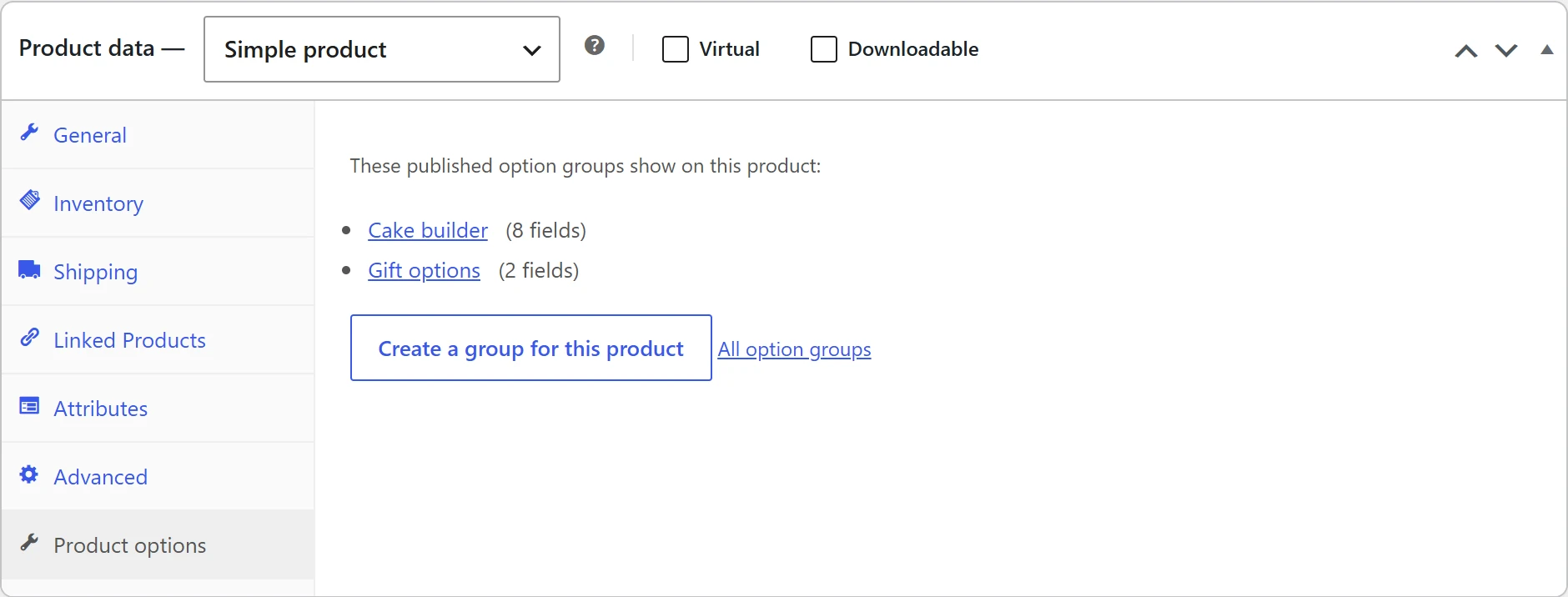
On a product’s edit screen, the Product data box has a Product options tab. It lists the published groups that show on that product, with their number of fields and a link to each one, and a Create a group for this product button.
Quick Links
Share