

Contents
On this page
Edit options on orders - Plugixa Extra Product Options
When a customer calls to change the engraving after ordering, a shop manager can edit the order line’s options from the order screen, with the same form as the product page.
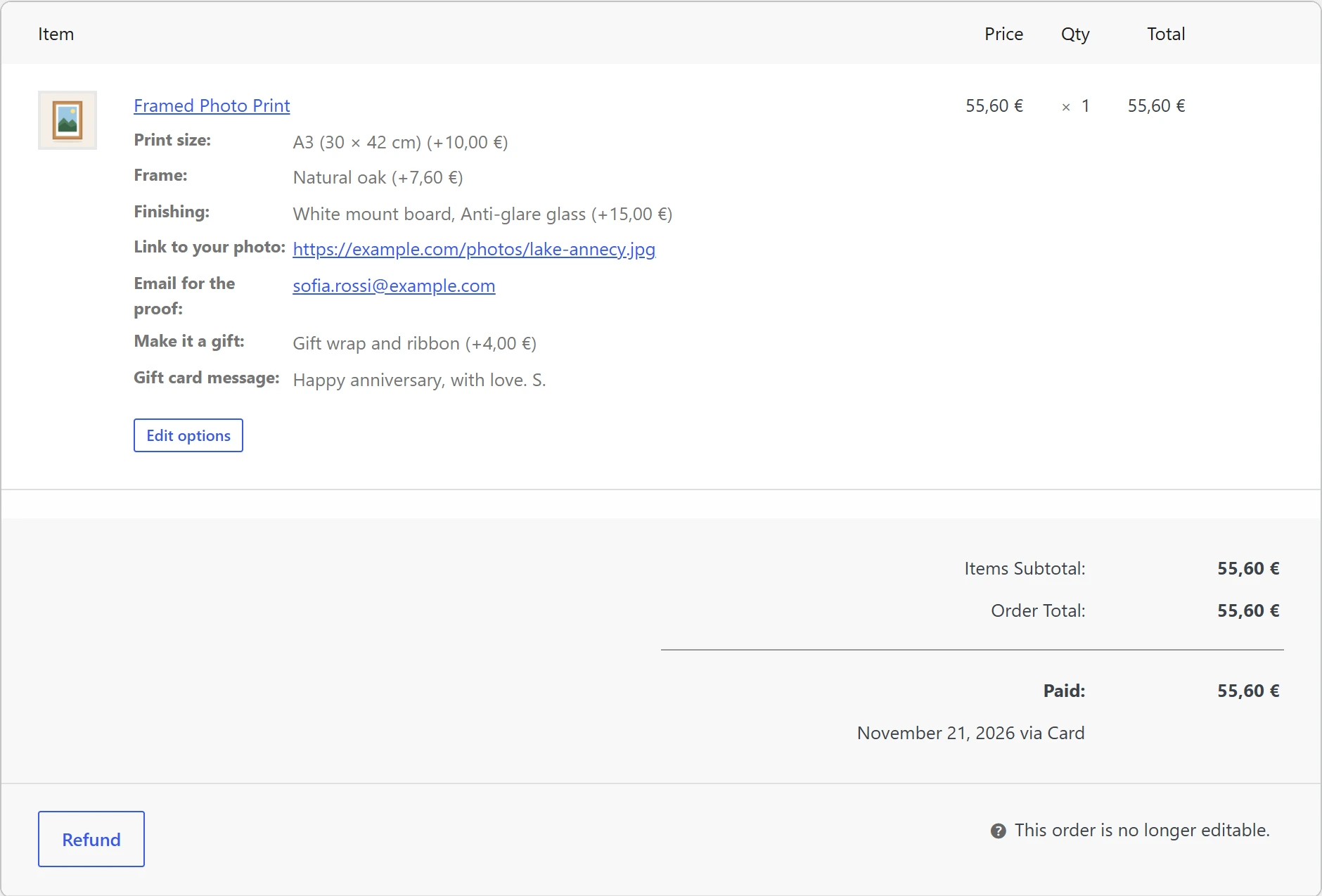
Editing a line
- Open the order in WooCommerce > Orders.
- Under the order line, click Edit options.
- The Edit options page opens with the product’s form, filled with the line’s choices. Rules and the live total work as on the product page.
- Change the options. Tick Update the line price and the order totals if the price should change (see below).
- Click Save options. You are taken back to the order, which says The options were updated.
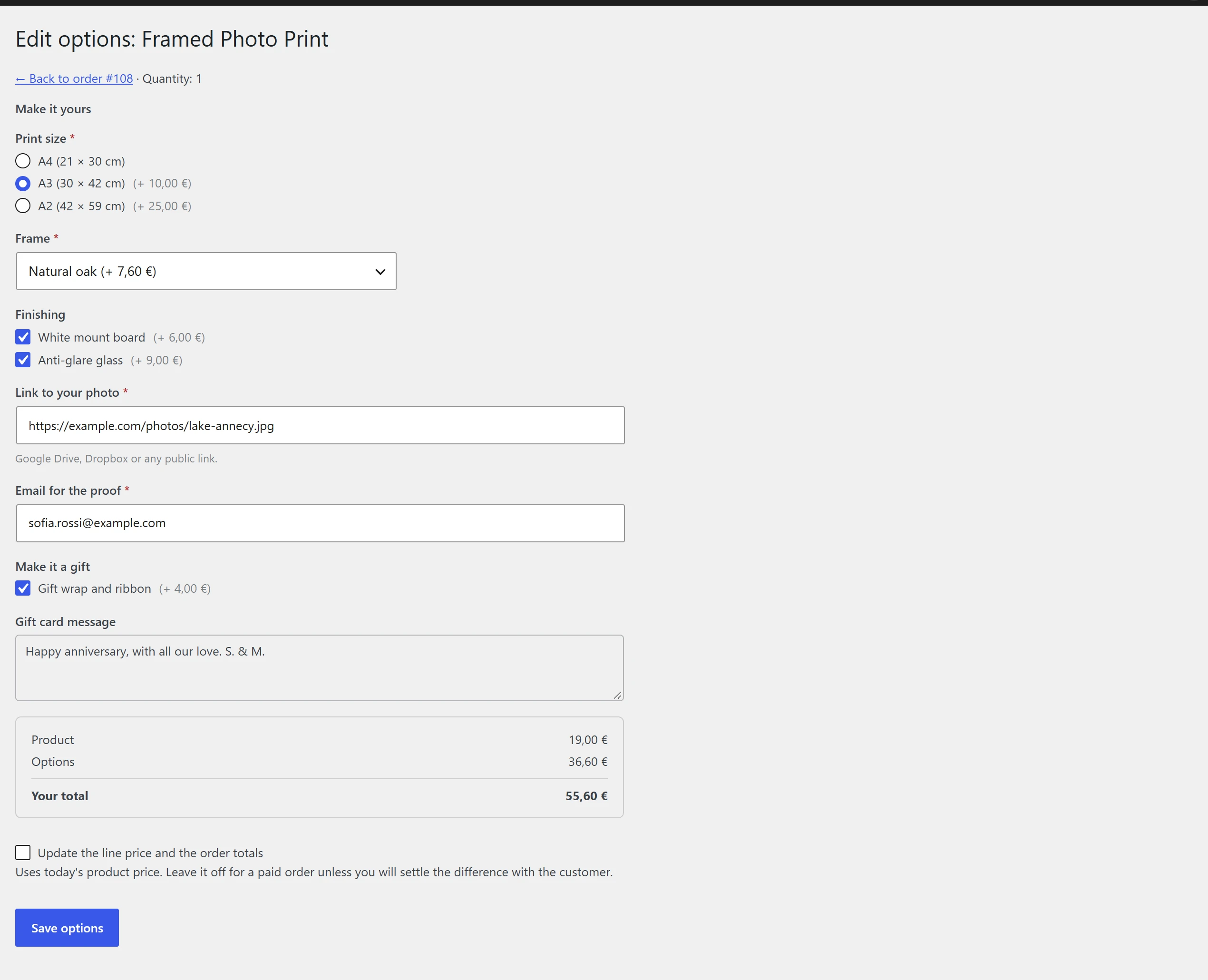
The answers go through the same checks as an add to cart: required fields, limits, choices and rules.
The line price
Update the line price and the order totals works the line’s price out again with the new options and today’s product price, and recalculates the order’s totals.
- It is ticked by default for orders that can still be edited in WooCommerce, such as Pending payment and On hold.
- It is off by default for paid orders. Leave it off unless you will settle the difference with the customer: the payment already taken does not change.
The order note
Each edit adds an order note saying who changed what, for example Options of Ceramic mug changed by Sophie Martin. Now: Text to engrave: Emma & Leo; Font: Script.
What cannot be changed here
Some answers live outside the line, so they are kept as ordered and not shown in the form. The page lists them under Kept as ordered (they cannot be changed here):
- File uploads: the file already belongs to the order.
- Linked products: they have their own order line.
- One-time fees: they have their own fee line.
Which groups the form shows
The form shows the groups that apply to the product today, plus any group the line has answers for that no longer applies to it. Groups shown only to some roles, sale prices and discounts by role follow the order’s customer, not the shop manager who edits.
Who can edit
Users who can edit orders: administrators and shop managers by default.
Quick Links
Share