

Contents
On this page
Stock per option - Plugixa Extra Product Options
A choice can have its own stock: only 5 gift boxes left, 12 seats at the tasting. Paid orders count it down, cancelled orders give it back, and a sold-out choice disappears from the store.
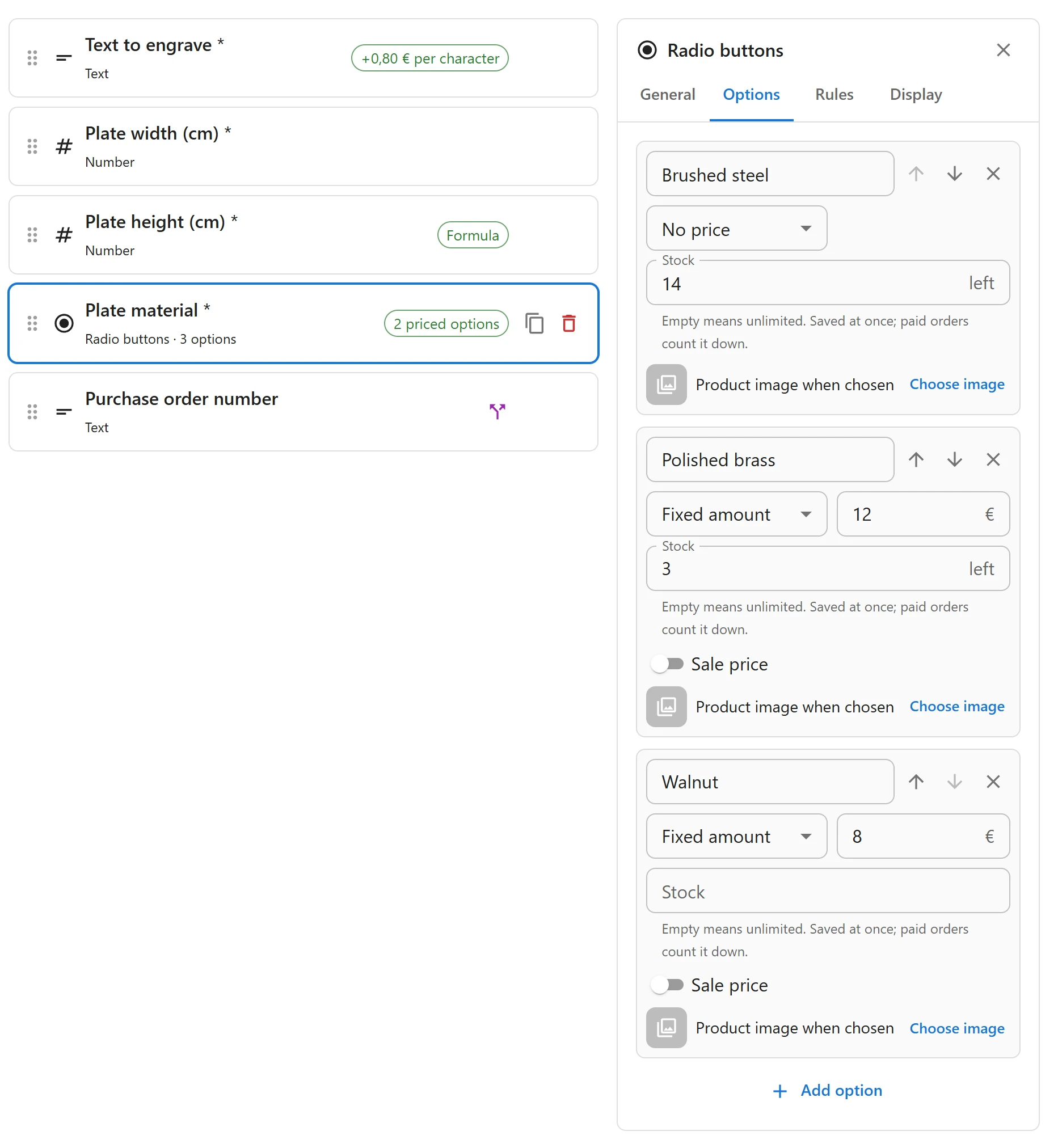
Setting stock
- Select a dropdown, radio buttons or checkboxes field and open its Options tab.
- Type a number in a choice’s Stock box.
| Stock box | Means |
|---|---|
| Empty | Unlimited: the choice is never counted |
| A number | That many are left |
0 |
Sold out: shoppers do not see this option. |
Stock is saved at once when you leave the box, without Save draft or Publish, because it is a count, not part of the group’s design. It is shared: the same choice counts down on every product the group shows on.
A choice set to Linked product has no stock box: the added product keeps its own stock in WooCommerce. See Linked products.
How stock is counted
A choice counts once per item of its cart line. Ordering 3 mugs with Gift box takes 3 gift boxes.
| When | What happens |
|---|---|
| The order is paid, or set to On hold or Processing | The stock goes down |
| The order is Cancelled, or set back to Pending payment | The stock comes back |
These follow WooCommerce’s own product stock, at the same moments. Each change adds an order note, such as Option stock reduced: Gift box 5→2.
What shoppers see
- A sold-out choice is not shown on the product page.
- Nobody can take more than is left. The product page, the cart and the checkout all check it, adding up every cart line that uses the choice.
- If a choice sells out while it sits in a cart, the checkout refuses it with “Gift box” for Ceramic mug is sold out. Please choose another option., instead of charging less.
Quick Links
Share