

Contents
On this page
Order options export - Plugixa Extra Product Options
The workshop needs a list, not a pile of order screens. The export turns the options of the orders you select into one spreadsheet: one row per order line, one column per option.
Exporting
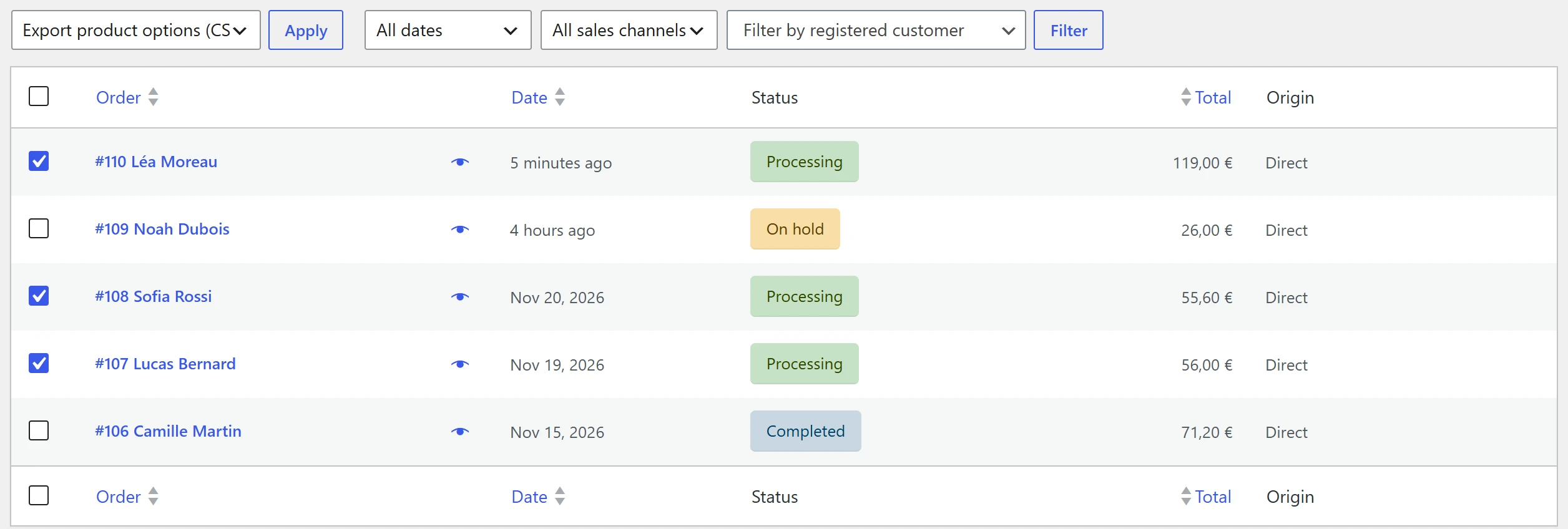
- Open WooCommerce > Orders. Use the list’s own filters to narrow it down: status, date, search.
- Tick the orders to export, or the box at the top for the whole page.
- In Bulk actions, choose Export product options (CSV) and click Apply.
The browser downloads a CSV file, which opens in Excel, Google Sheets or LibreOffice.
What is in the file
One row per order line that has options. Lines without options are left out.
| Columns | What they hold |
|---|---|
| Order, Date, Status, Customer | The order’s number, date, status and customer name |
| Product, SKU, Quantity | The order line |
| One column per option | The answer, under the option’s label, in the order the labels first appear |
| Customer note | The note the customer left at checkout |
The values are what the order recorded at checkout, not today’s group, which may have changed since. They are written without the price shown beside them on the order, so the sheet reads Gift wrap: Gift wrap, not Gift wrap (+4.00).
Staff-only calculated values are included: the export is for your team. See Calculated values.
Safe to open
A cell that starts like a spreadsheet formula, such as an engraving that begins with =, is
written as plain text, so opening the file never runs it.
Only users who can edit orders can export, and WooCommerce checks the request before the file is made.
Quick Links
Share