

Contents
On this page
Bulk codes and CSV import - Plugixa PDF Vouchers for WooCommerce
With Pro, a Bulk button sits next to Create voucher on the Vouchers list. It makes many vouchers at once, for a promotion, a printed booklet or a partner, and brings over gift cards from another system.
Every voucher made this way is a normal voucher with its own history, and belongs to a batch you can list, filter and export.
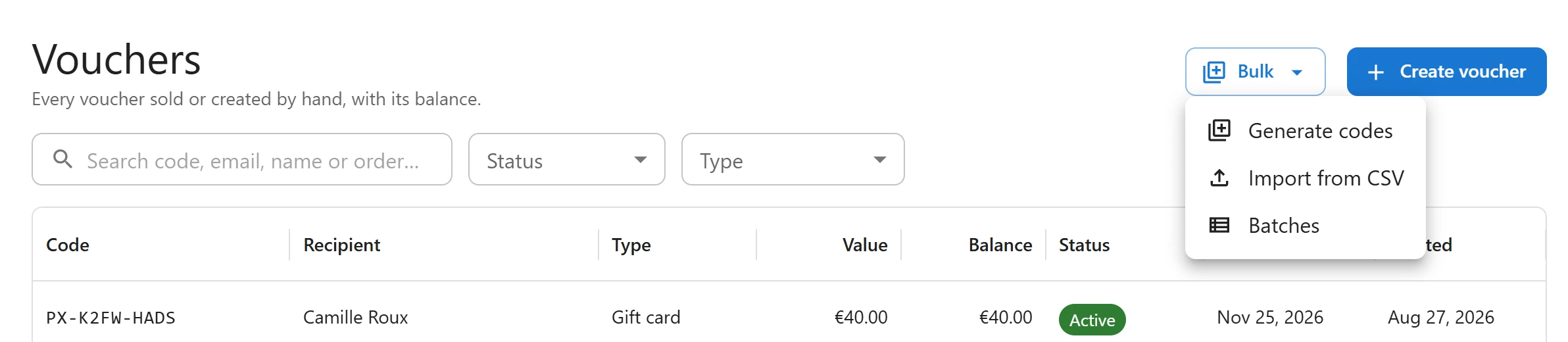
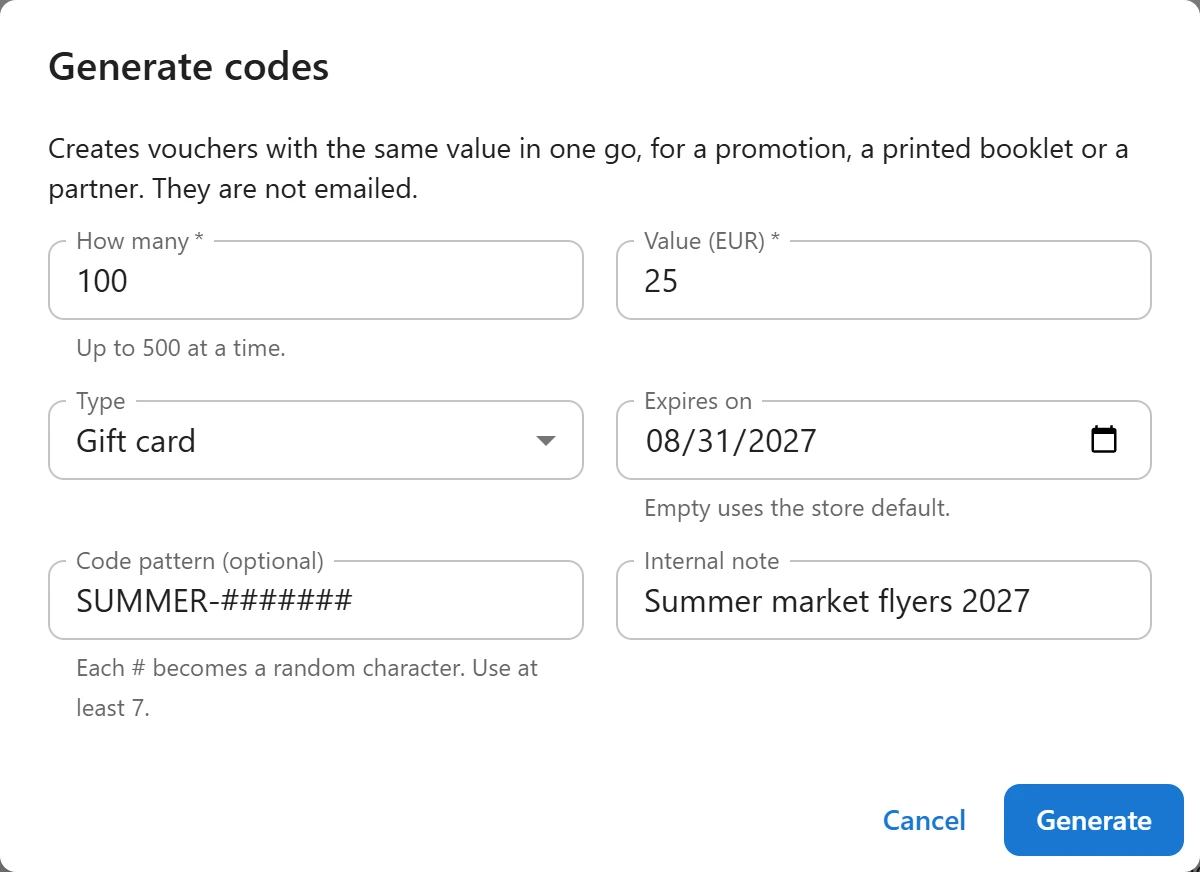
Generate codes
Creates vouchers with the same value in one go, for a promotion, a printed booklet or a partner. They are not emailed.
- On Vouchers, click Bulk > Generate codes.
- Fill in:
| Field | Notes |
|---|---|
| How many | Up to 500 at a time. |
| Type | Gift card or Product voucher. |
| Value | The value of each voucher. |
| Expires on | Empty uses the store default. |
| Code pattern (optional) | Each # becomes a random character. Use at least 7. Empty uses the pattern in Settings. For example SUMMER-#######. |
| Internal note | Saved in each voucher’s history. |
- Click Generate.
- Click Download CSV with the codes for the full list, ready for printing or a mail merge.
Import from CSV
Bring vouchers over from another system. One voucher per line, with a header row. The code and amount columns are required.
code,amount,expires_at,recipient_email,recipient_name
GIFT-2025-0001,50,2026-12-31,claire@example.com,Claire Morel
GIFT-2025-0002,22.50,,,
| Column | Also accepted as | Notes |
|---|---|---|
code |
voucher |
Required. The code as printed, kept as it is. |
amount |
balance, value |
Required. The amount is the balance the customer can still spend. |
expires_at |
expiry, expires |
YYYY-MM-DD. An empty expiry date means the voucher never expires. |
recipient_email |
email |
Optional. |
recipient_name |
name |
Optional. |
- Columns can be in any order when the file has a header row. Without a header, the order above is used.
- Commas or semicolons both work, and a UTF-8 BOM from Excel is fine.
- Up to 2000 vouchers and 1 MB per file. Split bigger files.
- Imported vouchers are gift cards, and they are not emailed.
- Click Bulk > Import from CSV, then Choose file.
- Click Import. The result says, for example, 1998 imported, 2 skipped., with a table of the skipped rows (Line and Problem).
- Click Show imported vouchers to see them in the list.
A bad row is skipped and never stops the others. The reasons:
- The code is missing or too short. (at least 4 letters or digits, at most 64 characters)
- The amount is not a number greater than zero.
- The expiry date must be written as YYYY-MM-DD.
- the code already exists.
Batches
Bulk > Batches lists every generated or imported batch, newest first, as “(number) vouchers · (value) issued · (value) left · (date)”. For each batch:
- Show in the list (the list icon) filters the Vouchers list on that batch (a Batch chip you can remove).
- Download CSV with the codes (the download icon) exports it with the columns
code,amount,balance,currency,status,expires_at,recipient_emailandrecipient_name, with full codes.
Making and importing vouchers needs the create permission, and downloading a batch CSV needs the export permission. See Staff access.
Quick Links
Share