

Contents
On this page
PDF designs - Plugixa PDF Vouchers for WooCommerce
Every voucher gets a PDF made from a design: a layout with your colours, logo and texts. Designs are listed under Plugixa PDF Vouchers > PDF designs.
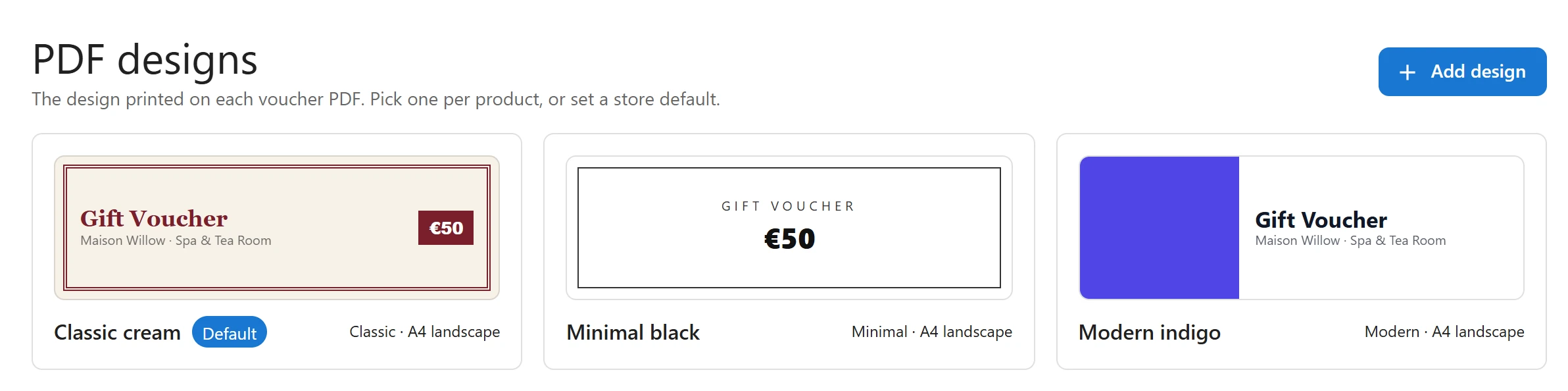
The ready-made designs
The free plugin comes with three layouts:
| Layout | Look |
|---|---|
| Classic | The title, the amount, the code and the QR code in a traditional layout. |
| Modern | A coloured band with the value, and the details on the page colour. |
| Minimal | Centred, with lots of white, and prints well in black and white. |
Pro adds Elegant, Festive and Ticket PRO, see Elegant, Festive and Ticket designs, and a Drag-and-drop designer for layouts of your own.
Add a design
- Go to PDF designs and click Add design.
- Under Start from a design, pick one of the Ready-made designs.
- The editor opens on the new design. Change it and click Save.
You can keep as many designs as you like, for example one per season or one per product.
Edit a design
Open a design to edit it. Changes show in the preview as you type. Save to use them on new PDFs. The Live preview (sample voucher) on the right is a real PDF made with a sample voucher.
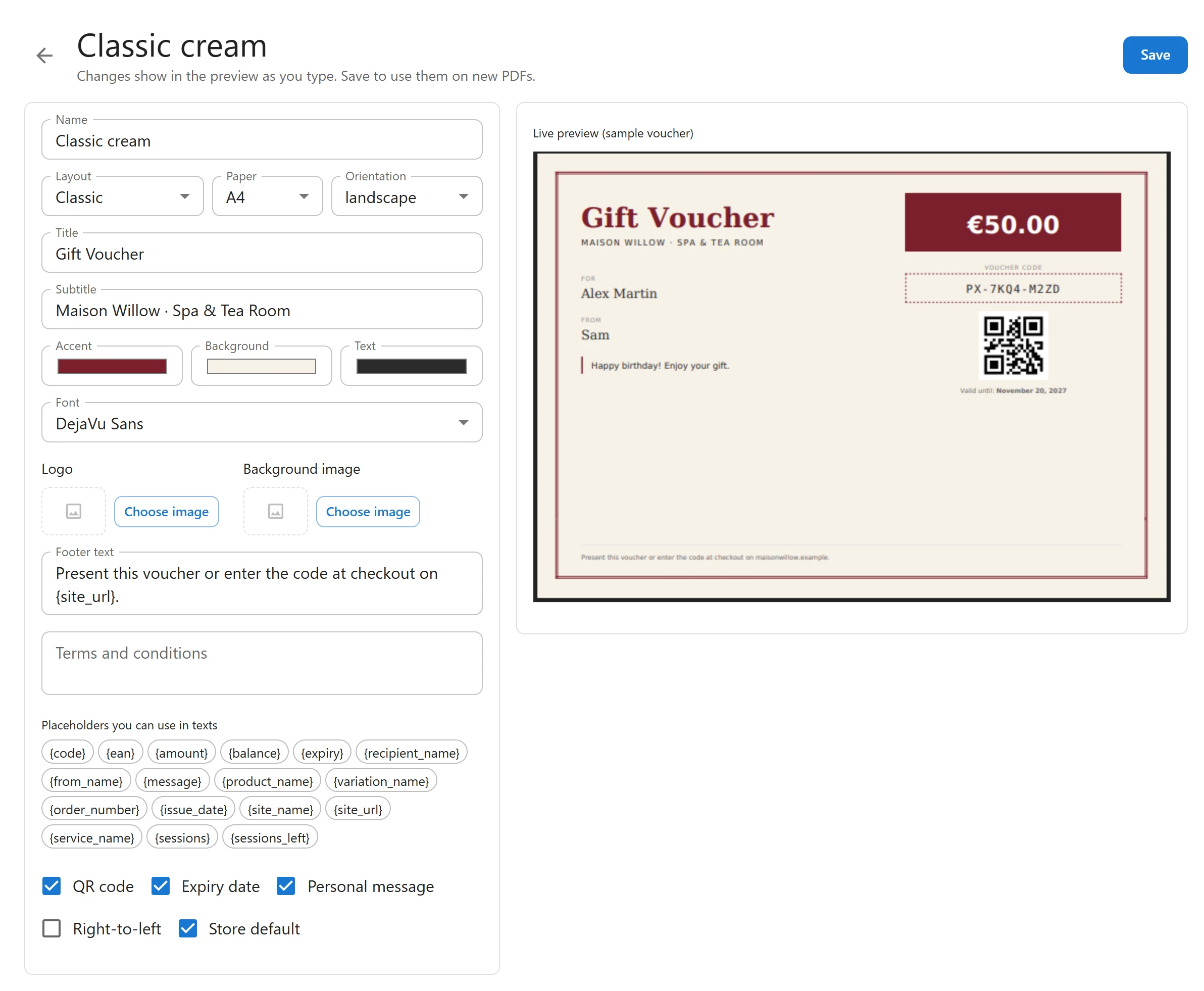
| Field | What it sets |
|---|---|
| Name | The design’s name in lists and on the product’s PDF design menu. |
| Layout | Classic, Modern or Minimal (and the Pro layouts). |
| Paper and Orientation | A4, A5 or Letter, landscape or portrait. |
| Font | DejaVu Sans, DejaVu Serif, DejaVu Sans Mono or XB Riyaz for Arabic. Pro adds your own fonts. |
| Accent, Background, Text | The three colours of the layout. |
| Logo | An image from the media library. |
| Background image | An image behind the whole voucher. |
| Title and Subtitle | Gift Voucher and your site name by default. |
| Footer text | Present this voucher or enter the code at checkout on {site_url}. by default. |
| Terms and conditions | Small print at the bottom. Empty by default. |
| QR code, Expiry date, Personal message | Show or hide each one on the PDF. |
| Right-to-left | Lays the text out from right to left, for Arabic, Hebrew or Persian. |
The QR code holds the voucher code, so a staff phone or scanner reads the code straight off the PDF.
Placeholders
Texts can contain placeholders in braces, replaced with each voucher’s details. The editor lists them under Placeholders you can use in texts.
| Placeholder | Prints |
|---|---|
{code} |
Voucher code |
{amount} |
Voucher value |
{balance} |
Remaining balance |
{expiry} |
Expiry date |
{recipient_name} |
Recipient name |
{from_name} |
Sender name |
{message} |
Personal message |
{product_name} |
Product name |
{variation_name} |
Variation, for example the amount option |
{order_number} |
Order number |
{issue_date} |
Issue date |
{site_name} |
Store name |
{site_url} |
Store address |
{ean} |
EAN-13 number, for staff scanners only |
A placeholder that does not exist is not hidden: it prints as written, and the editor warns These placeholders do not exist and will print as written: followed by the list. A typo shows on the preview instead of on a customer’s voucher.
Arabic and right-to-left text
Arabic text is joined and shaped correctly in the PDF. Choose the XB Riyaz font for Arabic, and tick Right-to-left for a voucher written right to left.
Choose which design a voucher uses
A voucher’s PDF uses, in this order:
- The PDF design chosen on its product’s PDF Voucher tab, see Voucher products.
- The Default PDF design in Settings.
- The design marked Default in the list. Click Store default on a design to mark it.
With Pro, the buyer can pick the design on the product page: Buyer’s choice of design PRO. A design can also be chosen per language: see Languages, WPML and Polylang.
Archive a design
Click Archive to remove a design from the lists. Vouchers that already use it keep printing with it. If you archive the default design, another design becomes the default.
When PDFs are made
A voucher’s PDF is made when it is first needed (the email, a download) and kept in a protected folder of your uploads directory. Fonts are embedded and nothing is fetched from the internet, so PDFs look the same on every device. Every layout fits on one page on A4, A5 and Letter. Images for the logo and background are read from your media library.
Quick Links
Share