

Contents
On this page
Scan to redeem - Plugixa PDF Vouchers for WooCommerce
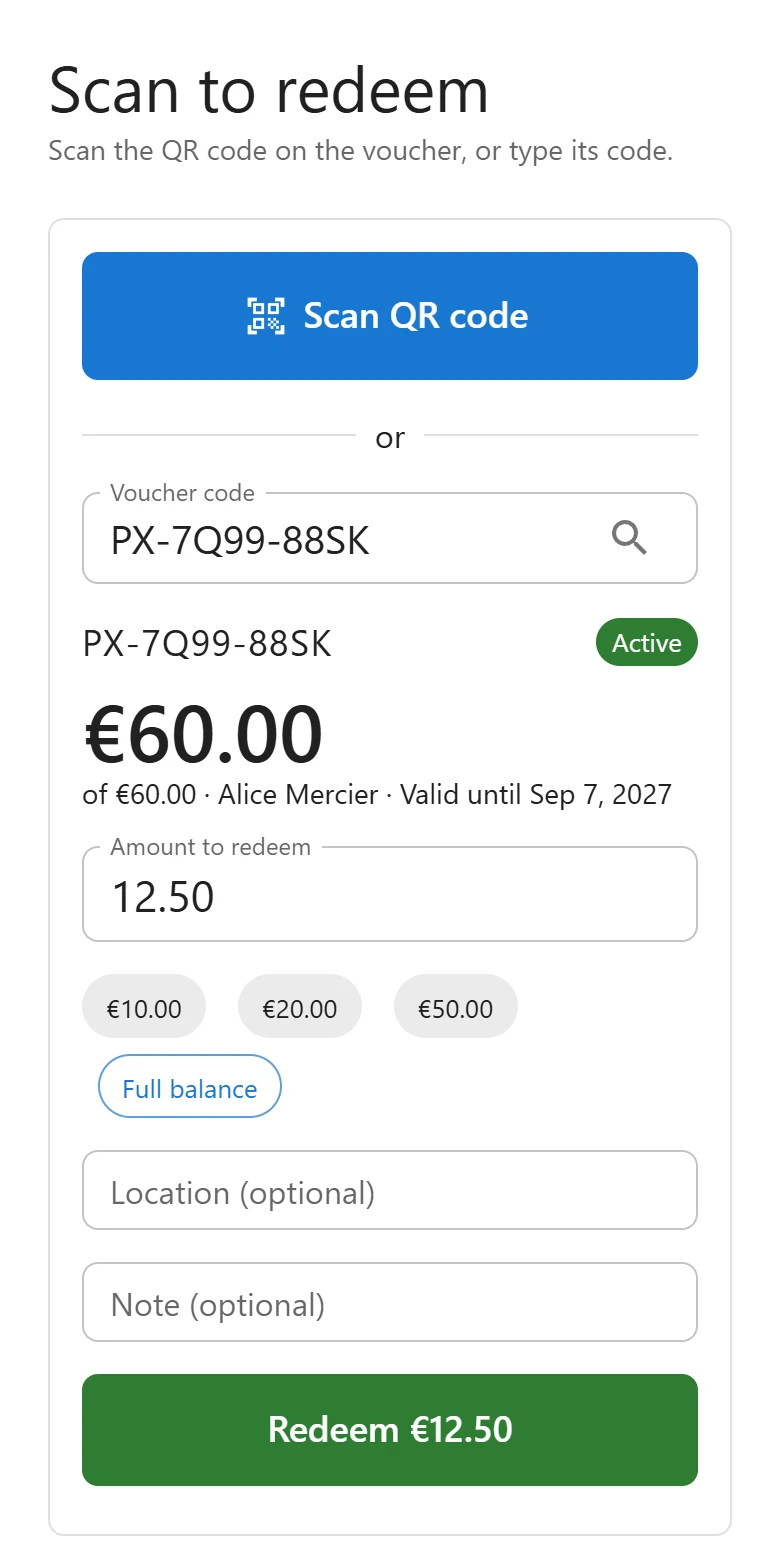
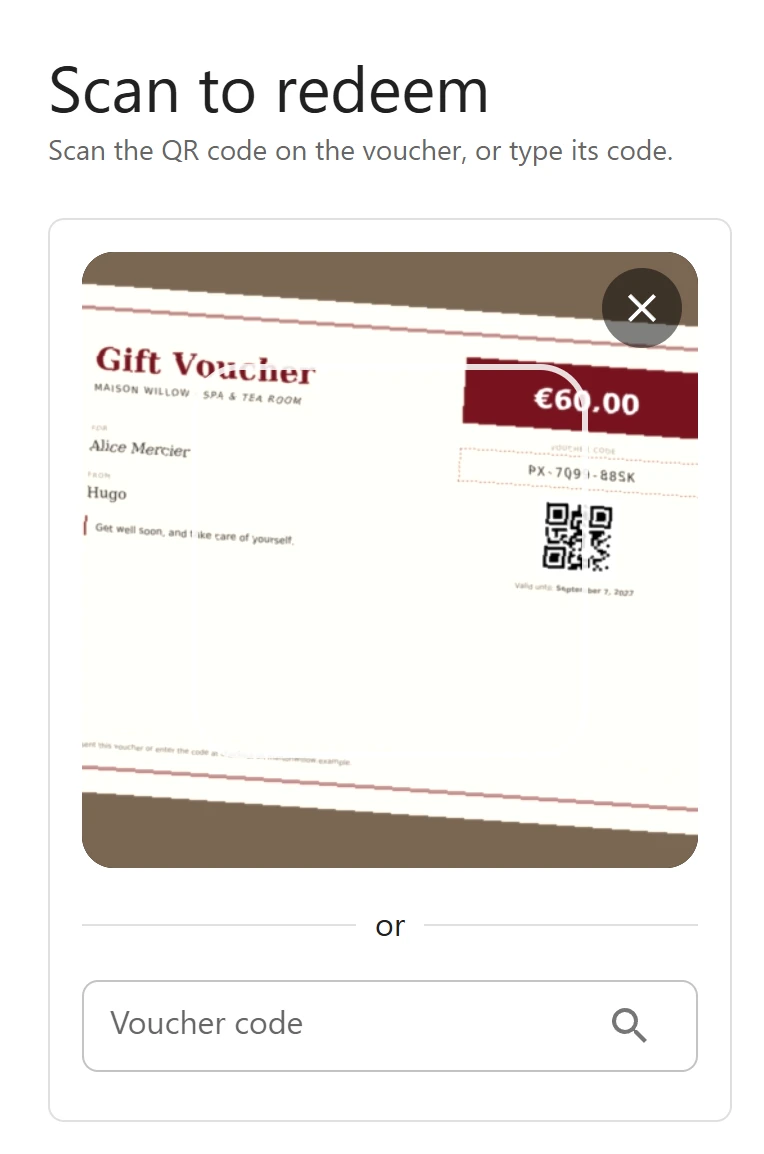
Scan to redeem is a counter screen made for a phone: staff point the camera at the voucher’s QR code (on paper or on the customer’s phone), see the balance, and redeem. It can be installed on the home screen like an app.
Open it
- In wp-admin: Plugixa PDF Vouchers > Scan to redeem (in the app’s menu, under the vouchers).
- Directly:
/wp-admin/admin.php?page=plugixa-pdf-vouchers#/scan.
Anyone with the redeem permission can use it. See Staff access.
Give staff access with the Voucher staff role
Pro adds a Voucher staff role that can only look up and redeem vouchers.
- Go to Users > Add New User (or edit an existing one).
- Set the Role to Voucher staff.
- Save.
Staff with this role:
- are let into wp-admin (WooCommerce normally sends non-managers away),
- get their own Voucher scanner menu entry, since they cannot see the shop menus,
- land straight on Scan to redeem when they sign in or open the plugin.
Any user who can redeem but not edit vouchers also opens the plugin on Scan to redeem.
Redeem a voucher
Scan the QR code on the voucher, or type its code.
- Tap Scan QR code and point the camera at the code. The QR code, a Code 128 barcode or an EAN-13 barcode on the PDF all work. Or type the Voucher code and tap Find.
- The voucher appears with what is Left of its value, its Valid until date and its status. A voucher that cannot be spent says why.
- Enter the Amount to redeem, or tap Full balance. More than the balance gives More than the balance.
- Optionally add a Location (optional) and a Note (optional).
- Tap Redeem.
The redemption is written to the voucher’s history with the source scan, and listed under Redeemed on this device for the rest of the shift.
For a service voucher, the screen shows Sessions left and a Use 1 session button instead of an amount, and the Booked for appointment when there is one.
Install it on a phone
The screen is a web app: open it in the phone’s browser, then use Add to Home Screen (Safari on iPhone) or Install app (Chrome on Android). It opens full screen, named after your store, for example “Maison Willow · Vouchers”, straight on the scanner.
Only the app’s own files are kept on the phone. Voucher data is never stored on the device: every lookup and redemption goes to your site.
Camera
The camera, and installing the screen as an app, need HTTPS (or a localhost test site) and the
staff member’s permission.
| Message | What to do |
|---|---|
| The camera could not be opened. Allow camera access, or type the code. | Allow the camera for your site in the browser settings. |
| This browser cannot use the camera here. Type the code instead. | Use a current browser over HTTPS, or type the code. |
| Your account cannot redeem vouchers. | Give the user the Voucher staff role or the redeem capability. |
Counter redemptions are not subject to the code-guessing lock or to Confirm large vouchers: staff have the voucher in front of them.
Quick Links
Share