

Contents
On this page
Store credit and wallet - Plugixa PDF Vouchers for WooCommerce
Pro adds two features that work together: Refund as store credit, which pays a refund onto a voucher instead of back to the card or bank, and the store-credit wallet, which shows customers everything they hold on vouchers and spends it in one click.
Refund an order as store credit
- Open the order in WooCommerce > Orders.
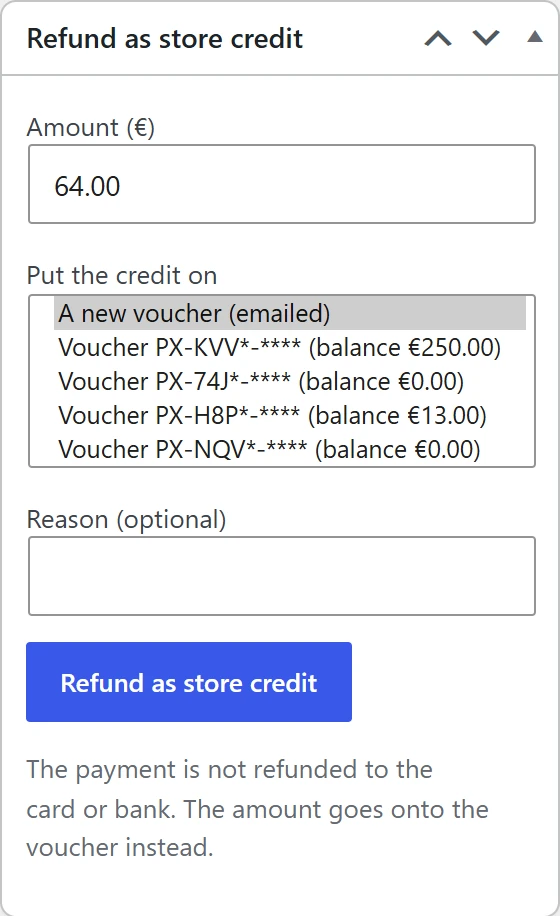
- In the Refund as store credit box on the right, enter the Amount.
- Under Put the credit on, choose A new voucher (emailed), or one of the customer’s gift cards, listed as Voucher (code) (balance …).
- Optionally add a Reason (optional).
- Click Refund as store credit.
The payment is not refunded to the card or bank. The amount goes onto the voucher instead.
What happens:
- The order gets a real WooCommerce refund, with no call to the payment gateway, so its totals, status and reports are right. Its reason starts with Refunded as store credit.
- In the same step, the amount goes onto the voucher: a new gift card emailed to the customer, or a Value added line on the gift card you chose (a used-up one becomes active again).
- The order notes say (amount) was refunded as store credit to voucher followed by the code.
Either both happen or neither: if the voucher cannot be credited, the refund is removed again.
Limits and messages:
- You cannot refund more than is left: At most (amount) can still be refunded on this order. When everything is refunded, the box says Nothing left to refund on this order.
- The customer needs an email address: This order has no customer email, so store credit cannot be sent.
- Only the customer’s own gift cards (active or used up) can take the credit.
A new credit voucher is not linked to the refunded order, so later changes to that order never void it. It follows your store’s default expiry.
The store-credit wallet
The wallet adds up the gift cards a signed-in customer holds: vouchers they received, kept for themselves, or got as store credit.
- My Account > Vouchers shows Your voucher balance above the list, with a Use it on my cart button.
- The cart and checkout (Classic and Block) show You have (amount) on your gift vouchers. with a Use my voucher balance button.

The button simply applies the customer’s voucher codes to the cart. Every normal rule still holds: the hold at checkout, product limits, currencies and the balance of each voucher. Nothing new is stored: the wallet is a view of the customer’s vouchers. See My Account vouchers and Checkout and redemption.
Refunds that go back to vouchers automatically, such as a cancelled order paid with a voucher, are described in Refunds and cancellations.
Quick Links
Share