

Contents
On this page
Voucher details and history - Plugixa PDF Vouchers for WooCommerce
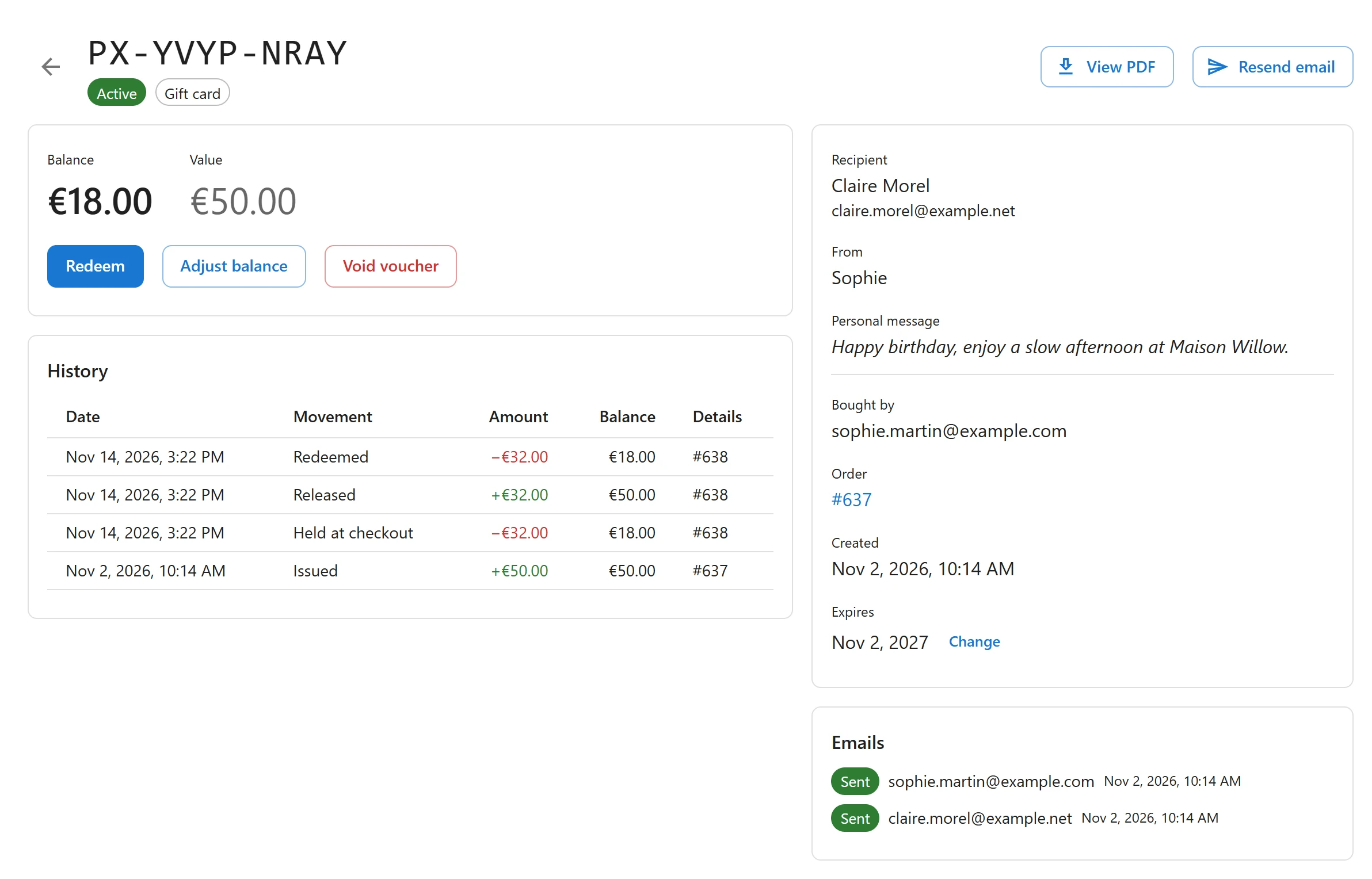
Click a voucher in the Vouchers list to open it. The page shows everything about the voucher and every movement of its balance.
What the page shows
- The code, the status and the type (Gift card or Product voucher).
- Value (what it was issued with) and Balance (what is left). A product voucher with a
limited number of uses also shows Uses, for example
1 / 3. - Expires, with a Change button.
- Recipient, Bought by, From and the Personal message.
- Order: a link to the WooCommerce order that bought it, when there is one.
- View PDF: opens the voucher’s PDF.
- Emails: every send, see below.
- History: every movement of the balance.
Redeem in your shop
When a customer pays with a voucher at your counter:
- Open the voucher (search the code in the list).
- Click Redeem. The dialog shows the Current balance.
- Enter the Amount to redeem. It starts filled with the whole balance.
- Optionally add a Location (optional) (which shop or till) and a Note (optional).
- Click Redeem.
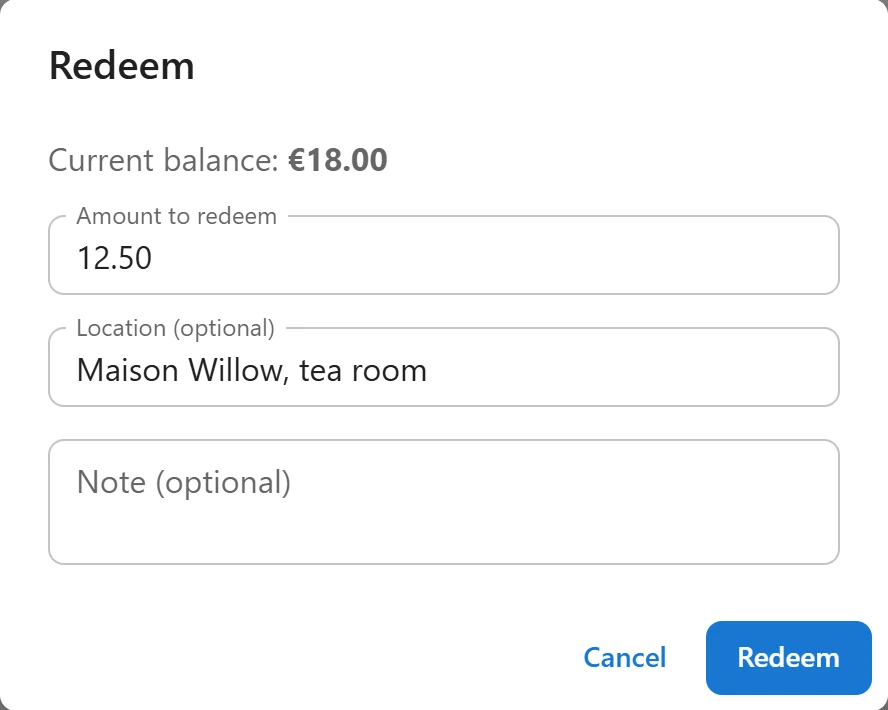
Redeem works only on an active voucher. The confirm button stays greyed out while the amount is zero or more than the balance. A product voucher with a limited number of uses is closed as Used up once its last use is redeemed.
Pro adds a phone screen for counter staff: Scan to redeem PRO.
Adjust the balance
Use Adjust balance to correct a mistake or add a goodwill amount.
- Click Adjust balance.
- Enter the Amount to add (negative to remove), for example
10or-5. - Enter a Reason. It is required: the confirm button stays greyed out without one.
- Click Adjust balance in the dialog.
Adding value to a used-up voucher makes it active again. An amount cannot be removed below zero.
Change the expiry date
Click Change next to Expires, pick a new date (or clear it for no expiry) and click Save. The voucher is valid until the end of that day.
Moving the expiry of an Expired voucher into the future makes it active again. The balance that was written off when it expired is not put back by itself: use Adjust balance to add it, with a reason such as “Expiry extended”.
Void a voucher
Void voucher cancels a voucher for good, for example a code that was leaked or a voucher sold by mistake.
- Click Void voucher.
- Give a Reason. It is required.
- Click Void voucher in the dialog. The dialog warns: The remaining balance is cancelled and the code stops working. This cannot be undone.
Resend the email
Click Resend email to send the voucher email with its PDF again. The page says Voucher emailed again., or shows the mail error when it fails. The send is added to the Emails list.
Emails
Each line shows the address, the date and the result: Sent, Failed (with the error from your mail system) or Skipped (with the reason, for example the voucher email is switched off). A voucher that was never sent shows Not sent yet. A gift scheduled for later PRO shows Email scheduled for and the date.
History
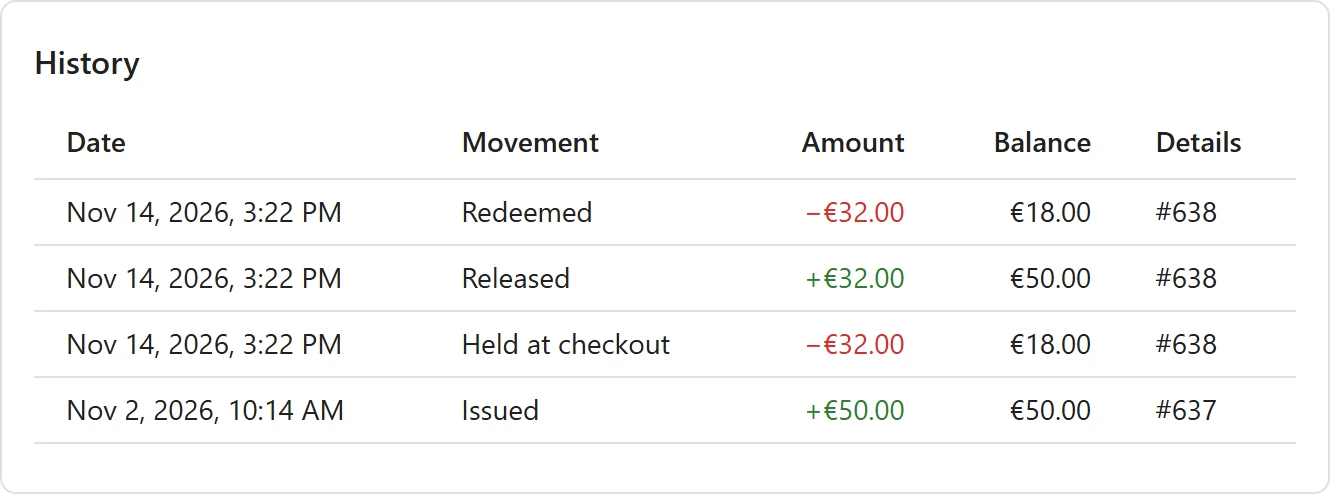
The history is the voucher’s ledger: a line is added for every movement, and lines are never edited or deleted. The balance is always the sum of its lines.
| Movement | When |
|---|---|
| Issued | The voucher was created, with its value. |
| Value added | Value was added to an existing voucher, for example a top-up PRO. |
| Held at checkout | An order was placed with the code and its amount is reserved. |
| Released | The reservation came back. When the order is paid, the hold is released and the same amount is Redeemed on the next line. When the payment fails, the order is cancelled or the hold times out, the money simply returns to the balance. |
| Redeemed | Money was spent, online when the order was paid, or at the counter. |
| Refunded to voucher | Money went back to the voucher, for example from a refunded order. |
| Adjusted | A manual adjustment, with its reason. |
| Expired | The balance left when the expiry date passed. |
| Voided | The balance left when the voucher was voided. |
Each line shows the Date, the Amount, the Balance after it and Details: the order, the location or the note.
Who can do what
Viewing, redeeming, editing (adjust, change expiry, resend) and voiding are separate permissions. A button you are not allowed to use is not shown. See Staff access.
When two people change the same voucher at once, the second one is told Somebody else changed this voucher while you were editing it. Reload and try again.
Quick Links
Share