

Contents
On this page
Drag-and-drop designer - Plugixa PDF Vouchers for WooCommerce
The ready-made designs (see PDF designs) let you change colours, texts and a logo, but the layout stays fixed. The drag-and-drop designer gives you an empty page instead: you place every element yourself, in millimetres, and the PDF prints exactly where you put it.
A design made in the designer is a normal PDF design. You can pick it on a voucher product, make it the store default, and use it for vouchers you create by hand, like any other design.
Start a drag-and-drop design
- Open PDF designs in the plugin menu and click Add design.
- The Start from a design window opens. Scroll to the Drag-and-drop layouts group.
- Click a layout. The design is created straight away and opens in the designer.
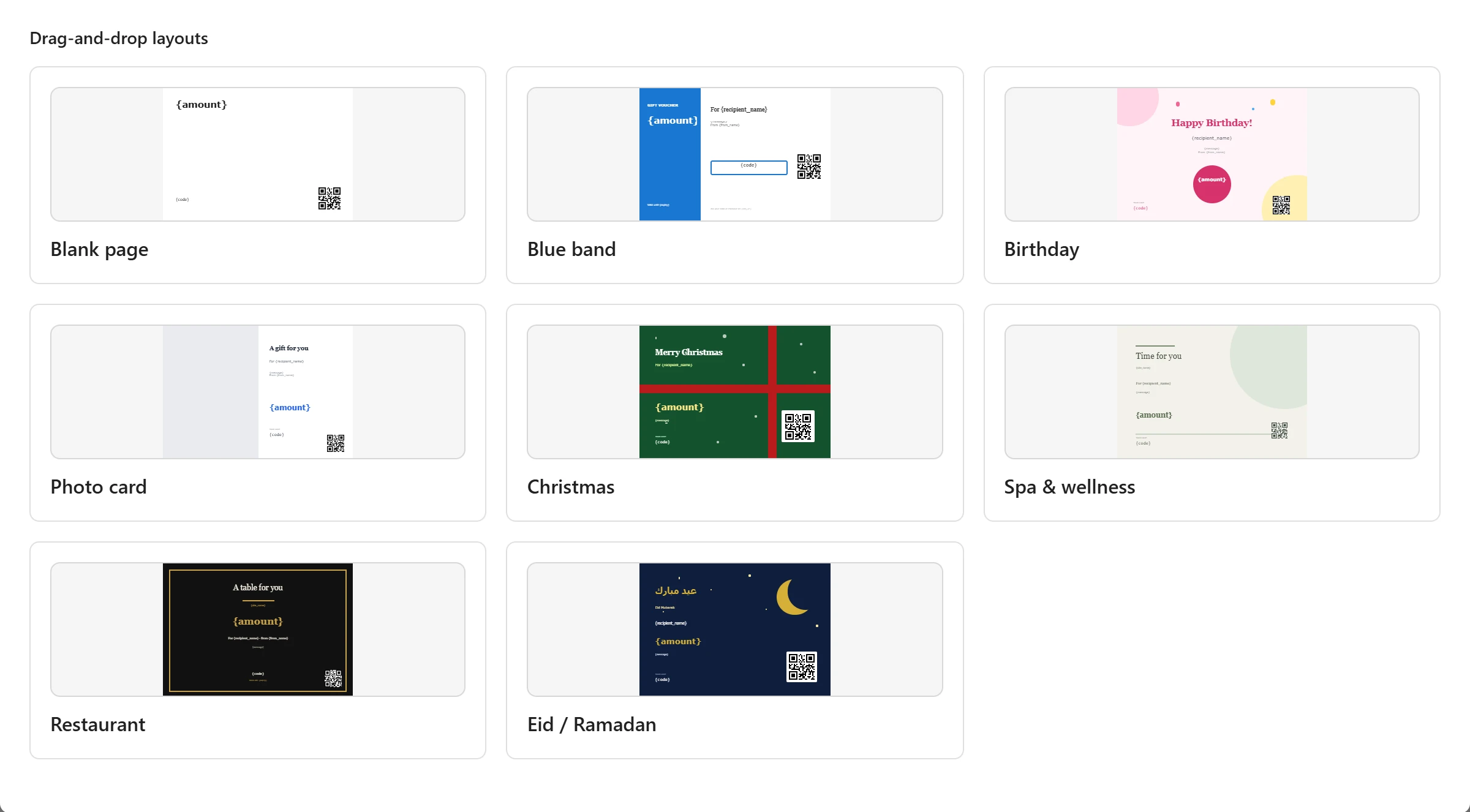
| Layout | What it starts with |
|---|---|
| Blank page | Only the value, the code and a QR code, on a white page. |
| Blue band | A blue band on the left with the value and expiry, the recipient, message, code box and QR code on the right. |
| Birthday | A pink page with balloons, a Happy Birthday! title and the value in a round badge. |
| Photo card | A photo area on the left half, with the title, message, value and code on the right. |
| Christmas | A green page with a red ribbon and snow dots. |
| Spa & wellness | Soft green tones, a Time for you title and thin rules. |
| Restaurant | A black page with a gold frame and centred serif text. |
| Eid / Ramadan | A night-blue page with a crescent, stars and an Arabic title. |
Every layout is A4 landscape and uses only the elements and fonts the designer offers, so what you pick is exactly what saves and prints. The titles are plain words you can edit; the rest is filled from the voucher through placeholders. None of the layouts contains a picture: add your own logo or photo as an Image element.
You need the create permission to add a design and edit to change one. See Staff access.
The designer screen
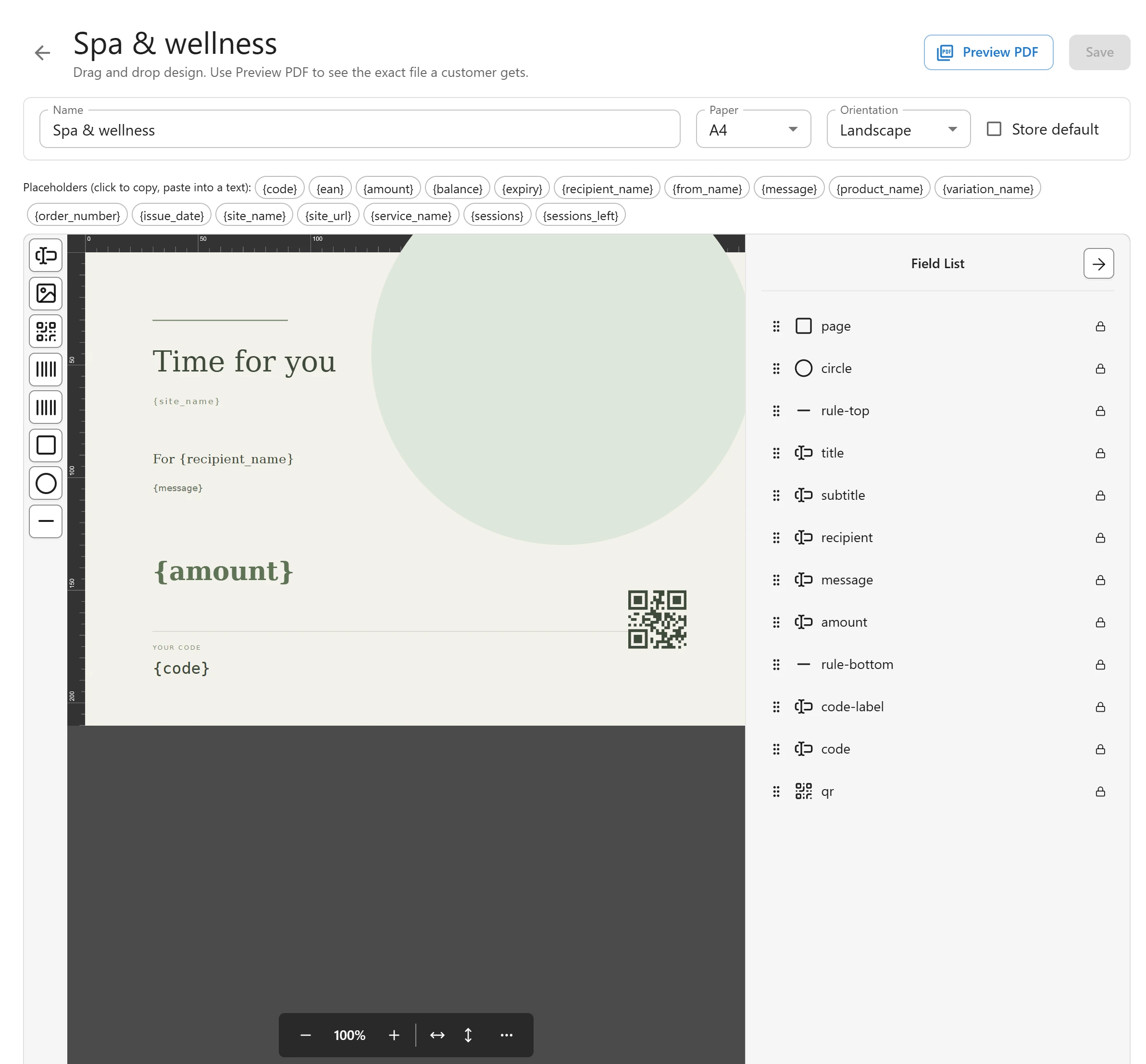
The bar above the canvas holds the design’s settings:
| Field | What it does |
|---|---|
| Name | The name shown in the design list and in the product’s PDF design list. |
| Paper | A4, A5 or Letter. |
| Orientation | Landscape or Portrait. Changing the paper or orientation resizes the page; elements keep their position. |
| Store default | Makes this the design used when a product has none of its own. |
Below it, the placeholder chips list every placeholder the plugin fills in. Click a chip to copy it, then paste it into a text element.
Add and edit elements
Drag an element type from the canvas sidebar onto the page, then move and resize it with the mouse. Select an element to change its properties in the side panel.
| Element | Use it for |
|---|---|
| Text | Titles, the recipient, the message, the value. Font, size, colour, alignment, line height, letter spacing, background colour, underline and strikethrough. |
| Image | A logo, a photo, a background picture. PNG or JPEG only, up to 1.5 MB per image. Fit contain or cover. |
| QR code | Prints the voucher code as a QR code. Always square. |
| Code 128 | A barcode of the voucher code, with or without the text under it. |
| EAN-13 | A 13-digit barcode for staff scanners. The PDF prints the voucher’s own EAN number. |
| Rectangle and Ellipse | Coloured blocks, frames and circles, with a fill, a border and rounded corners. |
| Line | A thin rule in any colour. |
Every element can also be rotated and made partly transparent. A design holds up to 80 elements.
The canvas has its own keyboard shortcuts for undo, redo, delete and moving with the arrow keys. Ctrl+S (or Cmd+S on a Mac) saves the design.
Placeholders
Type a placeholder in braces inside any text, for example For {recipient_name}. When the PDF is
made, the plugin replaces it with the voucher’s value.
| Placeholder | Prints |
|---|---|
{code} |
Voucher code |
{ean} |
EAN-13 number (staff scanners only) |
{amount} |
Voucher value |
{balance} |
Remaining balance |
{expiry} |
Expiry date |
{recipient_name} |
Recipient name |
{from_name} |
Sender name |
{message} |
Personal message |
{product_name} |
Product name |
{variation_name} |
Variation (e.g. amount option) |
{order_number} |
Order number |
{issue_date} |
Issue date |
{site_name} |
Store name |
{site_url} |
Store address |
A placeholder the plugin does not know (a typo such as {ammount}) prints exactly as typed. The
designer warns you above the canvas: These placeholders are not known and will print as
typed: followed by the list.
Fonts
The font list holds the fonts the PDF engine embeds: DejaVu Sans, DejaVu Serif, DejaVu Sans Mono and XB Riyaz (for Arabic), with their bold versions as separate entries. Fonts you upload under Custom fonts appear here too, after you reload the designer. The canvas measures text with the same font files as the PDF, so a line wraps in the designer where it wraps on paper.
The buyer’s photo
An Image element named photo is special: when a buyer adds their own photo to the voucher,
the photo replaces that image in the PDF. The Photo card layout already has one. See
Design choice.
Preview and save
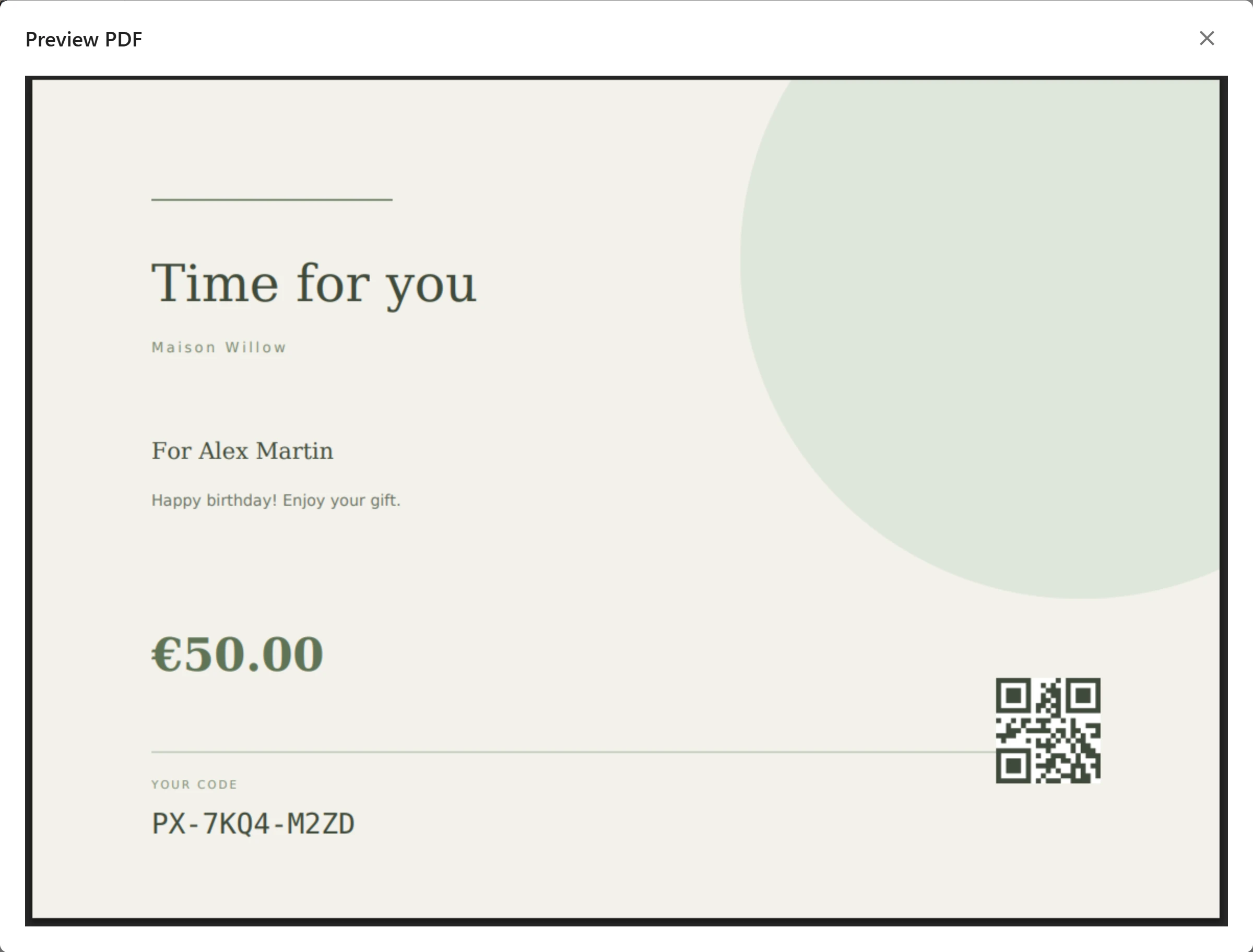
Click Preview PDF at any time. The plugin makes the real PDF from the unsaved design, with a sample voucher, and shows it in a window. This is the file a customer gets, so check it before you save.
Click Save when you are happy. Before it is stored, every element is checked: numbers are kept within limits, colours must be hex values, text is stored as plain text, and images must really be PNG or JPEG files. If something had to be adjusted, you see Saved. Some elements were adjusted (an image may have been too large or not PNG/JPEG). and the canvas shows the stored version.
If you click the back arrow with unsaved changes, the designer asks Leave without saving?. Choose Stay to keep working or Leave to drop the changes. Closing or reloading the browser tab also asks first.
Things to know
- The PDF is always made on your server. The designer only shows you where things go.
- A drag-and-drop design is marked Drag and drop in the design list, where the ready-made designs show their layout name.
- If the Pro part of the plugin is no longer active, a drag-and-drop design prints with the Classic layout instead.
Quick Links
Share