

Contents
Vouchers - Plugixa PDF Vouchers for WooCommerce
Plugixa PDF Vouchers > Vouchers lists every voucher sold or created by hand, with its balance.
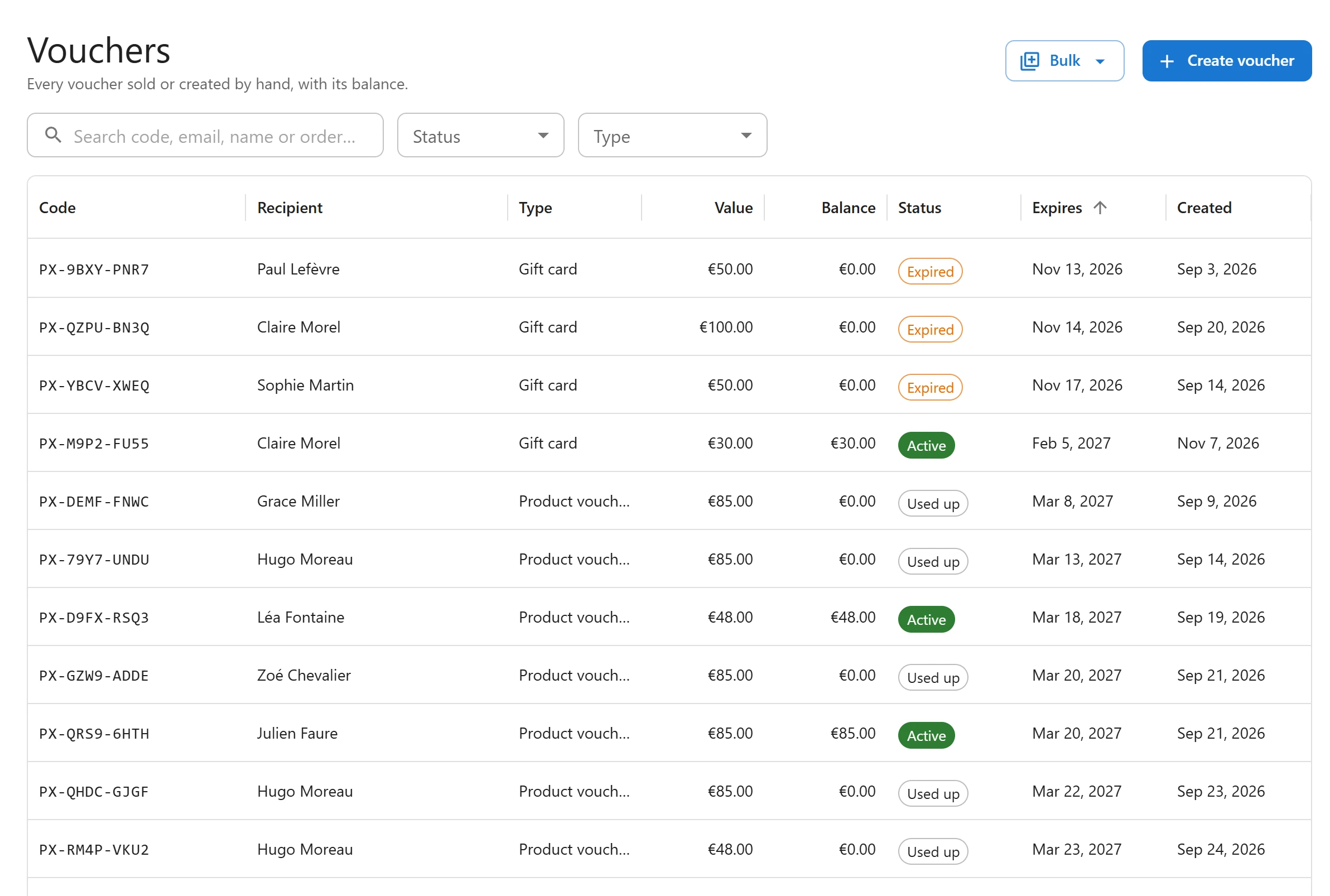
The list
| Column | Shows |
|---|---|
| Code | The voucher code. |
| Recipient | Who the voucher is for. |
| Type | Gift card or Product voucher. |
| Value | The starting value. |
| Balance | What is left to spend. |
| Status | See below. |
| Expires | The expiry date, or Never. |
| Created | When the voucher was created. |
Click a code, or double-click a row, to open the voucher. See Voucher details and history.
Statuses
| Status | Meaning |
|---|---|
| Active | Can be spent. |
| Used up | The balance is spent, or a single-use voucher was used. Adding value to it makes it active again. |
| Expired | Its expiry date passed and the balance left on it was written off. Moving the expiry date into the future makes it active again, but the written-off amount is not put back by itself: add it with Adjust balance. |
| Void | Cancelled by hand, or because the order that bought it was cancelled or refunded. The code no longer works. |
| Pending | Created but not spendable yet, for example a physical card PRO that has not shipped. The Status filter has no choice for it: search for the code instead. |
Find a voucher
Type in Search code, email, name or order…. The search looks in:
- the code (dashes and spaces do not matter, part of a code is enough),
- the recipient’s name and email, and the buyer’s email,
- the order number, when you type only digits.
Narrow the list with Status and Type. Click the Code, Value, Balance, Status, Expires or Created header to sort. The list shows 25 rows per page; you can switch to 50 or 100. With Pro, opening a batch adds a Batch filter chip above the list: see Bulk codes and CSV import.
Create a voucher by hand
Use this for a prize, a goodwill gesture or a voucher sold in your shop.
- Click Create voucher.
- Fill in the form:
| Field | Notes |
|---|---|
| Value | Required, more than zero, in your store currency. It starts at 50. |
| Type | Gift card (the default) or Product voucher. |
| Recipient name, Recipient email | Optional. The email must be valid when given. |
| From, Personal message | Printed on the PDF when the design shows them. The message takes up to 300 characters. |
| Code (optional) | Leave empty to generate a secure code. Type one to use a code you already printed. |
| Expires on | Empty uses the store default. |
| Internal note | Saved in the voucher’s history, not shown to the customer. |
| Email the voucher to the recipient now | Ticked by default. Sends the voucher email with the PDF at once. It can only be ticked when a recipient email is filled in. |
- Click Create. The new voucher opens.
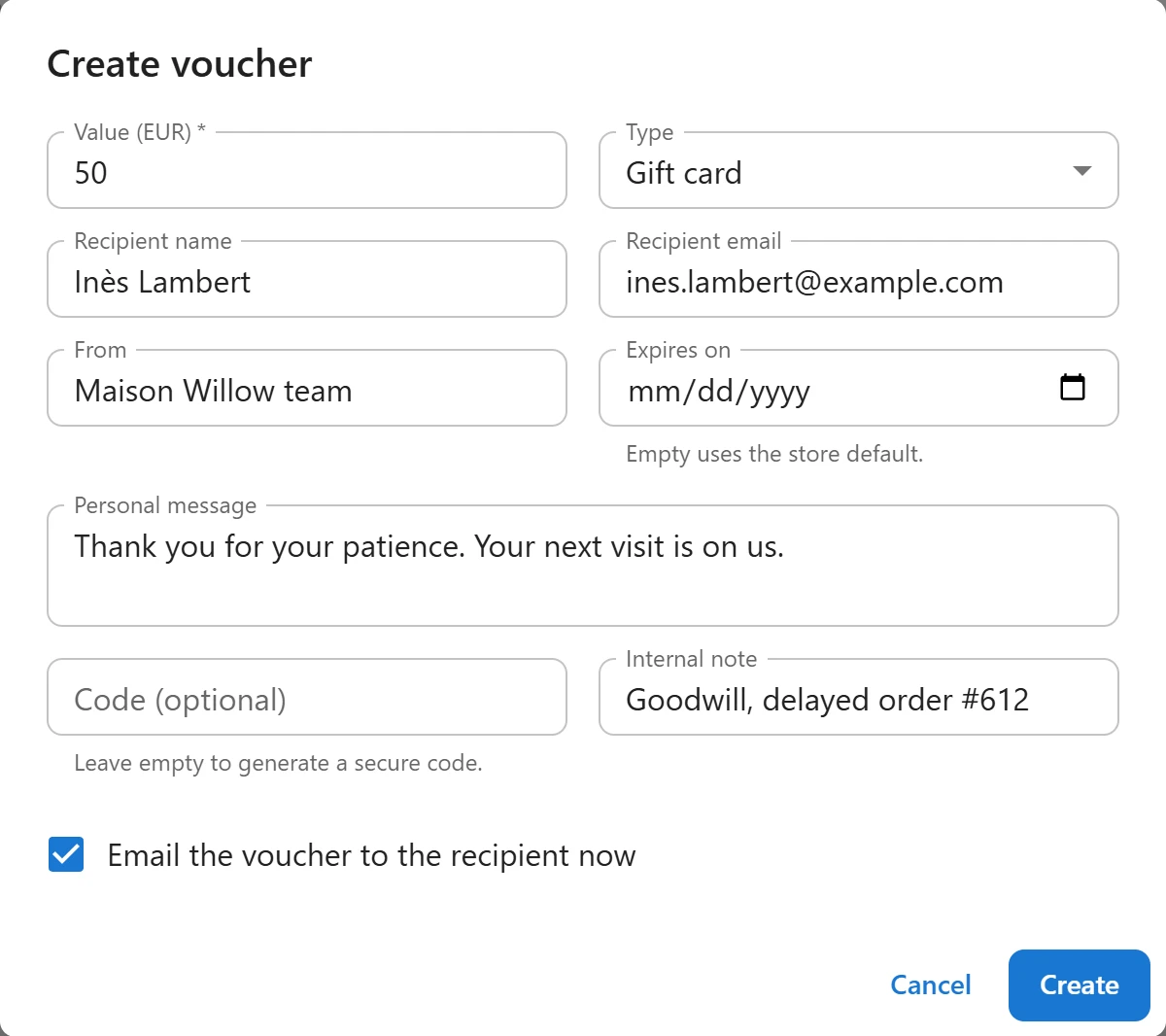
The new voucher’s history starts with an Issued line. Its source shows as Created by hand.
A code you type must be unique. If it is already taken, the dialog says That voucher code already exists.
Make many vouchers at once
Pro adds bulk generation, a CSV import of codes you already have, and a CSV export per batch next to Create voucher. See Bulk codes and CSV import PRO.
Quick Links
Share