

Contents
On this page
Emails and delivery - Plugixa PDF Vouchers for WooCommerce
When a voucher is created from a paid order, it is emailed at once with its PDF attached. Every attempt is recorded on the voucher, so you can see whether the customer got it.
Who gets the email
| Purchase | Email sent to |
|---|---|
| For me | The buyer’s billing email. |
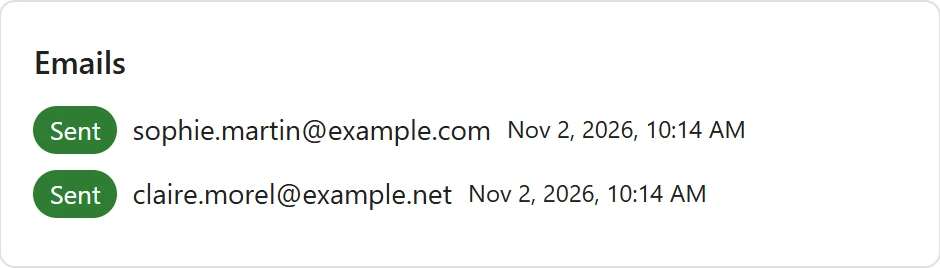
| A gift for someone | The Recipient email, plus a copy to the buyer when Send the buyer a copy of gift vouchers is ticked in Settings (on by default). |
| No address on the voucher | Nobody: the delivery history shows No email address on the voucher. |
The buyer’s copy has its own subject, Copy of your (amount) gift voucher for (recipient), and its own heading, Your gift is on its way.
What the email contains
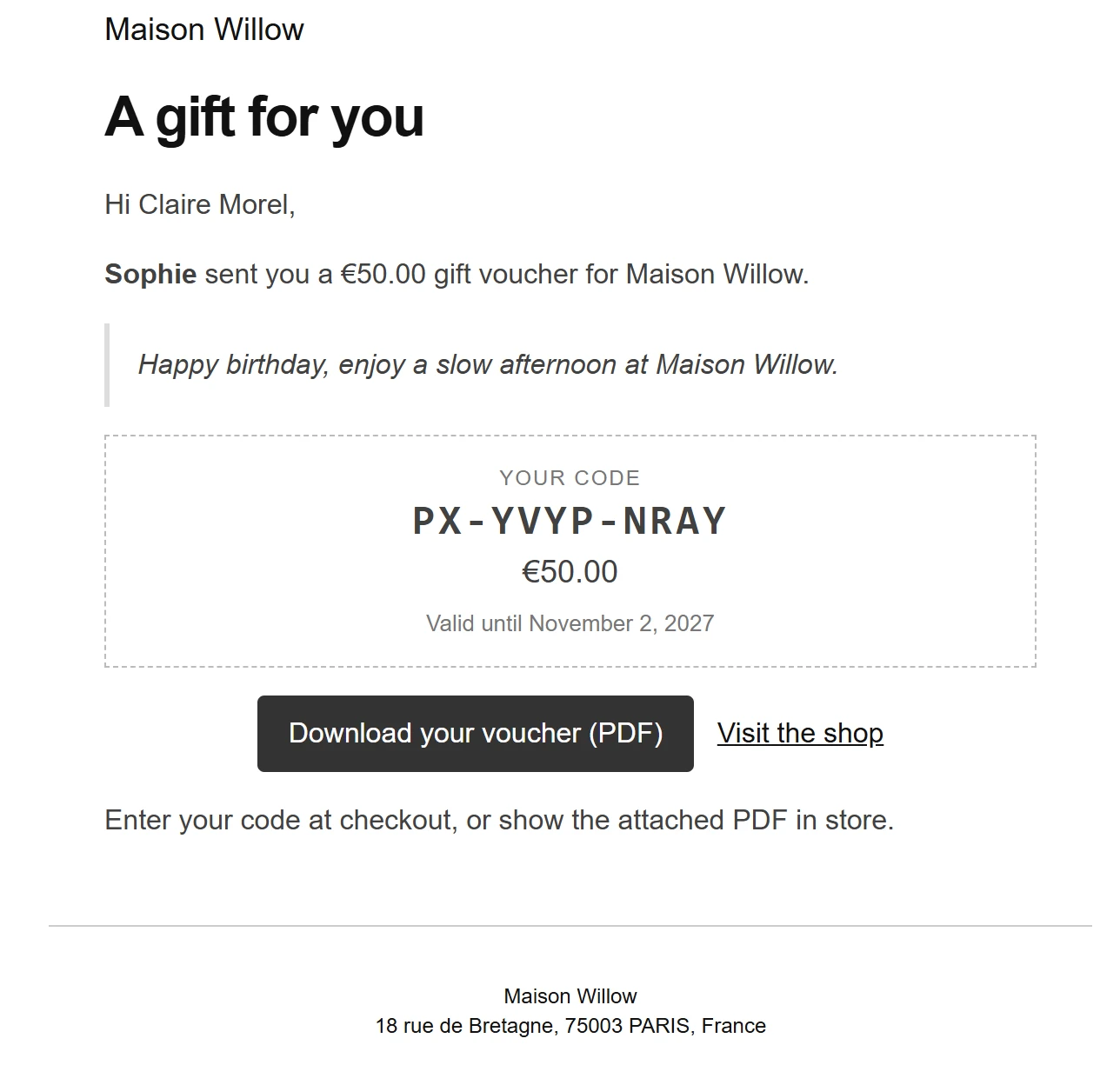
- The heading A gift for you and a greeting to the recipient by name.
- For a gift, who sent it and the amount: for example Sophie sent you a 50.00 gift voucher for Maison Willow.
- The code under Your code, and Valid until with the expiry date when there is one.
- The personal message, when the buyer wrote one.
- A Download your voucher (PDF) button and a Visit the shop link.
- The PDF voucher as an attachment.
The email is written in the language the buyer was shopping in, not only the site language, when your site is multilingual. See Languages, WPML and Polylang.
Edit the email
The voucher email is a WooCommerce email named Gift voucher. Edit it with the other store emails:
- Go to WooCommerce > Settings > Emails and click Gift voucher. In the plugin, the Email box of Settings links straight there.
- Change the subject, heading, additional content or the email type (HTML or plain text).
- Click Save changes.
| Field | Default |
|---|---|
| Subject | You received a {amount} gift voucher from {site_title} |
| Heading | A gift for you |
| Additional content | Enter your code at checkout, or show the attached PDF in store. |
You can use {amount} (the voucher value) and {from_name} (the sender) as well as WooCommerce’s
own placeholders such as {site_title}.
The email uses your WooCommerce email header, footer and colours. A theme can override the
template like any WooCommerce email, by copying templates/emails/plugixa-pdfv-voucher.php to
yourtheme/woocommerce/emails/plugixa-pdfv-voucher.php.
If you switch the email off in WooCommerce, vouchers are still created, and their delivery history says The gift voucher email is turned off in WooCommerce > Settings > Emails.
The PDF download link
The Download your voucher (PDF) link works without logging in, because the recipient of a gift usually has no account in your shop. It is signed: it cannot be guessed or changed to open another voucher, and it stops working when the voucher’s code changes. Links in emails work for 180 days. In My Account, a fresh link is made each time the page is shown.
PDFs are made on your server when they are first needed and kept in a protected folder of your uploads directory, which cannot be opened directly.
Delivery history
Every send is listed on the voucher’s page under its history, with the address, the date and the result: sent, failed with the mail error, or skipped with the reason. See Voucher details and history.
Send a voucher again
- From the admin: open the voucher and click Resend. See Voucher details and history.
- By the customer: the Balance check has a Didn’t receive your voucher? link. The customer types their email address and their vouchers are sent again to that address only. The answer is always the same, whether or not the address has vouchers, and repeated requests are limited.
- From My Account: a signed-in customer downloads the PDF again. See My Account vouchers.
If emails do not arrive
The plugin hands the email to WordPress, which sends it through your server or an SMTP plugin. Check the delivery history first: a failed line shows the error from your mail system. See Troubleshooting.
More channels with Pro
- Scheduled delivery PRO: the gift arrives on a chosen day.
- SMS and WhatsApp: a text message with the code next to the email.
- Apple Wallet and Google Wallet: Add to wallet buttons in the email.
- Expiry reminders: an email before a balance expires.
Quick Links
Share