

Contents
Dark mode and staff app - Plugixa Car Wash
Two Pro PRO features change how the staff app looks and opens: a dark palette with a light/dark button, and installing the app to a home screen or desktop so it opens like any other app. Both apply to the staff app in wp-admin and on its private page. The customer booking form and account page are not affected.
Dark mode
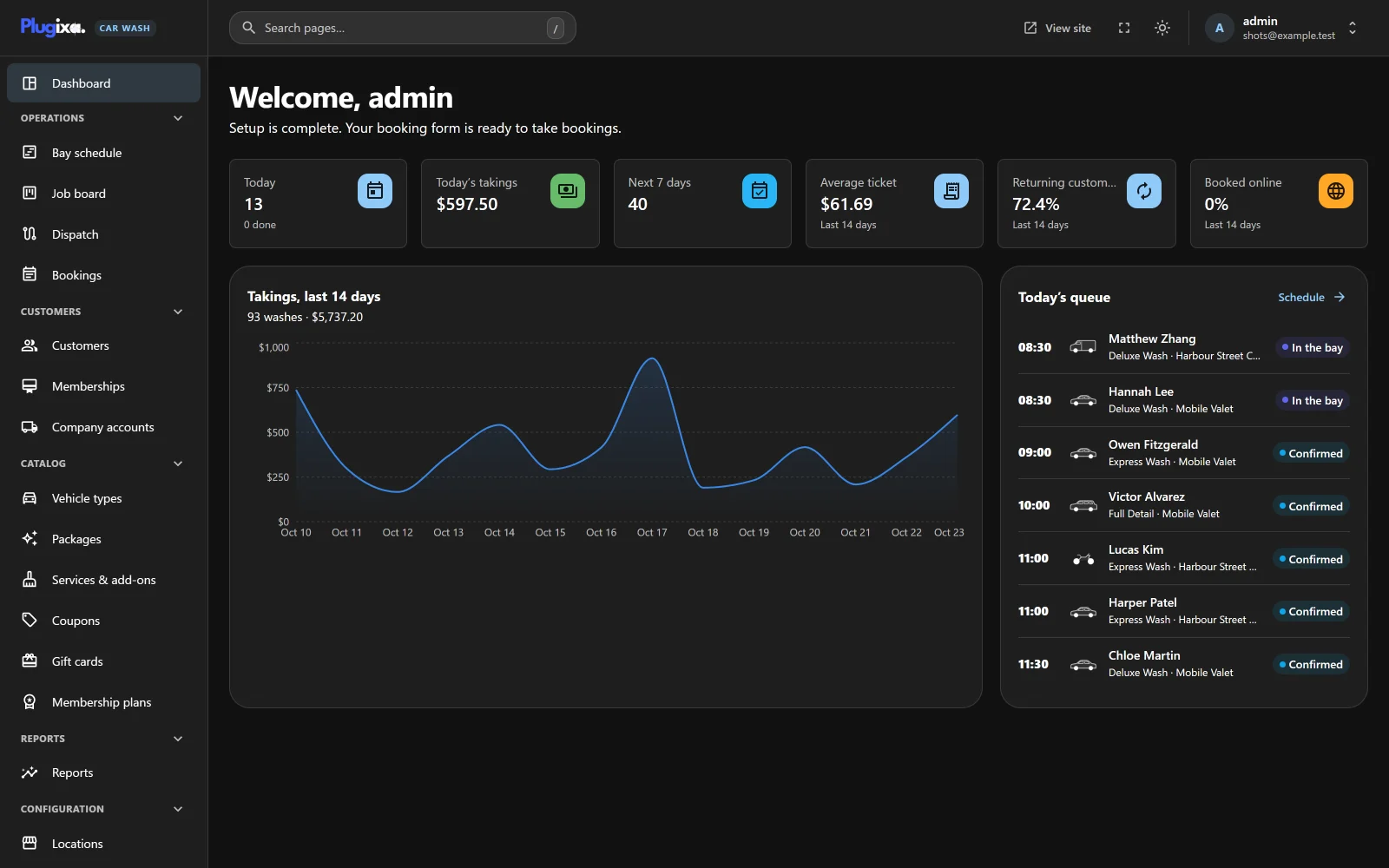
The light/dark button sits in the top bar, next to the full-screen button. It shows a moon while the app is light and a sun while it is dark. Click it to switch. The whole app changes at once, charts included: the chart colours are a separate set chosen to stay readable on a dark background.
Your choice is remembered in this browser on this device, not on your user account. The same person sees their own choice on their office computer and the site default on their phone until they click the button there too. A private window, or a browser that blocks site data, does not remember it, and the app opens in the default each time.
If the button is missing, the Dark mode app is switched off in the App Manager. With it off, the app is always light.
The default theme
Open Plugixa Car Wash -> Settings -> Appearance.
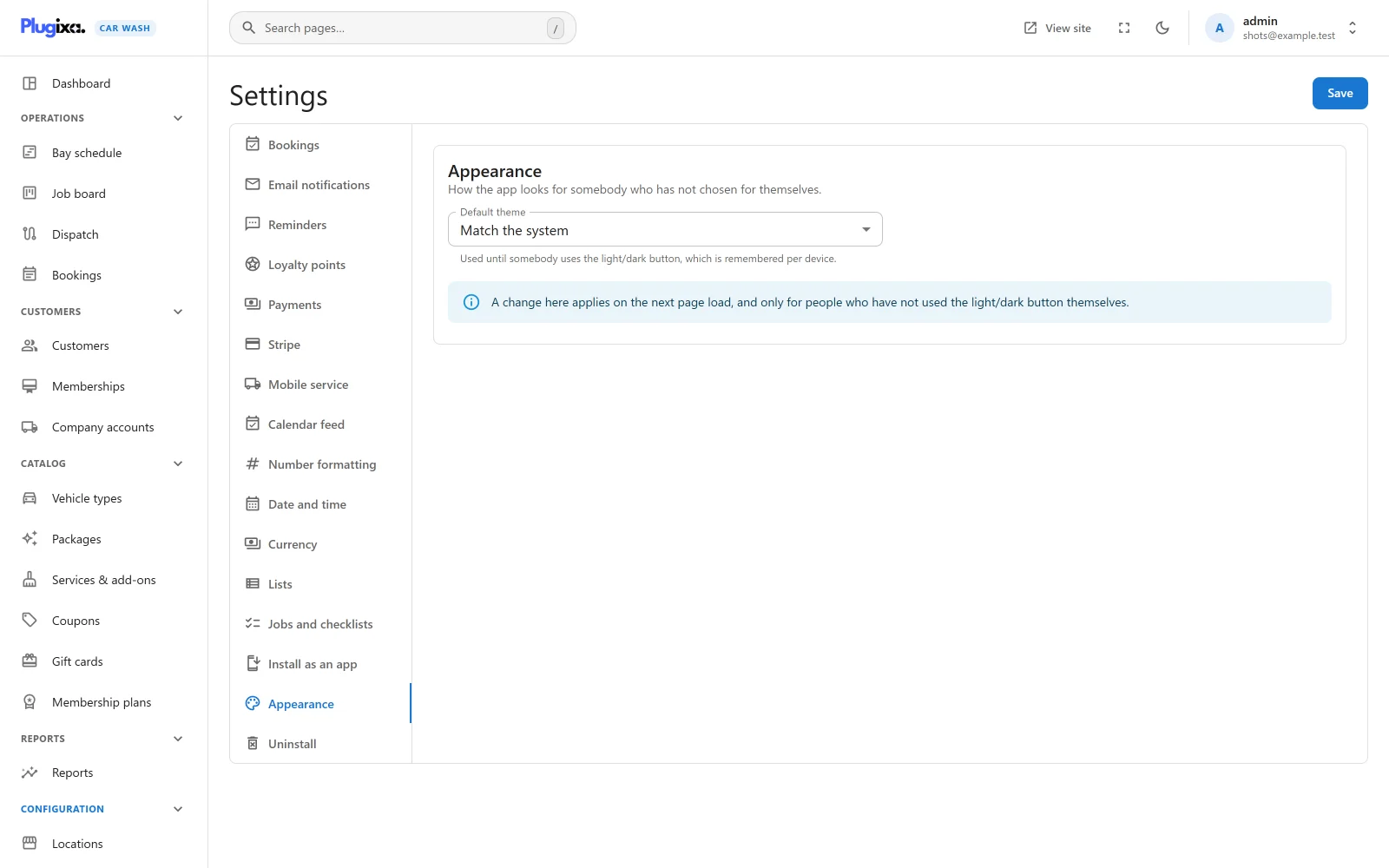
Default theme decides what people see before they have used the button.
| Choice | What it does |
|---|---|
| Match the system | The default. The app follows the device’s own light or dark setting. |
| Light | Opens light for everybody who has not chosen. |
| Dark | Opens dark for everybody who has not chosen. |
Click Save at the top of the settings page.
When the app opens, it picks the theme in this order:
- What this browser last chose with the light/dark button.
- The Default theme, unless it is Match the system.
- The device’s light or dark setting.
So a change to Default theme applies on the next page load, and only for
people who have not used the button in that browser. It never overrides
somebody’s own choice. Changing the setting needs the
plugixa_carwash_manage_settings capability, like the rest of
Settings.
Installing the staff app
With Allow installing on, staff can install the app on a phone, tablet or computer. It gets its own icon and opens in its own window, without the browser’s address bar, straight onto the app’s dashboard.
Open Plugixa Car Wash -> Settings -> Install as an app.
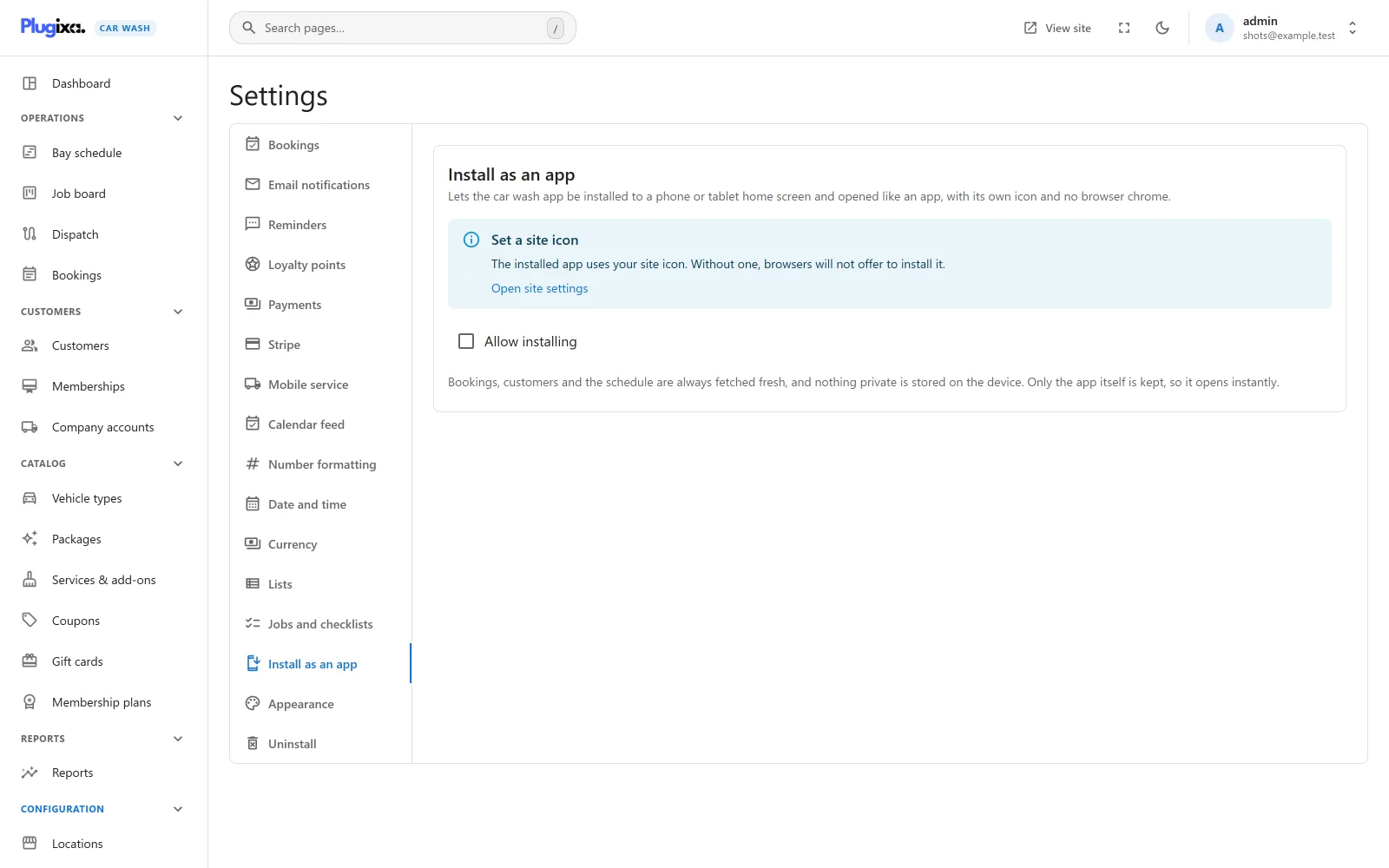
Tick Allow installing. The change is saved as soon as you click it; this section has no Save button.
What it needs
| Requirement | Why | What the section shows |
|---|---|---|
| HTTPS | Browsers only allow an app to be installed from a secure site. A site at localhost counts as secure, so it also works while you develop. |
“This needs HTTPS”. The box can still be ticked, but nothing takes effect until the site is served over HTTPS. |
| A site icon | The installed app uses your WordPress site icon. Without one, browsers do not offer to install it. | “Set a site icon”, with an Open site settings link to Settings -> General. |
Upload a square site icon of at least 512 by 512 pixels. The app uses it at 192 and 512 pixels, and iPhones and iPads use a 180-pixel copy for the home screen.
What the installed app is
| Detail | Value |
|---|---|
| Name | Your site title. |
| Name under the icon | Your site title, cut to its first 12 characters so the home screen does not cut it somewhere worse. “Car Wash” when the site has no title. |
| Opens at | The app’s dashboard in wp-admin. |
| Window | Its own window, with no address bar. The title bar is blue (#1976d2). |
| Scope | Pages under /wp-admin/. The public site is not part of the app. |
The installed app uses the same WordPress login as the browser, and the same permissions: it shows each person only what their role allows.
Installing it on a device
Sign in on the device, open the app, then:
- Chrome or Edge on a computer: click the install icon at the right of the address bar, or Install in the browser menu.
- Chrome on Android: open the menu and choose Install app or Add to Home screen.
- Safari on iPhone or iPad: tap Share, then Add to Home Screen.
What is stored on the device
To install, the browser loads a small helper script, a service worker, from your site. It stores only the app’s own code: the JavaScript and stylesheet files the app loads. That is why the installed app opens quickly.
It stores nothing private. Bookings, customers, settings and every other answer from the plugin’s API are always fetched fresh from the site and are never kept on the device. The worker does not touch any other admin page, any other plugin’s requests, or anything that is not a plain page load of those files. Without a connection the app cannot show any data.
When the plugin is updated, the next visit stores the new code and removes the old copy.
Turning it off
Untick Allow installing. The next time the app loads in a browser that installed it, it removes its helper script and the stored code. Icons already on home screens and desktops are not removed: remove them on each device as you would any app.
While Allow installing is on, the plugin adds the app’s manifest link and
the home-screen tags for iPhone and iPad only to the pages the staff app runs
on: the car wash app’s own screens in the WordPress admin, and a page of your
site carrying [plugixa_carwash_app], for a signed-in user. Your public pages,
the booking form and the customer account get none of them, so customers are
never offered to install the staff app. With Allow installing off, it adds
nothing anywhere.
Without Pro
The free edition is always light, has no light/dark button, no Appearance section and no Install as an app section. The saved Default theme and Allow installing settings stay stored if Pro is removed, and apply again when it returns. See Free vs Pro.