

Contents
Job board - Plugixa Car Wash
The Job board shows the day’s cars as cards moving from left to right: waiting, being washed, finished. It is made for a tablet at the bay entrance. Each card is big enough to tap with a wet thumb, and its one button is always the next step.
Open it from Job board in the Operations group of the app’s sidebar, or from the Today tile on the Dashboard.
To see the board a user needs the plugixa_carwash_view capability. Moving a card needs plugixa_carwash_edit. See Roles and permissions.
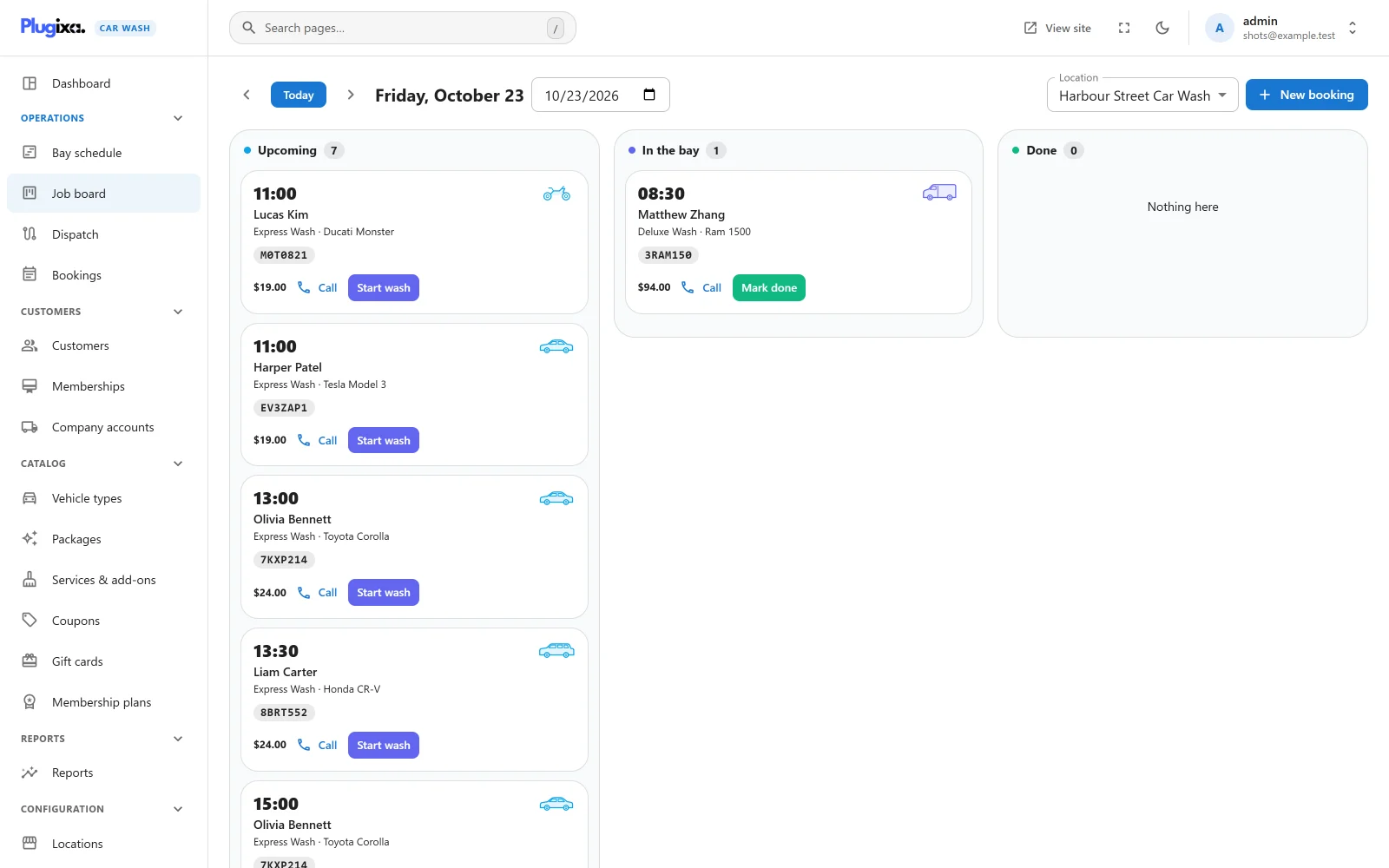
Picking the day and location
The bar at the top is the same as on the Bay schedule: previous and next day, Today, the date, a date field, the Location picker when you have more than one location, and New booking.
The board opens on today at your first published location. “Today” is today on the location’s own clock, set by its time zone (or the site’s), not on the clock of the computer you are using. The day and location are kept in the address of the page.
The board refreshes every minute, so two tablets, or a tablet and the desk, stay in step.
The three columns
| Column | Holds bookings that are | Colour |
|---|---|---|
| Upcoming | Awaiting payment, Pending or Confirmed | Blue |
| In the bay | In the bay | Indigo |
| Done | Done | Green |
Each column’s header shows how many cards it holds. An empty column says “Nothing here”. Cards are in time order.
Cancelled bookings and no-shows have no column. They are listed under the columns, after the words Not coming, as struck-through chips with the start time and the customer’s name. Click one to open the booking.
A card
Each card shows:
- the start time, large,
- the customer’s name, or the booking reference when there is no name,
- the package and the vehicle (the make and model typed in, or else the vehicle type),
- the licence plate, when there is one,
- the vehicle type’s icon,
- the booking total,
- Call, when the booking has a phone number. On a phone or tablet it starts a call.
- the button for the next step.
Click the card’s text to open the booking.
Moving a car on
The button on a card is always the next step for its status:
| Card status | Button | Moves the booking to |
|---|---|---|
| Awaiting payment | Confirm | Confirmed |
| Pending | Confirm | Confirmed |
| Confirmed | Start wash | In the bay |
| In the bay | Mark done | Done |
| Done | None |
You can also drag a card to a column. Dropping it does the same as the column’s step:
| Drop on | Does | Allowed from |
|---|---|---|
| Upcoming | Confirms the booking | Awaiting payment, Pending |
| In the bay | Starts the wash | Confirmed |
| Done | Marks it done | Confirmed, In the bay |
A drop that is not allowed is refused at once with “That booking cannot move there from where it is.” The board cannot move a car backwards: a card in Done cannot go back to In the bay, and a car in the bay cannot go back to Upcoming. A Pending booking must be confirmed before its wash can start.
Cancelling a booking and marking a no-show are done on the booking itself. See Bookings.
What each step does
Every change goes through the same status rules as the buttons on the booking screen, and is written to the booking’s history with the time it happened.
| Step | What follows |
|---|---|
| Confirm (from Pending or Awaiting payment) | The customer gets the Confirmed email, if customer emails are on. A held booking stops expiring. See Emails. |
| Start wash | The booking shows as In the bay everywhere. From now on it can no longer be moved to another time, and it cannot be moved to the trash. No email is sent. |
| Mark done | The booking is finished. It keeps its bay time on the record, so the day’s history has no gap where the car was. No email is sent. With Pro, the customer earns loyalty points PRO. |
Done is final. A finished booking cannot be moved to any other status, by the board or anywhere else.
Pro: jobs and checklists PRO
With Dispatch PRO, a booking can carry a checklist and before and after photos. Mark done is refused, here and on every other screen, while something the checklist requires is missing. The message says what is left to do.
Tips
- Keep a tablet on the board and a computer on the Bay schedule. Both read the same bookings and both refresh every minute.
- If a step is refused with a message you did not expect, someone else may have changed the booking a moment ago. Wait for the board to refresh, or reload it, and try again.