

Contents
Reminders and text messages - Plugixa Car Wash
Reminders and text messages PRO cut no-shows. The plugin can send each customer one reminder before their appointment, by email, by text message or both, and can text them the moment a booking is made or cancelled. Texts go out through your own Twilio or Vonage account, and the provider bills you for them.
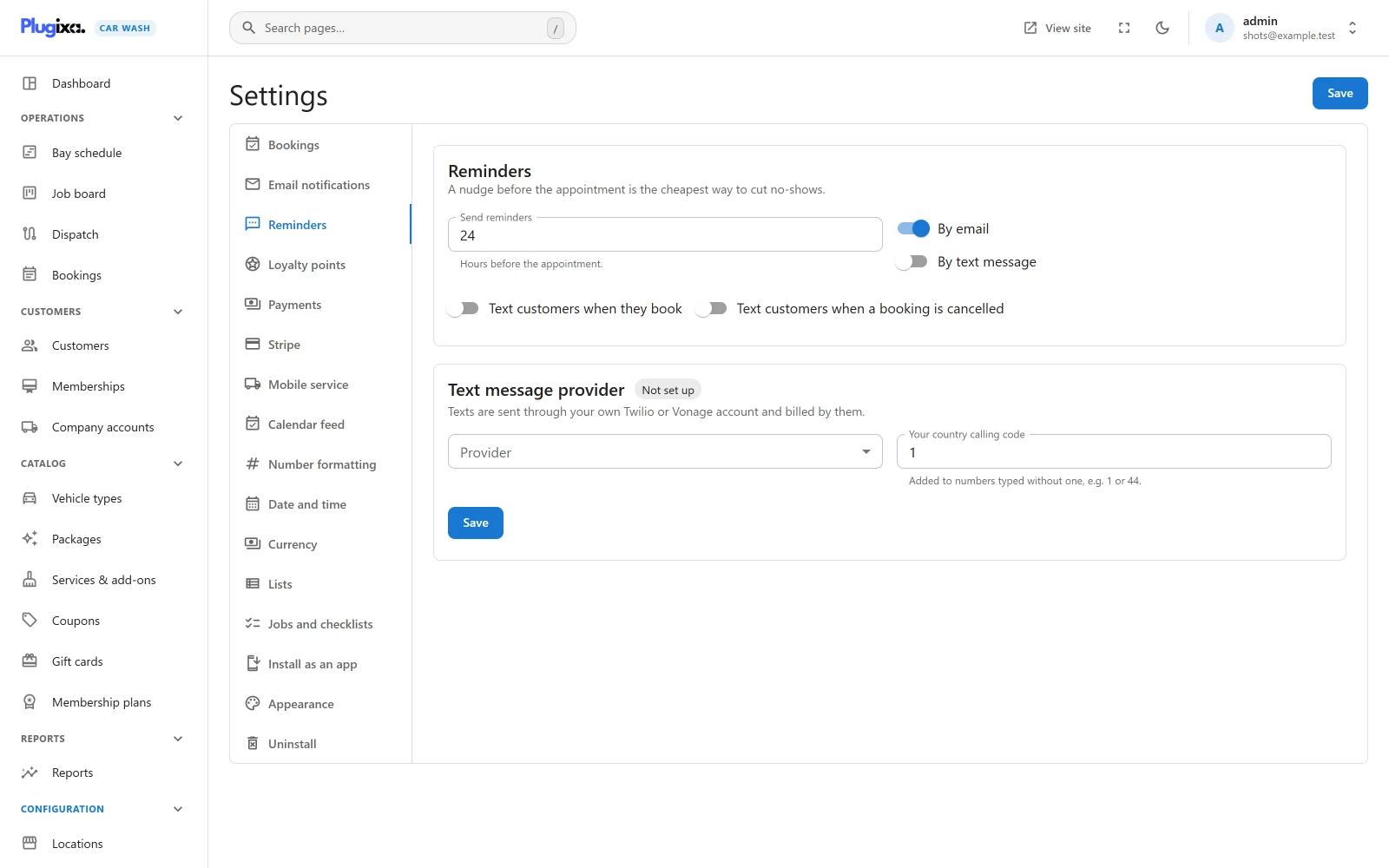
Open Plugixa Car Wash -> Settings -> Reminders. The page has two cards: Reminders, which is saved with the rest of the settings by the Save button at the top, and Text message provider, which has its own Save button.
If the section is missing, the Reminders & text messages app is switched off in the App Manager. It is on by default.
Reminder settings
| Field | Default | Notes |
|---|---|---|
| Send reminders | 24 | “Hours before the appointment.” A whole number from 1 to 168 (one week). |
| By email | On | Send the reminder as an email. |
| By text message | Off | Send the reminder as a text. Needs a provider below. |
| Text customers when they book | Off | A text as soon as the booking is made. |
| Text customers when a booking is cancelled | Off | A text when the booking becomes Cancelled. |
When a reminder goes out
Once an hour the plugin looks for bookings that start between now and Send reminders hours from now and have not been reminded yet. Each one it finds is reminded straight away. With the default of 24, a booking for 10:00 tomorrow is reminded by the first hourly run after 10:00 today.
A booking made at short notice is still reminded. A booking made at 15:00 for 18:00 the same day is already inside the 24-hour window, so the next hourly run reminds it.
A booking is reminded when all of these are true:
| Condition | Detail |
|---|---|
| Status | Confirmed. A booking that is Pending, Awaiting payment, In progress, Completed, Cancelled or a No-show is skipped. A Pending booking that you confirm later is reminded on the next run, if it is still inside the window. |
| Start time | Later than now, and no more than Send reminders hours away. |
| Not in the trash | A trashed booking is skipped. |
| Not looked at before | Each booking is looked at once. See Sent once. |
One run handles up to 200 bookings, earliest first. A busier window is finished by the following runs.
What the customer receives
The reminder email
Sent when By email is on and the booking has a valid email address.
- Subject:
Reminder: your car wash, 2026-10-24 10:00, with the booking’s date and time at its location. - Heading: “See you soon”.
- Text: “A reminder of your appointment. If you cannot make it, let us know so someone else can have the slot.”
- The booking details, in the same layout and colours as your other booking emails.
- A View or cancel your booking button, for a booking made online. It opens the page the customer booked on, showing their booking. A booking made by staff has no such page, so its reminder has no button.
The reminder email is sent whether or not the other customer emails are switched on.
The texts
The texts are fixed. They start with your Business name in emails, or your site title when that is empty.
| Text | Sent when | Wording |
|---|---|---|
| Reminder | By text message is on and the booking has a phone number | Harbour Wash: reminder of your car wash 2026-10-24 10:00 (CW2026-0042). Reply or call us if you cannot make it. |
| Booked | Text customers when they book is on | Harbour Wash: you are booked in for 2026-10-24 10:00. Ref CW2026-0042. |
| Cancelled | Text customers when a booking is cancelled is on | Harbour Wash: your booking for 2026-10-24 10:00 (CW2026-0042) is cancelled. |
The wording is translatable with the rest of the plugin. A text longer than 600 characters is cut at 600.
The booked text goes out once a booking is Confirmed, online or made by staff, and only once per booking:
- A booking made as Confirmed is texted when it is made.
- A booking that is Awaiting payment (paid online, for example by Stripe) is texted when the payment confirms it, not when it is made.
- A booking that starts as Pending, because online bookings wait for you to confirm them, is not texted when it is made. It is texted when you confirm it.
The cancelled text goes out when a booking becomes Cancelled, by staff, by the customer, or by the plugin, with one exception: an online booking whose payment was never finished. When its hold runs out, or the customer leaves the payment page, the booking is cancelled without a text, because the customer was never told they were booked in.
Sent once
Every message is claimed before it is sent. The plugin writes one row per booking, kind (reminder, booked or cancelled) and channel (email or text) to its own table, and the database refuses a second identical row. Two runs that overlap, on a slow host or because somebody ran the scheduler by hand, cannot both send the same message.
The same rule has consequences worth knowing:
- A failed send is not retried. The row is written first, so a text that the provider refused, or an email your server could not hand over, is not tried again.
- A booking is looked at once. The first run that finds a booking marks it as handled, even when neither channel applied (both switched off, or no email and no phone). Switching By text message on later does not remind a booking that a run has already passed.
- A moved booking is not reminded again. A booking moved after its reminder went out gets no second reminder.
- Nothing is logged. There is no screen that lists the reminders and texts that went out. Use Send a test below to check the provider, and your provider’s own message log to see what was delivered.
Text message provider
Choose Twilio or Vonage under Provider. The fields for that provider appear.
| Provider | Field | What to enter |
|---|---|---|
| Twilio | Account SID | From your Twilio console, starting with AC. |
| Twilio | Auth token | From your Twilio console. |
| Twilio | Send from | A Twilio phone number you own, in international form, for example +15125550100. |
| Vonage | API key | From your Vonage dashboard. |
| Vonage | API secret | From your Vonage dashboard. |
| Vonage | Send from | The sender Vonage allows for your account: a number, or a name such as CarSpa where your country permits one. |
| Both | Your country calling code | “Added to numbers typed without one, e.g. 1 or 44.” Default 1. |
Click Save in the card. The chip next to the title turns from Not set up to Connected once every field of the chosen provider is filled in. That only means the fields are complete, not that the provider accepted them.
The Auth token and API secret are stored encrypted, in their own option, and are never sent back to the browser. After saving, the field is empty with a note that a value is saved. Leave it empty to keep the saved one, or type a new one to replace it.
Only a user with the plugixa_carwash_manage_settings capability can see or
change the provider, or send a test.
Send a test
Once the chip says Connected, a Your mobile number field and a Send a test button appear next to Save. Type your own mobile number and click Send a test. The text reads “Test message from your car wash booking system. Texts are working.”
| Message | Meaning |
|---|---|
| “Test message sent. Check the phone.” | The provider answered with success. |
| “The text provider refused the message (HTTP 401).” | Usually a wrong SID, token, key or secret. The number is the provider’s HTTP status. |
| “The text provider refused the message: Bad Credentials (status 4).” | Vonage turned the message down. The reason and status code are Vonage’s own. |
| “The text provider did not confirm the message.” | Vonage answered without saying the message was accepted. |
| “The phone number cannot receive texts.” | What was typed has fewer than 8 or more than 15 digits once cleaned. |
| “Text messages are not set up.” | A field of the chosen provider is empty. |
Vonage answers a refused message with HTTP 200 and puts the reason inside its response. The plugin reads that response, so a message Vonage refused (a wrong secret, an unknown sender, no credit) is reported as refused, with Vonage’s reason, and not as sent. “Test message sent” through Vonage means Vonage accepted the message; if the phone still stays silent, check the message in the Vonage dashboard.
How numbers are cleaned
Customers type phone numbers in every shape. Before sending, the plugin turns each one into international form:
- A number that starts with
+or00is kept as it is, minus spaces, brackets and dashes. - Any other number has its leading zeros removed and Your country calling code put in front.
- The result must have 8 to 15 digits, or the text is not sent.
With the country code 44, 07700 900123 becomes +447700900123. With the code
1, (512) 555-0100 becomes +15125550100. 0033 6 12 34 56 78 becomes
+33612345678 whatever the code.
A customer abroad who types their number without a country code gets your country’s code in front, and the text goes nowhere. Ask for international numbers on the booking form if many of your customers are from abroad.
The schedule depends on WP-Cron
The reminder check is a WordPress scheduled event, plugixa_carwash_send_reminders,
that runs hourly. It is scheduled about five minutes after the first page load
with Pro active. The booked and cancelled texts do not wait for it: they are
sent during the request that made or cancelled the booking.
WP-Cron runs only when somebody visits the site. On a quiet site the hourly
check can run late, and a booking that starts before the next visit is never
reminded. Have your server call WP-Cron on a real schedule instead. Add this to
wp-config.php:
define( 'DISABLE_WP_CRON', true );
and add a crontab line on the server, with your own address:
*/5 * * * * curl -s "https://example.com/wp-cron.php?doing_wp_cron" > /dev/null 2>&1
Or, with WP-CLI installed:
*/5 * * * * cd /path/to/wordpress && wp cron event run --due-now > /dev/null 2>&1
Every five minutes also keeps unpaid holds and
webhooks on time. Do
not set DISABLE_WP_CRON without adding the server line: then nothing scheduled
runs at all. See Troubleshooting.
Without Pro
The free edition sends no reminders and no texts, and has no Reminders section. The reminder switches and the provider details stay stored if Pro is removed, and apply again when it returns. See Free vs Pro.