

Contents
Mobile service - Plugixa Car Wash
Mobile service PRO is for washes done at the customer’s home or workplace. For a location set to Mobile, the booking form asks where to come before it offers any times, measures the drive by road with Google’s Distance Matrix API, and then:
- adds a travel fee for the distance beyond what you drive for free,
- adds the drive time to the job, so the team is not booked into the next job while still on the road,
- refuses an address outside your service area, with the reason.
Setting it up
1 - Make the location mobile
Open the location under Configuration -> Locations and choose Mobile as its service type. See Locations.
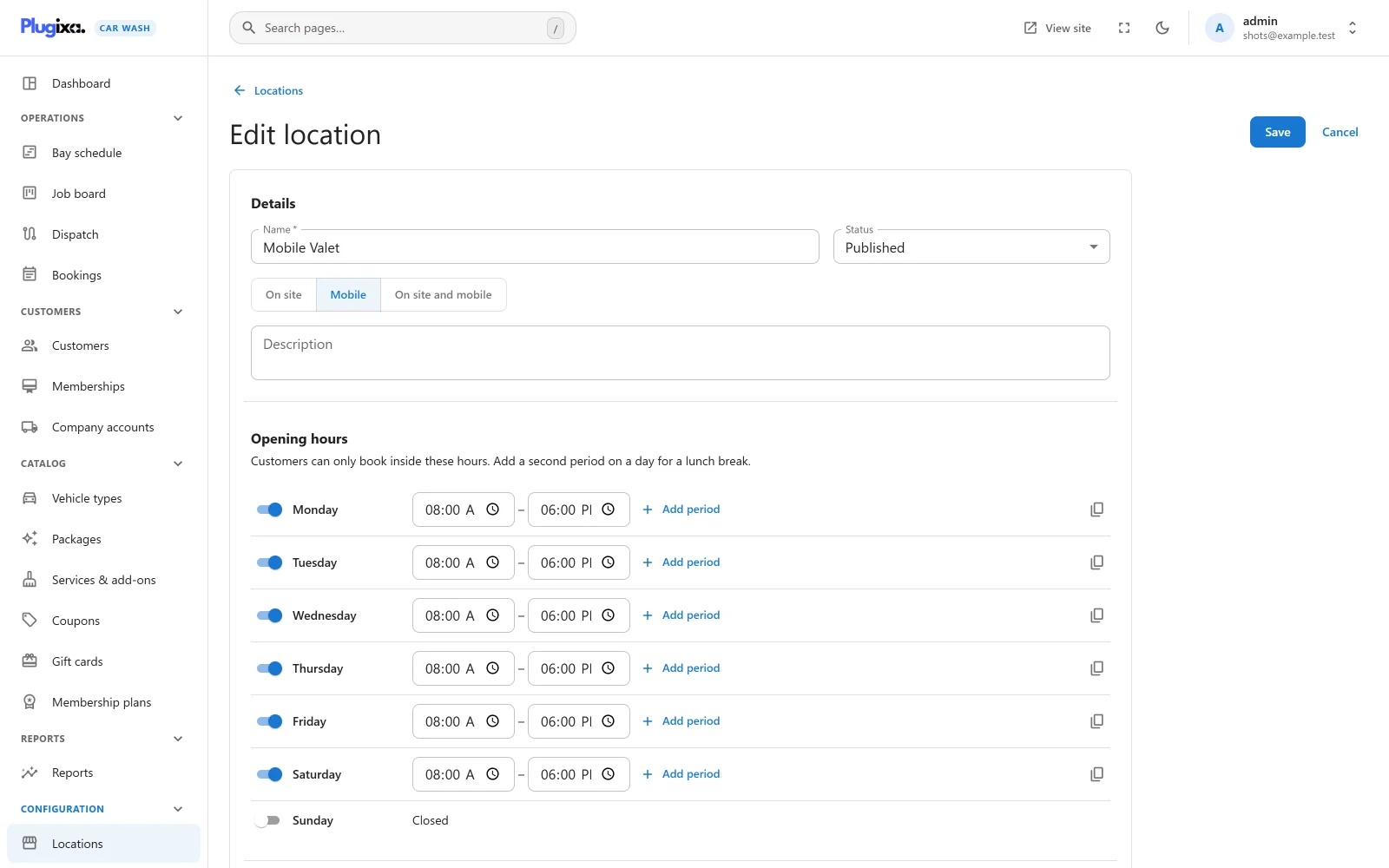
- Fill in the location’s Address and contact section. That address is the team’s base: every distance is measured from it. When a location has coordinates stored, they are used instead.
- A mobile location is worked by mobile teams, not bays. Add at least one resource of type Mobile team to it. See Bays and teams.
- The opening hours are the hours your teams work.
Only Mobile is handled by this feature. A location set to On site and mobile is treated as on site: customers are not asked for an address, no travel fee is charged, and it is booked in bays.
2 - Get a Google Maps API key
The plugin uses your own Google key. In the Google Cloud console:
- Create or choose a project and enable billing on it.
- Enable the Distance Matrix API.
- Create an API key. Since the plugin calls Google from your server, never from the visitor’s browser, restrict the key to the Distance Matrix API, and to your server’s IP address if you can, rather than to website referrers.
Google charges for Distance Matrix requests beyond its free allowance; see Google’s own pricing.
3 - Enter the settings
Open Settings -> Mobile service.
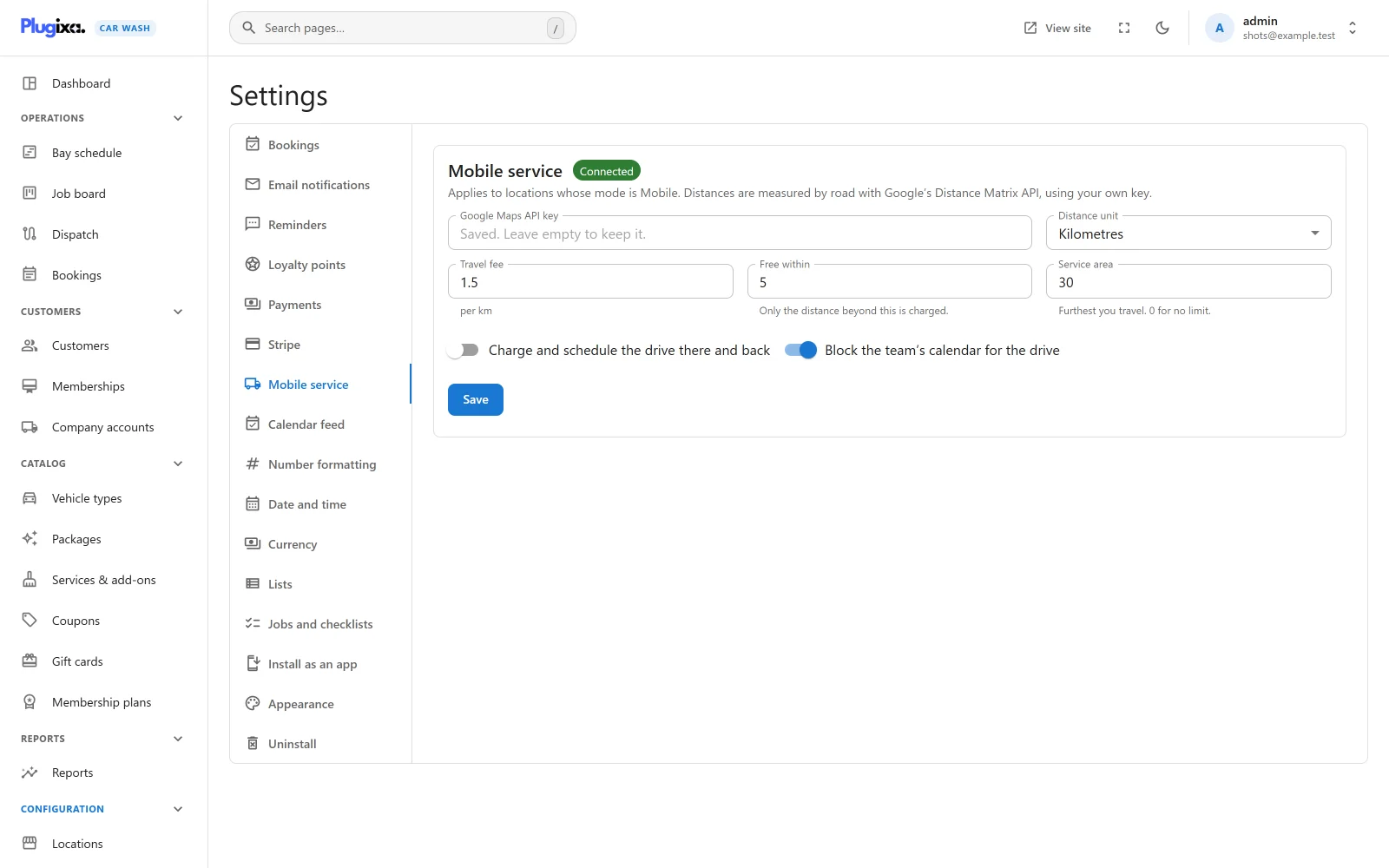
| Setting | Default | What it does |
|---|---|---|
| Google Maps API key | Empty | Your key. Stored encrypted and never shown again: once saved, the field shows a “Saved” placeholder. Leave it empty to keep the stored key. |
| Distance unit | Kilometres | Kilometres or Miles. Every distance below is in this unit, and Google is asked for distances in it. |
| Travel fee | 0 | Your currency per km (or per mile) driven beyond the free distance. 0 charges nothing. |
| Free within | 0 | “Only the distance beyond this is charged.” |
| Service area | 0 | “Furthest you travel. 0 for no limit.” |
| Charge and schedule the drive there and back | On | Doubles both the fee and the drive time, for the way back. |
| Block the team’s calendar for the drive | On | Adds the drive time to the job’s length. |
The badge beside the title says Connected once a key is saved, or No Google key. Press Save.
How the fee and time are worked out
Google returns the road distance and the one-way drive time from the base to the customer’s address.
fee   = (distance - free distance) x travel fee  (x 2 for a round trip)
time  = one-way drive time  (x 2 for a round trip), rounded up to the minute
A distance within the free distance costs nothing. With the settings shown above (1.5 per km, 5 km free, one way), an address 6.4 km and 14 minutes away adds:
Travel (6.4 km) 14 min 2.10
With Charge and schedule the drive there and back on, the same address adds 4.20 and twice the drive time.
The travel line is part of the booking’s price, so tax applies to it like any
other line. It is added at priority 20 of the plugixa_carwash_quote filter,
after a membership
(8), a company rate
(9) and a coupon
(10): none of those reduce the travel fee. A
gift card
(credited at 50) can pay it.
Drive time and the team’s calendar
With Block the team’s calendar for the drive on, the drive time is added to the job’s length. The team is then busy from the booked time until the wash and the drive are both over, and the next time that team can be booked moves back accordingly. With it off, the team is booked for the wash alone, and no minutes appear on the travel line.
What the customer sees
On the schedule step of the booking form, before the calendar:
- Where should we come? with a field, “Street, town and postcode”, and a Check button. Leaving the field also checks it.
- While it is checked: “Checking the address…”.
- If the address is accepted, a green line gives the distance and, when drive time is blocked, the time on the road. The calendar then shows the times the team can come, already allowing for the drive.
- Until an address is accepted, the calendar is replaced by “Enter your address to see when we can come.”
The travel line appears in the summary with the rest of the price. Changing the address clears the chosen time, since the drive may change what is free.
The address the customer typed is saved on the booking as its Address, and is what Dispatch shows the team and puts in the route.
Addresses that are refused
| Message | When |
|---|---|
| “Enter the address where we should come.” | No address |
| “We could not find that address. Check it, including the town or postcode.” | Google found no road route to it |
| “Sorry, that address is outside our service area (we travel up to 30 km).” | It is further than Service area |
| “We cannot work out the travel distance right now. Please call us to book.” | No Google key is saved |
A refused address cannot be booked, online or by staff. Without a key, a mobile location cannot be booked at all, except for addresses already measured and remembered (see below).
Staff bookings need an accepted address too. For a Mobile location the admin’s New booking screen shows an Address field (“Where the team should go. The times offered allow for the drive.”), and the times it offers allow for the drive to that address. See Bookings.
Distances are remembered
Each distance is remembered for 30 days, per base, address and unit. A customer clicking through dates and times costs one request to Google, not one per click, and a regular customer’s address is not measured again for a month. Changing a location’s address, or the unit, measures afresh.
What is sent to Google
From your server to maps.googleapis.com, each time an address is measured:
the base (the location’s address or coordinates), the address the customer
typed, the unit, and your key. Nothing else about the customer is sent. Mention
it in your privacy policy. See
Privacy and uninstall.
If Pro is removed
The settings stay, the key still encrypted, and bookings already made keep their travel line and length. Without Pro (or with the Mobile service app switched off in the App Manager), the booking form still asks a Mobile location’s customers where to come, and then accepts any address: no area check, no travel fee, and no drive time on the team’s calendar. See Free vs Pro.