

Contents
Customer account - Plugixa Car Wash
The customer account is a page where a customer sees their washes, cancels one and keeps their details up to date. There is no password and no WordPress user account: the customer types their email and signs in with a link sent to it.
Setting it up
-
Create a page, for example “My bookings”.
-
Add the shortcode to it:
[plugixa_carwash_account book_url="/book-a-wash/"] -
Publish the page and link to it from your menu.
book_url is optional. When set, the signed-in customer gets a Book a wash
button that leads to your booking page. See
Shortcodes and block.
The account page takes its colour from the Accent colour of your first
published booking form, by name, so it matches the form a bare
[plugixa_carwash_booking] shows. With no published form it is blue
(#0EA5E9). See
Booking forms.
The account belongs to the Accounts module, which is on by default. It can be switched off in the App manager.
Signing in
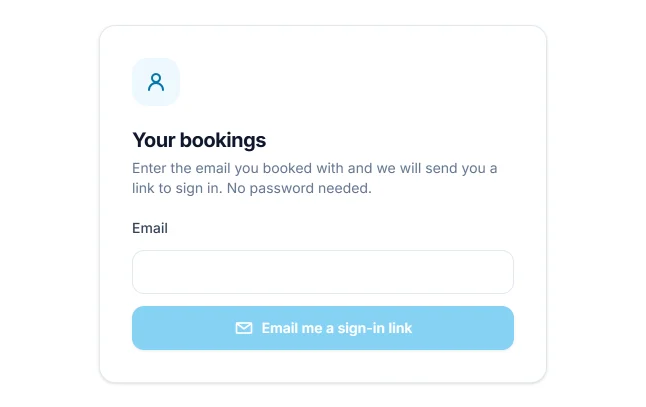
The card reads “Enter the email you booked with and we will send you a link to sign in. No password needed.” The customer types their email and clicks Email me a sign-in link.
The page then shows Check your email: “If that address has booked with us, a sign-in link is on its way. It works for 30 minutes.” with a Use another email button.
| Rule | Detail |
|---|---|
| Who gets a link | Only an email that belongs to a customer record, which is created the first time somebody books with that email, or by staff in Customers. A customer record that is unpublished gets no link. |
| What the page says | The same thing whether or not a link was sent, so the page cannot be used to learn who your customers are. |
| The email | Subject “Your sign-in link”, in your email colours and business name, with a Sign in button. |
| How long the link lasts | 30 minutes, and it works once. |
| Where it leads | Back to the account page the customer asked from. An address on another site is replaced by your home page. |
When the customer opens the link, the page swaps it for a session and removes the code from the address, so a bookmarked or shared address does not carry it. A link that has expired or was already used shows “That sign-in link has expired or was already used. Ask for a new one.” above the sign-in card.
How long a customer stays signed in
A session lasts 30 days. It is kept in that browser only, so the customer signs in again on another device or after clearing the site’s data. Sign out ends the session on the server as well as in the browser. When a session has ended, the page simply shows the sign-in card again.
What a signed-in customer sees
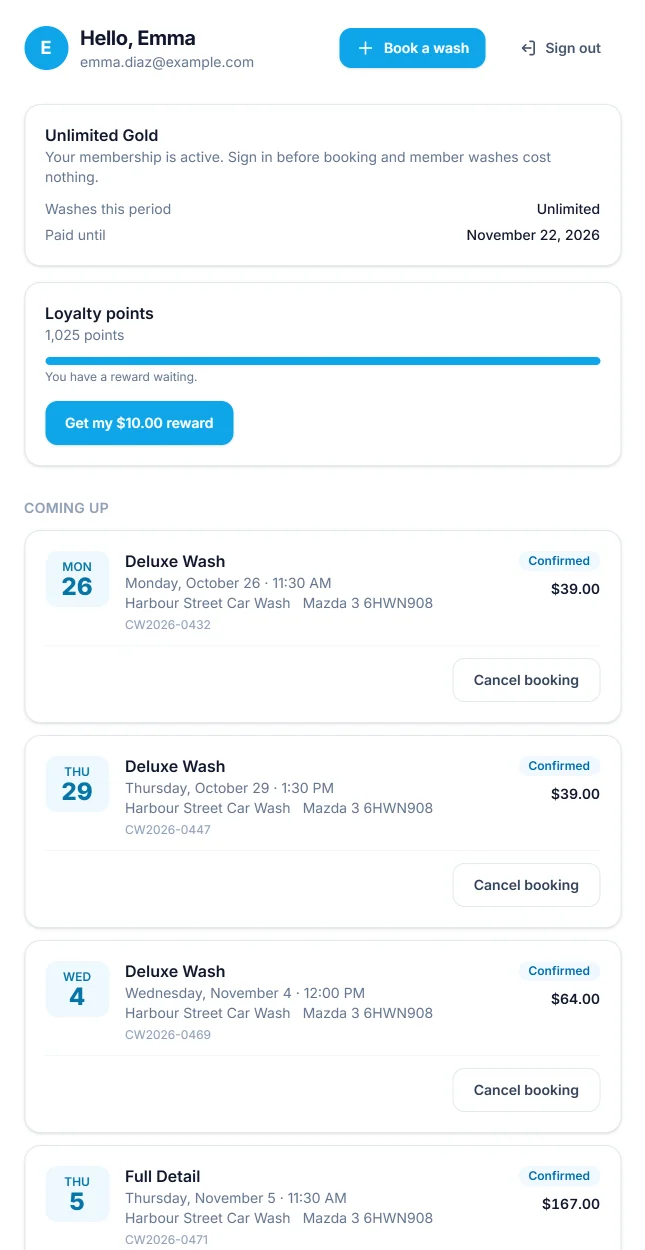
From top to bottom:
| Part | What it shows |
|---|---|
| Header | “Hello,” and the customer’s first name (or their email), their email, Book a wash when book_url is set, and Sign out. |
| Panels PRO | Cards that Pro modules add. See What Pro adds. |
| Coming up | The next washes, soonest first: up to 20 bookings that are pending, confirmed or in progress and have not started yet. “Nothing booked right now.” when there are none. |
| Booking history | Up to 10 earlier bookings, latest first: anything already started, and anything done, cancelled or missed, each with a Book again link. Shown only when there is one. |
| Your details | Name, phone and the vehicles on the customer’s record, with an Edit button. |
Each upcoming wash is a card with the date, the package, the time, the location, the vehicle’s make and plate, the reference, the status and the total.
| Status label | Booking status |
|---|---|
| Awaiting confirmation | Pending |
| Confirmed | Confirmed |
| In progress | In the bay |
| Done | Done |
| Cancelled | Cancelled |
| Missed | No-show |
A booking still waiting for an online payment is not listed until the payment is confirmed.
Each card has up to two actions.
| Action | Shown when |
|---|---|
| Details | The booking was made on the booking form. It opens the booking’s confirmation on the page it was booked on, with Add to calendar. |
| Cancel booking | The booking can still be cancelled. See below. |
A booking made by staff at the desk has no Details link, because it was not made on a page of your site.
Book again
Each row of Booking history has a Book again link. It opens the booking
page the wash was booked on (for a booking made at the desk, the book_url
page) with the same location, vehicle type, package and extras already chosen,
and starts on the first step still to answer, usually the date and time. Any of
those the form no longer offers is left for the customer to choose. A booking
made at the desk on a site with no book_url has no Book again link.
Cancelling a booking
Cancel booking asks “Cancel this booking?” with Keep it and Yes, cancel. After a cancellation the page shows “Booking CW2026-0432 is cancelled.” and loads the lists again. The customer is emailed that the booking was cancelled, and the bay is free for someone else at once.
A booking can be cancelled by its customer when both of these are true.
| Rule | Detail |
|---|---|
| Its status allows it | Pending or Confirmed. A booking that is in the bay, done, cancelled or a no-show cannot be cancelled. |
| The cut-off has not passed | Online cancellation up to, in Settings -> Bookings, says how many hours before the appointment a customer can still cancel. The default is 24. With 0 they can cancel up to the start time. |
Inside the cut-off, the button is replaced by a note that the booking is within 24 hours (or your cut-off) and the customer should call you to change it. If the cut-off passes while the page is open, Yes, cancel answers “Bookings can be cancelled online up to 24 hours before. Please call us instead.”
Customers cannot move a booking to another time themselves. You can move any booking by dragging it on the schedule, and cancel any booking at any time from Bookings. The rules above apply to customers only.
Updating their details
Edit opens First name, Last name and Phone, with Save and Cancel. The first name cannot be left empty (“Enter your first name.”). After saving, the page shows “Your details are saved.”
The email address cannot be changed here, because it is what the customer signs in with. Vehicles are added to the record each time the customer books with a new make or plate, and cannot be edited from the account.
Booking while signed in
The booking form and the account page share the sign-in when they are on the same site and opened in the same browser. A signed-in customer who opens the booking form:
- finds First name, Last name, Email and Phone already filled in from their record, where those fields are still empty
- has the booking added to their account, under the email they signed in with, even if they type a different one
With Pro, signing in is also what makes member prices and company rates apply online. Typing a member’s email on the form without signing in does not.
What Pro adds
Pro modules add panels above Coming up. Each is a card with a title, a line of explanation, some figures and sometimes a button.
| Panel | When it appears | What it shows |
|---|---|---|
| Dispatch PRO | A mobile team has set off for one of the customer’s washes, or has arrived | “We are on our way” or “We have arrived”, always first, with the booking reference |
| Memberships PRO | The customer has a membership | The plan’s name, washes used this period (or “Unlimited”), the date it renews, ends or is paid until, and Manage billing for a plan paid through Stripe |
| Memberships PRO | The customer has no membership, plans are published and Stripe is set up | Become a member, the plans with their price and washes, and a Join button per plan that opens Stripe’s payment page |
| Loyalty PRO | Always, while the module is on | The points balance, a bar towards the next reward, and a button to turn a waiting reward into a coupon code |
| Company accounts PRO | The customer is a driver or manager of a company account | The company’s name and rate. A manager also sees what is not yet billed, the statements to pay and the credit used. |
Gift cards do not have a panel. Their balance is used by typing the code into the booking form’s promo code field.
When a customer comes back from Stripe after joining a plan, the page shows “Thank you! Your payment is being confirmed, it appears here in a moment.” and loads the account again a few seconds later.
Limits
The account page is open to visitors who are not signed in, so its requests are limited per visitor address, counted over an hour.
| Action | Limit |
|---|---|
| Asking for a sign-in link | 5 an hour |
| Opening a sign-in link | 20 an hour |
| Loading the account, saving details, panel buttons | 300 an hour |
| Cancelling a booking | 10 an hour |
Over a limit the page shows “Too many requests. Please wait a little while and try again.”
For developers
Pro’s panels are ordinary filters, and you can add your own:
add_filter( 'plugixa_carwash_account_panels', function ( array $panels, int $customer_id ) {
	$panels[] = array(
		'id'       => 'my_panel',
		'title'    => 'Opening times',
		'subtitle' => 'Open seven days a week in December.',
	);
	return $panels;
}, 10, 2 );
A panel’s buttons are answered by plugixa_carwash_account_action. See
Hooks reference and
REST API.
What to do next
- Set the cancellation cut-off in Settings.
- See what the customer sees when booking in Booking form.