

Contents
Payments - Plugixa Car Wash
The free plugin takes payment offline. The customer books online and pays at the wash, or by bank transfer, and you record the money on the booking when it arrives. Every booking shows what it costs, what has been paid and what is still owed.
Paying online by card is part of Pro: see Stripe PRO. Stripe payments land on the same booking panel described here.
The ways to pay
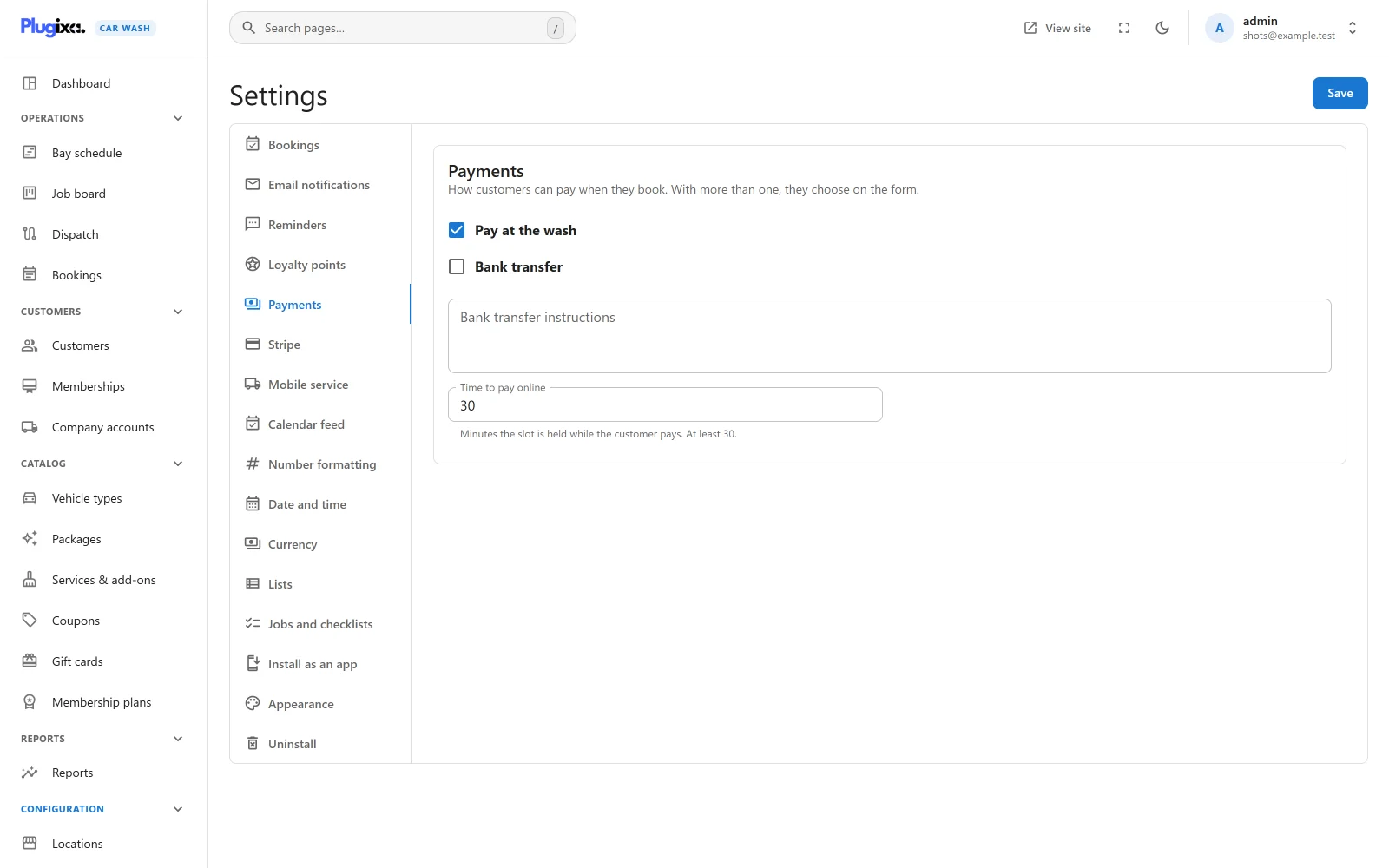
Open Settings from the Configuration group of the app’s sidebar, then Payments. The card says: “How customers can pay when they book. With more than one, they choose on the form.”
| Setting | Default | Notes |
|---|---|---|
| Pay at the wash | On | Shown to customers as “Pay at the wash” with the line “Pay by card or cash when you arrive.” |
| Bank transfer | Off | Shown to customers as “Bank transfer”, with your instructions under it. |
| Bank transfer instructions | Empty | Plain text, line breaks kept. The hint suggests “Account name, IBAN, and the booking number as the reference.” |
| Time to pay online | 30 | “Minutes the slot is held while the customer pays. At least 30.” From 30 to 240. Used only by an online method. See below. |
With Pro and Stripe set up, Stripe is listed here too, with the words “paid online before the booking is confirmed”.
The methods are offered on the form in the order you ticked them. If you untick every method, Pay at the wash is offered anyway, so a customer is never left with no way to book.
Press Save at the top right. The Settings screen needs the plugixa_carwash_manage_settings capability. See Settings.
What the customer sees
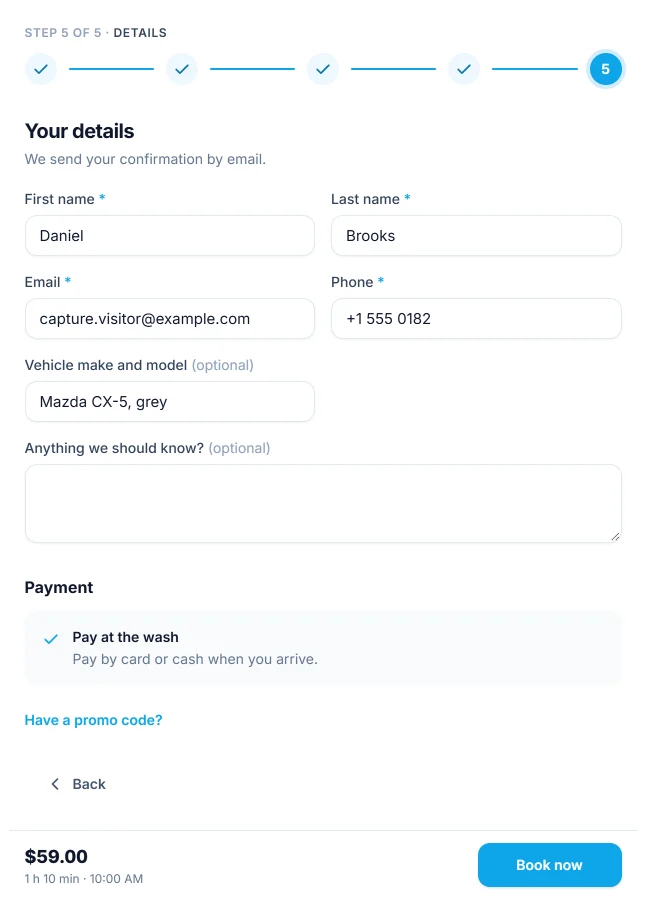
The Payment section sits on the last step of the booking form, above the promo code.
- One method on. Nothing to choose. The section shows the method’s name and its line, so the customer knows how payment works.
- Two or more. The section lists them as a choice and the customer must pick one. Booking without a choice is refused: “Choose how you would like to pay.”
- Nothing to pay. The section shows “Nothing to pay” and asks for no method. See below.
After booking, the confirmation repeats the chosen method with its line, so bank transfer instructions are shown again where the customer needs them. Once the booking is paid, it says so instead, with a thank you.
The booking emails do not carry the bank transfer instructions. If the customer needs them later, they are on the booking page reached from the email’s “View or cancel your booking” link.
What is saved
A booking paid at the wash or by bank transfer is saved with:
- the method the customer chose, or the only one on offer,
- the payment status Not paid yet,
- the status a new online booking gets: Confirmed, or Pending when Confirm online bookings automatically is off in Settings -> Bookings.
Its time is taken straight away. Nothing is held or released while you wait for the money: an offline booking keeps its bay whether or not it is ever paid.
Time to pay online
An online method, such as Pro’s Stripe, works differently. The customer is sent to pay before the booking is final, so the plugin holds the time while they do:
- The booking is saved as Awaiting payment, and its bay is held for the Time to pay online, 30 minutes by default.
- When the payment is confirmed in full, the booking moves to Confirmed, with “Paid online” in its history, even when Confirm online bookings automatically is off.
- If the time runs out first, the bay is free again for other customers at once. Within five minutes, a scheduled task cancels the booking with the note “Payment was not completed in time”.
The scheduled task runs on WP-Cron, which only fires when someone visits the site. On a quiet site, add a real server cron that calls wp-cron.php every five minutes. The bay is released on time either way; only the change of status waits for the task.
A booking taken by staff is never held, whatever methods are on.
Bookings with nothing to pay
Some bookings owe nothing: a wash covered by a Pro membership PRO, or a coupon worth 100%. For these:
- the form shows “Nothing to pay” and asks for no method,
- no method is stored on the booking,
- the booking is never held as Awaiting payment, even when Stripe is on. It takes the status it would have had at the wash: Confirmed, or Pending when you confirm bookings by hand.
Without this, a free wash would wait for a payment that never comes, and its time would be released after the time to pay ran out.
On the booking screen such a booking reads Not paid yet with “Nothing left to pay” under it, and offers no Record payment button.
Recording a payment or a refund
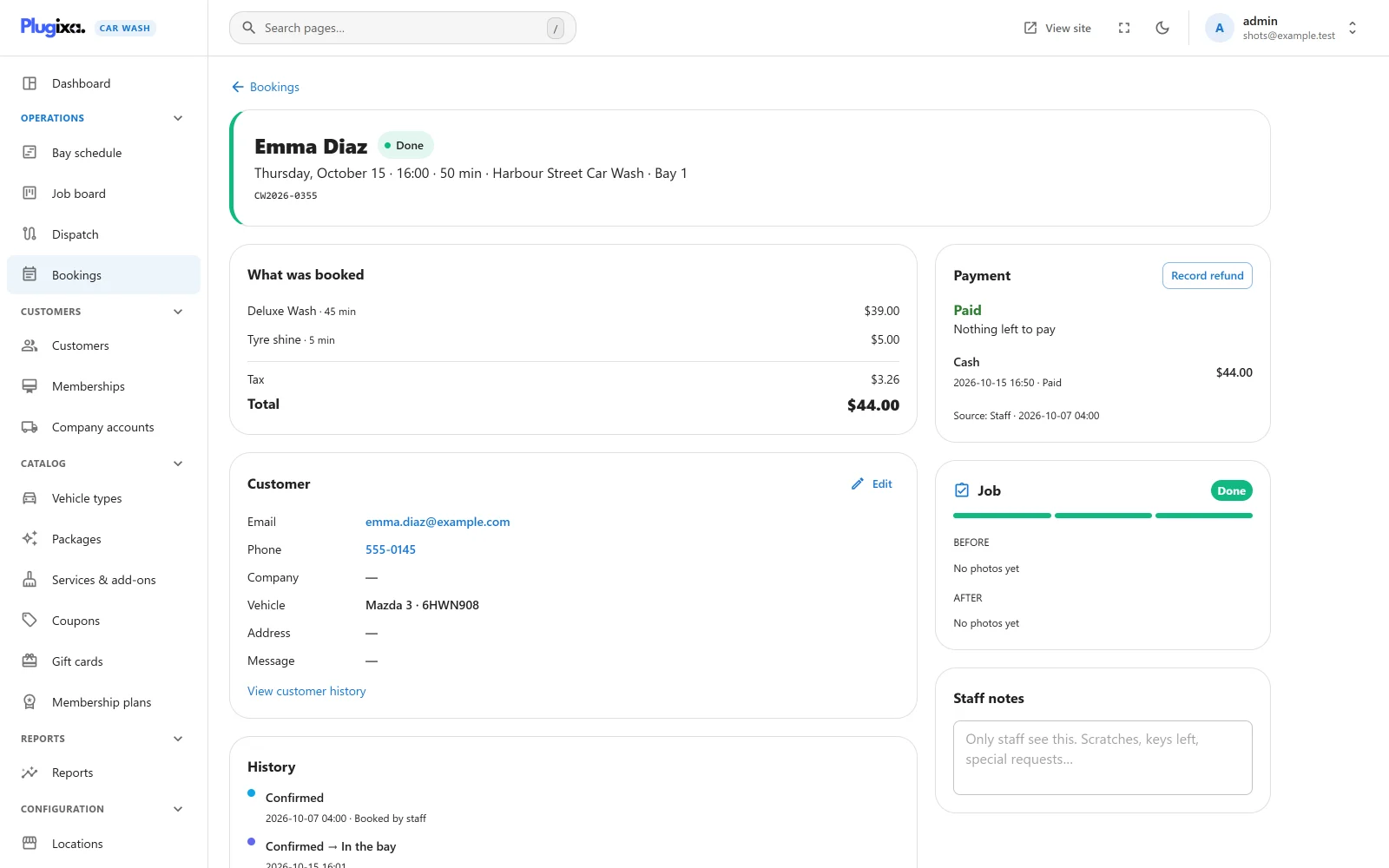
Open the booking. The Payment panel at the side shows:
| Part | What it shows |
|---|---|
| Payment status | Not paid yet, Partly paid, Paid or Refunded, in colour. |
| What is owed | “$25.00 still to pay”, or “Nothing left to pay”. |
| Payments | One row per payment or refund: how it was paid, the date and time, its state, and the amount. |
| Source | Online or Staff, when the booking was made, and the coupon code if one was used. |
Recording a payment
- Click Record payment. The button is shown while something is still owed.
- Amount is filled in with what is still owed. Change it to take part of it.
- Choose Paid by: Cash, Card at the desk or Bank transfer.
- Click Save.
The payment is recorded as paid at that moment, and the panel and the booking’s payment status update straight away.
| Rule | |
|---|---|
| The amount cannot be zero | “Enter an amount.” |
| There is no upper limit | Taking more than is owed marks the booking Paid, with nothing left to pay. |
| Recording needs the edit capability | plugixa_carwash_edit. Whoever may edit a booking may record what was paid for it. |
Recording a refund
Once something has been paid, the panel shows Record refund, also on a booking that is paid in full.
- Click Record refund. Amount to refund is filled in with everything paid so far, refunds already given taken off.
- Change it to refund part of it. The hint under the field says “At most $40.00, the amount paid so far.”
- Choose Refunded by: Cash, Card at the desk or Bank transfer.
- Click Record refund.
The refund is added as a row of its own with a negative amount, shown as Refunded, and the payment it answers stays as it was.
A refund can never be more than what has been paid, less earlier refunds, so two partial refunds cannot add up to more than the customer paid. A larger amount is refused with “A refund cannot be more than the $40.00 paid so far.”, and on a booking nobody has paid with “Nothing has been paid on this booking, so there is nothing to refund.”
Recording a refund does not send any money back. Return it yourself, in cash or by transfer, and record it here so the booking shows the truth.
A card payment taken with Stripe PRO is refunded in your Stripe dashboard. When the Stripe webhook is set up with the refund events, the refund is recorded on the booking by itself, as a Stripe row with the note “Refunded in Stripe” and Stripe’s refund id. See Stripe.
Caution: do not also record a Stripe refund here by hand. A refund made in Stripe and recorded by hand is counted twice, up to what was paid, and the booking then shows less received than it really did. Record a Stripe refund by hand only when the webhook is not set up.
Payment rows cannot be changed
There is no way to edit or delete a payment row in the app. A payment entered by mistake is put right with a refund of the same amount, which leaves both on record.
How payments change a booking
The payment status is never chosen by hand. Each time a payment or a refund is recorded, the plugin adds up what the booking has received, refunds taken off, and compares it with the total:
| Received | Payment status |
|---|---|
| Nothing, and no refund recorded | Not paid yet |
| Nothing left after a refund | Refunded |
| Something, but less than the total | Partly paid |
| The total or more | Paid |
The booking’s own status changes in one case only: a booking Awaiting payment that is paid in full moves to Confirmed. That applies to a payment recorded at the desk too, so a customer who gave up on paying online and paid in cash is confirmed when you record it.
Otherwise payments and status are separate:
- Paying does not confirm a Pending booking. Confirm it with its button.
- Cancelling a booking does not refund it, and refunding does not cancel it. Do both if both are meant.
- When a booking is cancelled or marked a no-show, any online checkout it still had open is closed and shown as Not completed. Money that arrives on it anyway is still recorded, and can be refunded from there.
Where payments show
- On the booking, in the Payment panel.
- The list’s Payment filter finds bookings by payment status. See Bookings.
- With Pro, Reports PRO.
The Dashboard counts the value of the washes booked, not money received, so its takings include bookings nobody has paid yet.