

Contents
Loyalty points - Plugixa Car Wash
Loyalty points PRO reward customers who come back. Each completed wash earns points in proportion to what it cost. Once a customer has enough points, they turn them into a reward: a single-use coupon code worth a fixed amount, emailed to them, which they enter on their next booking.
Setting it up
Open Settings -> Loyalty points.
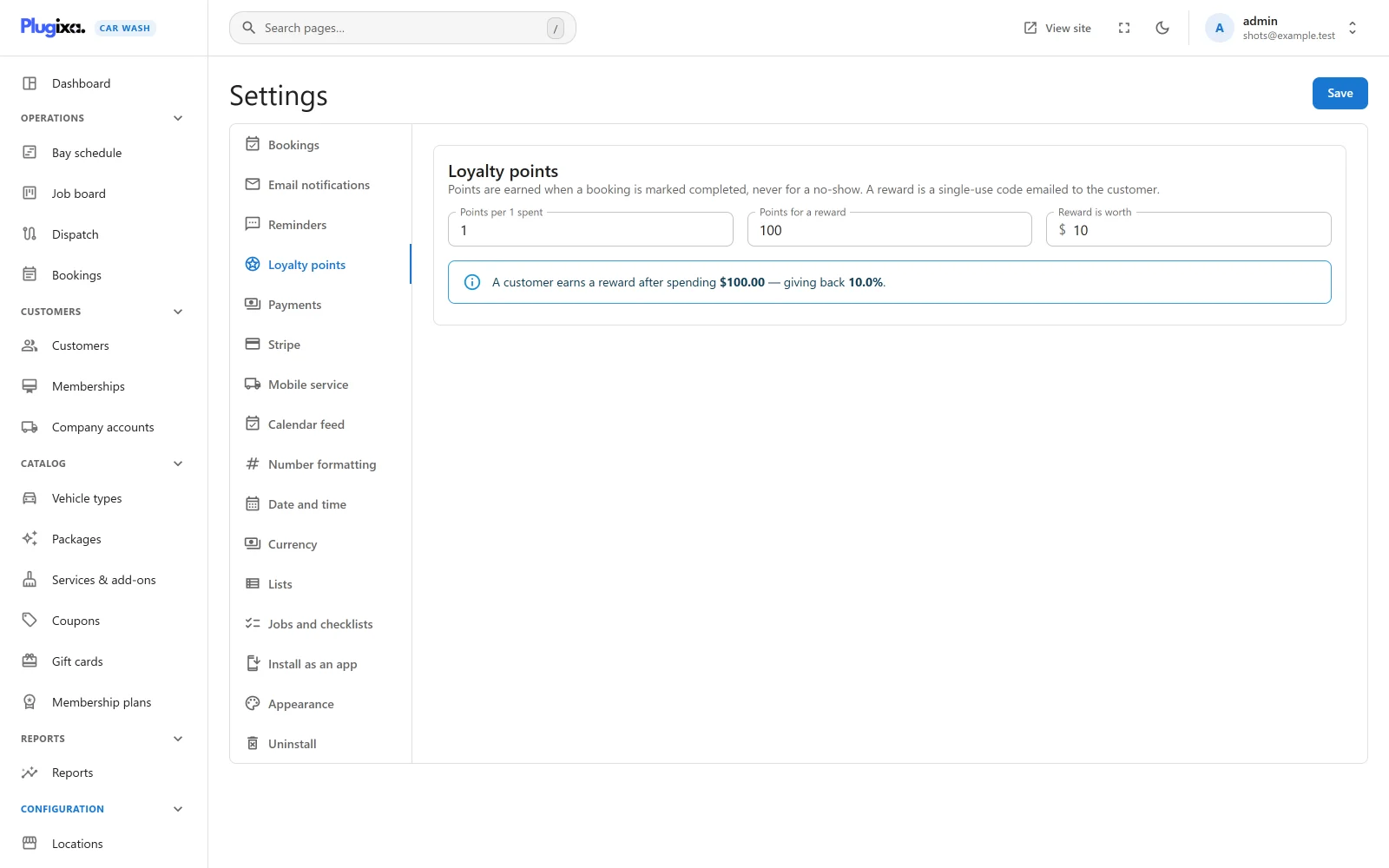
| Field | Default | Range | What it does |
|---|---|---|---|
| Points per 1 spent | 1 | 0 to 1,000, up to two decimals | Points earned for each unit of your currency a booking costs. 0 stops earning. |
| Points for a reward | 100 | 1 to 1,000,000 | How many points one reward takes. |
| Reward is worth | 10 | 0 to 100,000 | The value of the reward code, in your currency. 0 means no reward can be claimed. |
Below the fields, the screen works out what your choice means: how much a customer spends to earn one reward, and the share of that spend you give back. With the defaults: 100.00 spent, 10.0% given back.
Press Save.
Earning points
- Points are earned when a booking is marked completed: with Mark done on the booking, on the job board, or with Finish job in Dispatch.
- Nothing is earned for making a booking, for a booking that is cancelled, or for a no-show.
- A booking earns once. Marking it completed again, by any route, adds nothing.
- The booking must belong to a customer record.
The points are the booking’s total times Points per 1 spent, rounded down. The total is the price after discounts and tax:
| Booking | Total | Points at 1 per 1 | Points at 2 per 1 |
|---|---|---|---|
| A wash at 44.00 | 44.00 | 44 | 88 |
| A 39.99 wash with a 10.00 coupon | 29.99 | 29 | 59 |
| A member wash, nothing to pay | 0.00 | 0 | 0 |
A gift card pays toward the total but does not lower it, so a booking paid by gift card earns points like any other.
Rewards
When a customer’s balance reaches Points for a reward, a reward is waiting. Claiming it:
- takes Points for a reward off the balance (one reward per claim),
- creates a coupon with a code like
REWARD-7KQ2MX: a fixed amount equal to Reward is worth, usable once, described as “Loyalty reward, customer #42”, - emails the code to the customer, under the subject “You have earned a reward”. The email tells the customer to sign in to their account, then enter the code when booking, that the amount comes off, and that it works once and only for them.
The reward is an ordinary coupon. It appears under Coupons, where you can see whether it was used, and it comes off the price before tax like any fixed-amount coupon, with one difference: it is tied to the customer it was issued to, and works once.
- Online, the customer must be signed in to their account for the code to count. Typed by anybody else, or by the customer while signed out, the code is refused with “That reward code belongs to another customer. Sign in to your account to use your own reward.” and the booking cannot be made with it.
- At the desk, staff can use it on a booking for that customer, found by the booking’s email address.
A booking takes one code, so a reward code cannot be combined with a gift card or another coupon on the same booking.
Customers claim a reward on their account page, or staff claim it for them on the customer’s page. Two clicks at once cannot spend the same points: the second is refused when too few points are left (“A reward needs 100 points.”).
On the customer’s page
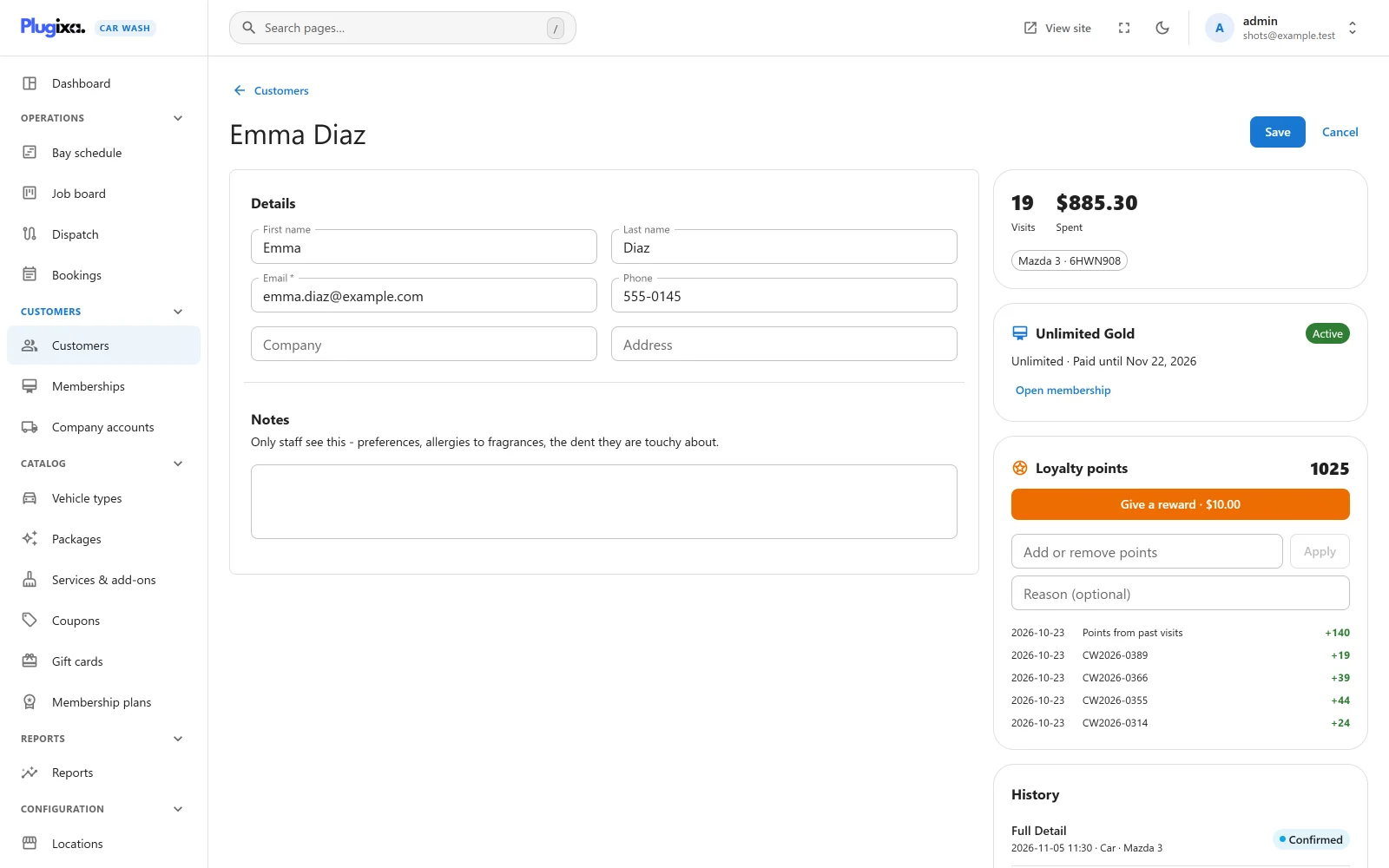
Each customer’s page has a Loyalty points card:
- the balance,
- Give a reward with the reward’s value, while a reward is waiting. Pressing it claims the reward, emails the code to the customer and shows “Reward created and emailed to the customer:” with the code and a copy button,
- otherwise a bar and how many points are left to the next reward,
- Add or remove points and Apply, with a Reason (optional) field under them,
- the five latest entries: the booking number for points earned, “Reward” and the code for a reward claimed, or the note of an adjustment.
Adjusting points
Type a positive number to add points (a welcome gift, a make-good) or a negative number to take them away, and press Apply. Type a Reason first if you want one, up to 190 characters (“For example: goodwill for a missed wash”); it is shown against the entry in the latest entries. Without a reason the entry is noted “Adjusted by staff”.
The balance never goes below zero. An adjustment that would take it there is refused: “The balance cannot go below zero.”
Adjusting points and claiming rewards needs the right to edit customers; seeing the balance needs the right to view them. See Roles and permissions.
What the customer sees
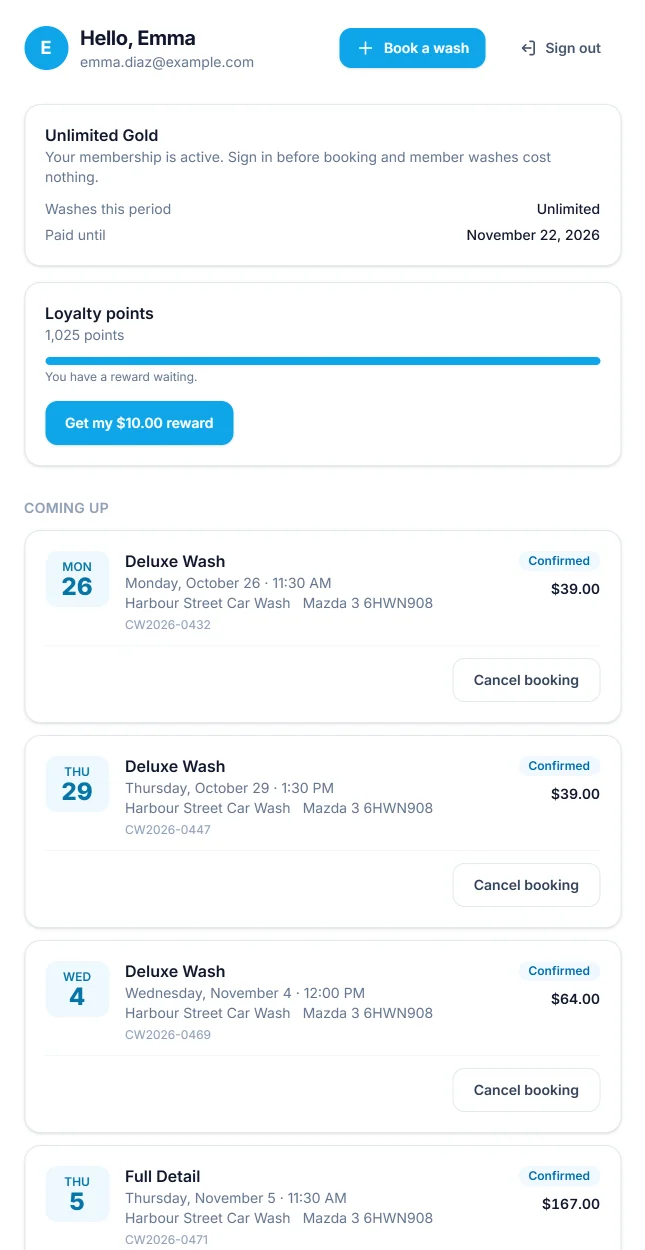
On their account page, every signed-in customer sees a Loyalty points card:
- their balance, for example “1,025 points”,
- a bar toward the next reward, with “You have a reward waiting.” or “60 more points to your next reward.”,
- a Get my $10.00 reward button while a reward is waiting and Reward is worth is above 0.
Pressing the button claims the reward and shows the code on the page, saying it has also been emailed and to enter it when booking.
How the balance is kept
The balance is never stored on its own: it is the sum of every entry, earned, claimed and adjusted. Each entry keeps its date, its kind and, where there is one, the booking number or the reward code.
If Pro is removed
Points stay in the database and come back with Pro. Without it, no points are earned and the cards disappear. Reward codes already issued are ordinary coupons and keep working. See Free vs Pro.