

Contents
Bay schedule - Plugixa Car Wash
The Bay schedule is the screen a car wash runs its day on. It is the first entry of the Operations group in the app’s sidebar.
It has three views, switched with Day, Week and Month at the top right:
- Day is the bay board: one column per bay or mobile team, one block per booking.
- Week and Month are a calendar of the location’s bookings over a longer span.
All three show one location at a time, and all three let you move a booking by dragging it.
To see the schedule a user needs the plugixa_carwash_view capability. Moving a booking needs plugixa_carwash_edit. See Roles and permissions.
Day view: the bay board
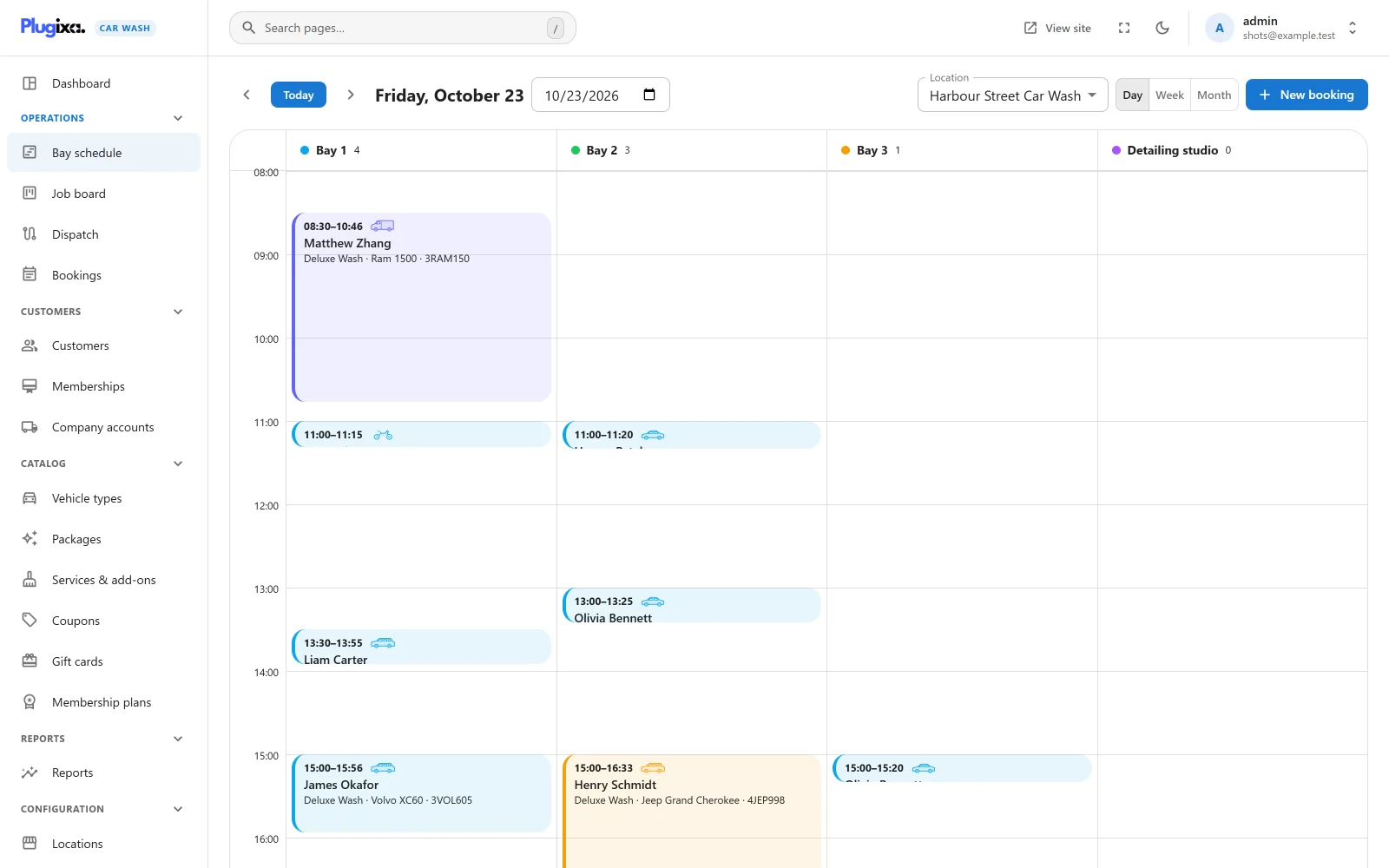
Picking the day
The bar above the board has:
| Control | What it does |
|---|---|
| < and > | The previous and next day. |
| Today | Back to today at the location: today on the location’s own clock, not your computer’s. It is filled in blue while you are looking at today. |
| The heading | The day shown, for example “Friday, October 23”, in the language of your WordPress profile. |
| Date field | Jump to any date. |
| Location | Choose which location to show. Only shown when you have more than one published location. |
| New booking | Opens the booking form for this day and location. See below. |
With no location chosen the schedule shows your first published location.
The date, the location and the view are kept in the address of the page, so a reload, a bookmark or a link sent to a colleague opens the same day at the same location.
Reading the board
- Columns. One for each published bay and mobile team at the location, in their display order. The header shows the bay’s colour dot, its name and the number of bookings in it that day, leaving out cancelled ones and no-shows. Bays and teams are set up under Bays and teams.
- Unassigned. An extra grey column appears only when a booking that day has no bay.
- Hours. The time runs down the left. The board starts at the hour the location opens and ends at the hour it closes, stretched to fit any booking outside those hours. On a day the location is closed it shows 08:00 to 18:00. The hours when the location is closed are lightly hatched.
- Now. On today, a red line marks the current time at the location. It follows the location’s time zone (or the site’s, when the location has none), so it is in the right place even when you look from a computer in another time zone. It moves every minute.
A location with no bays or teams shows “This location has no bays or teams yet. Add one under Configuration → Bays & teams.”
A booking block
Each block starts at the booking’s start time and is as tall as the wash takes. It shows:
- the start and end time, and the vehicle type’s icon,
- the customer’s name, or the booking reference when there is no name,
- on a block tall enough, the package, the vehicle (the make and model typed in, or else the vehicle type) and the licence plate.
The coloured edge is the booking’s status.
| Status | Colour |
|---|---|
| Awaiting payment | Purple |
| Pending | Amber |
| Confirmed | Blue |
| In the bay | Indigo |
| Done | Green |
| Cancelled, No-show | Grey, faded and struck through |
A cancelled or no-show booking stays on the board so you can see it, but it no longer holds the bay.
Click a block to open the booking. See Bookings.
The board refreshes every minute, so two screens at the desk stay in step.
Moving a booking by dragging
Drag a block to move it.
- Up or down changes the start time, in steps of the location’s Time slot length. With 30-minute slots, a block snaps to :00 and :30.
- Sideways puts it in another bay or team’s column.
- Both at once move it to another bay at another time.
- Dropping it on Unassigned lets the plugin choose a free bay for it.
Only a booking that has not started can be dragged: Awaiting payment, Pending or Confirmed. A booking that is In the bay, Done, Cancelled or a No-show stays where it is, and clicking it still opens it.
A drag moves the booking on the server, and the board redraws from what was saved. If the move is refused, the block goes back and a message at the bottom of the screen says why.
What a move checks
A move is checked under the same lock as a new booking, so two people moving cars at once cannot put two cars in one bay.
| Check | Message when it fails |
|---|---|
| The booking has not started | “Only a booking that has not started can be moved.” |
| The bay belongs to this location | “That bay is not at this location.” |
| The bay you dropped it on is free for the whole wash, plus the location’s Buffer after each wash | “That bay is already booked at this time.” |
| With no bay chosen, some bay that takes this vehicle type is free | “Sorry, that time was just taken. Please choose another.” |
The booking you are moving is left out of the count, so it never blocks itself.
What a move does not check:
- Opening hours, closed dates, minimum notice and how far ahead bookings are taken. Staff can put a car in at 07:30 as a favour for a regular. Look at the hatched hours before you drop.
- Which vehicle types a bay takes, when you chose the bay. Dropping a van in a bay set up for cars only is allowed. You chose it; the plugin assumes you know the bay. Dropping on Unassigned does respect the bay’s vehicle types.
A move keeps the booking’s price, its length and its services. Only the time and the bay change.
What happens after a move
- The booking’s history gets a line such as “Moved from 2026-10-27 10:30”.
- If the start time changed, the customer gets the New time email. A move to another bay at the same time sends nothing. See Emails.
- With Pro, Webhooks PRO are told about the move.
Week and Month views
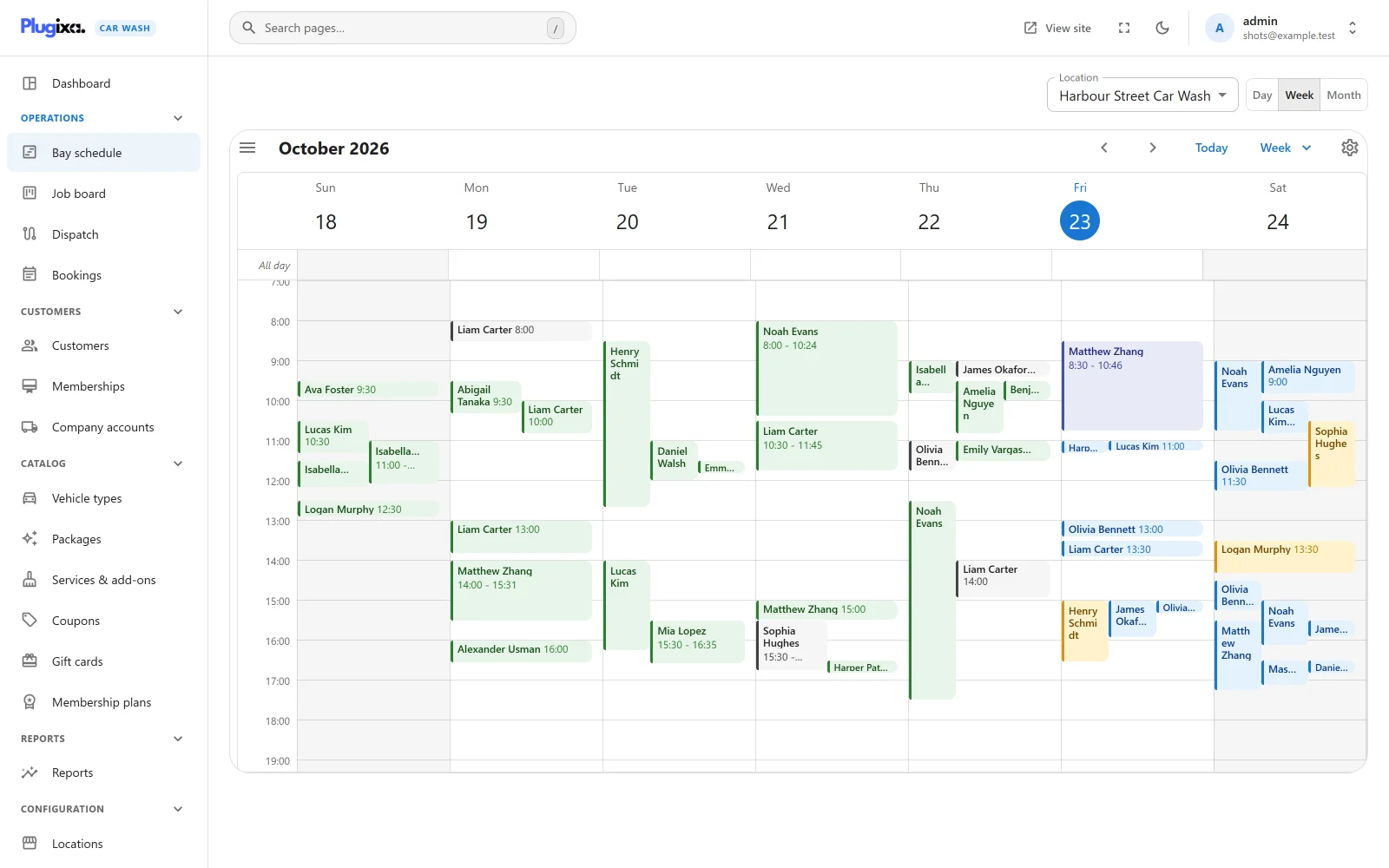
Choose Week or Month at the top right. These views draw the same bookings as the Day view on a calendar, across seven days or a month. They are useful to see how busy the days ahead are and to move a booking to another day.
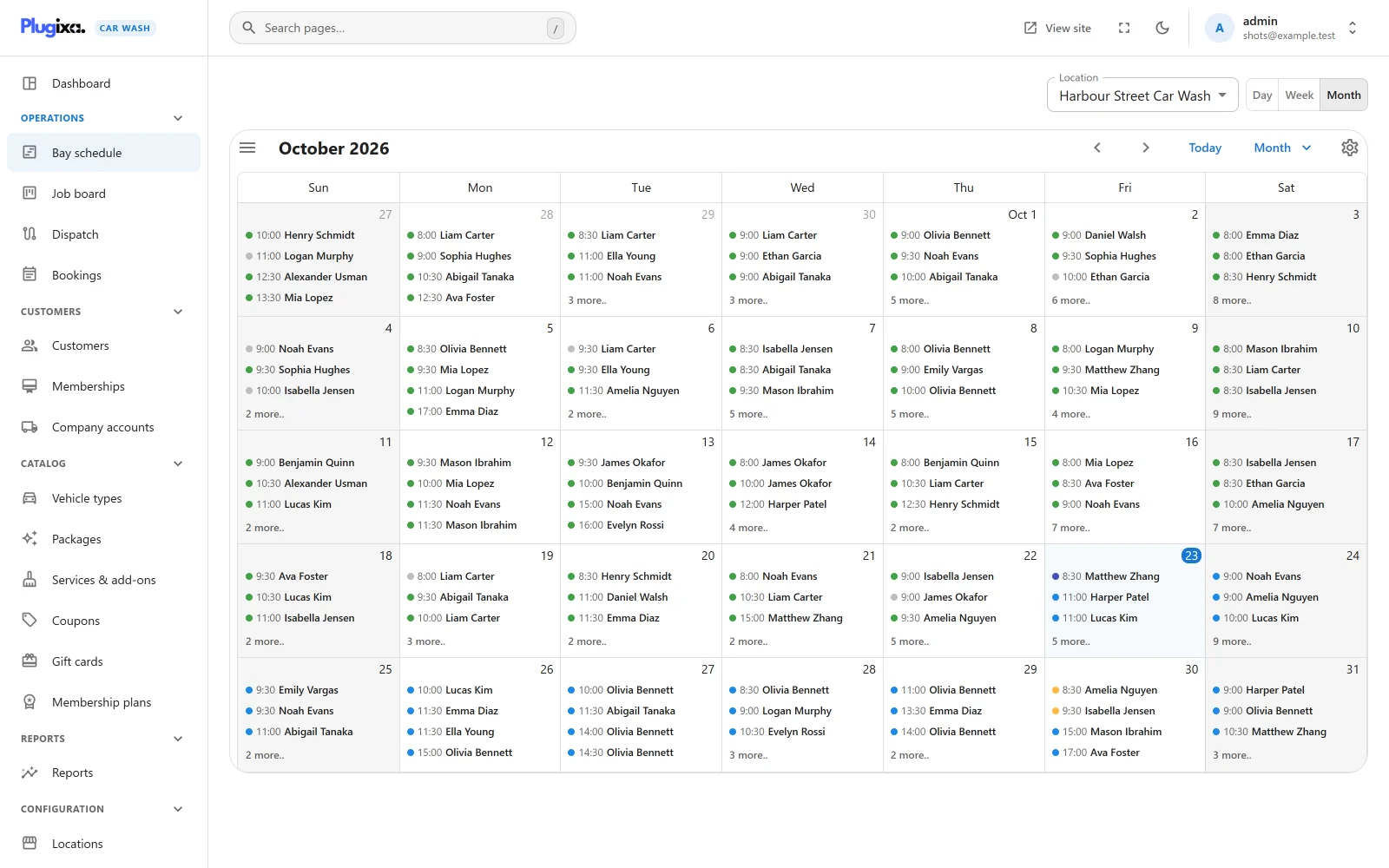
| Part | What it does |
|---|---|
| Location | As in the Day view, shown when there is more than one published location. |
| Day, Week, Month | Switch views. The date and location are kept. |
| Arrows and Today | The calendar’s own controls, beside the month and year. |
| View menu | The calendar’s own switch between Week and Month. |
Each booking shows the customer’s name (or the reference) and its start time, coloured by status with the same hues as the Day view. In the Month view a busy day lists its first bookings and a “more” link for the rest. Times are the location’s own, on a 24-hour clock, whatever timezone your computer is in.
Click a booking to open it.
Moving a booking in Week or Month
Drag a booking to another time or another day. The same bookings can be dragged as on the bay board: Awaiting payment, Pending and Confirmed.
These views have no bay columns, so a drop only says when. The plugin first tries to keep the booking in its own bay. If that bay is taken at the new time, it puts the booking in any free bay that takes the vehicle type and tells you so: “Its bay was taken at that time, so the booking moved to Bay 2.” If no bay is free, the booking goes back where it was and the reason is shown.
The checks, and what follows a move, are the same as for the bay board.
Bookings cannot be stretched or shortened on the calendar. A booking’s length comes from what was booked. You cannot create a booking by clicking an empty slot either; use New booking.
Creating a booking from the schedule
New booking sits at the top right of the Day view. It opens the staff booking form with the day you are looking at and the location already chosen. Pick the vehicle, the package and a free time, fill in the customer, and save. See Bookings.
The button is not shown in the Week and Month views. Switch to Day to use it.
What the schedule does not show
- Free time per bay as a list. Gaps in a column are free time, but whether a new booking fits also depends on its length and the buffer. The booking form only offers times that fit.
- Bookings in the trash. A trashed booking no longer holds its bay and is not drawn.
- Other locations. One location at a time.