

Contents
Dispatch - Plugixa Car Wash
Dispatch PRO (the Dispatch & job tracking app) does two things:
- The Dispatch screen shows each mobile team’s day as a route: the stops in driving order, where each job has got to, and a link that opens the whole route in Google Maps.
- Every booking gets a Job card, for bays and mobile teams alike, with the job’s steps, a checklist, and before and after photos of the car.
It works best with Mobile service, which collects the customer’s address and blocks the team’s calendar for the drive.
The Dispatch screen
Open Operations -> Dispatch.
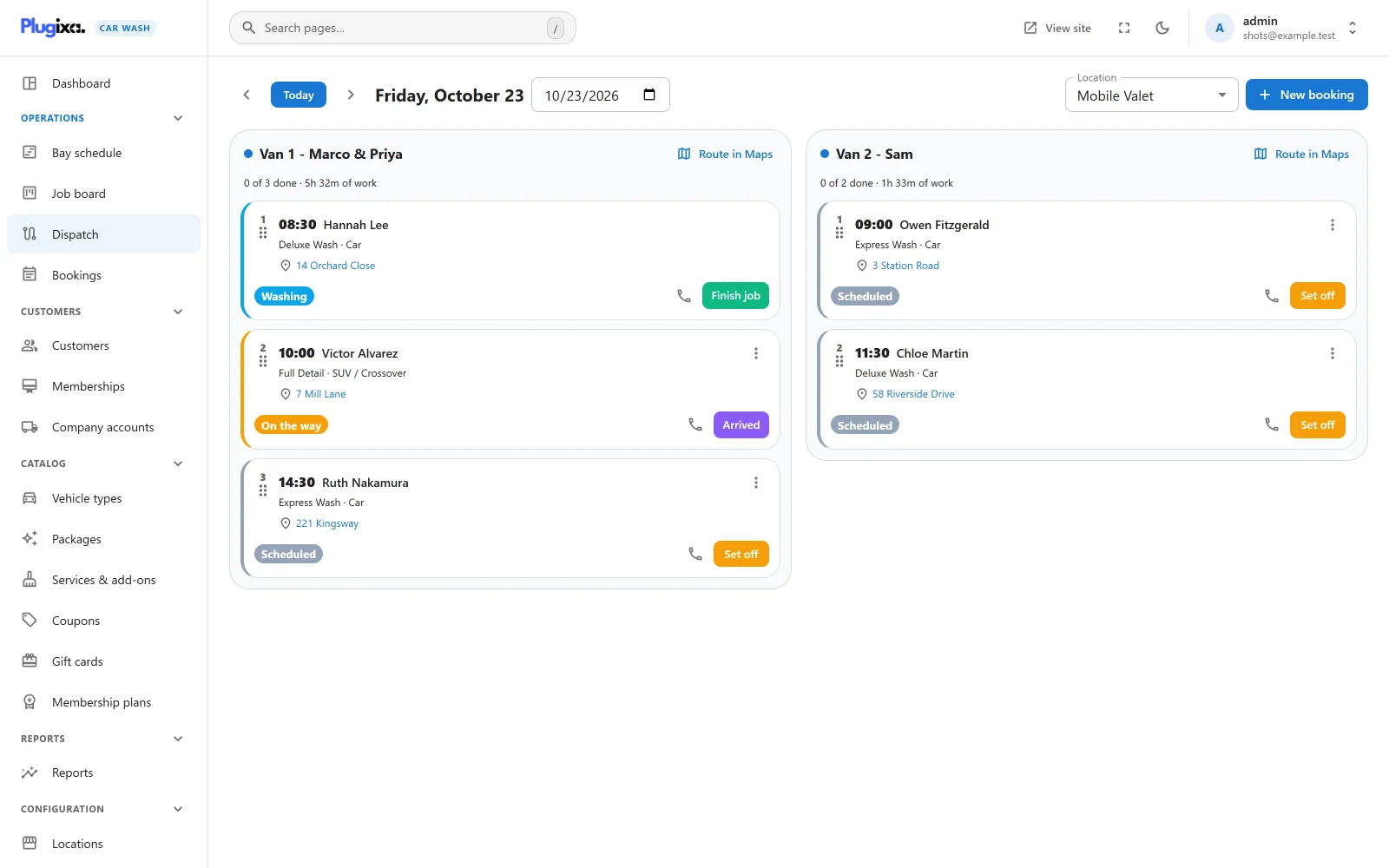
- Date: the arrows, Today and the date field move between days. Days are in the location’s own time zone.
- Location: the location whose teams are shown. The screen opens on the first location that has a mobile team.
- New booking opens the admin’s booking screen.
Each column is one resource of type Mobile team at that location. Bays are not shown here; see the job board for those. With no mobile team at the location, the screen says “No mobile teams here” and offers Add a mobile team. See Bays and teams.
A team’s header shows its name, Route in Maps, and a summary such as “0 of 3 done · 5h 32m of work” (the total length of its jobs, drive time included).
Each stop shows:
| Its place on the route | The number above the drag handle |
| Time and customer | The booked start time |
| Package and vehicle type | |
| Address | A link that opens it in Google Maps |
| Stage | A coloured badge (see below) |
| A phone button | Calls the customer’s phone number |
| The next step | One button: Set off, Arrived, Start wash or Finish job |
| A menu | Give to another team |
Clicking a stop opens its booking. Cancelled bookings and unpaid online holds are left off the route; completed jobs and no-shows stay on it.
Stages
A job moves through these stages:
Scheduled  ->  On the way  ->  Arrived  ->  Washing  ->  Done
               (mobile teams only)
| Stage | Button that moves a job there | What it changes |
|---|---|---|
| Scheduled | Where every job starts | |
| On the way | Set off | Recorded on the job, with the time. Can email the customer (see below) |
| Arrived | Arrived | Recorded on the job, with the time |
| Washing | Start wash | The booking becomes In progress |
| Done | Finish job | The booking becomes Completed |
Only the two travel steps are separate from the booking. Starting and finishing are the booking’s own status changes, so the job board, the booking page and this screen always agree, and everything that follows a completed booking still happens: emails, loyalty points, and so on.
The rules:
- On the way and Arrived exist only for jobs done by a mobile team. A bay job goes from Scheduled straight to Washing.
- A team can skip On the way and press Arrived directly.
- A pending booking can travel, but must be confirmed before the wash starts.
- A job that is completed, cancelled or a no-show is closed: its stage, checklist and photos can no longer be changed.
A step out of order is refused with “This job cannot move to that step from where it is now.”
The action plugixa_carwash_job_stage_changed fires after each step, with the
job and the new stage. See
Hooks.
Reordering a route
Every route starts in time order. To change the order the team drives in, drag a stop by its handle (“Drag to change the driving order”) and drop it in its new place. The new order is saved for that team and day.
Reordering changes only the driving order: the numbers on the stops and the order of the stops in Route in Maps. It does not move any booking’s time, does not tell any customer, and does not re-estimate arrival times. The drive time on each booking was measured from the location’s base to that customer when it was booked, not from the stop before it, so check that the new order still lets the team reach each customer at their booked time.
A booking added to the day after you reordered it joins the end of the route until you place it. If the route changed while you were dragging (a booking made, cancelled or moved), the order is not saved: “The route changed while you were ordering it. Reload and try again.”
Giving a stop to another team
Open a stop’s menu and choose Give to the other team (for example Give to Van 2), “Same time, if they are free”.
- The booking moves to the other team at the same date and time. Nothing else about it changes, and the customer is not told.
- If the other team is busy then, nothing moves: “That team is busy at this time.”
- Only teams at the same location are offered.
- The stop joins the end of the other team’s route until somebody places it.
To change the time as well, use Move on the booking. See Bookings.
Route in Maps
Route in Maps opens Google Maps directions:
- from the location’s base (its coordinates when it has them, otherwise its address),
- through every stop still to visit, in route order,
- to the last one, by car.
Stops that are done or a no-show, and stops without an address, are left out. When nothing is left, there is no link.
It is a plain Google Maps link. It needs no API key, the plugin sends nothing to Google to make it, and on a phone it opens the Maps app. Google Maps decides how many stops it accepts in one link.
The Job card on a booking
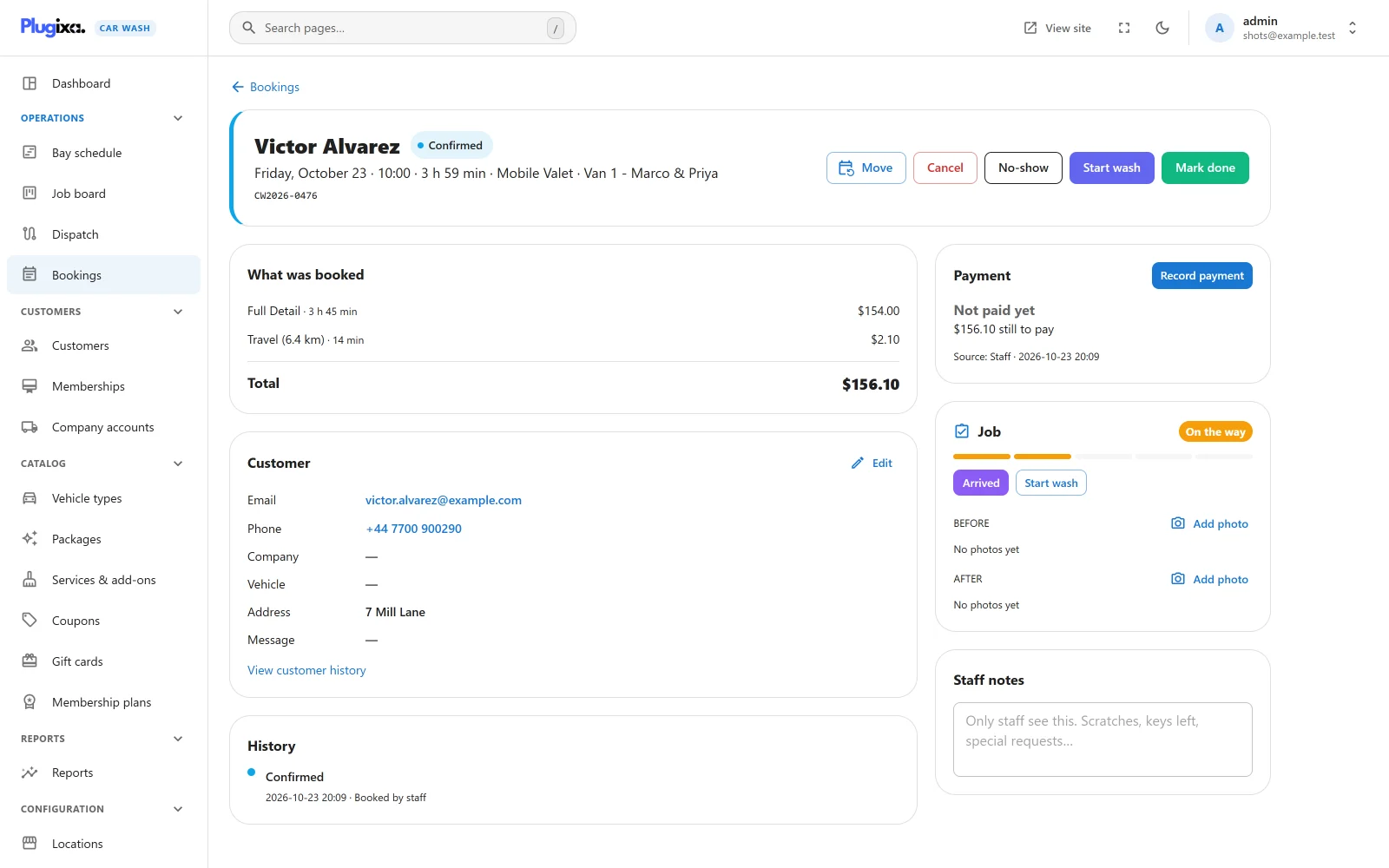
Every booking’s page has a Job card beside the payment card:
- the stage, with a progress bar,
- the buttons for the next steps,
- the reasons the job cannot be finished yet, when there are any,
- the Checklist, with a tick box per item,
- Before and After photos, with Add photo.
Checklists
Checklists are templates set up under Settings -> Jobs and checklists.
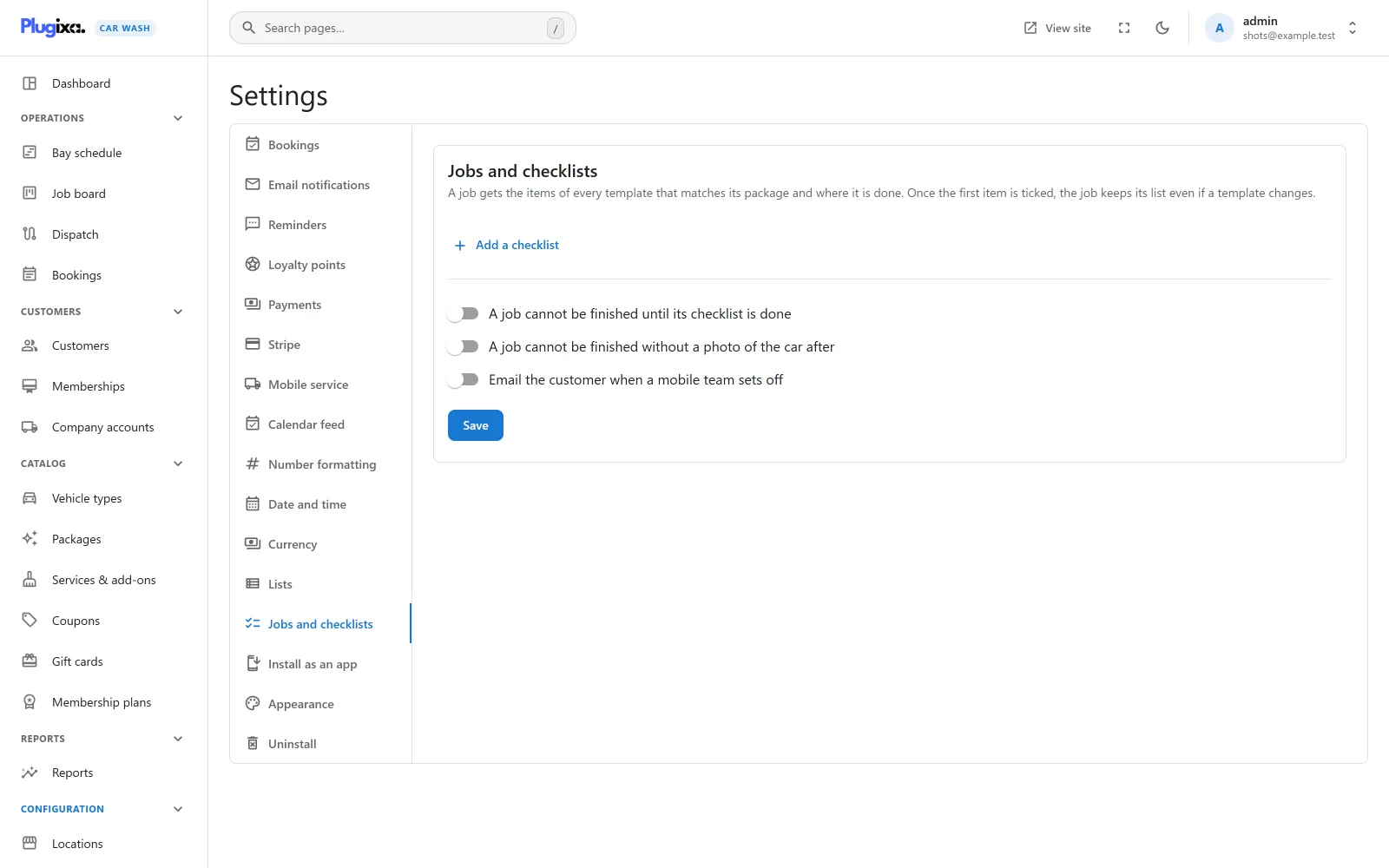
Press Add a checklist for each template:
| Field | Notes |
|---|---|
| Template name | For you. |
| Used for | Every job (the default), Jobs in a bay or Mobile jobs. |
| Packages | The packages it applies to. Empty means all packages. |
| Items, one per line | Up to 50 items, each up to 190 characters. A template with no items is dropped on save. |
A job’s checklist is the items of every template that matches both its package and where it is done (a bay or a mobile team), in order, each item once.
Once the first item on a job is ticked, the job keeps its list as it is then: a template changed later does not change a job already started. Ticking and unticking records who ticked and when.
Photos
Press Add photo under Before or After. On a phone, this opens the camera.
- JPG, PNG or WebP. The file’s real type is checked, not its name.
- Up to 12 before and 12 after photos per job.
- Each photo is saved in the WordPress Media Library, named after the booking number and “before” or “after”.
- Remove photo deletes it from the job and from the Media Library.
Requirements and the customer email
Three switches, all off by default, under Settings -> Jobs and checklists:
| Switch | What it does |
|---|---|
| A job cannot be finished until its checklist is done | Refuses completing a booking while any item is unticked: “2 checklist items are not done.” |
| A job cannot be finished without a photo of the car after | Refuses completing a booking with no After photo: “Add a photo of the car after the wash.” |
| Email the customer when a mobile team sets off | Pressing Set off emails the customer “On our way: Your washer has set off and is driving to you now. Please make sure the car can be reached.” |
The two requirements apply on every screen that completes a booking: Finish job here, Mark done on the booking page, and the job board. The reasons are shown on the Job card before anyone tries.
The email is sent only when customer emails are also on: Email customers when they book, and when a booking is confirmed, moved or cancelled under Settings -> Email notifications. See Emails.
What the customer sees
While a team is on the way to them, or has arrived, a customer signed in on their account page sees a card at the top:
- We are on our way: “Your washer has set off and is driving to you now.”
- We have arrived: “Your washer is at the address you gave. Please make sure the car can be reached.”
It lists the bookings concerned (up to three) with On the way or Arrived, and disappears once the wash starts.
Who can do what
| Action | Needs the capability |
|---|---|
| See the Dispatch screen and Job cards | plugixa_carwash_view |
| Move a job on, tick items, add or remove photos, reorder, reassign | plugixa_carwash_edit |
| Change Jobs and checklists | plugixa_carwash_manage_settings |
If Pro is removed
Progress, checklists and photos stay in the database, and the photos stay in the Media Library. Without Pro, the Dispatch screen and Job cards are gone, nothing blocks completing a booking, and no on-the-way email is sent. See Free vs Pro.