

Contents
Stripe - Plugixa Car Wash
Stripe PRO is an online payment method. When a customer chooses it, the booking is saved, its slot is held, and the customer is sent to Stripe Checkout, the payment page hosted by Stripe. They pay there by card, Apple Pay, Google Pay or any other method your Stripe account has switched on, and come back to your booking page. Card details never touch your site.
Stripe is also what bills memberships that customers join online.
Everything on Payments about payment methods, the payment record on a booking and payment statuses applies to Stripe payments too.
Setting it up
1 - Enter your keys
Open Settings -> Stripe.
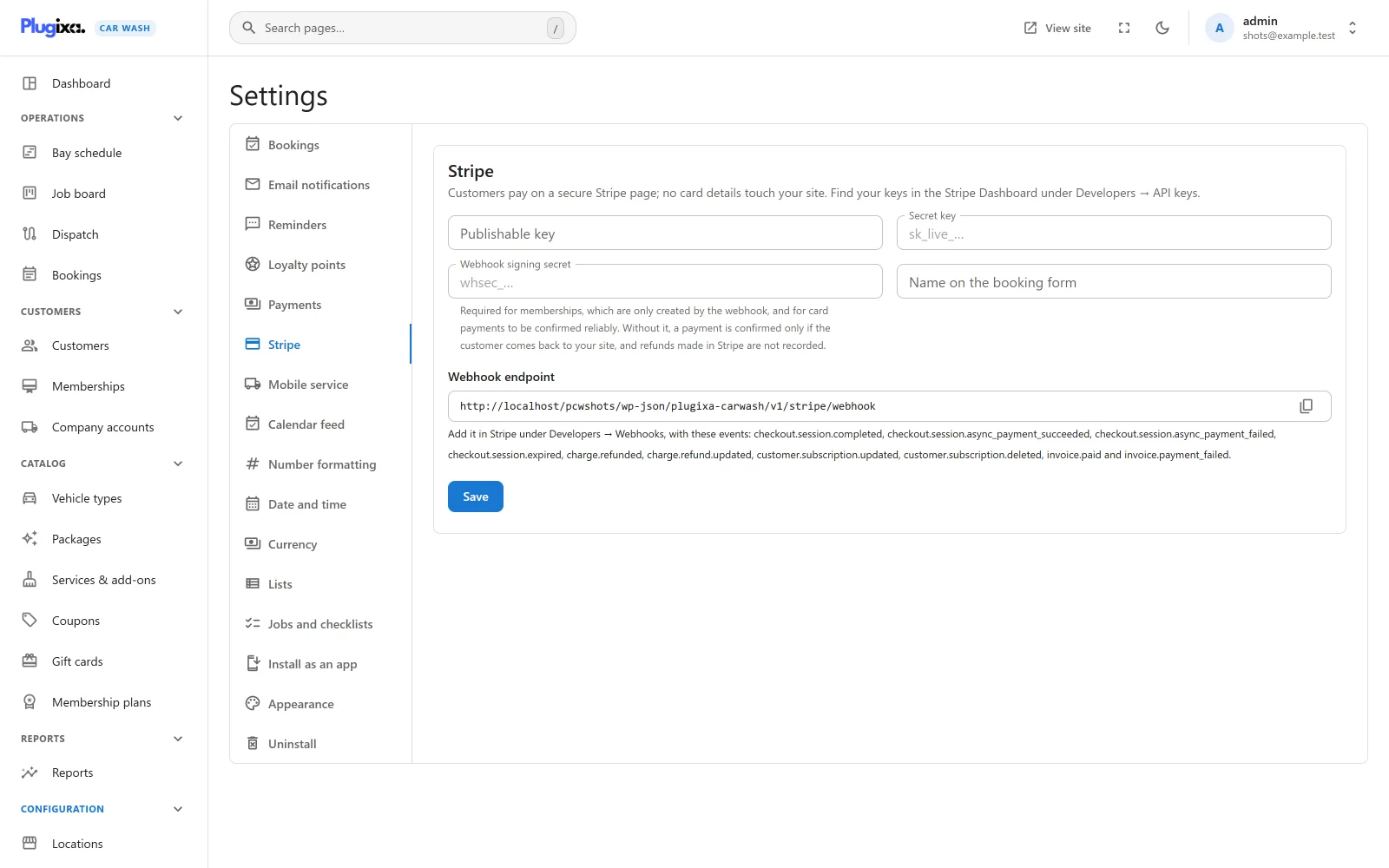
| Field | What to enter |
|---|---|
| Publishable key | Your pk_test_... or pk_live_... key. Optional: the payment page is Stripe’s own, so the plugin only stores it. Anything else is refused with “The publishable key starts with pk_test_ or pk_live_.” |
| Secret key | Your sk_test_... or sk_live_... key, or a restricted rk_... key. Required: Stripe is not offered until one is saved. |
| Webhook signing secret | The whsec_... secret of your webhook endpoint (step 2). Recommended. |
| Name on the booking form | What customers see as the method’s name. Empty shows Pay online by card. Up to 80 characters. |
Find the keys in the Stripe Dashboard under Developers -> API keys. Press Save.
The secret key and the signing secret are stored encrypted and are never sent back to the browser. Once one is saved, its field shows a “Saved” placeholder instead of the value. Leaving the field empty and saving keeps the stored value. To replace a secret, type the new one and save.
2 - Add the webhook
The card shows a Webhook endpoint with a copy button. It has this form:
https://example.com/wp-json/plugixa-carwash/v1/stripe/webhook
- Copy the address from the screen. It is built from your site’s own REST address, so it is right on a site with plain permalinks too.
- In the Stripe Dashboard, under Developers -> Webhooks, add an endpoint with that address.
- Select the events below.
- Copy the endpoint’s signing secret from Stripe into Webhook signing secret and save.
| Event | What the plugin does |
|---|---|
checkout.session.completed |
Confirms a card payment once Stripe says it is paid. For a membership checkout, creates the membership |
checkout.session.async_payment_succeeded |
Confirms a delayed payment (a bank debit, for example) once the money arrives |
checkout.session.async_payment_failed |
Cancels the booking if it is still held, when a delayed payment bounces |
checkout.session.expired |
Cancels the booking if it is still held, which frees its slot |
charge.refunded |
Records each refund made in the Stripe Dashboard on the booking it paid for |
charge.refund.updated |
Records a refund that was pending when it was made, once it goes through |
invoice.paid |
Moves a Stripe membership on to its new paid period |
invoice.payment_failed |
Marks a Stripe membership Payment failed |
customer.subscription.updated |
Follows a membership being set to end, or changing its mind |
customer.subscription.deleted |
Ends a Stripe membership |
The hint on the card lists all ten: “Add it in Stripe under Developers -> Webhooks, with these events: checkout.session.completed, checkout.session.async_payment_succeeded, checkout.session.async_payment_failed, checkout.session.expired, charge.refunded, charge.refund.updated, customer.subscription.updated, customer.subscription.deleted, invoice.paid and invoice.payment_failed.” Subscribe to all of them. Refunds, and a membership’s renewals, failed payments and cancellations, only ever reach the site by webhook.
3 - Switch it on
Saving the keys does not offer Stripe yet. Open Settings -> Payments and switch on the Stripe method (it shows your Name on the booking form, and is marked as paid online before the booking is confirmed). See Payments.
Test mode and live mode
There is no separate test switch. The mode follows the secret key:
- A key with
_live_in it takes real money. The card shows a green Live badge. - Any other saved key works against Stripe’s test data. The card shows an amber Test mode badge.
Start with your test keys and a test endpoint, place a booking through the booking form, and pay with one of Stripe’s test cards. Then replace the keys with the live ones, and add a live endpoint: test and live endpoints have different signing secrets.
What the customer sees
- On the payment step, Stripe appears as Pay online by card (or your own name) with the line “Card, Apple Pay or Google Pay, on a secure Stripe page.”
- On confirming, the booking is saved first, in the hold status, and the customer is sent to Stripe Checkout.
- Checkout shows one line, named after the first item booked and the date and time, with the booking number under it, for the amount still due. The customer’s email address is filled in.
- After paying, Stripe sends the customer back to the page they booked on. The page shows Confirming your payment… and checks again every few seconds, then shows the confirmed booking.
If the customer presses Stripe’s back link instead, they return to the booking page, the booking is cancelled at once and its slot is freed. The page shows Booking cancelled.
If the payment cannot be started (a wrong key, Stripe unreachable), no checkout opens. The booking is already saved, in hold, and the confirmation shows the reason, for example “We could not reach the payment provider. Please try again in a moment.” Unless it is paid some other way, the hold is cancelled when its time runs out.
When a booking is confirmed
A booking paid by Stripe is created in hold. A hold keeps the slot taken for Time to pay online in Settings -> Payments: 30 minutes by default, between 30 and 240.
The hold becomes Confirmed only when the booking is fully paid. The payment is confirmed in two independent ways, and either one is enough:
| Route | What happens |
|---|---|
| The customer’s return | The site asks Stripe for the Checkout session the customer came back with, and records the payment if Stripe says it is paid and the session belongs to this booking |
| The webhook | Stripe posts checkout.session.completed (or checkout.session.async_payment_succeeded), the signature is checked, and the payment is recorded if the session is paid |
Both normally arrive, and the payment is still recorded once. A session id from another booking pasted onto the return address does not mark this one paid.
A hold that nobody pays is cancelled when its time runs out, by a background
task, or straight away when Stripe reports checkout.session.expired. The
booking’s history then says “Payment was not completed in time” or “Online
payment was not completed”.
Without a signing secret
The webhook refuses every event while Webhook signing secret is empty, and any event with a wrong signature or one signed more than five minutes ago. A refused event is answered 400, so Stripe tries again later.
Booking payments still confirm when the customer returns to your site. A customer who pays and closes the tab before being sent back leaves a hold that is paid at Stripe and cancelled on your site when its time runs out. Memberships joined online are never created at all, and refunds made in Stripe are not recorded on the booking. Set the signing secret.
Only the amount still due is charged
Checkout asks for what is still owed, not the booking total. A gift card that covers part of the booking is recorded first, and Stripe charges the rest; the hold is confirmed once both add up to the total. A booking with nothing left to pay (a gift card or a membership covers it all) is never held and never goes to Checkout.
Late payments
A payment that lands after its booking was cancelled (a customer who left the Stripe page open past the hold) is still recorded on that booking, so no money goes missing. Refund it, or move the booking back yourself.
Refunds
The plugin does not send refunds to Stripe. Refund a Stripe payment in the Stripe Dashboard, in full or in part.
With the webhook set up and the charge.refunded and charge.refund.updated
events selected, each refund that goes through is recorded on the booking by
itself: a negative Stripe row with the note “Refunded in Stripe” and
Stripe’s refund id, and the booking’s payment status follows. Stripe sends the
same refund more than once; it is recorded once. A refund that is still pending
in Stripe is recorded when it succeeds. A refund of something that was not a
booking payment, a membership invoice for example, is left alone.
Do not record the same refund by hand as well: a refund made in Stripe and recorded on the Payment card is counted twice, up to what was paid. Without the webhook, record it by hand with Record refund. See Payments.
Cancelling a booking does not refund its Stripe payment either. It does give back what a gift card paid, and the membership wash it used.
Memberships and the Billing Portal
Customers join a membership plan online through a Stripe subscription, and manage it on Stripe’s Billing Portal (update their card, see invoices, cancel). Both need only the secret key and the webhook; Stripe does not need to be switched on under Settings -> Payments for this.
The plugin does not use your account’s default portal settings. The first time a member opens Manage billing, it creates its own portal configuration in Stripe, once per mode (test and live), and reuses it afterwards. That configuration:
- shows your site name as its headline,
- lets the member update their payment method and see their invoices,
- always lets the member cancel, at the end of the paid period.
If that configuration was deleted in Stripe, or the keys now belong to another account, a new one is made. If none can be made, the account’s default portal opens instead. See Memberships.
Amounts and currencies
- The currency is the booking’s own, set under Settings -> Currency. Your Stripe account must accept it.
- Amounts are sent in the currency’s smallest unit: multiplied by 100, except for these zero-decimal currencies, sent as whole numbers: BIF, CLP, DJF, GNF, JPY, KMF, KRW, MGA, PYG, RWF, UGX, VND, VUV, XAF, XOF, XPF.
What is sent to Stripe
The plugin talks to https://api.stripe.com from your server, with no Stripe
script on your pages and no Stripe library. It calls Stripe only when a customer
starts or returns from a payment, joins a membership or opens Manage billing,
and when staff cancel a Stripe membership.
| For a booking payment | |
|---|---|
| Amount and currency | What is still due |
| Line name | The first item booked, with the date and time |
| Booking number and id | As the line’s description, the client reference and metadata |
| Customer email | To fill in the Checkout page |
| Return and cancel addresses | The page the booking was made on |
For a membership, the plan’s name, price and billing period, the customer’s email, and the customer and plan ids as metadata.
No name, phone number, licence plate or address is sent by the plugin. What the customer types on Stripe’s page goes to Stripe directly. See Privacy and uninstall.
If Pro is removed
The keys stay in the database, encrypted, and work again when Pro is reinstalled. Stripe is no longer offered, the webhook address stops answering, and Stripe payments already recorded stay on their bookings. See Free vs Pro.